 Credit

You zoom into a photo you love… and it turns into mashed pixels.
You try to print it. The print comes back soft, fuzzy, kind of sad.
That’s usually the moment people land in Google and type “best AI upscaler” or “upscale image to 4K free” and hope some magic tool will save the day.
Good news: that magic actually exists now.
Less good news: there are way too many tools, half-baked “Top 5” lists, and a lot of hype.
I’ve been working with images, AI tools, and marketing content for 10+ years. I’ve tested classic image upscaling software, Photoshop tricks, and a pile of AI upscalers, both free and paid. In this guide, I’m going to break down:
- What makes the best AI upscaler in 2025 (and what is just buzz)
- How to upscale a photo to 4K (and even 8K) without turning it into a plastic mess
- Real-world tests, use cases, and mistakes to avoid
- Why I treat Pixelfox AI as my default pick when someone asks for the best free AI image upscaler
And yes, we’ll talk about ai 4K upscaling, ai face upscaler, ai art upscaler, and all the other fun stuff like 4K AI images 🖼️
Why AI upscaling matters way more in 2025 than it did in 2020
4K used to be a flex. Now it’s the baseline.
- 4K and even 8K TVs are common.
- Phones shoot 4K video by default.
- Social platforms quietly keep raising quality expectations.
According to Statista, people upload billions of images and videos every day. Nielsen Norman Group has shown for years that sharper visuals directly boost trust and engagement. So if your content looks soft next to someone else’s razor-sharp 4K AI images, you lose.
That’s why AI upscaling software became a thing. You take an old or small image. You run it through an AI image upscaler 4K model. It adds pixels, reconstructs lost detail, cleans noise, and gives you a bigger, sharper image.
This is not the old “Bicubic smoother” trick in Photoshop.
This is a machine learning system that learned patterns from millions of photos.
So when we talk about the best image upscaler or best photo upscaler, we’re really asking:
“Which tool makes my stuff look amazing on a 4K screen or a big print…
without looking fake or costing a kidney?”
What does an AI upscaler actually do? (Plain-English version)
Let’s keep this simple.
Traditional upscaling:
- The software just stretches pixels.
- It guesses new pixels by blending neighbors.
- Result: bigger image, but often blurrier.
AI upscaling (AI upres):
- A neural network looks at small patterns in your image.
- It predicts what missing detail should look like.
- It adds texture, sharp edges, clear faces, and sometimes tiny details you didn’t even know you wanted.
So when you upscale image to 4K with proper ai 4K upscaling, you’re not only getting more pixels. You’re getting better pixels.
A good ai image upscale software should:
- Handle faces well (no weird eyes or melted skin) → this is where a good ai face upscaler shines
- Preserve textures like hair, fabric, skin, and text
- Avoid ugly artifacts and halos
- Work fast enough that you don’t age while waiting
And because a lot of people want to enhance photo 4K free, it also needs a usable free tier or trial. That’s where many tools fail.
How we picked the best upscaling software
If you’re going to claim anything is the best AI upscaler, you can’t just eyeball one picture and call it a day.
So here’s the kind of testing that actually matters:
-
Different image types
- Portraits and group photos (for ai face upscaler behavior)
- Landscapes with lots of fine detail
- Product shots and logos
- AI art and anime (for people hunting a creative upscaler or ai art upscaler)
-
Different tasks
- “Rescue this 10-year-old phone photo”
- “Make this tiny product shot print-ready”
- “Upscale a photos to 4k” for YouTube thumbnails and banners
- Prep assets for social ads, e‑commerce, and portfolios
-
Things we judged
- Sharpness vs. natural look (no plastic skin, please)
- Artifact control at 2x, 4x, and 8x
- Speed on normal hardware
- Free vs paid limits
- Web interface vs full photo upscaling software for desktop
We also leaned on real conversation from communities on Reddit, X, and creative forums. Over and over, people complain about the same things:
subscription fatigue, slow tools, and “AI made my subject look like a wax figure.”
That’s exactly why Pixelfox AI stands out: it hits quality, speed, and “I can actually afford this” at the same time.
Top 10 best AI upscalers in 2025 (tested & ranked)
Let’s talk tools. I’ll start with the one I reach for most.
1. Pixelfox AI Image Upscaler – best free AI image upscaler for most people
If someone asks me “What’s the best AI image upscaler I can use right now without installing anything?”, I send them to Pixelfox.
Pixelfox AI Image Upscaler runs in your browser. You drop a JPG/PNG/HEIC in. You pick scale (up to 4x). The AI cleans noise, sharpens detail, fixes blur, and boosts colors.
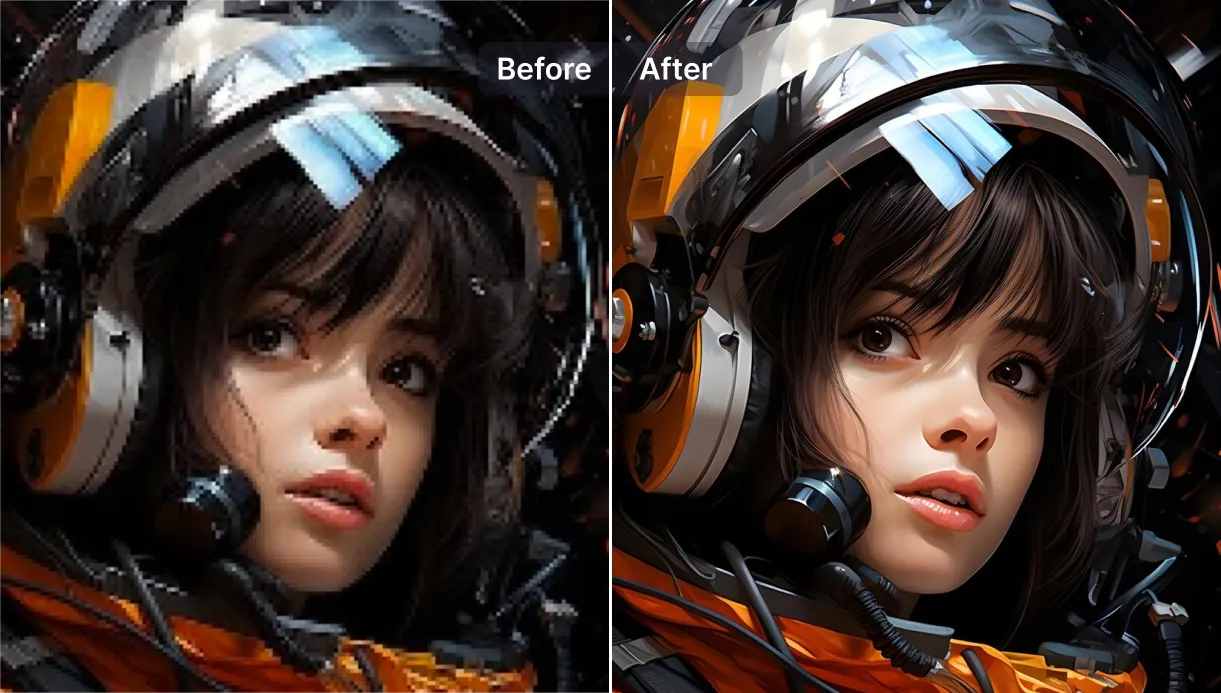
It’s not just a “make it bigger” button. Under the hood you get:
- AI-powered 4x upscaling – upscale image to 4K from a small file while keeping edges clean
- Noise reduction – especially helpful for old or low-light phone shots
- Image deblurring – motion blur and slight focus issues get corrected
- Automatic color enhancement – dull photos get real contrast and pop
The nice part is how simple it feels. You don’t need to know anything about GANs or CNNs. You just upload and go.
And because Pixelfox also offers:
- Pixelfox AI Video Upscaler for SD → HD / 4K / 8K video
- Pixelfox AI Frame Interpolation for smoother 60FPS motion
- Pixelfox Free AI Image Generator for text‑to‑image art
- Pixelfox AI Style Transfer for changing art styles
…it becomes more than just image upscaling software. It’s a small AI studio in your browser.
Best for:
- Creators who want a best free image upscaler that feels pro
- People who need to enhance photo 4K free for print, web, or social
- Anyone who wants a creative upscaler workflow (generate → upscale → add style)
Strengths:
- Web-based, no install
- Clean UI, very low learning curve
- Strong face handling (great as a “soft” ai face upscaler)
- Good balance between detail and natural look
Weaknesses:
- 4x upscale is usually enough, but some niche users may want 6x–8x still images
- Needs a stable connection (like any online tool)
2. Topaz Gigapixel AI – best photo upscaler for desktop power users
Topaz Gigapixel AI is one of the big names. It runs on your computer, uses your GPU, and gives you fine control.
Best for:
- Photographers who live in Lightroom/Photoshop
- Heavy batch jobs and massive print sizes
Strong detail, but it’s paid software. If you just need to enhance photo 4K free, this is overkill.
3. Magnific AI – best creative upscaler for AI art
Magnific is wild for AI art. It doesn’t just upscale. It adds detail in a creative way.
If you’re into Midjourney or Stable Diffusion and you want a creative upscaler that can refine style, this is worth a look.
Downside: subscription and not exactly cheap. Great for ai art upscaler use, less ideal for family photos.
4. Adobe Photoshop (Super Resolution) – best upscaling inside a 4K photo editor
Photoshop has an “Enhance / Super Resolution” mode inside Camera Raw. It’s not as aggressive as some AI tools, but it’s solid and integrated.
Best for:
- People who already pay for Adobe
- Editors who want a built-in 4K photo editor flow
Still, if the question is “best free ai upscaler”, Photoshop is not that.
5. Upscale.media – quick online free upscaling software
Upscale.media is a simple online free upscaling software. You upload, pick a scale, and download.
Pros:
- Very simple
- Free tier
Cons:
- Less control
- Quality is good, but not as refined as Pixelfox or Topaz in my tests
6. Let’s Enhance – image upscaling software for web and print
Let’s Enhance is popular for product photos and e‑commerce. It mixes upscaling with presets for prints, real estate, etc.
Good tool, but again, free tier is limited and plans add up.
7. Waifu2x and anime-focused tools – niche but powerful
For anime and line art, tools inspired by waifu2x still do a good job. They focus on preserving clean lines and flat colors.
If most of your work is anime style, a dedicated ai art upscaler like this can be useful. If you handle mixed content, I’d still lean on Pixelfox.
8. Online “one-click” AI upres tools – the generic pile
There are many smaller sites that claim AI upscaling. Most just wrap open-source models with a UI.
Some are okay. Some are terrible. Often they are not transparent about privacy or data use.
If you care about privacy and stable quality, stick to a known ai upscaling software brand.
9. Mobile apps – when you really need it on your phone
There are apps that upscale and “enhance” photos right on your phone. Nice for quick socials, but:
- Many push aggressive smoothing
- Heavy ads or in‑app purchases
- Limited control
They are fine as emergency tools, not my pick for serious work.
10. Classic upscaling in editors – the “last resort best upscaler” from the past
Old-school resizing in GIMP, Photoshop, or other editors still exists. It’s… fine. It’s not the best upscaler by any modern standard.
You can use it for small adjustments. But once you’ve seen real ai 4K upscaling, you won’t want to go back.
Quick comparison: best AI upscalers at a glance
| Tool | Type | Max Scale / Goal | Best For | Free Tier |
|---|---|---|---|---|
| Pixelfox AI | Online AI image & video | 4x images, up to 8K video | Most creators, 4K AI images, faces | Yes |
| Topaz Gigapixel | Desktop software | 6x+ images | Pro photographers, print | Trial |
| Magnific AI | Online creative upscaler | Detail + style | AI artists, concept art | Limited |
| Photoshop SR | Desktop editor feature | 2x effective | Adobe users, integrated 4K photo editor | No |
| Upscale.media | Online tool | 4x images | Quick free web upscaling | Yes |
This is why I keep coming back to Pixelfox as the best free AI upscaler for normal users. It hits that sweet spot of quality, speed, and “no friction”.
When “best AI upscaler” means different things
The phrase best AI upscaler is not the same for everyone. Depends what you’re doing.
Best free AI image upscaler for beginners
If you’re new and your main question is “How do I enhance photo 4K free without reading a manual?”, you want:
- Simple web interface
- Free plan
- Good default settings
This is exactly what Pixelfox AI Image Upscaler gives. You don’t even need an account to test basic stuff.
Best upscaler for AI art and concept design
AI artists often want a creative upscaler:
- Preserve style
- Add extra details
- Work well with stylized faces and fantasy elements
Magnific and Pixelfox both work here. If you combine Pixelfox Free AI Image Generator with its ai image upscaler 4K, you get a full loop:
Prompt → Generate → Upscale → Style → Publish
Best upscaling software for faces and portraits
Faces are harsh judges. Any ai face upscaler must:
- Keep eyes sharp
- Avoid waxy skin
- Respect skin texture
Pixelfox does this very well in both images and video.
The Pixelfox AI Video Upscaler even has dedicated AI Face Refinement to keep faces clean after ultra HD upscaling.
Best photo upscaler for e‑commerce and brands
Product photos, logos, and social ads need:
- Sharp edges
- Clean text
- No weird halos
Pixelfox’s smart detail preservation and image deblurring are strong here. And since it’s browser-based, your marketing team can use it without installing heavy photo upscaling software on every machine.
Tip
If your main goal is to upscale image to 4K for multiple platforms, work from one master 4K file.
Export smaller versions for web, social, and thumbnails. Don’t upscale separately for each use. That only adds noise.
Real-world case study #1 – From small logo to 4K AI images for a brand
Situation
A small brand had a tiny, old logo file. 400×400 pixels. They wanted:
- A large 4K logo for YouTube intros
- Clean versions for merch and print
They tried upscaling in a normal 4K photo editor. It just made the edges fuzzy. Text looked soft.
What we did
- Ran the logo through Pixelfox AI Image Upscaler at 4x.
- Used the image deblurring and noise reduction to clean edges.
- Exported the 4K result and used it in videos and banners.
Results
- Sharp logo at 4K, no ringing
- No need to redraw the logo from scratch
- Huge time saved for the designer
This is classic “I need photo upscaling software but don’t want to rebuild assets” territory. AI saves the day.
Real-world case study #2 – Rescuing old family photos and videos
Situation
A family wanted to make a slideshow video for a 4K TV. Their assets:
- Old scanned 90s photos
- Grainy SD home videos from old cameras
What we did
- Used Pixelfox AI Image Upscaler to upscale photos to 4K.
- Cleaned blur and noise; boosted colors.
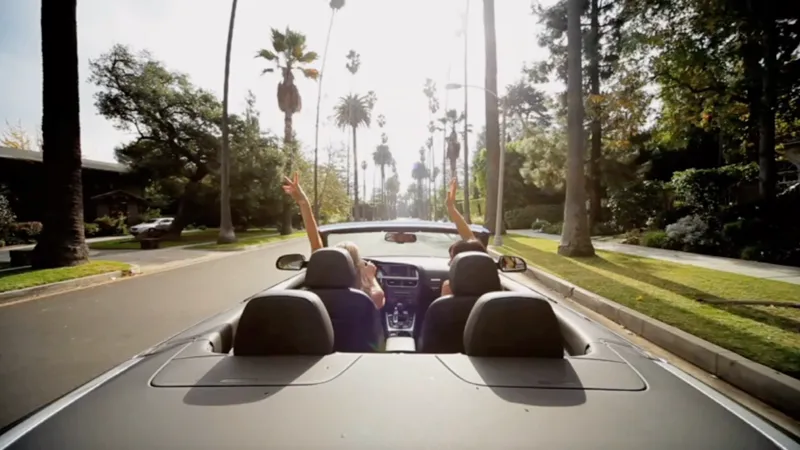
- Ran old videos through Pixelfox AI Video Upscaler to go from SD to HD and 4K.
- For choppy footage, used Pixelfox AI Frame Interpolation to turn it into smooth 60FPS.
Results
- Photos looked like they were shot on modern cameras
- Video looked smooth, faces clear, colors alive
- No editing degree required
This is where “best free AI upscaler” has real emotional value. You’re not just fixing pixels. You’re fixing memories.
How to enhance photo 4K free with Pixelfox (step-by-step)
Let’s get practical. Here is how you upscale image to 4K using Pixelfox in a few clicks.
Step 1 – Upload your image
Go to Pixelfox AI Image Upscaler.
Click “Upload Image” or drag and drop a JPG, PNG, or HEIC file.
Step 2 – Pick your upscale quality
Choose the upscale level. For most photos:
- 2x is enough for web
- 4x works great as a 4K AI images base
Pixelfox’s AI will plan how to add detail without turning the image into a crunchy mess.
Step 3 – Let AI do the work and download
Hit the button. Wait a moment.
You get a preview. If you like it, download the full image.
That’s literally it. You just used ai image upscale software to enhance photo 4K free.
Tip
If your original image is very small (like 300–400px on the long side), don’t jump straight to a giant 8K.
Go to 2x or 4x first. Check the result.
Extreme scaling on a tiny source can still introduce artifacts in any best upscaling software.
Advanced tricks with AI image upscaler 4K (for power users)
You already know how to upscale. Let’s go a bit deeper with some tricks.
Trick 1 – Combine AI generation + upscaling + style
If you create art with AI:
- Generate a base image with Pixelfox Free AI Image Generator.
- Upscale it with the Pixelfox AI Image Upscaler to 4K.
- Add a new look with Pixelfox AI Style Transfer.
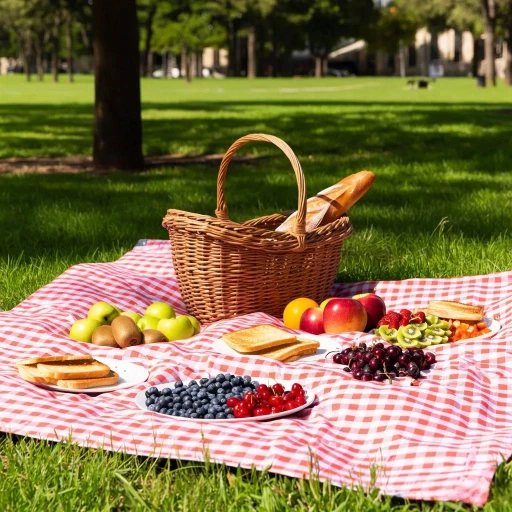
This gives you a full ai art upscaler pipeline with creative control.
Trick 2 – Prepare social media packs from one master
Say you need:
- Website hero image
- YouTube thumbnail
- Instagram post
- A print flyer
You can:
- Use Pixelfox to upscale a photos to 4k as your master.
- Downscale copies for each platform in your editor.
- Keep the 4K master for future campaigns.
This keeps everything sharp. And you don’t run your image through random free upscaling software 10 times.
Common mistakes when using an AI upscaler (and how to avoid them)
Even the best AI upscaler can’t save you from bad choices. Here are the most common mistakes I see.
Mistake 1 – Thinking AI can fix a destroyed original
If your image is:
- Overcompressed to the point of blocky squares
- Cropped to a tiny part of the frame
- Completely out of focus
AI can improve it, but don’t expect miracles. You can improve perception, not rewrite physics.
How to avoid it:
Use the highest-quality original you have.
If you have raw or TIFF, great. If not, grab the largest JPG.
Mistake 2 – Overdoing ai 4K upscaling
Some people see 4x and think “Why not 8x? Or 16x?” Then they wonder why things look weird.
Aggressive scaling can:
- Create fake-looking details
- Make faces look a bit uncanny
- Highlight noise and artifacts
Best practice:
Most workflows don’t need more than 4x. For prints and 4K screens, 2x–4x on a decent source is plenty.
Mistake 3 – Ignoring faces
Faces are where viewers focus. If your ai face upscaler fails, the whole image feels wrong.
How to avoid it:
Always check faces at 100% zoom after upscaling.
If the face looks too smooth, rerun with a slightly lower scale or a different mode.
Pixelfox does well here, but it’s still good to check.
Mistake 4 – Using the wrong tool for the job
You wouldn’t use a tiny mobile app to prepare a billboard.
You shouldn’t use a heavy desktop tool for 10 simple social posts if you don’t need to.
Professional advice:
- Use Pixelfox or similar online tools when you want speed and good quality across devices.
- Use heavy desktop image upscaling software like Topaz when you work with huge raw files and prints every day.
- For mixed workflows, Pixelfox plus your usual editor is a good balance.
AI upscaler vs Photoshop and other traditional tools
You might ask: “Why not just use Photoshop or another classic photo upscaling software?”
Here’s the short version.
AI upscaler wins on:
- Detail reconstruction
- Noise cleaning and deblurring
- Time saved for non‑experts
- Working as a simple ai upres one-click solution
Traditional tools win on:
- Full editing pipeline (layers, masks, retouching)
- Local, offline editing control
- Deep integration with other tools
The sweet spot for many people is:
- Use AI upscaling software like Pixelfox to handle the heavy lifting of 4K / 8K scaling
- Use your editor as a 4K photo editor for final tweaks, text, layouts
You do not have to pick one or the other. You can just let AI do the boring pixel math.
FAQ: best AI upscaler, 4K images, and more
How do I pick the best AI upscaler for my use?
Think about what you do most. If you just need to enhance photo 4K free once in a while, a browser tool like Pixelfox is enough. If you run a studio and process thousands of images, you may want desktop best upscaling software like Topaz plus Pixelfox for quick jobs.
Why does my upscaled image sometimes look unnatural?
This happens when the model adds too much detail or you upscale too aggressively. It can show as over-sharpened edges, weird skin texture, or strange patterns. Try a lower scale (2x instead of 4x) or re-run in a different mode. Good AI tools try to balance sharpness with a natural look.
Can AI upscaling software fix motion blur in photos and videos?
Yes, to a point. Tools like Pixelfox use deep learning to reduce blur and restore edges. You can clean mild motion blur or focus issues, but you can’t fully save an image where the subject is a complete smear.
How can I enhance photo 4K free without losing detail?
Use a trusted best free AI image upscaler like Pixelfox. Upload your highest-quality file, choose 2x–4x, and let the AI handle it. Check faces and fine textures after. If something looks off, try a slightly lower scale.
What is the difference between AI upres and simple resize?
Simple resize just stretches pixels with math. AI upres uses trained models to predict new detail and texture. It’s the difference between “bigger but blurrier” and “bigger and sharper”.
Ready to pick your best AI upscaler?
You don’t need a PhD in machine learning to get this right. You need:
- A clear idea of what you want (4K prints, sharp social content, clean AI art)
- A tool that doesn’t fight you
- A workflow that respects your time and your wallet
For most people in 2025, the best AI upscaler is the one that:
- Works in a browser on any machine
- Handles faces, products, and art without drama
- Lets you enhance photo 4K free or at low cost
- Plays nice with the rest of your tools
That’s exactly why I keep pointing people to Pixelfox AI:
- Pixelfox AI Image Upscaler for 4x still images
- Pixelfox AI Video Upscaler for SD → HD / 4K / 8K
- Frame interpolation and style tools to take your content even further
If you’re tired of blurry prints, soft thumbnails, and washed-out clips, stop guessing.
Upload one image, try the Pixelfox upscaler, and actually see what proper AI 4K upscaling looks like.
Then decide for yourself which one is really your best AI upscaler. 👀✨
Disclaimer: This guide is based on hands-on testing and industry best practices. Always review final results before printing or publishing critical work.