 Credit

Words and images together deliver meaning more quickly than text alone ever could. you have seen it in snappy quote cards, refined brand images, and memes to share. Photoshop 30-minute. If you still spend your time dragging text across Photoshop, nudging up fontsize, and playing with layer styles pixel by pixel, you are not giving yourself expediency or finesse. The heavy lifting can now be done by AI because it creates text-over-image graphics that appear to have taken minutes upon minutes to create by a professional designer.
In this tutorial, you will learn how to create a text-on-picture artifact that looks professional and is created with the help of AI resources and intelligent design practices. No matter what you want to produce: ads, punchy memes, art works or regular social media posts, you will find the relevant tools and speed tips.
How to Create a Text Picture
As a text picture is basically understood, it is an image that combines a photograph with well considered and typographically sensitive text. It can be a single sentence caption in an image-meme or a multiple tier quote on a broad, cinematic background.
Art is far more than an act of setting words on an image. It is about purposeful design that is clear, has an appeal and is evocative.
The use of AI tools has changed the game around. Back in the day, color profiles and layers were the things you had to know how to manipulate to have something that is eye-catching. It is now possible to insert an image, slide a couple of sliders and the AI will propose matching fonts and colors that go harmoniously together. There is no need for formal training- a good eye and a couple of clicks and you will have a pro quality piece.
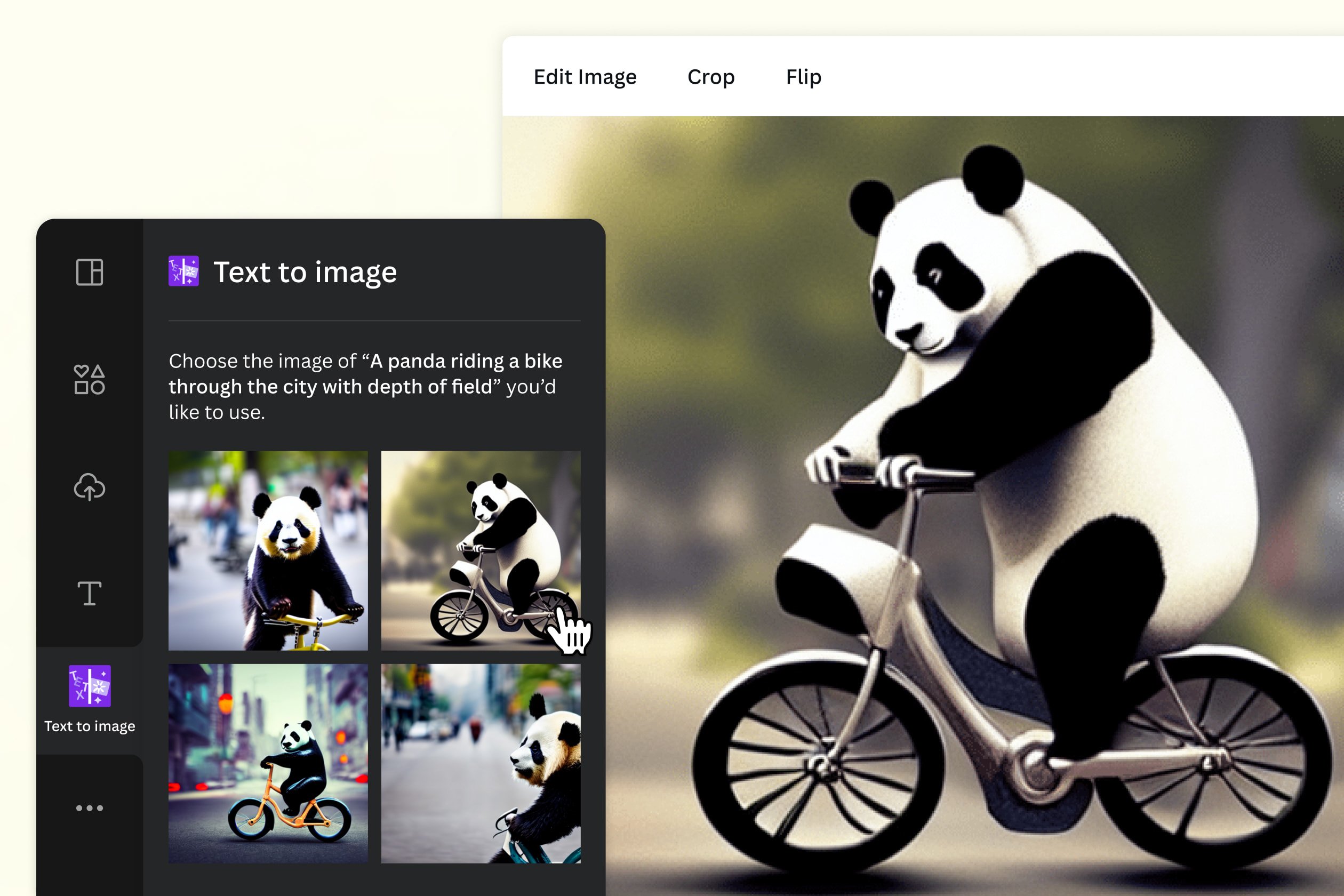
Hunger of AI in textual and graphic combination
We are in the era when algorithms have developed a sense of good design. AI has now become proficient with recommending color schemes, matching typefaces with emotions, and generating stylized text descriptions on top of the image assemblies in a matter of a heartbeat.
Why this integration matters:
Speed: Say goodbye to layer battles that stretch into night.
Precision: Alignment, spacing, and contrast magically sharpen without a slider.
Creativity: AI serves up design ideas you wouldn’t think to ask for.
Take pixelfox.ai: slide an image in, drag a text box, and watch style updates ripple in real time. You can swap fonts, adjust shadow depth, or rotate a word and see how it feels before you hit download.
Picture AI as your design co-pilot: it lifts the repetitive grind, leaving you to craft the message and the artistic soul behind it.
Tools for Creating a Pic with Text
Choices are plentiful and most are either free or delightfully inexpensive.
Font Picture Generator: Upload a typeface you love and it’ll spit out styled text as an image—ideal when the font isn’t installed or when licensing won’t let it out of the app.
Popular options are:
Font Meme: Perfect for turning text into logo-like graphics with unique styling
Cool Text: Features over a hundred font choices, plus badges, drop shadows, and glow options
Go for these when you need a single word or short phrase graphic to drop over other visuals
Font Image Generator Platforms
Want something more punchy? Font image generators morph your words into sharp, clickable visuals. Picture adjusting live, swapping out backgrounds, and downloading in seconds.
Top picks:
FlamingText: A go-to for logotype styles sprinkled with dynamic effects
Glowtxt: Your best friend for smooth, glowing neon letters that pop
These sites let you sprinkle some extra personality. Need a “SALE” badge that crackles with fire? Or a throwback badge for a live gig? Both are built in a flash.
How to Add Text to Image Using AI Tools
This is where it gets fun. Let’s dive into apps that let you lay words over photos with no fuss but all the creative kicks.
Picture Text Creator Apps and AI Software
Some of the easiest go-to’s are:
Canva AI: Knows the best layouts and suggests fonts like a friendly co-designer
Adobe Express with Firefly: Packs studio features and sprinkles in AI magic
Pixelfox.ai: Designed for fast photo-and-text combos, sleek and straight to the point
Each choice plays to a different strength. Canva is friendly for newcomers. Adobe flexes for those with some chops. Pixelfox is all speed and polish, no long tutorials required.
Quick Steps to Add AI Text to Photos
Let’s break it down:
Upload Your Image
Start with a crisp file. Ideally 1080px minimum.
Choose Your Font Style
Select a type that echoes your vibe. Playful? Authoritative? Graceful? The font writes the first chapter.
Adjust Size and Placement
Snap on guides to keep your words neatly lined up.
Apply AI Suggestions (Optional)
Turn on smart hints for colors, shadows, or even short phrases that vibe with your photo.
Download and Share
With these steps, your image turns into a story that stands out.
Best Practices for Creating High-Impact Text Pictures
Anyone can drop a caption on a photo. Making it resonate is the real win. A striking text picture catches the eye, nails the message, and looks polished. Font is only the start. Where you place it, what colors you pick, how the whole thing breathes—these choices carry weight.
Use Color Psychology
Colors pull on feelings. White text glows on a rich, dark image, shouting contemporary and edgy, suited for night photography or art.
Red against a soft neutral pops like a siren, driving urgency—ideal for clearance ads or critical alerts.
Always align the type color with your logo's palette and your audience's vibe, so the message sits seamlessly.
Font Pairing and Style Hierarchy
Choosing two typefaces? Excellent. Choosing five? Counterproductive.
Follow this guideline:
—Select one strong, distinctive type for all headlines.
—Select one clean, unobtrusive type for body and subtext.
This contrast generates visual appeal and naturally leads the eye.
Hierarchy is equally essential. Enlarge critical terms; reduce the scale of subordinate text.
Avoid guesswork—employ grids. Most design platforms, including Canva and Pixelfox, provide alignment aids; leverage them to center type, tighten margins, and achieve equilibrium.
If one column of text appears dominant, counter with a geometric shape or muted logo placed oppositely to achieve visual symmetry.
Value whitespace. Over-cluttering the image produces disorder; allowing false space grants text the necessary room to be legible and inviting.
When all of these principles operate in concert, the relationship between type and image will not merely seem attractive; it will possess a thoughtful, cohesive integrity.
Common Pitfalls in Text-to-Image Design
Excessive Complexity
Multiple typefaces, a profusion of effects, a crowded layout—resist the impulse. Design thrives on restraint. Generous white space around the lettering is not a deficiency; it is a strength. Choose a single type or a deliberate pair and let their quiet strength communicate.
Insufficient Contrast
Light text over a pale backdrop is a vanishing act, and the takeaway vanishes. When legibility falters, the intent falters with it.
Consider this core question:
What single takeaway must a viewer retain?
Does that takeaway stand out immediately?
FAQs
Q1: How can I use a font image generator to best effect?
A: Select your desired font and input the text. Adjust color, size, and any desired effects. Q2: Is it possible to animate text in pictures using AI?
A: Yes. Sophisticated AI platforms like Runway ML, Canva Pro, and Adobe Express with Firefly now permit animated text overlays. You can apply effects that fade, bounce, or trace a custom path—ideal for Instagram stories, YouTube intros, and video thumbnails.
Q3: Which app is best for producing text-centric image quotes?
A: If your primary goal is quote graphics, Pixelfox.ai excels with AI-assisted layout. Canva provides versatile templates, while WordSwag simplifies text-focused design on mobile. Each application offers varying degrees of customization, so choose according to whether you prefer desktop or mobile workflow.
Q4: Do text images benefit SEO?
A: To maximize effectiveness, always pair text images with:
Conclusion: Master How to Create a Text Picture with AI
At this point, you understand how to create a text picture that is polished, purposeful, and engaging. Whether you are leveraging an AI-guided font image generator, an intuitive picture-text creator, or an advanced font-to-image pipeline, your creative options are expansive.
Design is no longer restricted to complicated software.