 Credit

Let's be real for a second. That wrinkled, poorly-lit green fabric you've got tacked to your wall? It’s a pain. Getting the lighting just right is a nightmare, and the post-production keying process can make you want to throw your computer out the window. What if you could get that perfect, professional cutout without any of it? Welcome to the magic of the AI green screen, the digital equivalent of a magic wand for video creators. This isn't some far-off futuristic tech; it's here, it's accessible, and it’s about to become your new best friend.
Forget everything you thought you knew about chroma keying. We're diving deep into how AI is completely revolutionizing background removal, giving you studio-quality results from your messy bedroom. We'll cover the best tools, pro techniques to avoid looking like a cheap cutout, and how you can get started today.
So, What Exactly is an AI Green Screen? (And Why It's a Game-Changer)
Traditionally, "green screening" (or chroma keying) works by telling software to remove a very specific color—usually a bright, obnoxious green or blue—from an image or video. It's a dumb process. If your subject has a hint of green reflection on their skin or clothing? Whoops, now they have a hole in their face. 🤦
An AI green screen throws that entire concept in the trash.
Instead of hunting for a specific color, AI uses a process called "semantic segmentation." It's been trained on millions of images to understand what a "person," a "cat," or a "product" looks like. It identifies the subject in your video and intelligently separates it from whatever is behind it—whether it's a brick wall, a cluttered office, or your laundry pile.
The result? You get a clean, transparent background without ever needing a physical screen. It’s a total paradigm shift.
| Feature | Traditional Green Screen | AI Green Screen |
|---|---|---|
| Setup | Requires a physical screen, specific lighting, and space. | None. Just shoot your video anywhere. |
| Flexibility | Locked into one location. Poor lighting ruins the shot. | Shoot on the go, outdoors, in low light. The AI adapts. |
| Learning Curve | High. Requires knowledge of Keylight, Ultra Key, etc. | Minimal. Often a single click. |
| Edge Quality | Can be perfect with effort, but often struggles with hair/transparency. | Modern AI offers surprisingly clean edges, even on complex hair. |
| Cost | Screens, lights, stands... it adds up. | Many tools are free or have affordable subscriptions. |
Basically, AI handles the tedious technical work, freeing you up to focus on the creative stuff.
The Best AI Green Screen Tools for Flawless Background Removal
The market is flooded with tools claiming to have the "best AI." Spoiler alert: they're not all created equal. Some are one-trick ponies, while others are powerful suites. Here’s a breakdown of the ones that actually deliver.
1. Pixelfox AI: The All-Round Champion for Creators
For most creators, marketers, and entrepreneurs who need speed, quality, and versatility without a degree in visual effects, Pixelfox is the undisputed champ. It’s not just a tool; it's an entire AI-powered creative suite. Its AI Background Generator is the core of its "AI green screen" magic.
You upload your image or video clip, and its AI flawlessly cuts out the subject. But here’s where it gets really cool. You can then instantly:
- Generate a completely new, photorealistic background from a text prompt.
- Place your subject in a pre-designed studio setting.
- Create a clean white background for e-commerce product shots.
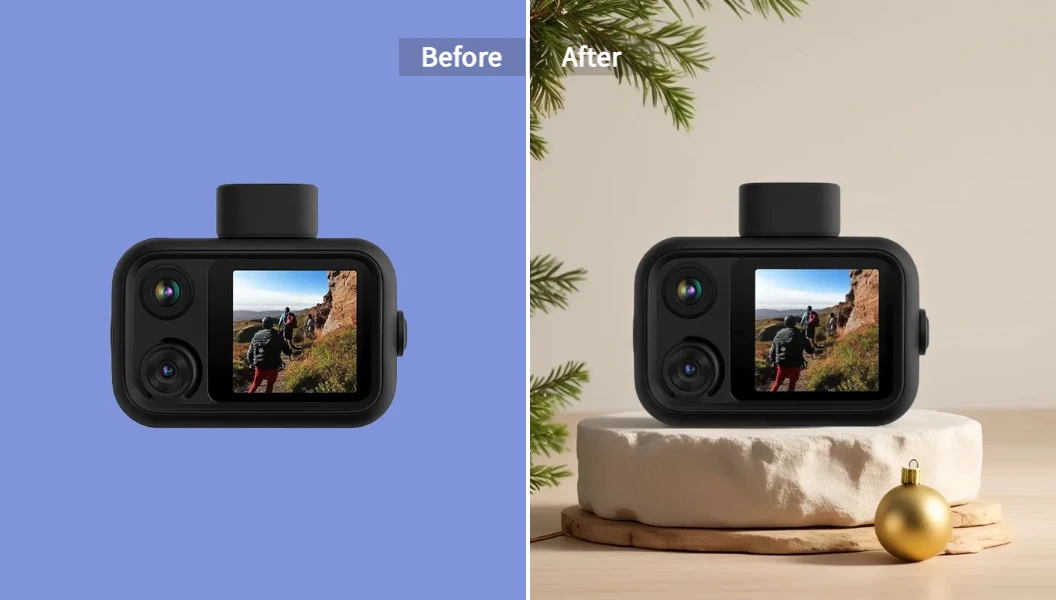
Why it wins: Pixelfox focuses on the final output. It doesn't just remove the background; it helps you create a polished, finished asset. The quality of its edge detection, especially around tricky areas like hair, is miles ahead of most free online tools.
2. Descript: The Podcaster & Editor's Choice
Descript is a fantastic all-in-one video and audio editor that has a solid AI Green Screen effect built-in. If you're already using Descript to edit your podcast or videos by editing the transcript, this is a no-brainer. It’s non-destructive, meaning you can toggle the effect on and off without ruining your original footage. Its main advantage is workflow integration.
3. Unscreen: Quick, Dirty, and Free
Need to turn a video clip into a GIF with a transparent background in 10 seconds? Unscreen is your guy. It’s 100% automatic and browser-based. The trade-off is a lack of control and lower resolution on the free plan. It’s perfect for memes and quick social media reactions, but not for your main YouTube content.
How to Use an AI Green Screen: A 3-Step Walkthrough with Pixelfox
Ready to see how ridiculously easy this is? Let’s walk through creating a professional-looking product shot using Pixelfox's AI Background Generator. No green fabric required.
Step 1: Upload Your Image
Drag and drop your image directly onto the Pixelfox interface. It could be a selfie, a product photo, or a frame from a video. The AI doesn’t care.
Step 2: Let the AI Work Its Magic & Choose Your Background
In seconds, Pixelfox will automatically identify and cut out your subject. Now for the fun part. You can either download the transparent PNG or tell the AI what you want behind your subject. Type in a prompt like "A modern, minimalist office with a large window and a plant" or select a pre-made scene.
✨ Tip: Be descriptive with your prompts! Instead of "office background," try "bright, sunlit creative studio with wooden floors and exposed brick." The more detail you give the AI, the better the result.
Step 3: Generate and Download
Click "Generate," and watch Pixelfox create a stunning, context-aware background that seamlessly blends with your subject, complete with realistic lighting and shadows. Download your high-resolution image and you're done. Seriously, that's it.
Pro Techniques to Master Your AI Cutouts 🚀
Just because it's easy doesn't mean you can't be strategic. A few simple practices can elevate your AI green screen results from "good" to "indistinguishable from a real studio."
Advanced Applications
- E-commerce Dominance: Use an AI product background generator to create an entire catalog of clean, consistent product images on a white or stylized background. This boosts brand consistency and perceived value.
- YouTube Thumbnails that Pop: Quickly cut yourself out of a video still and place yourself against a more dramatic or relevant background. This is a proven strategy for increasing click-through rates.
- Dynamic Social Media Content: Create reaction GIFs, memes, or short-form videos where you "teleport" to different locations. The possibilities for engaging content are endless.
✨ Tip: If your source video is a bit grainy or noisy, it can confuse the AI. Running it through an AI Video Denoiser first can drastically improve the edge quality of your final cutout. Clean input equals clean output.
Common AI Greenscreen Fails & How to Fix Them 🤦
AI is incredible, but it's not foolproof. You've probably seen those AI-cutout videos that just look... off. Here are the most common mistakes and how to avoid them.
-
Mistake 1: The "Jagged Edge" Halo. This often happens with low-resolution footage or busy backgrounds.
- Solution: Shoot in the highest resolution possible. Try to have some visual separation between your subject and the background. A well-lit subject against a plain wall will always key better than a dark subject in a cluttered room.
-
Mistake 2: The "Floating Head" Syndrome. This is when the subject looks pasted on because the lighting doesn't match the new background.
- Solution: This is where a tool like Pixelfox shines. Its AI-generated backgrounds are designed to match the lighting of your subject. If you're compositing manually, add a subtle lens blur to the background to create depth and help sell the effect.
-
Mistake 3: Losing Hair and Fine Details. This is the ultimate test of any keying technology.
- Solution: While no AI is perfect, premium models are significantly better. Free tools often over-simplify edges, leading to that "helmet hair" look. Using a high-quality tool and providing it with a well-lit, high-res source file gives you the best chance of retaining those flyaway hairs.
AI vs. The Old Guard: After Effects & Premiere Pro
So, should VFX artists just pack it in? Is After Effects obsolete? Not exactly.
- Speed & Accessibility: For 95% of creators, AI wins. Hands down. You can get a professional-looking result in seconds, with zero technical knowledge.
- Control & Precision: For that last 5%—high-end VFX for a feature film—traditional tools like After Effects still offer more granular control. An expert VFX artist can manually refine a key pixel by pixel.
- The Verdict: The question is, do you need that level of control for your YouTube video or marketing ad? Almost certainly not. The time saved by using an AI tool like Pixelfox is a massive, undeniable advantage. Why spend hours fighting with keyframes when AI can get you 99% of the way there in 99% less time?
Frequently Asked Questions (FAQ)
1. Can I use an AI green screen on any video? Yes! That's the beauty of it. However, the quality of the result depends on your source footage. A clear, well-lit subject with a simple background will always yield better results than a shaky, blurry video shot in the dark.
2. Is an AI green screen really free? Some tools offer free versions, but they usually come with limitations like watermarks, lower resolution, or processing caps. Pixelfox offers a free trial that lets you experience the full power and quality of its AI Background Generator, so you can see the difference for yourself.
3. What's the difference between "AI green screen" and "background removal"? Honestly, it's mostly semantics. They refer to the same core technology. "AI Green Screen" is the term creators often use when their intent is to replace the background with something else, mimicking the traditional green screen workflow.
4. How do I get a clean cutout around hair? This is the holy grail. The best tips are: 1) Use a high-quality AI tool trained on a massive dataset (like Pixelfox). 2) Ensure there's good lighting and contrast between your hair and the background in your original shot. 3) Avoid complex, patterned backgrounds if possible.
The era of wrestling with green fabric, complicated lighting setups, and finicky chroma key sliders is officially over. AI has democratized professional video effects, putting the power of a VFX studio right into your web browser. It’s faster, more flexible, and lets you focus on what actually matters: creating amazing content.
Ready to stop fumbling with settings and start creating?
Try Pixelfox's AI Background Generator for free and see the magic for yourself. It’s time to ditch the fabric for good.