 Credit

Most of us have been there. You open a photo you love. It looks soft, grainy, or just off. You try to tweak sharpness. You push contrast. You get halos and plastic skin. Not cute. This is where an ai quality enhancer makes life easier. In this guide, I’ll show you why AI beats old-school hacks, how to get true better quality without the weird artifacts, and how to nail 4K upscaling for images and video. I’ll also walk through real case studies and pro workflows you can steal today. And yes, I’ll use Pixelfox AI as our go-to enhance tool, because it’s fast, safe, and it actually fixes the stuff people care about.
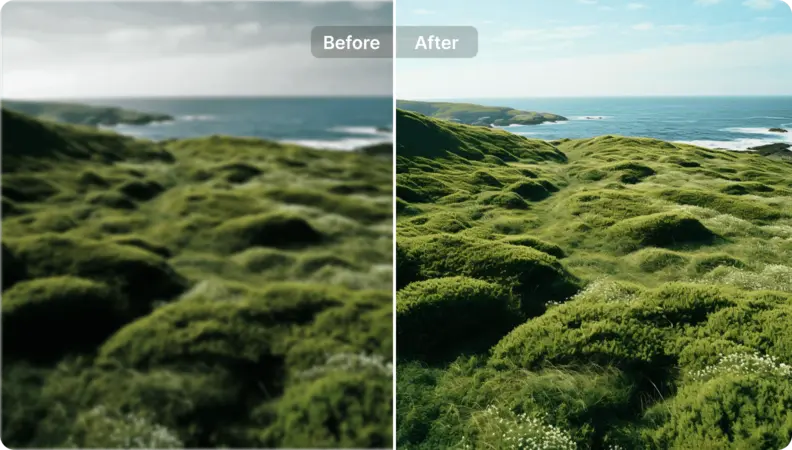
What is an AI Quality Enhancer? (Beginner Breakdown)
An ai quality enhancer is a smart system that looks at your image or video and learns what should be there. It does not just “sharpen.” It predicts missing detail. It balances tone. It smooths noise. It restores texture. It brings back edges and micro-contrast that your phone or camera lost.
Think of it as your resolution enhancer and quality improver in one. It can act as a resolution increaser when you need size. It can act as a quality fixer when you need clarity. Good systems mix models for sharpening, denoising, color correction, and deblurring. Some add face-aware logic so eyes and skin stay real.
- Upscaler AI: grows pixel count with minimal blur.
- AI resolution enhancer: targets edges and fine lines.
- Resolution upscaler: increases size, keeps detail steady.
- 4K upscaler: takes HD or SD and pushes it to 4K with smart reconstruction.
- Color and contrast tools: tune tones without clipping or banding.
Why this matters now? According to Statista’s consumer photo output estimates, global photo creation now tops a trillion shots per year. Most are made on phones, in bad light, and shared across platforms that compress like crazy. So resolution improver tech is not just a “nice to have.” It’s table stakes if you want clean, high quality results on social, in stores, and on screens that are bigger than a hand.
Why Images Fail (And How AI Fixes Them)
Bad light, motion, cheap sensors, heavy compression. You get blur, mush, and color noise. Old tricks blindside you. Unsharp mask blows halos. High contrast nukes skin texture. Manual denoise smears fine detail.
Here’s what a modern ai enhancer does differently:
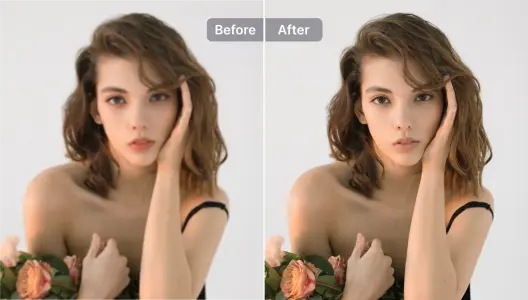
- Removes noise without waxy faces. It learns what texture looks like and what noise looks like. It keeps texture. It drops noise.
- Rebuilds edges and lines. It knows how eyelashes and fabric should look. It boosts sharpness without those edgy halos.
- Fixes color casts and low light. It lifts exposure gently. It balances white point.
- Upscales with context. 4k ai upscaling brings more pixels and keeps truth in the pixels. No fake plastic.
- Protects skin tones. Face-aware models keep pores real.
- Respects source limits. It won’t invent wild details when the source is a blob.
According to Nielsen Norman Group’s UX research, poor image quality hurts trust and conversions. Forrester has long linked visual clarity to purchase behavior. Cleaner images reduce friction. People feel safer. They click more. They buy more. That’s what you want.
Tip #1: If your image is tiny and very noisy, do small moves first. Use a quality fixer pass to clean color and noise. Then run resolution increaser or resolution upscaler. Big jumps from the start can create weird textures.
Step-by-Step: Upscale Without Losing Quality (Works for Photos and Video)
You want bigger size and better quality. You don’t want artifacts. Here’s a simple flow that keeps it safe. It works for family shots, e-commerce, and shorts.
1) Prep your file
- Pick the cleanest source you have. Don’t use screenshots of screenshots.
- Check exposure and white balance. If it’s way off, expect a small loss in fine texture after any fix.
2) Run a smart enhance pass
- Use the AI Image Enhancer from Pixelfox AI for an instant quality improver pass. It sharpens edges, reduces noise, and balances tone in seconds.
- For videos, feed the clip to the AI Video Enhancer to fix grain, low light, and color before any upscale.
3) Upscale with control
- Go 2x or 4x with Pixelfox’s upscaler. Small jumps keep truth in the pixels.
- For SD or old footage, use the AI Video Upscaler. Push it to 4K only if the preview looks clean.
4) Inspect faces and textures
- Zoom in 100–200%. Look at eyes, hair, and fabric. If they look too plastic, dial down strength or pick a more subtle model.
- For portrait video, add a soft pass with the AI Portrait Enhancer to even skin and fix lighting.
5) Export without junk
- Save as high-quality JPG or PNG for photos. Save in 4K-ready MP4 for video.
- Avoid double compression. Don’t re-save the file five times.
Tip #2: Use a URL slug with your target term if you publish a guide or landing page. “/ai-quality-enhancer” or “/4k-upscaler” helps SEO and clarity. Keep it short and readable.
Real-World Case Studies
Case Study #1: E‑commerce Product Photos That Actually Convert
A small DTC brand had blurry product photos from a budget phone. They posted them anyway. CTR and add-to-cart rates were low. They tried manual tweaks in Photoshop. The images looked sharper but also harsh. Skin tones on models went crunchy. Sales did not move.
They switched to Pixelfox’s AI Image Enhancer as their resolution improver and quality upgrader. They ran a quality pass first, then upscaled 2x for web and 4x for print. They kept color natural. They also used the AI Photo Retoucher lightly on facial close-ups to clean acne without that beauty-filter look.
Result: product pages looked crisp. Textures on fabric popped. Faces stayed human. The brand reported higher engagement and a clear lift in click-through to checkout. Forrester’s commerce studies show better product visuals raise conversion. Their numbers matched that story. Cleaner images reduce uncertainty, so shoppers move faster.
Case Study #2: Restoring Old Family Photos Without Plastic Skin
A user wanted to restore scanned 1990s prints. The scans were soft, with dust and color shifts. They tried an aggressive 4x upscale in one go using a generic tool. The result looked smooth and fake.
They pivoted. They used Pixelfox’s AI Image Enhancer for a gentle quality fixer pass. They cleaned contrast and color first. They then upscaled 2x. They checked faces. They kept skin texture. They ran one more small pass as a resolution enhancer for edges.
Result: the restored images kept the original vibe. They looked fresh, not AI-hallucinated. According to Gartner’s 2025 AI adoption commentary, trust in AI outcomes hinges on transparency and restraint. This flow shows how small, smart moves beat big pushes.
Case Study #3: Creator Workflow for 4K Shorts
An influencer shot clips in 720p during travel. The footage was noisy and dark. They wanted 4K for YouTube without crunchy noise. They ran Pixelfox’s AI Video Enhancer to fix low light and color first. Then they used the AI Video Upscaler to reach 4K. For talking segments, they layered the AI Portrait Enhancer to smooth lighting on faces.
Result: sharp video, clean edges, natural skin, no waxy glow. HubSpot’s content data shows higher-quality visuals boost watch time and CTR. Their channel saw both.
Photoshop vs AI: What Changes in Practice
Photoshop and other pro tools are strong. You get total control. You get layers, masks, and RAW workflows. You can fix almost anything if you have time and skills. But manual work takes time. It also swings quality fast if you push too hard.
How AI changes the game:
- Speed: one-click quality fixer beats five manual steps.
- Consistency: batch runs look the same across a set. This matters for catalogs and feeds.
- Skill floor: non‑pros can get pro‑ish results.
- Edge safety: AI avoids typical halo artifacts in many cases.
- Faces: AI can keep pores while cleaning noise. Manual filters often fail here.
Where Photoshop still wins:
- Complex composites and retouching.
- Fine art edits.
- Very specific local changes.
The sweet spot: use AI for the heavy lift. Use Photoshop for finishing if needed. That mix gives you clean, fast, and controlled.
Comparing Online Tools: Which “Best Quality Enhancer” Fits You?
Features change often. Prices do too. Here is a quick snapshot of common options and how they fit typical needs. Use it as a starting point, then check vendor pages for the latest.
| Tool | Best For | Online/Offline | Notable Strengths |
|---|---|---|---|
| Pixelfox AI | Fast image/video quality upgrader for web + creators | Online | Quick 2x–4x upscale, clean denoise, safe privacy (auto delete in ~60 min), batch support |
| Upscayl | Offline free upscaler | Offline | Local runs, good for users who want privacy and control |
| Topaz (Gigapixel/Video AI) | Pro photo/video finishing | Desktop | Detailed sliders, model choices, strong face tools for pros |
| VanceAI | Simple web upscales | Online | Easy interface, wide template options |
| Upscale.media | Quick web tests | Online | Fast trials, easy upload, simple outputs |
That list is not exhaustive. New tools pop up each quarter. If you want speed and clean results with less fiddling, Pixelfox AI is a strong first stop. If you need offline control, Upscayl is a safe bet. If you love dials and deep control, Topaz has depth. Match the tool to your task.
Advanced Tips and Pro Workflows
You want more than “click enhance.” You want production value. Here are plays that help.
Pro Play #1: Prep a White Background Product Shot That Doesn’t Look Fake
- Start with the AI Image Enhancer to clean edges and texture on the product. Keep it subtle so it looks real.
- Upscale 2x if you need higher resolution for a marketplace listing.
- Use your editor of choice to isolate and set a white background. The enhanced edges will hold clean while you cut.
- Finish with light color balance and a small contrast bump.
Result: crisp product, smooth cut, natural light. No fake glow.
Pro Play #2: Build a YouTube Thumbnail From a 720p Frame
- Pull a clean frame from your video.
- Enhance the frame with Pixelfox for a strong quality improver pass.
- Upscale 2x or 4x as a resolution upscaler.
- Add bold text and a simple shape in your editor. Keep faces bright and eyes sharp.
- Export as PNG for clarity.
Result: a clear thumbnail that stands out even on small screens.
Pro Play #3: Make a Clean Transparent Logo From a Low‑Res Raster
- Upscale the logo with Pixelfox’s image upscaling flow so the edges look tight.
- Import into your editor and remove the background.
- Export as a transparent PNG.
- If you can, redraw in vector later.
Result: a usable logo now, and a path to a true vector later.
Pro Play #4: Portrait Video That Looks Good Without Looking Filtered
- Enhance and color-correct your clip with the AI Video Enhancer.
- If the face is uneven or lighting is rough, run a soft pass with the AI Portrait Enhancer.
- Keep it gentle. Avoid the “airbrushed” vibe.
- Export at 4K only if the preview looks natural.
Result: confident on-camera look, with real skin and steady color.
Common Mistakes to Avoid (And What to Do Instead)
Here are the mistakes I see all the time when people try an ai quality enhancer for the first time. Fix these and you will save hours.
1) Big jumps first
- Mistake: you go from 480p to 4K in one pass.
- Fix: go 2x, check, then 4x. Small moves keep texture real.
2) Over-sharpening faces
- Mistake: you crush clarity sliders until skin looks stamped.
- Fix: use face-aware models or add the portrait enhancer gently. Keep pores.
3) Ignoring color balance
- Mistake: you upscale without fixing white balance or cast.
- Fix: do a basic color pass first. It helps the model see edges better.
4) Clipping highlights or shadows
- Mistake: heavy contrast before enhance.
- Fix: keep dynamic range intact. Let AI do the micro-contrast.
5) Double compression
- Mistake: you export and re-save multiple times.
- Fix: export once, at high quality. Don’t beat your file.
6) Using noisy screenshots as source
- Mistake: you upscale chat screenshots and expect miracles.
- Fix: find the original file, or accept small gains only.
7) Going all-in on 4k enhancer for tiny logos
- Mistake: you push a 64px logo to 4K.
- Fix: upscale just enough to clean edges. Redraw in vector later.
8) Not checking privacy
- Mistake: you upload sensitive material to random sites.
- Fix: use tools that delete files quickly. Pixelfox deletes images within ~60 minutes, which is good practice for privacy.
The Stuff Competitors Skip: Artifacts, Fair Limits, and Honest Fixes
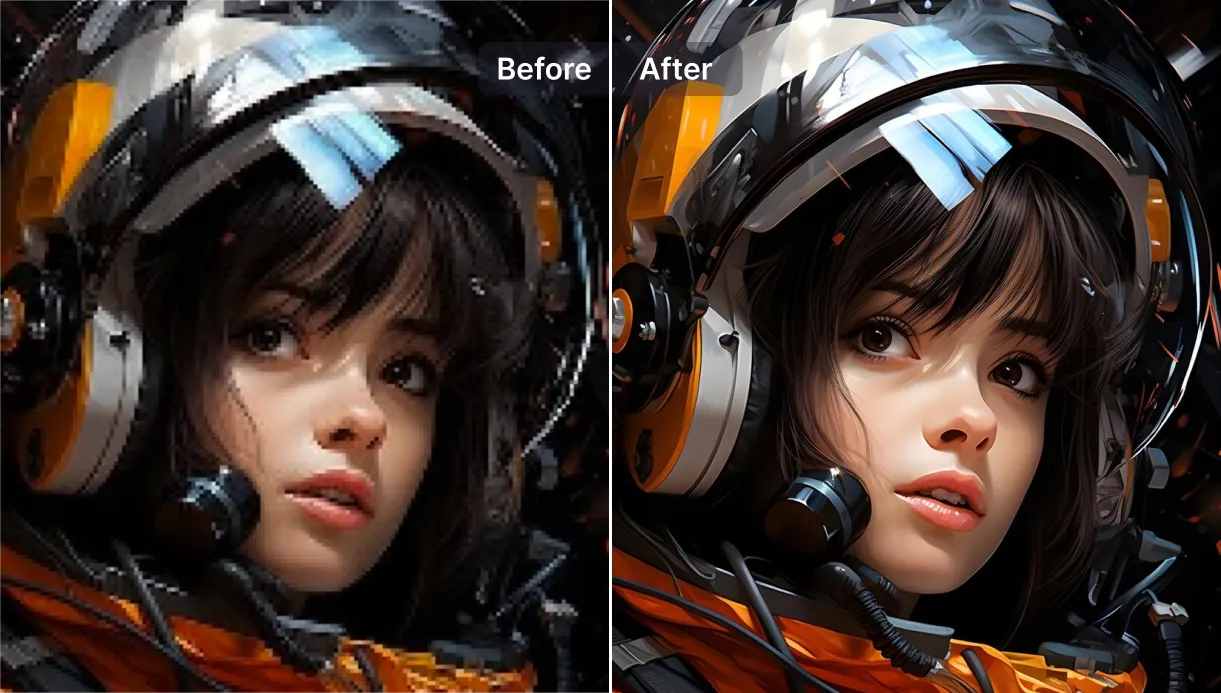
Some pages promise magic. “Go from mush to 8K.” Not great. Aggressive 4k ai upscaling can hallucinate patterns. Sharpness can turn hair into straw. Skin can turn into plastic.
Here’s how to stay honest and get better quality:
- Use model strength in moderation. When in doubt, pick a softer setting.
- Switch models for different content. Faces ≠ landscapes ≠ anime.
- Preview at 100–200% and trust your eyes.
- Choose truth over fake detail. Clean > crunchy.
- Batch process only after you lock a good recipe on two or three test files.
According to Gartner’s AI notes for CX, adoption sticks when outcomes are predictable and explainable. You don’t need the most aggressive enhance tool. You need the most dependable pipeline. That’s what wins.
FAQ: How, Why, Can, Difference
-
How does an ai resolution enhancer differ from a simple sharpen filter?
AI looks at patterns and predicts detail. A sharpen filter just boosts edge contrast. AI can reduce noise, restore micro‑texture, and keep skin natural. Simple sharpen often creates halos and harsh lines. -
Why do artifacts appear after 4k upscaling?
Artifacts show up when the model invents too much detail or the source is too noisy. Big jumps increase the risk. Go in steps and use a model suited to your content. -
Can I turn an SD video into real 4K with upscaler ai?
You can get clean 4K output. You won’t get true 4K detail if the source is very soft. You get better perceived quality, not magic. Use the AI Video Upscaler after a quality pass and check previews. -
Difference between a resolution increaser and a quality improver?
A resolution increaser focuses on pixel count. A quality improver focuses on clarity, noise, and color. You want both. Run quality first, then size. -
How safe is Pixelfox AI for sensitive images?
Pixelfox processes in real time and auto-deletes images within roughly 60 minutes. That helps protect privacy. For highly sensitive work, consider offline tools too. -
Can I upscale anime art without weird textures?
Yes. Many models handle anime lines well. You still want to go in steps, keep line art crisp, and avoid strong denoise that smears ink.
How to Choose the Right Enhance Tool (Quick Quiz)
Pick one option in each line. Your answer suggests a starting tool.
- I prefer speed vs deep control: speed → Pixelfox; deep control → Topaz.
- I need offline privacy vs easy web: offline → Upscayl; web → Pixelfox.
- I care about faces vs textures: faces → portrait-aware models; textures → general upscaler.
- I want video too vs image only: video too → AI Video Enhancer + AI Video Upscaler; image only → AI Image Enhancer.
Simple, Safe Workflow You Can Use Today
- Upload your image to Pixelfox’s AI Image Enhancer.
- Hit enhance. Look at eyes, hair, and edges.
- If you need size, upscale 2x. Preview again.
- Stop when it looks real. Export clean.
- For video, use the AI Video Enhancer first, then 4K with the AI Video Upscaler.
- For portraits, smooth lighting with the AI Portrait Enhancer.
- For beauty close-ups in photos, use the AI Photo Retoucher lightly. Keep pores.
A Note on Trust, Data, and Outcomes
You want reliable improvements. You want privacy. You want a clear path to publish. According to NN/g, consistency builds trust. According to HubSpot, better visuals lift CTR. According to Forrester, good product images lift conversion. According to Gartner, AI should be explainable and useful in real workflows.
Pixelfox follows that logic. It improves files fast. It keeps previews honest. It deletes files quickly to protect you. It gives you just enough control to avoid the plastic look. That’s what a best quality enhancer should do in 2025.
Ready to make your stuff look how you want it to look? Try Pixelfox’s ai quality enhancer now, clean up your photos, and push your clips to 4K with less drama. Run one test and you will see it. Then ship your work. Then smile. ✨