 Credit

A photo morphing app should make a smooth “from A to B” transformation. What it shouldn’t do is turn your face into a melted candle, slap a watermark on it, then ask to “share data with legit vendors” like it’s doing you a favor 😅. This guide is here to fix that: you’ll learn what real morphing is, why most morphing app results look cursed, and how to get clean, shareable image morph results—fast, and with fewer privacy regrets.
Updated: January 2026
Suggested URL: /photo-morphing-app-guide-2026
If you only remember one thing: a good morph is 70% prep (photo choice + alignment) and 30% tool. And yes, the tool matters. A lot. That’s why I lean on Pixelfox AI as the “get it done without drama” option for most people—especially if you’re tired of app-store roulette.
What a photo morphing app actually does (and why it looks cursed)
“Photo morphing” gets used for three different things online, and people mix them up all day:
-
Classic morph animation (warp + dissolve)
Old-school VFX trick: you mark points (eyes, nose, jawline), then the software warps one image while fading into the other. This is how the clean “face turning into another face” GIFs were made before AI ate the world. -
AI face blending / face swap (identity transfer)
You upload 1–2 photos and the model blends identity traits. This is the modern “one-click” vibe. It’s also why results can look unreal if the photos don’t match. -
Style morph / expression morph (same person, different vibe)
Same face, new expression, lighting, or style. This is huge for creators because you can make variants without reshooting.
So when someone searches image morph, they might want a smooth animation. Or they might just want a believable blend for a TikTok post. Or both.
Here’s the kicker: most “bad morphs” are not because you’re dumb. They’re because the app can’t reconcile angle + lighting + expression differences, so it guesses… and the guess looks like a glitch demon 😭.
According to Nielsen Norman Group’s usability research, people don’t study interfaces—they scan and click what looks obvious. That’s why morph apps that hide key controls (alignment, face markers, export settings) feel “easy”… until you export and realize your face slid 40 pixels off your skull.
The real pain points people hit with any morphing app (yep, you too)
Let’s talk about the stuff listicles love to ignore.
Watermarks and paywalls that jump-scare you
Many apps let you “try” the effect, then block export unless you pay. On iOS morph apps, reviews often call out the same pattern: you can upload, but when you click X on the subscription screen, it throws you back to the home page. Translation: “free” is just a trailer.
“It worked before, now it doesn’t”
On Android, the Face Morph listing has reviews saying the app used to morph photo A into photo B, but later versions started morphing each photo into itself (two separate morphs). That’s not a small bug. That’s the whole point of the app… gone.
Privacy: face data is not cat photos
One Face Morph review literally says the app kicked them out for declining data sale. That’s not “quirky.” That’s a red flag 🚩.
Also, FaceApp’s Google Play data safety section shows it may collect a wide set of data types and allows deletion requests (good), but users still complain about limits even after paying. Different problem, same vibe: you lose control.
Bad morphs from basic photo mismatch
Most morph engines hate:
- side profiles vs front-facing photos
- different focal lengths (selfie lens vs zoom lens)
- hard shadows on one face but not the other
- open-mouth smile vs neutral face
The “I need this for content, not for fun” gap
Creators want:
- consistent face across a series
- multiple variants (A/B thumbnails)
- exports that don’t look compressed
- fast iteration
That’s where a tool like Pixelfox AI helps, because you can do clean transforms, fix the eyes, generate talking avatars, and even convert to sketch styles for merch without juggling five sketchy apps.
Best photo morphing app picks for 2026 (deep comparison)
I’m going to be blunt: there is no single “best” tool for every morph. Some are built for smooth animation. Some are built for photoreal AI blends. Some are built for viral templates.
Here’s the short list that actually covers real use cases.
| Tool | Best for | Platform | Output | What to watch |
|---|---|---|---|---|
| Pixelfox AI | Clean AI face transforms + creator workflow | Web | Image + video tools | Great for fast results; use external editor for classic morph animation if you need frames |
| FaceApp | Photoreal edits (aging, hair, makeup), some “morph-ish” effects | iOS/Android | Image | Users report daily/usage limits even on paid plans |
| Reface | Viral face swap + templates | iOS/Android | Video/GIF | More “swap” than true morph; fun, not always subtle |
| Face Morph (Hamsoft) | Simple morph transitions | Android | Image/GIF/video | Privacy concerns in reviews; behavior changed for some users |
| 3Dthis Morph | Old-school warp morphing online | Web | Animation | UI feels retro; needs alignment patience |
| Pic Morph (iOS) | Character/celebrity morph templates | iOS | Video/GIF | Many features sit behind subscription |
| Morph Age | Classic pro morph tool | macOS | Video | Paid desktop tool; more control, slower workflow |
| Morph Studio | Pro AI video generation + style transfer | Web | Video | Not a “morph app” in the classic sense; more for creators/filmmakers |
Now the deeper part—because this is where most competitor articles get lazy.
1) Pixelfox AI (my default pick for 2026 creators) 🤖✨
If your goal is a believable image morph result that looks good on social media, you want three things:
- the face stays consistent
- artifacts stay low
- edits stay fast
That’s why I keep coming back to Pixelfox AI. It’s a web tool, so no install, no “why is this asking for my contacts” moment. You can use it like a creator’s toolkit: swap, fix, animate, stylize.
Most people start here: Pixelfox AI Face Swap. It’s the cleanest way to “blend identities” when you don’t want to fight manual point markers.

And here’s the underrated part: when your morph looks wrong, it’s often because the eyes are half-closed, the lighting is messy, or the face is slightly off. Fixing that before you morph saves you hours. That’s why I also use Open Eyes in Photo as a prep step for “blink” shots that ruin face alignment.
If you want motion, you can take the final morphed image and turn it into a talking/singing clip using AI Avatar from Photo.
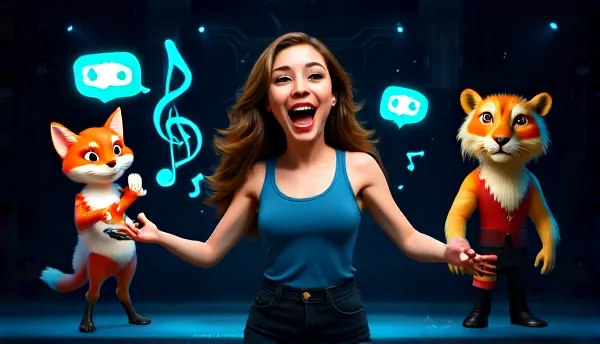
That combo (clean face result + motion) scratches the itch most people mean when they say “morphing app.”
2) FaceApp (still powerful, still… FaceApp)
FaceApp has scale and polish. Their own site says 1B+ downloads, and yeah, it shows in the quality of many filters. If your “morph” goal is aging, hair, makeup, gender swap, it’s strong.
But it’s not a pure “morph A into B” tool. It’s more like “edit face A into version A2.” Also, recent Google Play reviews complain about edit limits even on paid plans. That’s brutal if you’re batch-editing content for a client.
3) Reface (fun, fast, template-driven)
Reface says its products hit 300M+ downloads. It’s built for viral results and quick laughs. If you want to be a movie character for five seconds, it’s great.
But if you want subtle blending (like couple morphs that don’t scream “filter”), template apps can feel loud.
4) Face Morph (Hamsoft) (simple, but read the room)
Face Morph is positioned as easy and fast. It supports face detection, blending, animal morphs, GIF/video output.
But:
- the Google Play listing shows data collection/sharing categories
- reviews mention privacy concerns and behavior changes over time
Use it if you like it, but don’t treat “random morph app” like it’s your bank app. Your face is your face.
5) 3Dthis Morph (classic online warp morphing)
If you want that classic “warp points + morph animation” feeling, 3Dthis is a legit throwback. It’s not fancy, but it’s close to the traditional method.
Downside: you will spend time aligning. If you hate fiddly stuff, you’ll hate this.
6) Morph Age (Mac) and other desktop tools
Desktop tools are the “I want control” option. You can define facial points, manage transitions, and export clean sequences.
Downside: time. Also money. Also the learning curve is not cute.
7) Morph Studio (for pros who want AI video workflows)
Morph Studio is more like a creative suite: video generation, image generation, video style transfer, storyboard workflow. It even mentions models like Veo, Kling, and others.
It’s not what most people mean by “photo morphing app,” but if you’re doing client work and need stylized consistency, it’s worth a look.
How to do an image morph with Pixelfox AI (step-by-step)
This is the workflow I give friends who want results today, not a new hobby.
Step 1: Pick the two photos like you’re being judged (because you are)
Choose two images with:
- similar angle (front-facing beats profile)
- similar lighting (both indoor or both outdoor)
- similar crop (head size roughly the same)
If one image is a wide-angle selfie and the other is a zoomed portrait, the morph will look off. That’s physics, not bad luck.
Tip: Put both photos side by side and check the eye line. If the eyes don’t sit on the same “row,” you’re signing up for weird cheeks and floating eyebrows. Fix the crop first. 😅
Step 2: Fix the “small stuff” that wrecks morphs
Closed eyes, harsh shadows, messy hair covering eyebrows—these are tiny problems that become big AI artifacts.
If someone blinked, run the photo through Open Eyes in Photo before you morph. It’s faster than “hoping the AI figures it out” (it won’t).
Step 3: Create the identity blend with Face Swap
Go to Pixelfox AI Face Swap and upload your images. Generate your blend.
Download the result when it looks right.
Step 4 (optional): Turn the morph into motion
If your goal is content (Reels, TikTok, Shorts), motion helps.
Use AI Avatar from Photo to animate the final image. Now you’ve got a “morph result” that performs better in feeds, without needing true frame-by-frame morphing.
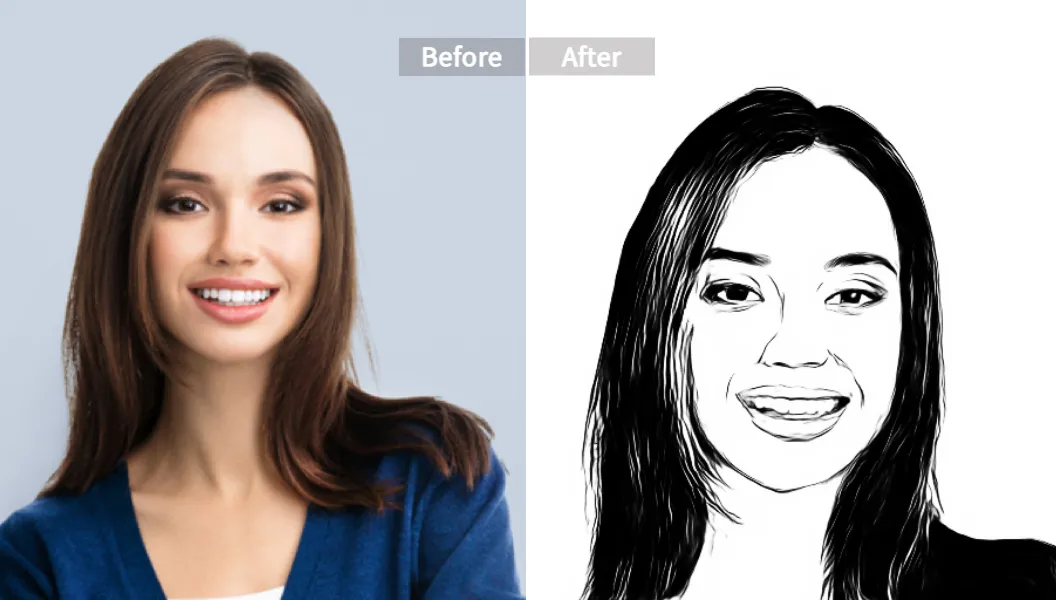
Step 5 (optional): Create a stylized version for thumbnails or merch
A super practical creator move: make a sketch version for thumbnails, stickers, or posters.
Use Image to Sketch Converter and turn the morphed face into a clean illustrated look.
Pro tricks to make a morph look real (not like a bug report)
Match the expression, not just the angle
A neutral face morphing into a big smile often breaks around the mouth and cheeks. Try to match expression intensity.
Kill the background chaos
Busy backgrounds confuse face detection and edge blending. Crop tighter or use clean backgrounds when you can.
Use “bridge frames” when two faces are too different
If person A and person B are wildly different (pose, lighting, age), create a middle step:
- A → A’ (adjusted crop/lighting)
- then A’ → B
This is how pros cheat. It’s legal. 😎
Tip: If you need a smooth transition video, generate 3–5 intermediate blends (light changes, crop fixes, subtle swaps), then stitch them into a short sequence in any video editor. It looks “morphed” even when it’s just smart stepping.
Respect privacy like an adult 🔒
Some apps collect a lot of data types. Some users report being blocked for declining data sale. That’s… a choice.
If privacy matters (and it should), stick with tools that are transparent about what happens to your uploads, and don’t upload faces you don’t have permission to use.
Photoshop vs AI morphing: control vs speed (and sanity)
Photoshop (traditional method)
- Pros: total control, manual warping, clean compositing
- Cons: time sink, skill required, no instant “try 20 versions”
AI tools (Pixelfox AI and similar)
- Pros: fast, low effort, easy iteration, creator-friendly
- Cons: less manual control, can artifact if inputs are messy
My take: if you’re doing VFX for a film shot, go traditional. If you’re making content, testing thumbnails, building memes, or just trying to see “what would our baby look like,” AI wins because you can iterate fast and stay sane.
Online tools vs mobile morphing apps (where Pixelfox AI fits)
Mobile apps are convenient, but they often come with:
- aggressive subscriptions
- ads
- limited exports
- privacy questions
Online tools give you:
- bigger screen (better checking details)
- faster iteration for creators
- easier file handling
That’s why Pixelfox AI fits well in 2026 workflows. It’s not only “a morph.” It’s a small stack: face swap + fix eyes + animate + stylize.
Advanced plays (the fun stuff that makes you look like a pro) (¬‿¬)
Play #1: The “Couple morph” content engine (without re-shooting)
Goal: 10 posts from 2 photos.
Workflow:
1) Create 2–3 clean blends with Pixelfox face swap
2) Turn the best 2 into talking clips with AI Avatar
3) Convert 1 into sketch style for a thumbnail/poster
4) Post as a series: “Version 1 / Version 2 / Sketch cover”
That’s not just fun. That’s a content system.
Play #2: “Same face, different vibe” for thumbnails (A/B testing)
If you’re on YouTube, thumbnails are war. No one is above it.
Make two variants:
- one with a more open, friendly look (fix blink shots with Open Eyes)
- one with a dramatic sketch style (Image to Sketch)
Now you can test which version gets clicks without doing a full reshoot.
Real-world case studies (what worked, what didn’t)
Case study 1: The “weight loss timeline” that stopped looking broken
A client-style scenario I’ve seen a lot: someone wants a smooth “then to now” morph video to show progress.
What goes wrong:
- old photo is low-res with harsh lighting
- new photo is a clean selfie
- morph app outputs a jittery face that shifts around
Fix workflow:
- prep both images so the eyes align and crop matches
- fix blink/eye issues (if any) with Pixelfox
- generate the clean blended still with Pixelfox Face Swap
- use a simple editor to create a smooth fade or stepped transition
Result: the final video looks intentional, not like a haunted slideshow.
Case study 2: A meme page that needed “celebrity blend” posts daily
The problem wasn’t making one blend. It was making many blends fast, with consistent quality.
What worked:
- Pixelfox Face Swap for the base blend
- Pixelfox Sketch conversion for a recognizable “house style”
- AI Avatar clips for occasional “special drops” that get higher watch time
It’s not magic. It’s workflow.
Common mistakes beginners make with a photo morphing app (and fixes)
Mistake 1: Using two photos with totally different head angles
Fix: pick better photos, or crop/rotate until the eye line matches.
Mistake 2: Thinking “AI will fix it”
AI can help, but it can’t invent the right jawline when half the face is in shadow.
Fix: use clear, front-facing shots. Boring photos make better morphs. Painful truth.
Mistake 3: Ignoring the eyes
Closed eyes or blurry eyes destroy realism.
Fix: use Open Eyes in Photo before the morph.
Mistake 4: Getting “free” apps that charge at export
Fix: test export early. Don’t spend 20 minutes perfecting something you can’t download.
Mistake 5: Morphing faces you don’t have permission to use
Fix: get consent. Also don’t be that person. 🙃
FAQ: photo morphing app questions people actually ask
1) How can I get a smoother image morph?
Use two photos with similar angle and lighting, align the crop, and fix blink shots first. Then generate the blend. Smoothness is mostly prep.
2) Why does my morphing app result look weird around the mouth?
Mouth shape changes a lot with expression. If one photo is smiling and the other is neutral, the model will guess the in-between. Pick more similar expressions or create intermediate blends.
3) Can I do a photo morphing app effect without downloading an app?
Yes. Web tools like Pixelfox AI let you create face blends and animated avatar clips in the browser, so you skip installs and a lot of sketchy permissions.
4) What’s the difference between face swap and photo morphing?
Face swap usually replaces identity in a target image. Photo morphing is a transition between two images (often animated). In real life, people use both words to mean “blend two faces.”
5) Are photo morphing apps safe for privacy?
Some are, some are not. Check data safety labels, privacy policies, and reviews. Avoid tools that block you for opting out of data selling. That’s not “normal.”
Ready to stop fighting your morphs?
If you want a photo morphing app experience that’s fast, clean, and creator-friendly, start with Pixelfox AI. Use Face Swap to get the core blend, fix blink shots with Open Eyes, then animate with AI Avatar when you want motion that actually performs on social. Less time tweaking. More time posting. And fewer “why does my face look like that?” moments 😂
Author note / disclosure: I’m a content strategist who tests AI photo and video tools for real-world creator workflows. This guide is educational, not legal advice. Only morph or swap faces you have rights and consent to use.