 Credit

Let's be real for a second. You’ve found the perfect video clip. Maybe it’s a viral TikTok you want to stitch, a Reel you downloaded but forgot to save the original of, or perhaps an old clip of yours that is unfortunately ruined by a giant, cringey "laughing-crying" emoji covering the best part of the frame. It’s annoying, right? It feels like that little yellow circle is mocking you.
You aren't the only one dealing with this. Search volume for how to remove emoji from video has skyrocketed as we all try to repurpose content across platforms. But here’s the kicker: most "guides" out there are just generic lists of tools that leave you with a blurry, ugly smudge that looks worse than the emoji itself.
We’re doing things differently today. No fluff, no "robot-talk." We are going to break down exactly how to get that clean footage back, what is actually possible (and what isn't), and the best tools to use in 2026—including some AI magic that genuinely feels like cheating.
The "CSI Effect": A Reality Check Before We Start
Before we dive into the "how-to," we need to clear up a massive misconception. I call it the "CSI Effect."
A lot of people search how to remove emoji from video thinking they can click a button and magically reveal the face or object underneath the emoji, just like in a crime drama.
Here is the hard truth: If the emoji is "baked in" (meaning the video was exported and saved with the emoji on top), the original pixels underneath are gone. They don't exist in the file anymore.
So, how do tools work? They don't "reveal"; they reconstruct.
Modern AI tools, like Pixelfox AI, use technology called inpainting. The AI looks at the pixels surrounding the emoji—the colors, textures, and movements—and generates new pixels to fill the gap. It’s essentially guessing what should be there. In 2026, this tech is shockingly good. It’s not just blurring; it’s repainting reality frame by frame.
Method 1: The AI Solution (Fastest & Cleanest)
If you value your time and want a result that doesn't look like a blurry mess, AI is the only way to go. Manual editing frame-by-frame is a nightmare that no one has time for.
Why Pixelfox AI is the Game Changer here
We’ve built Pixelfox AI specifically for these high-complexity tasks. Unlike older tools that just smear the colors together, Pixelfox uses deep learning to understand video motion. This is crucial because if the camera is moving, the background behind the emoji needs to move too.
Here is how to use our AI video logo remover (which works perfectly for emojis, as they are essentially just colorful logos) to clean your footage.

Step-by-Step Guide:
- Upload Your Clip: Head over to the Pixelfox online tool. Drag and drop your video file (MP4, MOV, etc.). We support high-quality uploads, so don't worry about compression ruining your footage before you even start.
- Paint the Target: You’ll see a brush tool. Simply paint over the emoji.
- Pro Tip: Don’t make the selection area too tight. Go just a few pixels outside the emoji's edge so the AI has a "reference" area to blend with.
- Let the AI Cook: Hit the process button. The AI analyzes the video flow. It tracks the emoji (even if it’s moving) and patches the background.
- Preview and Download: Check the result. If it looks clean—which it usually does—download it.
This method is the gold standard for remove emoji from video online free trials because it balances speed with professional-grade quality. You don't need to install heavy software, and you don't need a degree in video editing.
Method 2: The "Crop & Zoom" (The Low-Tech Workaround)
Sometimes, the simplest solution is the best. If the emoji is near the edge of the frame, why bother with AI?
If you are repurposing a horizontal YouTube video for a vertical TikTok (or vice versa), you are likely going to crop the video anyway.
- How to do it: Open any video editor (CapCut, Premiere, or even your phone’s gallery app).
- The Move: Zoom in on the video until the emoji is pushed out of the visible frame.
- The Downside: You lose resolution. Zooming in 200% means your video will look pixelated unless it was 4K to start with. Also, if the emoji is right over someone’s face, this method is useless.
Tip: If you crop heavily, use an upscaler. You can combine this technique with an AI enhancer to regain sharpness.
Method 3: The "Cover Up" (Creating New Context)
Can't remove it? Hide it. This is super common in meme culture and reaction videos.
Instead of trying to remove emoji from video, you simply place your own branding, a "Subscribe" button, or a different (less annoying) sticker over the top.
- When to use this: When the background is too complex for AI to guess perfectly (like a crowd of people or intricate machinery), or when you just don't care about the background and want to brand the content.
- The Workflow: Import video -> Add Overlay/Sticker -> Place over the old emoji -> Match duration. Done.
Advanced Technique: Professional Desktop Software (For the Perfectionists)
If you are working on a film project or a high-end commercial and Pixelfox AI gets you 95% of the way there but you need that final 5% perfection, you might turn to desktop tools like Adobe After Effects or DaVinci Resolve.
Content-Aware Fill (After Effects): This is the "big gun" of removal.
- You create a mask around the emoji.
- Set the mask to "Subtract."
- Open the "Content-Aware Fill" panel.
- Generate a fill layer.
The Catch: It is slow. Extremely slow. Depending on your computer, rendering 10 seconds of removal could take 30 minutes. Plus, the learning curve is steep. Unless you are being paid professionally to edit this video, an online AI tool is vastly more efficient.
Comparison: Pixelfox AI vs. The Old Ways
You might be asking, "Why shouldn't I just use that free app I found on the App Store?" Good question. Let's look at the data.
| Feature | Pixelfox AI | Traditional Blur Tools | Desktop Software (AE/DaVinci) |
|---|---|---|---|
| Technology | Generative AI (Reconstructs detail) | Gaussian Blur (Smudges pixels) | Manual Cloning/Tracking |
| Quality | High (Seamless blend) | Low (Obvious "censored" spot) | Very High |
| Speed | Seconds (Cloud processing) | Fast | Slow (Heavy rendering) |
| Ease of Use | 1-Click Brush | Easy | Difficult (Steep learning curve) |
| Cost | Free Trial / Affordable | Usually Free | Expensive Subscriptions |
Traditional blur tools don't actually remove emoji from video; they just make it look like you are censoring something inappropriate. It draws more attention to the spot, not less.
Expert Tips: How to Get Pro Results Every Time
I’ve edited thousands of clips, and I see people make the same mistakes when trying to clean up footage. Here are a couple of "cheat codes" to make your life easier.
Tip #1: The "Split and Stich" Method
Does the emoji appear for the whole video? Probably not. Often, an emoji only pops up for 3 seconds in a 60-second clip.
- Don't process the whole video.
- Split the clip just before the emoji appears and just after it leaves.
- Only run that specific 3-second segment through the AI video logo remover.
- Stitch it back together in your editor. This saves processing time and ensures the rest of your video stays untouched and pristine.
Tip #2: Handle Grain Like a Pro
Sometimes, when you remove an emoji, the area Pixelfox reconstructs looks too smooth compared to the rest of your grainy footage. It looks like a perfect patch on a rough pair of jeans.
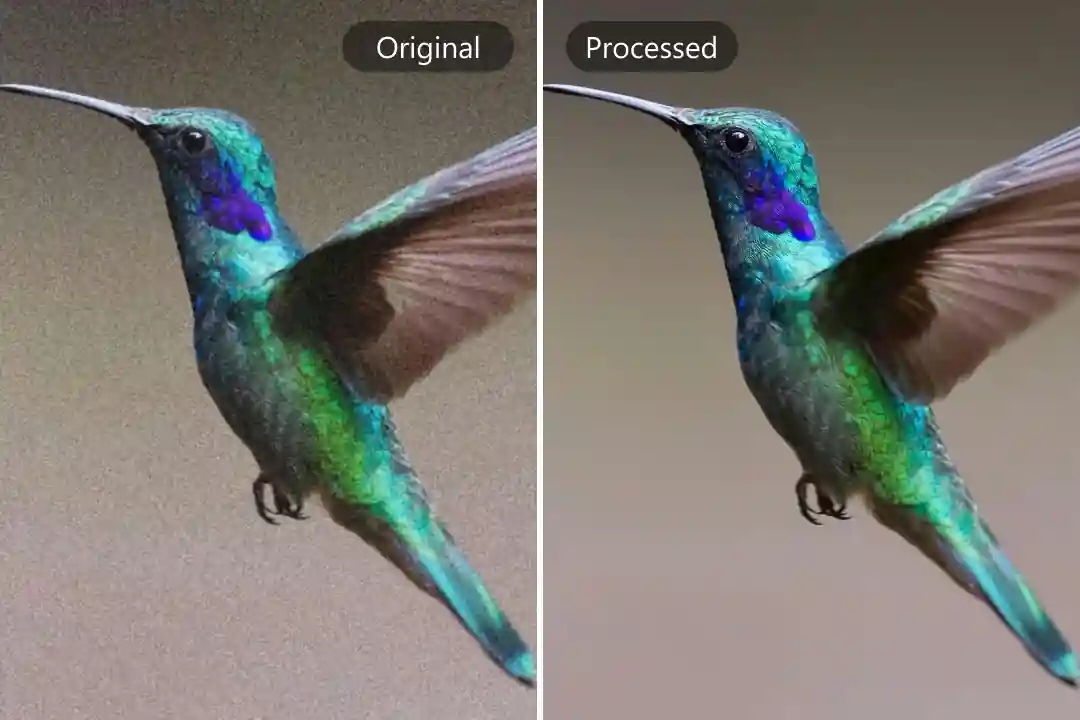
- The Fix: After removing the emoji, run the whole clip through an AI polisher or add a tiny bit of "noise" or grain overlay in your editor to blend the textures together. Alternatively, if your original footage is noisy, use our remove grain in video tool first to clean the base footage, then remove the emoji. This gives the AI a cleaner canvas to work with.
Real-World Case Studies: Who is Actually Doing This?
You'd be surprised who needs this tech. It’s not just kids on TikTok.
Case Study A: The E-Commerce Dropshipper
The Problem: Alex runs a dropshipping store. He found incredible user-generated content (UGC) reviews for his product on Instagram, but the original posters plastered "🔥" emojis all over the product to show hype. It blocked the logo. The Fix: Alex used Pixelfox AI to remove emoji from video. He didn't need to "reveal" what was under it perfectly; he just needed the product to look clean. The AI reconstructed the packaging texture. Result: He repurposed those reviews into Facebook Ads, increasing his Click-Through Rate (CTR) by 40% because the video looked professional, not cluttered.
Case Study B: The Archivist
The Problem: Sarah manages a digital archive for a local news station. Many clips from the 2015-2018 era were saved with "live reaction" stickers burned in from their legacy software. The Fix: Using a desktop tool would take months for hundreds of hours of footage. She used batch processing with online AI tools. Result: Clean, broadcast-ready archival footage without the dated graphical distractions.
Common Mistakes to Avoid (Don't Do This!)
If you are searching for remove emoji from video online free, watch out for these traps.
1. The "Ghosting" Effect
This happens when you don't select the shadow of the emoji. Many emojis have a slight drop shadow. If you only paint over the yellow face but leave the shadow, you’ll get a weird dark smudge left behind.
- Fix: Always paint slightly outside the lines to catch the shadow.
2. Expecting Faces to Return
I cannot stress this enough: If a celebrity has an emoji over their face, removing it will not show you their face. It will generate a generic, AI-guessed face or a blur of skin tones. Do not use this for investigative journalism or trying to "unmask" people. It’s unethical and technically impossible.
3. Ignoring Audio
Some apps that claim to remove emojis effectively re-encode your video poorly, destroying your audio quality. Always check your sound after downloading. Pixelfox AI preserves your audio tracks untouched.
Professional Application: Beyond Just Emojis
Once you master how to remove emoji from video, you unlock a skill set for broader content manipulation. The same AI technology applies to many scenarios.
- Removing Date/Time Stamps: Old camcorder footage often has that ugly orange date in the corner. The removal process is identical.
- Cleaning Up Text: Downloaded a stock video with "Sample Text" floating in the middle? Gone.
- Thumbnail Cleanup: Sometimes you have a great frame for a YouTube thumbnail, but there is a person in the background ruining the shot. You can use our remove object from photo tool for the still image version of this workflow.
FAQ: Questions You Are Probably Thinking About
Q: Can I remove an emoji from a video on iPhone or Android? A: Yes. Since Pixelfox AI is web-based, you don't need a specific app. Just open your mobile browser (Safari or Chrome), navigate to the site, and upload your video directly from your camera roll. It’s often faster than downloading a dedicated app that spams you with ads.
Q: Is it illegal to remove watermarks or emojis from videos? A: This is a grey area. If you are removing an emoji to enjoy a video personally or to clean up your own content that you lost the original for, you are fine. However, if you remove a creator's watermark/emoji to repost their content and claim it as your own, that is copyright infringement. Always credit original creators.
Q: Does removing the emoji reduce video quality? A: With low-quality tools? Yes. They often compress the video heavily. With high-end AI tools like Pixelfox, the export quality matches the input quality. We prioritize keeping your bitrate high so the video remains crisp.
Q: Why does the background look a bit warped where the emoji was? A: This happens if the background has a very complex, moving pattern (like running water or a checkered floor). The AI is "dreaming" up the pixels. In 99% of cases, it's unnoticeable to a casual viewer, but if you pause and squint, you might see small artifacts. This is normal for current technology.
The Verdict
In 2026, you no longer have to tolerate unwanted graphics ruining your shots. The days of putting a black box over an emoji or just accepting a blurry mess are over.
Learning how to remove emoji from video is about choosing the right tool for the job. For 90% of users—creators, marketers, and casual editors—AI inpainting is the only logical choice. It is fast, it preserves quality, and it reconstructs the scene rather than destroying it.
Stop letting a little yellow circle dictate the quality of your content.
Ready to clean up your feed? Don't waste hours in complex software. Try the Pixelfox AI Video Logo Remover right now. It works for emojis, stickers, logos, and stamps. Upload your video, swipe the brush, and get your original vision back in seconds.