 Credit

You nailed it. The perfect shot. The sunset was epic, the moment was genuine, but when you watch it back... it looks like it was filmed during an earthquake. 😫 We've all been there. Shaky footage is the number one killer of great video content, turning a golden memory into a nauseating mess. In fact, user engagement studies often show that viewers will click away from a shaky video in under 10 seconds. Your brilliant content deserves better.
Let's be real, not everyone is walking around with a $1,000 gimbal in their back pocket. That's where video stabilization software comes in, turning your wobbly, handheld chaos into buttery-smooth cinematic gold. But with a million options out there—from freebies to professional-grade behemoths—which one is right for you?
This isn't just another boring list. I'm going to break down the best tools on the market for 2025, from one-click AI magic to the granular controls the pros use. We'll cover what works, what doesn't, and how you can remove shake from video without wanting to throw your computer out the window.
What's Actually Happening When You "Stabilize" a Video?
Ever wonder what the secret sauce is? It's not magic, but it's pretty darn close. Most video image stabilisation software works by doing a few key things:
- Motion Analysis: The software scans your footage frame-by-frame, identifying high-contrast points and tracking their movement. It’s basically mapping out the path of the camera's chaotic dance.
- Creating a "Smooth" Path: It then calculates a new, much smoother path for the camera to follow.
- Cropping and Repositioning: Here's the catch. To make the footage look stable, the software has to slightly zoom in (crop) and then move the frame around to counteract the original shake. Think of it like a digital gimbal—it needs some wiggle room around the edges to work its magic.
The big difference between tools lies in how well they do this. Bad stabilizers create weird warping, crop way too much, or make the video feel robotic. Great ones, especially those powered by AI, preserve details and produce a natural-looking video smoother effect.
The AI Revolution: Why AI Video Stabilization is a Game Changer
Traditional stabilizers are good, but they can be a bit... dumb. They just follow pixels. AI video stabilization, on the other hand, is a whole different beast. It uses machine learning models trained on millions of videos to understand the difference between intentional camera movement (like a pan) and unintentional jitters.
This is where a tool like PixelFox AI Video Enhancer completely changes the game. Instead of just blindly smoothing everything, its AI can:
- Intelligently Preserve Detail: It knows not to smooth out fine textures or important details, which helps
improve video qualityinstead of degrading it. - Handle Complex Motion: Got a video where you're walking, panning, and zooming? Old-school tools would have a meltdown. An
AI video stabilizercan differentiate these movements and only correct the unwanted shake. - Minimize Cropping: Because the AI is smarter about its corrections, it often requires less cropping, saving more of your original shot.
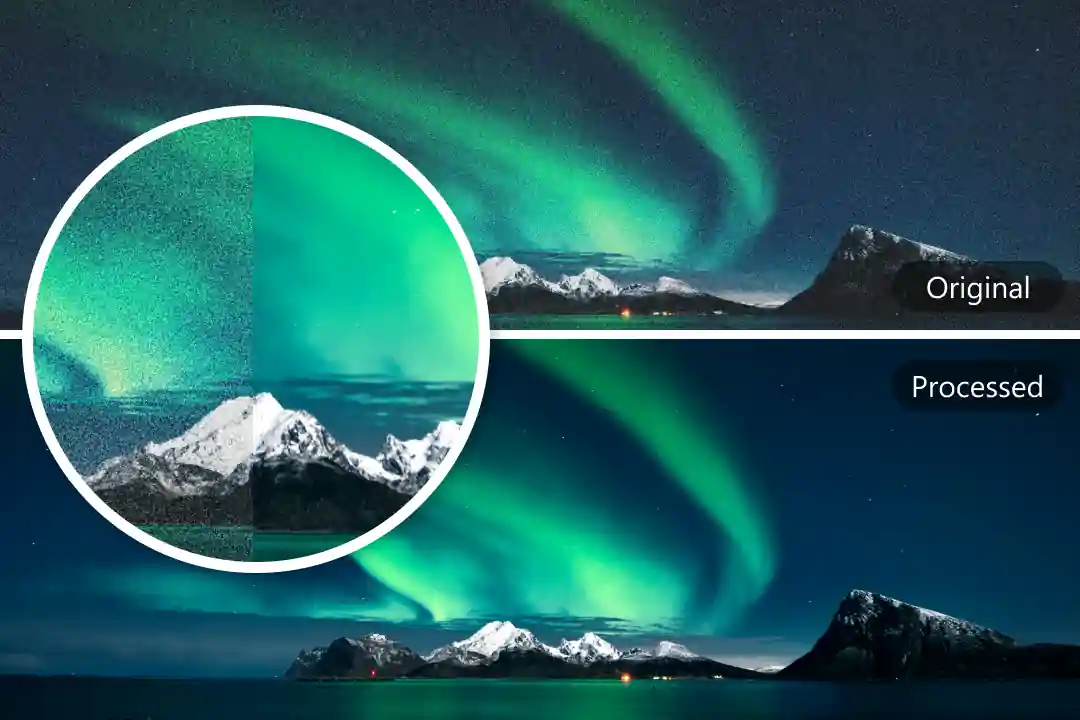
- Denoise and Enhance Simultaneously: Shaky footage is often shot in low light, which means it's also grainy. PixelFox can remove grain from video while it stabilizes, hitting two birds with one stone.
It’s the difference between using a sledgehammer and a scalpel. Both can get the job done, but one is a lot more precise.
How to Stabilize Shaky Video in 3 Clicks with PixelFox AI
Tired of complicated software with a million sliders? Here’s how to stabilise video the easy way.
- Upload Your Clip: Just drag and drop your shaky video file directly onto the PixelFox AI platform. No installation, no fuss.
- Let AI Do the Work: The tool automatically analyzes the footage. Its advanced algorithms detect the unwanted camera shake and calculate the optimal corrections.
- Download Your Smooth Video: In seconds, you'll have a stabilized version ready to download. The result is a professional-looking clip that’s ready for YouTube, TikTok, or your family group chat. It's the ultimate
video stabilizer online freeof complexity.
The Best Video Stabilization Software of 2025 (Tested & Ranked)
Alright, let's dive into the top contenders. I've broken them down by who they're best for, because the best tool for a Hollywood editor is definitely not the best video stabilizer app for a casual TikTok creator.
| Software | Best For | Price | Platform | Key Feature | My Rating |
|---|---|---|---|---|---|
| PixelFox AI | Ease & AI Power | Freemium | Web | One-click AI stabilization & enhancement | 👑 9.8/10 |
| Adobe Premiere Pro | Pro Editors | $22.99/mo | Win/Mac | Warp Stabilizer's deep controls | 9.2/10 |
| DaVinci Resolve | Colorists & Power Users | Free / $295 | Win/Mac/Linux | Integrated pro-level stabilization | 9.0/10 |
| Gyroflow | Drone & Action Cams | Free | Win/Mac/Linux | Uses gyro data for perfect stabilization | 8.8/10 |
| iMovie | Apple Beginners | Free | Mac/iOS | Simple, effective, and built-in | 8.0/10 |
| CapCut | Mobile & Social Media | Free | iOS/Android/Web | The best free video stabilizer app |
8.5/10 |
1. PixelFox AI: The Smartest & Easiest Stabilizer
Look, I'm biased, but for a reason. For 99% of people who just want to fix their shaky video now without a steep learning curve, PixelFox is unbeatable. It’s an online stabilize video tool that feels like magic.
- Pros: Insanely easy to use. The AI is top-notch and does more than just stabilize (it enhances!). No powerful computer needed since it's web-based.
- Cons: As a specialized online tool, it doesn't have a full video editing timeline like Premiere Pro.
- Verdict: If your primary goal is to
stabilize footagequickly and effectively, this is your huckleberry. It's thebest AI video stabilizerfor a reason.
2. Adobe Premiere Pro (Warp Stabilizer): The Industry Behemoth
If you're already in the Adobe ecosystem, the Warp Stabilizer effect is an absolute beast. It’s a powerful video stabilizer program that gives you an absurd amount of control.
- Pros: Incredible control over smoothness, cropping, and stabilization method. Can handle really tough shots.
- Cons: The learning curve is a vertical wall. It can be slow to analyze, and sometimes the "warp" part of the name is a little too literal, creating weird distortions. And, of course, the subscription cost.
- Verdict: For professional video editors who need to tweak every single parameter, this is the gold standard. For everyone else, it’s probably overkill.
3. DaVinci Resolve: The Free Hollywood-Grade Powerhouse
It's mind-blowing that DaVinci Resolve is free. Its stabilization tools are located in the color page and are incredibly powerful, rivaling Premiere Pro.
- Pros: Professional-grade results for free. Three different stabilization modes for different types of shake. Integrates seamlessly with some of the best color grading tools on the planet.
- Cons: Like Premiere, it's complex. The interface can be intimidating for newcomers. It also requires a pretty beefy computer to run smoothly.
- Verdict: If you're willing to invest time in learning, Resolve offers the best
free video image stabilization softwarefor high-end projects.
💡 Tip: In DaVinci Resolve, try the "Camera Lock" option in the stabilizer panel. If you have a shot that's supposed to be completely static (like a fake tripod shot), this feature can work wonders by completely eliminating all motion. It's a lifesaver for interview clips!
4. Gyroflow: The Action Cam & Drone Guru
This is a different kind of video stabilizer freeware. Instead of analyzing pixels, Gyroflow uses the motion data (gyroscopic data) recorded by your camera. Drones, GoPros, and many mirrorless cameras record this data.
- Pros: Astonishingly smooth results because it knows exactly how the camera moved. Almost zero warping artifacts. It’s free and open-source!
- Cons: Your camera must have recorded gyro data. The workflow is a bit more technical, involving syncing the video and data files.
- Verdict: For FPV drone pilots and action sports enthusiasts, Gyroflow is non-negotiable. It's the absolute best tool for that specific niche.
5. iMovie & CapCut: The Mobile & Free Champions
For quick fixes on your phone or basic desktop editing, you can't go wrong with these.
- iMovie (Apple): It’s free, it’s pre-installed, and its stabilization is surprisingly good for a single checkbox. Just click "Stabilize Shaky Video" and adjust a single slider. Done.
- CapCut (Mobile/Desktop): Originally a mobile app, CapCut has become a powerhouse. Its stabilization is one of the best you'll find in a free
video stabilizer app. It's fast, effective, and perfect for social media content.
Advanced Tricks: Go From "Fixed" to "Cinematic"
Just running a stabilizer is great, but let's push it further. Here are a couple of pro-level techniques to elevate your stabilized footage.
1. Create Dreamy Motion with AI Frame Interpolation:
Sometimes, perfectly stable footage can look a little too sterile. A great trick is to stabilize your clip first, and then use an AI tool to boost the frame rate. Using a tool like PixelFox AI Frame Interpolation can turn a standard 30fps clip into a silky-smooth 60fps or even 120fps. This combination of stability and high frame rate creates an incredibly clean, almost dream-like smooth motion effect that's perfect for b-roll and scenic shots.
2. Rescue Faces in Shaky, Low-Res Footage: Got an old, shaky video of a family event? The stabilization might fix the movement, but the faces are still blurry. This is a perfect job for a multi-tool AI approach. First, run the clip through the stabilizer. Then, upload the stabilized clip to an AI Portrait Enhancer for Videos. This specialized AI will focus solely on rebuilding and sharpening facial features, bringing clarity back to your loved ones' faces. It's a powerful one-two punch for video restoration.
Real-World Case Studies: Fixing Real-World Problems
Case Study #1: The Vlogger's Walk-and-Talk
- The Problem: Sarah, a travel vlogger, filmed a walk-and-talk segment in a busy market. The footage was full of jittery steps, making it hard to watch.
- The Solution: She uploaded the 2-minute clip to PixelFox AI. The
AI video stabilizationsmoothed out the jarring steps but intelligently kept the natural sway of her walking, so it didn't look robotic. The AI also subtly brightened the scene and reduced the digital noise from her phone's camera. - The Result: A professional, engaging clip that felt immersive, not amateurish.
Case Study #2: The Drone Pilot's Windy Day
- The Problem: Mark was flying his drone over a coastline, but strong winds caused constant, high-frequency vibrations in the footage, creating a "jello" effect.
- The Solution: Mark's drone recorded gyro data, so he used Gyroflow. He loaded the video and the gyro log, and the software perfectly counteracted the wind vibrations.
- The Result: The footage looked like it was shot on a perfectly calm day from a high-end cinematic drone. All the distracting vibrations were gone.
Common Mistakes to Avoid (Please, Don't Do This!)
- Over-Smoothing (The "Drunk" Look): Cranking the "smoothness" slider to 100% seems like a good idea, but it often makes the video float and drift in a weird, unnatural way. Start with the default setting and only increase it if necessary. Less is often more.
- Ignoring the Crop: Every stabilizer crops your image. If you have important elements right at the edge of your frame, they might get cut off. Always check your stabilized footage to make sure you haven't lost anything crucial.
- Using the Wrong Tool for the Job: Trying to fix intense drone vibrations with a basic mobile app won't work well. Likewise, using a complex tool like Premiere Pro just to fix a 10-second shaky cat video is overkill. Match the tool to the problem.
💡 Tip: Before you stabilize, make a copy of your original clip! Stabilization is a "destructive" process in the sense that it renders a new video file. You always want to have the original, untouched footage to go back to if you need it.
PixelFox AI vs. The Old Guard (Photoshop/Premiere)
So, why use a dedicated AI video stabilization online free tool when massive programs like Premiere Pro exist? It boils down to three things: Speed, Simplicity, and Smarts.
- Speed: Premiere's Warp Stabilizer can take several minutes to analyze a short clip. PixelFox does it in seconds.
- Simplicity: Premiere has dozens of settings. PixelFox has one button. You're trading endless tweaking for a faster, smarter result.
- Smarts: As we discussed, PixelFox's AI is built for one purpose and does it exceptionally well. It can even upscale old videos with AI to improve resolution while it stabilizes, something a traditional NLE can't do in one step.
It's not about one being "better" for everyone. It's about efficiency. If you're an editor working on a feature film, you need Premiere's control. If you're a creator who values their time, PixelFox is the smarter choice.
FAQ: Your Video Stabilization Questions Answered
1. How does AI video stabilization actually work? It uses a neural network that has been trained on thousands of hours of video. The AI learns to identify the patterns of unwanted camera shake (like hand jitter) versus intentional movements (like a deliberate pan). It then selectively smooths out only the unwanted motion, resulting in a more natural and less cropped final video.
2. Can I stabilize a video without losing quality or cropping?
Technically, no. All post-production stabilization requires some cropping to create a buffer for movement. However, the best ai video stabilizer tools like PixelFox AI are designed to minimize this crop as much as possible. To avoid losing perceived quality, always start with the highest resolution footage you can.
3. What is the absolute best free video stabilization software?
For Mac/iPhone users, iMovie is the easiest starting point. For everyone else, DaVinci Resolve is the most powerful free video image stabilization software, but it has a steep learning curve. For a balance of power and ease of use without paying, CapCut is a fantastic choice, especially for social media.
4. Why does my stabilized video look warped or distorted? This often happens with older stabilization algorithms (like Premiere's "Subspace Warp" on complex shots) when they get "confused." The software tries so hard to pin down parts of the image that it ends up bending and distorting the background. Using a more modern AI-based stabilizer usually prevents this "jello" effect.
So, that shaky footage that's been haunting your hard drive? It's not a lost cause. It's an opportunity. With the right video stabilization software, you can rescue those imperfect shots and turn them into something you’re proud to share. The technology, especially AI, has gotten so good that there's no excuse for jittery videos anymore.
Stop letting camera shake ruin your best work. Give your footage the smooth, professional look it deserves. Try PixelFox AI for free and see for yourself how easy it is to transform your wobbly videos into cinematic masterpieces. You'll be amazed at what's possible. ✨