 Credit

Suggested URL: /deep-nostalgia-guide-2025
Ever tried deep nostalgia and felt that tiny “wait… is this wholesome or mildly haunted?” moment? 😅 You’re not alone. People search deep nostalgia because they want to bring photos to life, animate old photos, and finally answer the weirdly emotional question: what would Grandpa look like if he blinked at me again? This guide shows you how Deep Nostalgia works, how to get cleaner (less creepy) results, and the best 2025 alternatives—plus a simple workflow using Pixelfox AI to prep your images so the animation tools don’t butcher faces.
Deep Nostalgia: the tool that made pictures come to life
Deep Nostalgia is the viral MyHeritage feature (launched in 2021) that animates faces in still photos. It didn’t invent artificial intelligence photo animation, but it made it mainstream—Facebook-aunt mainstream. The kind where your family group chat suddenly becomes a museum exhibit. 🫠
Here’s what it’s great at:
- Turning one clear portrait into a short “living” clip (blink, smile, head turns)
- Adding emotion fast, with almost zero learning curve
- Helping family historians and casual users bring pictures to life in seconds
Here’s what it’s not great at:
- Side profiles, tiny faces, heavy blur, deep shadows
- Group photos where the tool guesses wrong (and makes Aunt Linda’s eye wander into another dimension)
- People who hate uncanny valley (which is… a lot of us)
And yes, in 2025, Deep Nostalgia is no longer the only game in town. You’ve got prompt-based tools, “full-body-ish” motion options, and a lot of ai moving pictures apps that look slick… until you upload a real old photo and reality hits.
How Deep Nostalgia AI works (the non-magic version)
MyHeritage has explained that the face animation tech was licensed from D-ID, and the core trick is this: it uses a set of prebuilt motion “drivers” (fixed sequences of gestures) and maps them onto the face in your photo.
So when people ask “is that historically accurate movement?” the honest answer is: it’s plausible motion, not a documentary. Your great-grandma didn’t actually do that exact blink-smile combo in 1932. The model is doing reenactment.
A simple breakdown of the pipeline (aka: artificial intelligence moving images in plain English):
- Face detection finds the face and key points (eyes, mouth, nose).
- Alignment rotates/crops so the face matches the driver format.
- Driver selection picks a movement template that fits best.
- Motion synthesis generates frames that simulate expression changes.
- Output exports a short clip (often ~10–15 seconds depending on tool).
That’s why it can look amazing… and why it can look weird. If the inputs are messy, the model guesses. And AI guesses like a confident intern. 😬
Tip: If your goal is “sweet nostalgia,” pick a driver/motion style that’s subtle. Big grins and dramatic head turns are where deep nostalgia ai results start to feel like a deepfake audition.
The real secret: better input = better animation (Pixelfox AI makes this easy)
Most people blame the animator when results look off. Half the time, the photo is the problem: low contrast, scratches, blown highlights, muddy shadows, or the face is too small.
This is where Pixelfox AI quietly becomes the cheat code. You don’t need a PhD or Photoshop. You just need to prep the image so any ai image animator has a clean face to work with.
1) Colorize black-and-white photos (without making skin neon)
Old portraits are often monochrome and flat. That kills facial detail. Color can separate facial regions and make features clearer for animation.
Use Pixelfox’s color tool here: Photo Colorizer - Colorize Old & B&W Photos | Pixelfox AI
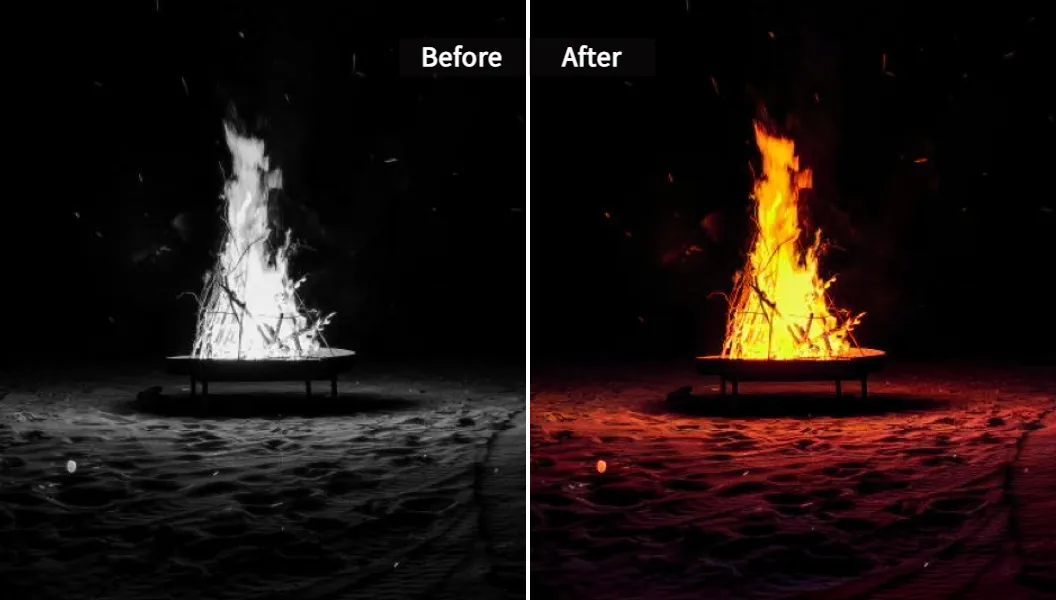
That’s not just for “pretty.” It’s functional. Better separation around eyes and lips helps the animation look less rubbery.
2) Clean up the face with text instructions (yep, just type it)
If the image has dust, scratches, harsh shadows, or busy stuff behind the head, tell the editor what you want in plain English.
Try: AI Image Editing with Text Prompts - AI Photo Editor
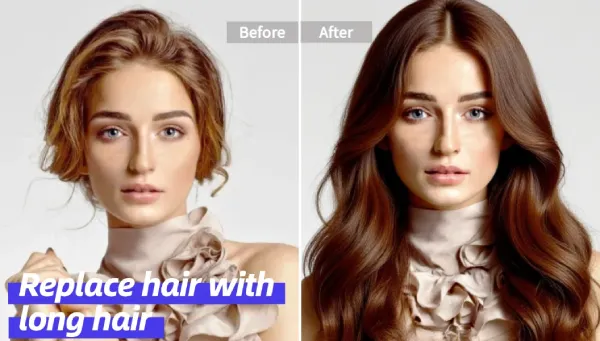
Prompts I use that work way more than they should:
- “Remove scratches, keep facial features natural”
- “Fix blur on eyes, keep skin texture”
- “Reduce harsh shadow on left cheek”
- “Clean background clutter behind head”
This is the boring part that makes the final motion look like “wow” instead of “why is his eyelid melting.” 😭
3) Fix weird compositions (blend a clean backdrop)
Some photos fail animation because the background is too chaotic or the face blends into it. A cleaner backdrop boosts face detection.
Use: AI Image Blender – Combine Images Free | Pixelfox AI
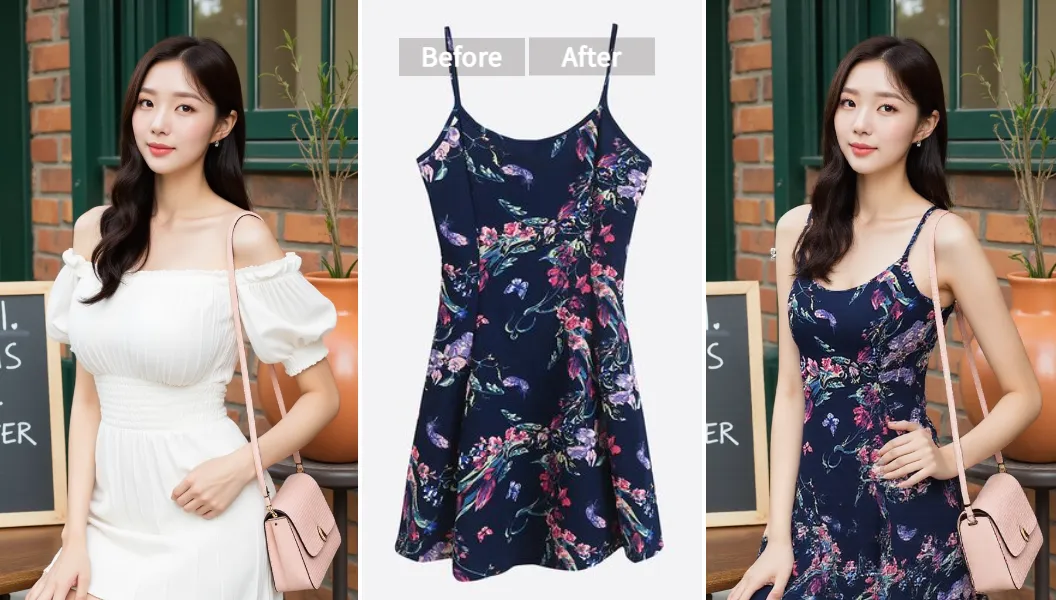
This also unlocks creator stuff: memorial slides, history projects, TikTok “then vs now,” brand storytelling. More on that later.
Tip: Crop so the face takes up at least 20–30% of the image. If you can’t see the pupils clearly when zoomed out, the ai still image animator will struggle. Simple rule. Big payoff. (ง'̀-'́)ง
How to animate old photos with MyHeritage Deep Nostalgia (step-by-step)
If you specifically want MyHeritage deep nostalgia, here’s the clean path:
- Scan or photograph your image
- Use window light, no flash glare.
- Keep the photo flat.
- Prep the image (recommended)
- Colorize and clean it in Pixelfox AI if it’s faded or messy.
- Upload to MyHeritage Deep Nostalgia
- Free signup is usually required.
- MyHeritage may enhance the image automatically before animating.
- Choose / generate the animation
- The system applies one of its driver sequences.
- Download and share
- Check if your output is watermarked or limited by plan.
Privacy note (because adults read this part): MyHeritage has stated that photos uploaded without completing signup are deleted automatically. Still, treat family photos like sensitive data. Don’t upload anything you wouldn’t want leaked. That’s not paranoia, that’s Tuesday on the internet.
How to make moving pictures AI (a workflow that looks human, not cursed)
People search how to make moving pictures ai and expect one button. Reality: one button works for perfect photos. Real old photos need a tiny workflow.
Here’s my practical 10-minute system to make pictures come to life:
Step A — Restore and clarify (Pixelfox AI)
- Colorize if it’s B&W
- Clean scratches/noise
- Make the eyes clear
- Crop tighter
Step B — Animate (choose your tool)
Pick based on what you want:
- Classic “face only” nostalgia vibe → Deep Nostalgia style tools
- More creative motion (camera push, subtle head movement) → newer generators
This is where keywords like ai animate photo, ai make photo move, and ai make picture move all point to the same need: turn one image into believable motion.
Step C — Polish (optional but worth it)
- Add slight film grain (hides tiny AI warps)
- Keep clips short (5–8 seconds loops look better than long stares)
- Don’t overdo mouth movement (that’s where uncanny valley rents a penthouse)
If you’re hunting free options, search intent usually lands on ai animate image online free or ai animate image online. You’ll find tools that do it, but the “free” part often comes with watermarks, low resolution, or strict credits.
Best AI image animator tools (Deep Nostalgia alternatives) in 2025
You came for deep nostalgia, but you might stay for the alternatives. Here’s a practical comparison of popular choices people use as an ai animation generator from image or ai moving image generator.
I’m keeping this honest: “best” depends on your photo quality, privacy comfort, and whether you can tolerate a watermark. 😅
| Tool | Free tier? | Best for | Strengths | Limits / gotchas |
|---|---|---|---|---|
| MyHeritage Deep Nostalgia | Limited | Family history portraits | Classic nostalgia look, easy | Limited free runs, fixed drivers, uncanny on some faces |
| Media.io “Deep Nostalgia AI” style | Yes (basic) | Fast restore + animate | Simple workflow, quick | Free tier may watermark/limit HD |
| OldPhoto.ai | Yes | Premium-looking motion | Natural movement, solid quality | Account + plan for commercial use (often restricted on free) |
| HitPaw Online (varies by region) | Often yes | Beginners | Simple UI | Motion can be basic |
| Clipfly | Free/credits | Creator templates | More styles, some multi-face support | Render time, credits |
| VEED.IO | Free w/ watermark | Social clips | Prompt-ish workflows | Pay for clean HD |
| Pollo AI | Trial/credits | High-end results | Strong output styles | Credit system, privacy depends on policy |
| EaseMate AI | Often free | Quick fun clips | Easy testing | Short clips, less control |
Where Pixelfox AI fits in this list: it’s not trying to be the animator. It’s the tool that makes your input photo clean enough that any ai animate photo generator has a better shot at looking real.
Deep Nostalgia vs Photoshop (and why most people should stop suffering)
Photoshop can do animation. Sure. You can puppet warp, frame animate, even build a cinemagraph. You can also handwash your jeans in a river. Both are “possible.” 😇
Photoshop / traditional editing
Good:
- Total control
- Professional compositing
- Precise retouching
Bad:
- Slow learning curve
- Time sink
- Not built for one-click picture to motion ai
AI animation tools (Deep Nostalgia style)
Good:
- One-click ai image mover vibes
- Works for non-designers
- Fast iterations for social sharing
Bad:
- Less control
- Risk of uncanny results
- Privacy depends on platform
A UX angle that matters: Nielsen Norman Group has shown for years that people scan and bounce fast when tasks feel hard. That’s why these tools win. People want results now, not a weekend course.
Advanced plays: AI moving pictures for creators and brands (yes, really) 🎬
This part is for the folks who don’t just want “Grandpa blinked.” You want useful.
Play #1: Clean white background portraits for memorial cards or family archives
Old photos often have messy backdrops. That confuses face detection and looks unprofessional in slides.
Do this:
- Use Pixelfox text editing to say: “Make background plain white, keep hair edges natural.”
- Export and animate.
Now you have a clean portrait you can use in:
- Printed memorial cards
- Family tree profiles
- History presentations where “busy wallpaper” doesn’t steal the show
Play #2: YouTube thumbnail that actually gets clicks (without lying)
Statista and other industry trackers keep showing the same trend: video content dominates attention online. So a thumbnail matters.
Workflow:
- Colorize + clean in Pixelfox
- Animate and grab the best frame (the “half-smile + eyes open” moment)
- Add bold text and contrast
It’s still honest content. It just doesn’t look like a screenshot from 2006.
Play #3: “Then vs Now” storytelling (the not cringe version)
Use Pixelfox to:
- Create a modernized variation with AI Reimagine - Create Unique Image Variations | Pixelfox AI
- Keep identity consistent but update style slightly
Then animate both versions and cut them together. People love this because it feels like time travel, not a gimmick. ✨
Real-world case studies (what works outside of demos)
I’m keeping these anonymized, because family photos are personal and I’m not trying to be the villain in your memoir.
Case study 1: The “one blurry wedding photo” rescue
Goal: bring image to life ai style for a 1950s wedding portrait.
Problem: scratches + low contrast + face too small.
What we did:
- Colorized and cleaned the photo in Pixelfox
- Cropped tighter to the couple’s faces
- Ran a Deep Nostalgia-style animation
Result: eyes and smile looked natural, and the clip felt emotional instead of spooky. The biggest change was the crop. The AI had less to guess.
Case study 2: Small museum social post (history that doesn’t bore teens)
Goal: make image moving ai for an “On this day” post.
Problem: staff had zero editing time and the portrait background was chaotic.
What we did:
- Removed clutter feel by blending a neutral background
- Kept motion subtle (blink + tiny head turn)
- Added caption: “AI animated for education. Not real footage.”
Result: higher engagement, fewer “this is fake!!!” comments, and it stayed ethical. Forrester has long talked about emotion as a driver for engagement and loyalty, and yeah… history hits harder when faces move.
Common mistakes when you ai animate photo (and how to fix them)
Newbies repeat the same stuff. I did too. 🙃 Here are the big ones.
7 mistakes people make with deep nostalgia (and friends)
- Uploading tiny faces from group photos
- Fix: crop to one face, upscale/clean, then animate.
- Using heavy beauty filters before animation
- Fix: keep skin texture. Too-smooth faces animate like plastic.
- Trying side-profile portraits
- Fix: choose front-facing shots when possible.
- Over-animating (big smiles, big turns)
- Fix: subtle motion wins.
- Ignoring lighting problems
- Fix: brighten shadows around eyes and mouth before animating.
- Not checking terms for commercial use
- Fix: read each tool’s policy. Free tiers often restrict usage.
- No consent + misleading posts
- Fix: label AI animations clearly.
How to avoid “ai brings photos to life” backfiring on you
When people say “AI is creepy,” they usually mean you surprised them. If you animate a deceased relative, warn people. Soft launch it. Don’t post it like a prank. Be human.
Ethics, privacy, and the “deepfake adjacent” problem
Let’s not play dumb: artificial intelligence photo animation sits close to deepfake tech. Even if your goal is wholesome, the tech can be misused.
A safety checklist I recommend:
- Get consent for living people.
- Label AI if you share publicly (“AI animated portrait”).
- Avoid sensitive contexts (politics, legal disputes, medical claims).
- Prefer tools with clear privacy language and deletion policies.
- Store originals offline. Treat uploads like “could leak.”
Gartner and other analyst firms have been warning about synthetic media risks for years. That doesn’t mean “don’t use it.” It means “use it like an adult.” 😌
FAQ: ai animate image online, picture to motion AI, and more
How can I animate a photo online for free?
Search results for ai animate image online free usually lead to credit-based tools or free tiers with watermarks. You can still get good results if you prep the photo first (clean face, good crop), then test a few tools.
Why does Deep Nostalgia sometimes look creepy?
Because the model applies a driver motion that may not match the person’s real expression. Low-quality inputs make it worse. That’s the uncanny valley. Your brain notices tiny errors around eyes and mouth fast.
Can I use an ai animate jpg workflow?
Yes. Most tools accept JPG/JPEG. If you’re literally searching ai animate jpg, the only “gotcha” is compression. If the face is blocky, clean it first, export at high quality, then animate.
What’s the difference between deep nostalgia and other ai moving pictures tools?
Deep Nostalgia is mostly “face reenactment with preset drivers.” Many newer ai moving pictures tools act more like a picture to motion ai generator with camera motion, prompt-based movement, or stylized effects. Deep Nostalgia feels classic and human. Some modern tools look flashier but less authentic.
How do I turn pictures into real life without making fake claims?
You can’t literally “turn pictures into real life” (I know that phrase trends—turn pictures into real life is basically a vibe). You can create an AI animation. Just label it clearly and don’t imply it’s real footage.
How do I make a photo alive without ruining identity?
Use subtle motion, prep the image carefully, and avoid tools that “redesign” the face too much. Identity drift is common when inputs are blurry or heavily edited.
One last thing before you hit “animate”
If you want deep nostalgia results that feel warm and real, don’t chase more motion. Chase better inputs. That’s the part most guides skip because it’s less shiny, and it matters more.
If you want the fastest upgrade right now, start by prepping your photo in Pixelfox AI—colorize it, clean it, fix the background—then run it through your favorite animator. Try Pixelfox here: Free AI Photo/Video Editor Online.
Your future self (and your family group chat) will thank you. 😄
Disclosure / transparency: This guide mentions Pixelfox AI (our product) and other third-party tools for context. Prices, limits, and policies change often, so double-check the official pages before uploading sensitive photos or using outputs commercially.