 Credit


You know the feeling. You’ve dug up an old gem of a photo from 2010, or maybe you found the perfect asset for your presentation, but it’s tiny. Like, "postage stamp" tiny. Your instinct is to just grab the corner and drag it out, right?
Don't do it.
The moment you stretch that image manually, you enter the "Minecraft Zone." Everything gets blocky, blurry, and frankly, unusable. It’s the digital equivalent of trying to spread a teaspoon of butter over a whole loaf of bread.
But here’s the good news: technology has evolved. We aren't stuck with basic resizing tools anymore. In 2025, if you want to enlarge picture online, you have Artificial Intelligence doing the heavy lifting. We’re talking about algorithms that don't just stretch pixels—they invent new ones.
Whether you are trying to make your photo bigger for a print, or you need a larger picture for a 4K monitor background, this guide is going to walk you through exactly how to do it without turning your image into a blurry mess. We're going to dive deep into why old methods fail, how AI (specifically tools like Pixelfox AI) saves the day, and give you some pro tips that even some designers don't know.
Let’s fix those low-res nightmares.
Why Traditional "Pic Enlargement" Sucks (and Why AI Wins)
To understand why you need an ai photo enlarger, you have to understand what happens when you resize an image the "old school" way.
The "Stretching" Problem
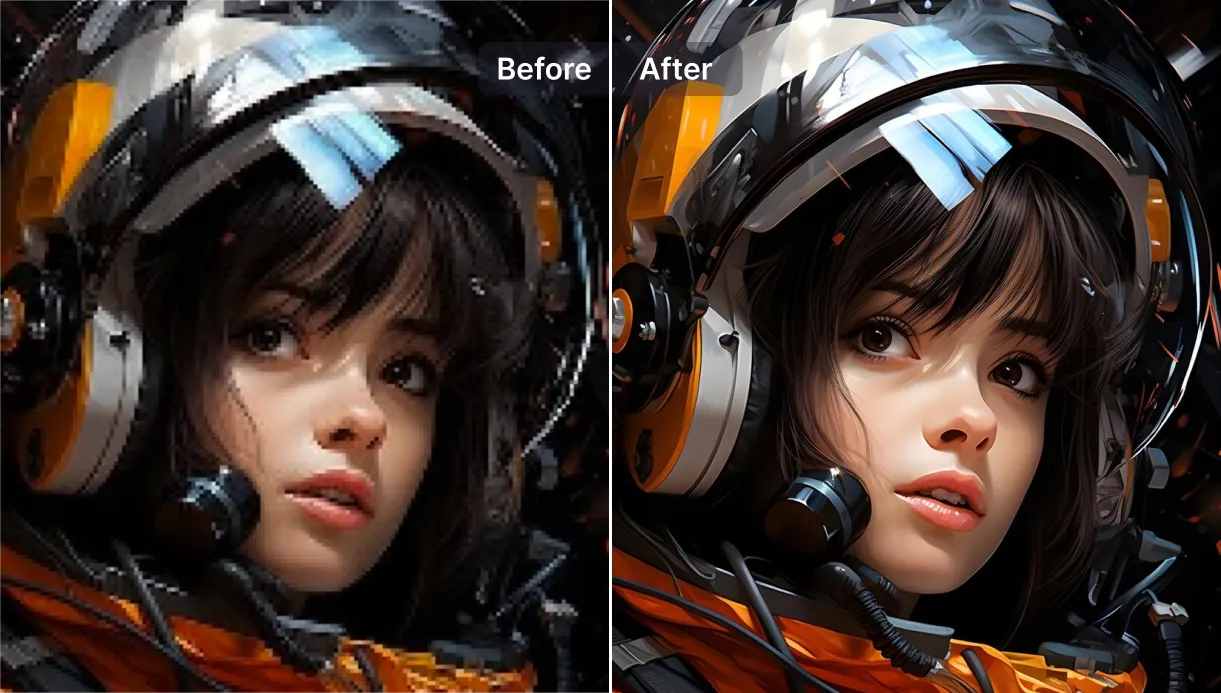
Traditional software (think MS Paint or basic preview apps) uses a process called interpolation. When you ask it to grow image size by 200%, the software looks at existing pixels and just duplicates them or blends the colors between them. It’s guessing. And usually, it’s a bad guess.
- Bicubic Resampling: Smooths things out but makes edges look like they were smeared with Vaseline.
- Nearest Neighbor: Keeps hard edges but makes the image look jagged and pixelated.
The AI Advantage: Hallucination is Good?
This is where things get sci-fi. An image enlarger ai doesn't just stretch. It uses Deep Convolutional Neural Networks (a fancy way of saying "smart brain computers"). These networks have been trained on millions of before-and-after images.
When you use a tool like the AI Image Upscaler from Pixelfox AI, the system analyzes the texture. It recognizes, "Hey, this looks like cat fur," or "This is a brick wall." It then generates new details that weren't there before based on what it knows cat fur or bricks should look like.
According to a recent report by Gartner, over 80% of creative professionals are expected to integrate generative AI into their workflows by 2026 for exactly this reason—it creates data where there was none.
Tip: Never judge an enlarged image on your phone screen. Mobile screens have high pixel density (PPI) that hides imperfections. Always check your larger picture on a desktop monitor at 100% zoom to see the real quality.
How to Enlarge Picture Online: The 2025 Workflow
So, how do we actually do this? You don't need to download a 2GB software package. You just need a browser. We are going to use Pixelfox AI because, frankly, it strikes the best balance between speed, privacy, and output quality.
Here is your step-by-step battle plan to enlarge photo online properly.
Step 1: Analyze Your Source Material
Not all low-res images are created equal.
- Is it noisy/grainy? You’ll need a tool that denoises while it upscales.
- Is it a face? You need specific face-restoration algorithms (Pixelfox handles this automatically).
- Is it anime/illustration? These need cleaner lines than realistic photos.
Step 2: Upload to the AI Enlarger
Head over to the AI Image Upscaler. The interface is drag-and-drop. Simple.
- Drop your file (JPG, PNG, or WebP).
- Pro Move: If you have a batch of product photos, don't do them one by one. Use the batch processing feature if available.
Step 3: Choose Your Scale Factor
Most people think "bigger is better," but that's a trap.
- 2x: Perfect for sharpening up a slightly soft image.
- 4x: The sweet spot for most pic enlargement needs (e.g., turning a web image into a print).
- 8x: Use with caution. This creates a massive file and requires a very high-quality original to look natural.
Step 4: Let the GPU Cook
Hit the process button. The AI analyzes the image. In seconds, it maps out the geometry and textures. It fills in the missing data.
- Note: Unlike local software that heats up your laptop, this happens on cloud servers.
Step 5: Download and Verify
Download the result. Compare it side-by-side. You should see sharper eyes, distinct strands of hair, and clear text—things that were blurry blobs before.
Beyond Basic Upscaling: The "Photo Extender" Trick
Sometimes, you don't just need the image bigger in resolution; you need the canvas wider. Maybe you shot a portrait for Instagram Stories (9:16), but now you need it for a YouTube thumbnail (16:9).
If you just enlarge photo free tools, you crop out the head or chin. Bad look.
This is where you need a photo extender free tool, also known as "Outpainting."
How to Make Your Image Longer (Literally)
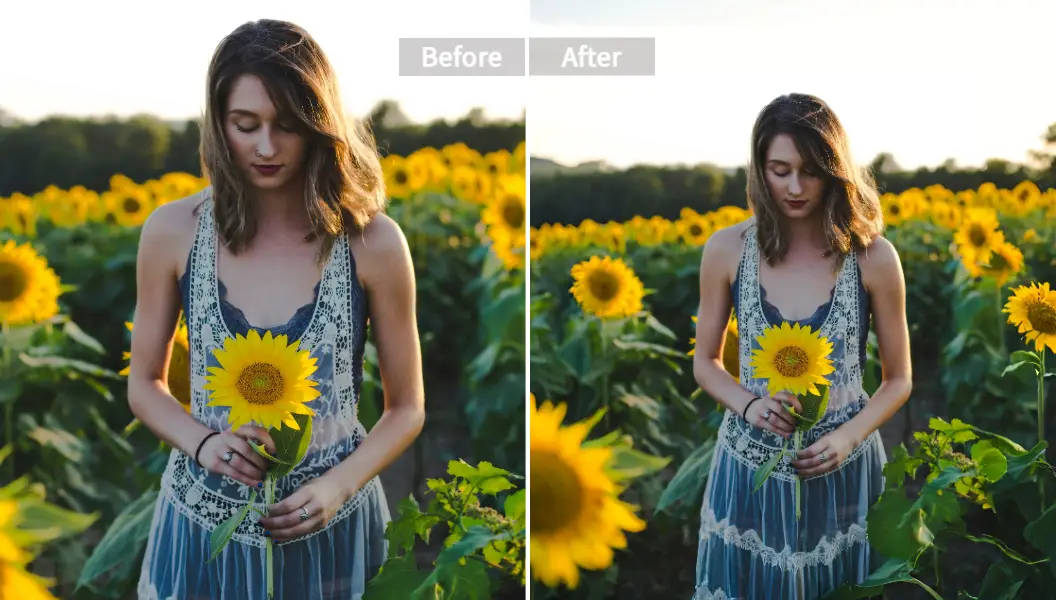
Using the AI Image Extender, the AI looks at the edge of your photo and "dreams" up what should be outside the frame.
- Upload your photo.
- Drag the borders to the aspect ratio you need.
- The AI fills the empty space with matching background—trees, city streets, studio gradients.
- Now you have an image that fits your layout without cropping.
Tip: When using an image make longer tool, keep the "extended" area relatively simple. AI is great at extending skies, walls, and landscapes. It struggles a bit more if you ask it to extend a specific person's body parts unless you give it very clear prompts.
Battle of the Tools: Photoshop vs. Online AI
You might be thinking, "Can't I just use Photoshop?" Sure, if you enjoy pain and monthly subscriptions. Let's look at the real difference when you want to make your photo bigger.
| Feature | Adobe Photoshop (Traditional) | Pixelfox AI (Online) |
|---|---|---|
| Technology | Bicubic / Preserve Details 2.0 | Generative Adversarial Networks (GANs) |
| Learning Curve | High (Need to understand DPI, resampling) | Zero (Upload & Click) |
| Speed | Depends on your computer RAM | Instant (Cloud processing) |
| Restoration | Manual cloning/healing required | Automatic face enhancement |
| Cost | Expensive Subscription | Free / Pay-as-you-go |
| Convenience | Must install software | Enlarge picture online anywhere |
If you are a professional retoucher with 3 hours to spare, Photoshop gives you manual control. For the other 99% of us who just want an ai upscale free enlarge solution that works now, the online route is a no-brainer.
Professional Use Cases: When Quality Matters
It’s not just about fixing memes. Here is how pros use ai enlarger tools in the wild.
1. The E-Commerce Rescue
You run a Shopify store. The manufacturer sent you product images that are 500x500 pixels. On a modern Retina display, that looks like garbage. A blurry product photo screams "scam site."
- Strategy: Use an ai image enlarger free to bump those to 2000x2000.
- Result: Crisp textures on the fabric or material. Conversion rates go up because customers can actually see what they are buying.
2. Printing the "Unprintable"
A client wants to print a photo from their Facebook timeline on a large canvas. Facebook compresses images aggressively. If you print it directly, it looks pixelated.
- Strategy: Upscale the image 4x using Pixelfox.
- Result: The DPI (Dots Per Inch) increases effectively, allowing for a decent print on a 24x36 inch canvas.
3. Restoring Family History
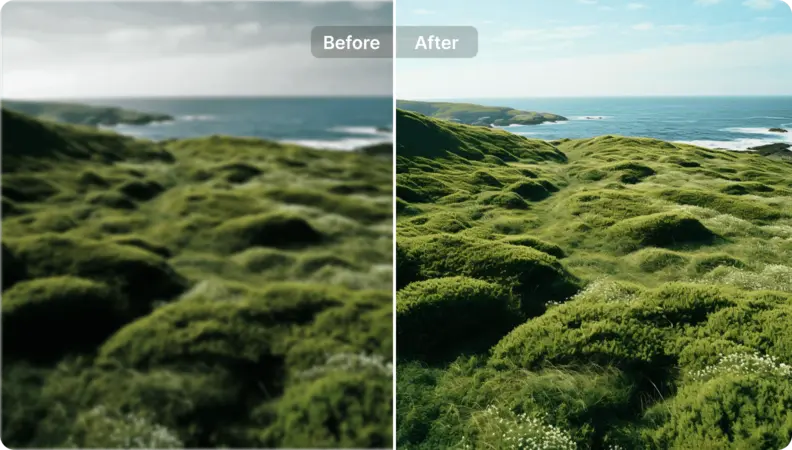
Old scanned photos are often small and soft. Using a standard photo enlarge tool just makes big, blurry blobs.
- Strategy: Use the AI Image Enhancer.
- Result: It sharpens the faces and removes the "scanner noise," preserving the memory in high definition.
Advanced Tips for Power Users (The Secret Sauce)
Want to get results that look like they were shot on a DSLR? Follow these rules when you enlarging images.
Rule #1: Don't Feed the AI Junk
AI is magic, but it’s not a miracle worker. If your source image is heavily compressed (full of JPEG artifacts/blocks), run it through a "De-JPEG" or cleaner pass first, or ensure your ai enlarger has a "Denoise" slider. Pixelfox handles this, but some basic tools don't.
Rule #2: The "Step-Up" Method
If you need to go from very small to very huge (like 8x or 10x), don't do it in one jump.
- Upscale 4x first.
- Check for artifacts and clean them up.
- Upscale that result another 2x. This often produces cleaner results than forcing the AI to guess 800% of the data in one go.
Rule #3: DPI is for Print, Pixels are for Screens
If you are make your picture larger for a website, ignore "DPI" (Dots Per Inch). Focus on pixel dimensions (e.g., 1920x1080). If you are printing, you need 300 DPI. When you upscale an image online, you are increasing the pixels. You may need to open the file later and tag it as "300 DPI" so the printer knows how tightly to pack those pixels.
Common Mistakes to Avoid
Even with the best image enlarger ai, things can go wrong if you aren't careful.
- Over-sharpening: Some tools crank up the sharpness so high that people look like plastic dolls. Look for natural results.
- Ignoring Aspect Ratio: If you use a tool to grow image size but it forces a crop, you might lose important details on the edges.
- Using the Wrong Model: Don't use a "Portrait" model on a photo of a "Landscape." The AI might try to find facial features in a tree. It’s terrifying. Don't do it.
- Trusting "Free Unlimited" Sites Blindly: If a site promises ai image enlarger free with zero limits and no ads, they might be selling your data. Stick to reputable tools like Pixelfox that have clear privacy policies (data deleted after processing).
FAQ: Everything Else You Need to Know
Q: Can I really enlarge photo online without losing ANY quality? A: Actually, you gain quality. Traditional resizing loses quality (blur). AI upscaling adds detail. However, "perfect" reconstruction is impossible if the original is unrecognizable. It's an estimation, but a very, very good one.
Q: What is the best format for enlarging images? A: Start with PNG or TIFF if you can. JPEGs have compression artifacts that get magnified when you enlarge picture online. If you only have a JPEG, that's fine, but the cleaner the source, the better the output.
Q: Is it safe to upload personal photos to an online enlarger? A: It depends on the tool. Pixelfox AI, for example, processes images and then deletes them from the server to protect user privacy. Always read the privacy policy before uploading sensitive documents.
Q: How big can I make a picture? A: Technically, you can go huge. But realistically, going beyond 4x or 8x starts to look "painted" rather than "photographic." Stick to 2x or 4x for the most natural look.
Q: Does this work for text? A: Yes! AI is fantastic at sharpening blurry screenshots of documents or logos.
Stop Settling for Blurry Photos
We are long past the days where a small image meant "game over" for your project. The gap between a professional designer and a regular user with a smartphone has closed significantly thanks to these tools.
If you need to enlarge picture online, don't waste time with manual tools that leave your images looking like a smudged painting. You need precision, speed, and intelligence.
Ready to see the difference for yourself? Stop squinting at those pixels. Head over to Pixelfox AI right now. Upload that stubborn low-res photo, hit the button, and watch the magic happen. Your eyes (and your audience) will thank you.