 Credit

Suggested URL: /how-can-i-fix-a-photo/
A blurry face. A weird color cast. A mystery scratch that looks like a cat signed your wedding photo. If you’re here typing how can i fix a photo, you don’t want a lecture—you want your picture back, and you want it to look real, not like an AI mannequin cosplay.
I’ve spent years fixing photos for content teams, creators, and “please save this family photo” emergencies. This guide shows you how to fix photos the fast way (AI) and the safe way (a little human control), with Pixelfox AI as the main tool—because life is short and Photoshop menus are… not.
How can i fix a photo? Diagnose the damage in 30 seconds 🕵️
Before you “enhance” anything, name the problem. Bad edits usually happen when people treat every issue like it’s the same issue. It’s not.
Here’s a quick, no-BS checklist:
- Blurry / out of focus (motion blur, missed focus)
- Low resolution / pixelated (zoomed screenshot energy)
- Noise / grain (night photos, old phones)
- Overexposed / underexposed (too bright, too dark)
- Bad white balance (everything looks orange, green, or dead)
- Scratches / dust / lines (scans, damaged files)
- Distracting objects (photobombers, signs, watermarks)
- Closed eyes / awkward face (group shots… always one person 😭)
- Background problems (messy room, wrong vibe, needs white background)
Why this matters: each problem needs a different fix. Sharpening a noisy photo makes it look like crispy sand. Smoothing a face too much gives you “plastic doll in a mall kiosk poster.”
Tip: If you can only describe the problem as “it looks bad,” zoom in to 100% and ask: is the edge detail missing (blur) or are the edges blocky (low-res)? That one check saves you 20 minutes of random clicking.
Why your photo looks bad (and what each “fix” really does)
Let’s translate photo problems into causes and correct tools.
Blur is not one thing
- Motion blur: camera moved during exposure. Edges have “smear.”
- Out-of-focus blur: focus missed. Edges look soft, not smeared.
AI “unblur” tools try to rebuild edge detail. Some do it well. Some invent eyelashes that belong to a different universe.
Low-res is usually a math problem
If your image is 800px wide and you want a clean print, you’re asking it to grow new pixels. Upscaling can help, but it’s reconstruction, not magic.
Old photo damage is layers of issues
Scans often have:
- dust + scratches
- fading
- paper texture
- compression artifacts (if you saved it as a tiny JPEG in 2009… respect, but also… why)
So a good restoration is usually two passes: clean + rebuild, then color + contrast.
Authority note (and it’s useful): Nielsen Norman Group’s usability research is famous for one painful truth—people scan and miss details. That’s why this guide is built around problem-type sections you can jump to, not a fluffy “all-in-one” sales page.
How can I fix a picture fast? Use Pixelfox AI in your browser ⚡
If you want speed without downloading 12 apps, start with Pixelfox AI. It’s built for the modern “I need this fixed now” workflow: upload → point → generate → download.
Use it here: Pixelfox AI
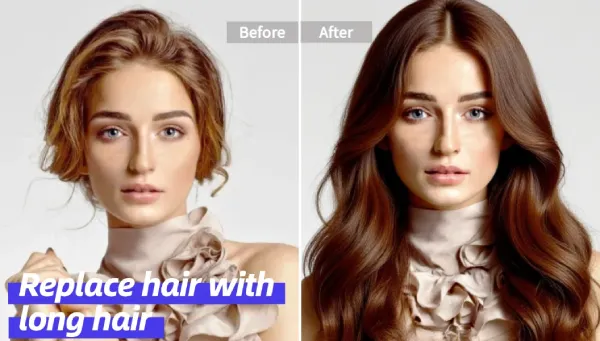
1) Fix overall quality (blur + detail) with AI Enhancer
When the photo is soft, tiny, or washed out, enhancement is your best first move.
Go to AI Image Enhancer and:
- Upload your photo
- Run the enhancement
- Check eyes, hair edges, and text (AI loves messing up text)
- Download and keep the original file too
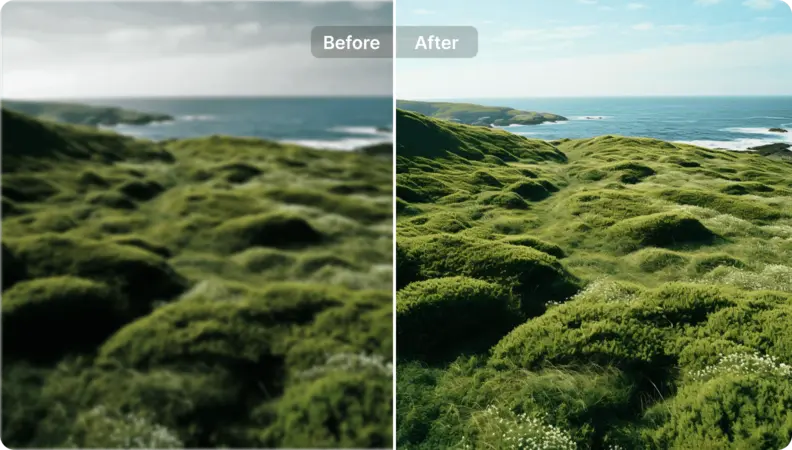
Why Pixelfox helps: enhancement is the “foundation.” If the base is clearer, every other edit looks cleaner too.
2) Remove distractions with prompt-based editing (fast and controllable)
Sometimes the “photo is bad” because the photo is fine… and the background is chaos.
Use AI Image Editing with Text Prompts and try prompts like:
- “remove the person in the background”
- “remove the text on the wall”
- “clean the scratch lines”
- “make the lighting softer on the face”
- “replace background with a clean studio wall”
My rule: keep prompts short. Add one request at a time. AI is like a distracted intern. Great energy. Limited attention span.
3) Fix closed eyes in group photos (yes, really)
If you’re searching how do you fix a picture where someone blinked, you have two choices:
- redo the moment (lol)
- fix it
Pixelfox has a dedicated tool for this: Open Eyes in Photo
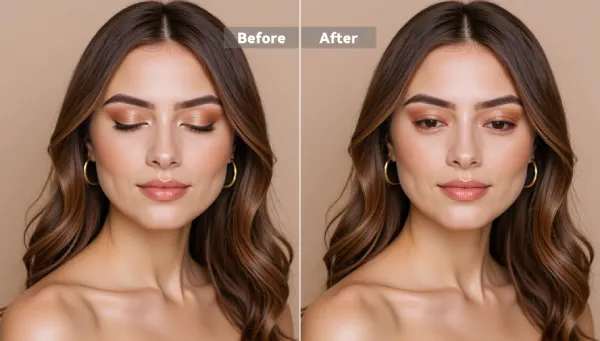
This is perfect for:
- weddings
- graduation pics
- travel group selfies
- “we will never all be together again” photos 😬
Tip: After fixing eyes, zoom in and check light direction. If the face light comes from the left, but the new eye highlights are on the right, it will feel “off.” A tiny brightness tweak usually fixes the vibe.
A quick trust note (privacy)
Pixelfox runs in the browser, so you don’t have to install anything. Pixelfox also states uploads are protected in transit (SSL/TLS) and that files may be automatically cleared after a short window (often a few hours, depending on the tool/workflow). If you’re fixing sensitive photos, still use common sense: avoid public Wi‑Fi and keep a local backup.
How to fix photos: the problem-by-problem playbook (real steps)
This is the part competitors skip because it’s not “pretty.” It works, though. 😈
Fix 1: Blurry photos (motion blur, missed focus)
Best approach: enhance → light sharpen → stop before it looks crunchy.
Pixelfox AI workflow
- Run AI Image Enhancer
- If it still looks soft, do a second pass only if the first pass didn’t create artifacts
- If the face looks “too perfect,” roll back and keep a little texture
Manual sanity check
- Zoom to 100%
- Look at eyelashes, hairline, teeth edges
- If you see halos (bright outlines), you overdid it
What not to do: max sharpening on a noisy night photo. That’s how you summon the Crunch Demon.
Fix 2: Pixelated / low resolution photos (screenshots, old uploads)
If it’s pixelated, you’re not “recovering detail.” You’re rebuilding detail.
Pixelfox AI workflow
- Enhance to upscale
- Then do small edits (object removal, background, light)
Pro print tip (simple math)
- For a decent print: aim for ~300 pixels per inch
- A 4x6" print wants about 1200x1800 px
If your photo is 700x900 px, it will print soft. Upscaling helps, but don’t expect museum quality.
Fix 3: Too dark / too bright (exposure problems)
Bad lighting is the most common reason people ask how can i fix a picture.
Fast fix
- Lift shadows a bit
- Pull highlights down
- Add a touch of contrast
- Warmth only if skin looks dead
Why AI helps: AI can rebalance fast, but you still need taste. Taste is the part apps don’t sell in the Pro plan.
Reality check: if highlights are totally blown (pure white), detail is gone. You can make it less painful, not fully recover it.
Fix 4: Weird color (orange skin, green office lights)
Fix strategy: neutralize whites → then tune skin.
What to look for:
- White shirt looks yellow? White balance is off.
- Skin looks gray? Too much de-saturation.
- Greens look nuclear? Pull back vibrance.
Old photo bonus: faded photos often need contrast first, then color.
Fix 5: Scratches, dust, lines (scans or damaged files)
This is where a lot of “free fixer” apps crash and burn.
Pixelfox AI workflow (clean + rebuild)
- Use prompt editing: “remove scratches and dust”
- Repeat with smaller prompts: “remove the vertical line on the left”
- Enhance after cleanup so you don’t sharpen the scratch
Manual fallback If AI misses a spot, clone/heal tools in editors like Pixlr or Photoshop can finish the last 5%.
And yeah, Pixlr is decent. It’s also been around forever (they talk about 15+ years), which is a good sign for stability.
Fix 6: Remove photobombers, objects, text, clutter
If you only learn one thing from this guide, learn this:
Clean background = expensive-looking photo.
Messy background = “I took this in my kitchen at 2am” energy.
Pixelfox prompt examples
- “remove the trash can”
- “remove the logo on the shirt”
- “remove the person behind me”
- “remove the reflection in the window”
Then zoom in and check edges around hair. Hair is the lie detector.
Fix 7: Background changes (white background, social media, product shots)
This is where “fix a photo” becomes “make money with a photo.” 😏
Use case: E‑commerce white background
- Remove background
- Set background to pure white
- Add a soft shadow so it doesn’t look pasted on
Pixelfox’s background remover flow is made for this. It’s also handy on phones, which matters because most product photos start life in an iPhone camera roll.
Use case: YouTube thumbnail background swap
- Keep the subject
- Replace background with a high-contrast color or clean gradient
- Boost clarity on the face a bit (thumbnails are small)
Use case: Transparent logo
- Remove background
- Export PNG
- Drop it into websites, slides, packaging mockups
This is one of those “tiny skills” that makes you look like the competent one on the team.
Advanced tricks (aka the stuff competitors skip) 🧠
Trick 1: The “two-pass” rule (clean first, enhance second)
If you enhance first, you sharpen:
- scratches
- JPEG blocks
- sensor dust
- random hair flyaways
So do it like this:
1) remove junk
2) enhance quality
3) final color/light tweaks
Your results look more natural. Your AI tool also behaves better.
Tip: When AI keeps “changing the person,” your prompt is too broad. Lock it down. Say “keep the face the same” or “remove object only.”
Trick 2: Make edits that survive compression (Instagram-proof)
Social platforms compress images. Hard.
So:
- avoid tiny text
- avoid fine patterns that moiré
- add a little extra contrast (not a lot)
- export at a solid size (don’t upload a 400px image and pray)
If your photo looks great on your laptop and bad on your phone, compression is the villain. Not you. (Well… not only you.)
Pixelfox AI vs Photoshop vs other online editors (honest talk)
You asked for real help, so here it is.
Pixelfox AI vs Photoshop (traditional “pro” way)
Photoshop wins when:
- you need pixel-perfect control
- you do complex composites
- you’re doing high-end retouching for print
Pixelfox AI wins when:
- you want fast fixes without a learning curve
- you need AI-assisted cleanup, enhancement, and prompt edits
- you’re doing lots of “good enough to amazing” edits for web/social
Photoshop is a gym membership. Pixelfox is a smart home workout. Both can work. One of them gets used more.
Pixelfox AI vs Canva / Fotor / Pixlr / Google Photos
- Canva is great for design layouts and quick edits. Many “fix” features are Pro.
- Fotor has a huge tool set and AI features. It can feel like a buffet.
- Pixlr is a strong browser editor, solid for manual touch-ups.
- Google Photos is fantastic for everyday users (Magic Eraser, Photo Unblur). It’s also tied to supported devices/features in some cases.
Where Pixelfox fits best: when your goal is fix the photo and move on with your life, while still keeping the result believable.
Real-world case studies: two fixes that actually mattered 📸
Case study 1: Wedding group photo + closed eyes + background clutter
Problem: one person blinked, and a random guest in neon green hijacked the background.
What I did (Pixelfox flow):
- Used Open Eyes in Photo to fix the blink
- Used prompt editing to remove the neon distraction
- Finished with AI Image Enhancer for clarity
Result: the edit looked natural because we didn’t over-smooth skin. The bride noticed the eyes (good). Nobody noticed the edits (better).
Case study 2: Old family scan with scratches and faded contrast
Problem: visible vertical lines, faded tones, and that “flat gray scan” look.
What I did:
- Prompt cleanup in small steps: “remove scratches,” then “remove vertical line”
- Enhanced after cleanup so the scratch didn’t get sharper
- Adjusted contrast so faces had shape again
Result: it didn’t look “new.” It looked restored. That’s the goal with memory photos.
Newbie traps: the 9 mistakes that ruin photos (and fixes)
People don’t mess up because they’re dumb. They mess up because apps act like one click solves everything. It doesn’t.
1) Over-sharpening
Fix: back off until halos disappear.
2) Over-smoothing faces (“plastic skin”)
Fix: keep texture. Real skin has pores. Shocking, I know.
3) Doing enhancement before cleanup
Fix: clean first, enhance second.
4) Editing the only copy
Fix: duplicate the file. Always.
5) Saving as low-quality JPEG again and again
Fix: export high quality, avoid repeated re-saves.
6) Using huge prompts with five requests
Fix: one prompt, one job.
7) Ignoring light direction
Fix: match shadows and highlights so edits blend.
8) Trying to “restore” a tiny screenshot
Fix: upscale, then accept limits. Pixels have feelings too.
9) Forgetting the goal Fix: ask “where will this be used?” A 1080px Instagram post and a 20x30" print need different standards.
How to avoid “how to fix photos” causing the opposite effect
The classic fail: you “fix” a photo and it looks worse.
That usually happens because:
- you pushed detail too hard
- you crushed shadows
- you nuked highlights
- you changed the face shape by accident
So keep a simple routine: edit → zoom out → zoom in → compare to original → sleep on it if it’s important.
Pro advice: if you can’t tell if it’s better, it’s probably not better. 😅
FAQ: how do you fix a picture without losing quality?
1) Can I fix a photo for free?
Yes, sometimes. Tools like Google Photos, Pixlr, and Canva have free options. Many “real” fixes (advanced AI, batch, high-res exports) often sit behind paid plans. Pixelfox AI includes free tools and also offers more power when you need it.
2) Why does AI photo fixing make faces look fake?
AI can over-smooth skin and invent detail. It happens a lot with strong “beauty” models. The fix is gentle settings, fewer passes, and checking eyes/teeth/hair at 100%.
3) What’s the difference between photo enhancement and photo restoration?
Enhancement boosts a decent photo (sharper, cleaner, better light). Restoration repairs damage (scratches, tears, heavy fading, missing parts). Restoration is usually multi-step.
4) How can i fix a picture with lines across it?
Treat lines like damage: remove them first (object removal / healing), then enhance. If you enhance first, you make the lines more detailed and harder to remove.
5) Can Pixelfox AI handle group photos?
Yes. It’s built for real photos, not just studio portraits. For blink fixes, use the eye tool. For general quality, use enhancer. For clutter, use prompt edits.
6) Is Photoshop still worth learning?
If you want full control or you do pro retouching daily, yes. If you just want to fix pictures fast, Pixelfox AI is a smarter first stop.
Your next move (and yeah, this is the part where you actually fix it)
You don’t need 40 tools. You need one clean workflow that doesn’t turn people into wax statues.
If you’re still asking how can i fix a photo, do this now: open Pixelfox AI, run Enhancer, then use prompt edits to remove the one thing that’s ruining the shot. Keep it natural. Keep the original. And please don’t sharpen it into oblivion. (╯°□°)╯︵ ┻━┻
Mini author note / disclaimer: I work in content strategy and production, and I’ve tested a lot of photo tools in real marketing workflows. Results can vary based on image quality, lighting, and how hard the damage is. If a photo is heavily destroyed or super tiny, even the best tools can only do so much—physics is annoying like that.