 Credit

If only one person wasn't blinking, it would be the ideal group portrait. Or that lovely picture in which you wish you had a little more smile. You can now solve it in a matter of seconds. Artificial intelligence is used by a grin photo editor to add realistic-looking smiles to images of people frowning or appearing neutral. These artificial intelligence smile technologies create realistic expressions by analyzing facial anatomy. This tutorial shows you how to use grin filter technology to save those nearly flawless pictures.
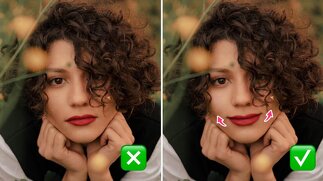
What is a Smile Photo Editor?
An internet tool called a grin photo editor alters facial emotions in photos by using artificial intelligence. In particular, it can transform negative or neutral facial emotions into sincere-looking smiles. AI grin technology does more than simply apply a smile image to a face. In fact, it reorganizes the lips, eyes, and cheeks to produce a genuine, organic expression that complements the subject's facial features and the setting of the picture.
How Does an AI Smile Filter Work?
The technology uses advanced facial recognition and generative AI. Here's how it works:
Face Landmark Detection: The AI maps important facial features, such as the corners of the mouth, the locations of the eyes, and the contours of the cheeks.
Expression Analysis: It determines the required modifications by comprehending the existing expression.
Natural Smile Generation: An AI-generated smile that is tailored to the individual's face structure
Smooth Integration: It organically incorporates the new expression into the existing image.
The best tools also adjust eyes and cheek areas to make the smile look completely authentic.
What Makes a Good Smile Look Real?
Several factors contribute to a believable AI-generated smile:
Eye Involvement: Genuine grins generate crow's feet, a small narrowing of the eyes.
Natural grins are typically symmetrical in terms of facial symmetry.
Skin Texture: Certain skin wrinkling and stretching patterns are produced by smiles.
Lighting Consistency: The smile needs to blend in with the shadows and lighting in the source image.
Key Features of a Quality Smile Editor
From testing various platforms, the best smile photo editor tools offer:
Intensity Control: A slider to change the smile's perceived intensity
Support for Multiple Faces: The ability to make everyone smile in a group photo
Options for Natural Teeth: Choosing between smiles that are open or closed
Instantaneous Preview: Instant comparison of before and after
High-resolution output: Preserves the quality of the original image
The Realistic Limits of Smile Editing Technology
While impressive, the technology has some limitations:
Extreme Angles: Preferably used for front-facing rather than profile images.
Existing Expressions: If the individual already possesses a powerful expression, they can find it difficult.
Accessories: Editing can be made more difficult by impediments, hands close to the face, or glasses.
Very Poor Quality: Images with low resolution might not offer enough information for satisfactory outcomes.
How to Add Smiles to Photos in 3 Steps
The process is remarkably simple:
Provide a photo.
Modify the Smile: Use sliders to alter the smile's style and intensity after selecting the picture with the face you wish to highlight.
Download Outcome: Process and store your freshly happy picture.
Why Online Smile Editors Are Better Than Apps
Compared to mobile apps, web-based grin photo editor solutions have several advantages. Nothing has to be updated or downloaded. Any computer with a browser can use them. A powerful gadget is not necessary because the processing takes place on the cloud. The most recent advancements in AI are always immediately available to you.
Pro Tips for Best Smile Editing Results
Maximize your success with these practical tips:
Choose Front-Facing Photos: Straight-on portraits work better than angled shots
Good Lighting Matters: Well-lit photos allow the AI to better understand facial features
Start Subtle: Begin with a mild smile and increase intensity gradually
Check Teeth Appearance: Ensure generated teeth look natural and appropriately sized
Review Overall Face: Make sure the smile doesn't distort other facial features
Creative Uses for Smile Editing
Beyond fixing photos, these tools have interesting applications:
Professional Headshots: Maintain professionalism while improving business portraiture
Family Photos: Fix any group photos when someone is blinking or averting their eyes.
Historical Images: Maintain authenticity while bringing joy to formal old pictures
Marketing Materials: Improve product images with people in them
Personal Projects: Make cheerful profile photos that are consistent across all platforms.
FAQ: Your Smile Editing Questions Answered
Q: Is it possible to determine whether a smile was digitally added?
A: When done correctly using high-quality source photographs and sophisticated AI algorithms, artificial grins are almost identical to real ones.
Q: Is it compatible with pictures of animals?
A: The majority of smile editors may not function effectively with animals because they were trained on human faces.
Q: Is it possible to make extremely old photos smile?
A: Yes, although the quality and condition of the photos may affect the outcome. It is frequently possible to effectively enhance black and white images.
Q: Is there a cap on the number of faces I may edit simultaneously?
A: Although highly crowded group photos may provide difficulties for the AI, the majority of tools are capable of handling several faces in a single image.
Q: Are these tools really free?
A: Many offer free versions with some limitations, while premium plans provide higher resolutions and additional features.