 Credit

Let's be real for a second. You captured the perfect moment on Snapchat—a hilarious face, a breathtaking sunset, a memory you want to keep forever. You saved it. But now, you're stuck with that giant, cringey caption you typed in the heat of the moment. "Livin' my best life ✨" doesn't seem so poetic when it's plastered over your friend's face, does it? You've frantically tapped every button, but the text is baked in. It's permanent. Or is it?
Forget the frustration. You're about to learn how to wield the power of a Snapchat caption remover to rescue your photos from text-pocalypse. In this 2025 guide, we're not just showing you a few clunky apps. We’re diving deep into the AI magic that erases text so flawlessly, it's like it was never there. And we'll show you how Pixelfox AI is leading the charge.
Why Is Removing Snapchat Text So Damn Hard?
Ever wondered why you can't just... delete the text from a saved Snap or a screenshot? It's not a bug; it's by design. When you save a Snap with a caption, Snapchat essentially flattens the image. The text isn't a separate layer anymore, like in a Photoshop file. It becomes part of the picture's pixels, just like the trees, your face, or that weird lamp in the background.
This is why old-school methods are such a headache. You're not just deleting text; you're performing digital surgery. You have to:
- Select the text perfectly.
- Delete the pixels that make up the text.
- Guess what was behind it and try to paint it back in.
The result? Often a smudgy, blurry mess that screams "I tried to edit this myself and failed." 😬 This is where AI-powered tools completely change the game.
The Old-School Way vs. The AI Way: A Quick Showdown
For years, your only option was to fire up complex software like Photoshop. It’s powerful, sure, but also slow, expensive, and has a learning curve steeper than Mount Everest.
The Photoshop Method (The Hard Way):
- Open the image.
- Fiddle with the "Spot Healing Brush" or "Content-Aware Fill."
- Spend 15 minutes carefully painting over the text.
- Realize the background texture looks weird.
- Spend another 10 minutes using the "Clone Stamp" tool to fix it.
- Finally, save a photo that looks... okay-ish.
The Pixelfox AI Method (The Smart Way):
- Upload your image to the AI Object Remover.
- Brush over the text.
- Click "Remove."
- Done. In about 5 seconds. ✨
AI doesn't just delete the text. It analyzes the surrounding pixels—the colors, the textures, the lighting—and intelligently regenerates the background. It's not guessing; it's calculating. This is how you get a clean, natural-looking result without any of the hassle.
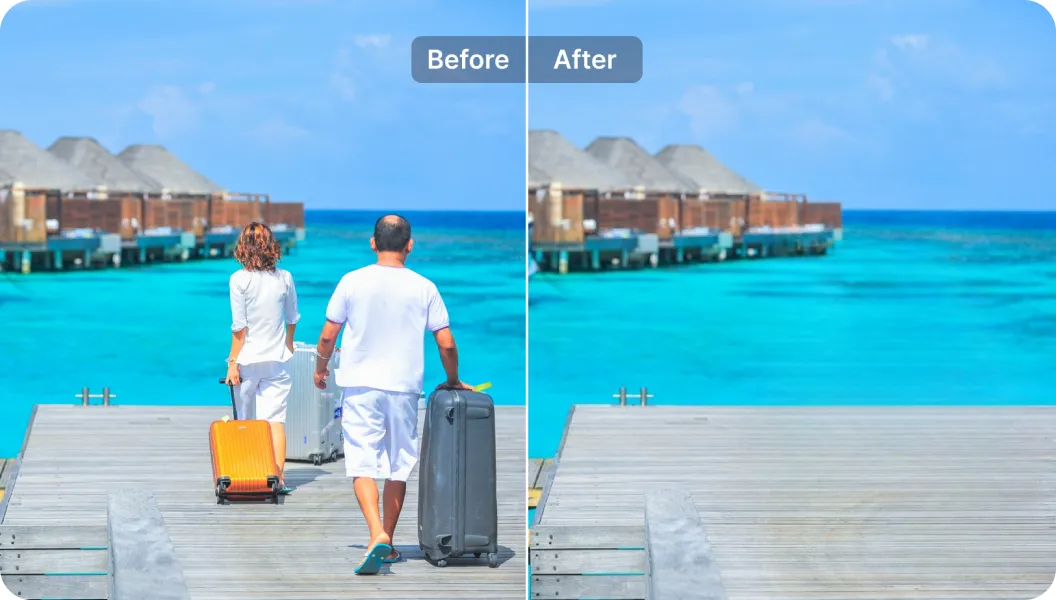
How to Remove Snapchat Text from a Photo with an AI Caption Remover
Ready to see the magic happen? We’ll use Pixelfox AI because it's fast, intuitive, and the results are ridiculously good. You don't need to download anything or create an account to get started.
Step 1: Upload Your Image
Head over to the Pixelfox AI Object Remover. You can either click "Upload Image" and pick the Snapchat screenshot from your gallery or just drag and drop the file directly onto the page.
Step 2: Highlight the Unwanted Text
Once your image is loaded, your cursor will turn into a brush. Simply paint over the Snapchat caption you want to remove. Don't worry about being perfectly neat; the AI is smart enough to figure it out. You can adjust the brush size for smaller or larger text areas.
Step 3: Let the AI Do Its Thing
Click the "Remove" button. In seconds, Pixelfox's AI will process the image, erase the text, and reconstruct the background behind it. Poof! The caption is gone.
Step 4: Download Your Clean Photo
Happy with the result? Just hit "Download" to save the pristine, caption-free image to your device. It's now ready to be shared, printed, or archived without that distracting text.
That's it. It’s genuinely that simple. You've just performed a task that would have taken a graphic designer time and effort, and you did it during a coffee break.
Tip: Got a photo with a really busy or complex background (like brickwork or a patterned shirt)? The AI is usually great at this, but if you see any tiny imperfections, just do a second, smaller brush-over on that specific spot. The AI will re-process it and smooth things out even further.
Beyond Basic Captions: Pro-Level Tricks
A great snapchat caption remover isn't just for fixing embarrassing text. It's a powerful creative tool. Here's how you can use this technology for more advanced tasks.
Case Study 1: Creating Flawless E-commerce Product Shots
Imagine you're a small business owner. You get a great user-generated photo of a customer using your product, but they've added a Snapchat filter or text. Instead of asking them for the original, you can clean it up yourself.
- The Problem: A customer posts a picture of your handmade mug, but a "Good Morning! ☀️" caption covers part of the handle.
- The Solution: Use the Pixelfox AI Logo Remover (which works perfectly for text too) to instantly erase the caption.
- The Result: You now have a clean, authentic product photo for your website or social media that builds social proof, without any distracting text. It looks professional and trustworthy.
Case Study 2: Polishing Up Your Video Content
This isn't just about photos. What about video? Many creators repurpose TikToks or Snaps for YouTube Shorts or Instagram Reels. But those hard-coded captions and watermarks can look messy.
- The Problem: You have a great vertical video from Snapchat, but a location sticker and text are stuck on it.
- The Solution: Use an AI tool designed for video, like PixelFox AI's Subtitle Remover for Video. It uses the same core technology but applies it frame by frame.
- The Result: A clean video clip ready to be used across any platform, making your content library more versatile and professional.
Tip: When you remove snapchat text from a photo, always start with the highest resolution image you have. Using a blurry, low-quality screenshot will give the AI less data to work with, which can affect the final quality. A crisp, clear image will always yield a better result.
The 3 Biggest Mistakes When Removing Captions (And How to Fix Them)
It's easy, but people still find ways to mess it up. Avoid these common pitfalls.
- Using a Shady "Free" App. The app store is filled with apps promising free text removal. Be warned: many are loaded with intrusive ads, have hidden subscriptions, or, worse, could be harvesting your data. A reputable web-based tool like Pixelfox is safer because you're not installing unknown software on your device. Trustworthiness is key.
- Ignoring the "Smudge" Effect. Some less advanced tools simply blur or smudge the area where the text was. This is a dead giveaway of a bad edit. A true AI snapchat caption remover reconstructs the background. If your result looks blurry, you're using the wrong tool.
- Trying to Remove Text from a Super Complex, Repeating Pattern Manually. If the text is over something like a chain-link fence or a complex geometric pattern, manual tools like the clone stamp will almost always fail. The pattern will look broken. This is where AI shines, as it can understand and replicate the pattern more accurately.
Frequently Asked Questions (FAQ)
Q: Can I remove Snapchat text from a video?
A: Absolutely! While most photo editors won't work, specialized AI video tools can handle this. They analyze the video frame by frame to remove text, logos, or captions seamlessly. For this, a dedicated tool like the PixelFox AI Video Subtitle Remover is your best bet.
Q: Is it really free to remove Snapchat captions from photos?
A: Yes, many online tools like Pixelfox AI offer free removals. Often, there's a limit to how many you can do per day for free, but for occasional use, it's more than enough. This is a huge advantage over paying for expensive software like Photoshop.
Q: What's the difference between a text remover and a general object remover?
A: Functionally, they use the same AI inpainting technology. A good object remover can easily handle text, people, watermarks, or any other unwanted element in your photo. A tool labeled "text remover" is just marketed more specifically for that use case.
Q: How do I get the best results when I remove a snapchat caption from a photo?
A: Use a high-quality image, make sure your brush strokes cover the entire text (including any shadows or outlines), and use a reputable AI tool. For tricky spots, don't be afraid to zoom in and do a second pass.
You're no longer at the mercy of permanent captions. That perfect photo you thought was lost is just a few clicks away from being rescued. Stop letting distracting text ruin your best memories.
Take back control of your photos. Give the Pixelfox AI Object Remover a try right now and see for yourself how easy it is to erase any unwanted text. It's fast, free, and the results will genuinely surprise you. What are you waiting for? Go fix that photo! 😉