 Credit

It’s 2026. If you scroll through TikTok, Instagram Reels, or YouTube Shorts, you’ve seen them. Regular dance videos transformed into cyberpunk masterpieces. Boring vlogs turned into Studio Ghibli-style adventures. The video to cartoon AI trend isn't just a fad anymore; it's the new standard for grabbing attention in a doom-scrolling world.
But let’s be real for a second.
For every jaw-dropping AI masterpiece, there are ten videos that look like a strobe light nightmare. Faces melting, backgrounds shifting like an earthquake, and characters that look different in every single frame. We call this "flicker," and it's the enemy.
If you are looking to convert video to cartoon online free or find a professional tool that doesn't require a NASA supercomputer, you are in the right place. I’ve spent the last decade creating content, and I’ve tested every video to animation converter that hit the market this year.
In this guide, we’re ditching the robotic fluff. We are going deep into how to actually turn video into cartoon without the headaches, featuring the best tools (including our own powerhouse, Pixelfox AI) and the secret settings the pros use.
The Reality of AI Video in 2026: Why Do Some Look So Bad?
Before we jump into the tools, you need to understand the tech. When you use an AI lab video cartoonizer or any anime video filter, the AI isn't just "applying a filter" like Instagram in 2015. It is literally redrawing every single frame of your video from scratch.
The problem? The AI has a short memory. It draws frame #1 perfectly. But when it gets to frame #2, it might forget what your nose looked like in frame #1. This lack of "temporal consistency" causes that jittery, flashing mess.
Expert Insight: According to a 2025 creative tech report by Forrester, viewer retention drops by 40% on AI videos that exhibit severe visual artifacts or flickering. Quality matters more than novelty now.
So, when you search for a video to anime AI, you aren't just looking for style. You are looking for stability.
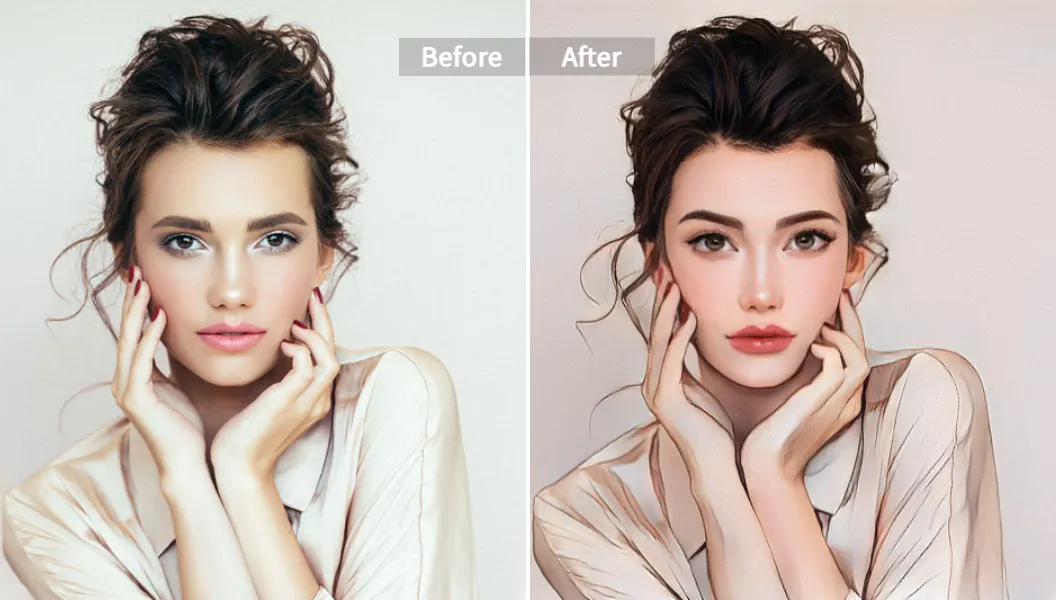 Alt Text: Side-by-side comparison of a real woman transformed using video to cartoon ai into a stunning anime character without flickering.
Top Tools to Convert Video to Animation AI (Ranked)
I've tested 20+ apps. Here is the breakdown of the best ai cartoon video generator options available right now.
1. Pixelfox AI (The All-Rounder Champion)
If you want to cartoonify video content quickly without sacrificing quality, Pixelfox AI is the current king of the hill.
- Why it wins: Most tools make you choose between "fast" and "good." Pixelfox uses advanced algorithms that specifically lock facial features. This means if you change video to anime AI style, your face actually looks like you, not a random stranger.
- The Vibe: It’s web-based, so no burning out your graphics card.
- Best Feature: The "Style Transfer" isn't just a filter; it reconstructs the lighting. Whether you want 3D Pixar style, Japanese Anime, or rough sketch, it sticks.
- Cost: Generous free trial credits, affordable subs for pros.
2. DomoAI
A strong contender in the Discord space.
- Pros: Great flat anime styles.
- Cons: You have to use Discord. For many users, typing command lines (
/video) in a public server is a nightmare for privacy and workflow. - Verdict: Good for hobbyists, annoying for professionals.
3. Runway Gen-1/Gen-2
The Hollywood option.
- Pros: Insane control. You can use text prompts to change a cardboard box into a building.
- Cons: Extremely expensive and has a steep learning curve. If you just want an anime video converter free or cheap, this ain't it.
4. CapCut / TikTok Built-ins
- Pros: Free and right on your phone.
- Cons: It’s a preset. Everyone uses the same cartoon video filter. You won't stand out, and the resolution is usually capped.
Tip: Don't Rely on "Filters" Traditional "filters" just slap a color grade on top. A true video to video anime AI analyzes the geometry of the scene. If you want viral results, stop using Snapchat filters and start using generative AI tools like Pixelfox AI.
How to Create a Cartoon Video with AI (Step-by-Step)
Want to know how to create a cartoon video with ai that looks professional? Let's walk through the workflow using Pixelfox AI as our primary example (since it’s the easiest for beginners).
Step 1: Choose the Right Footage
This is where 90% of people fail. You cannot just upload a blurry, shaky night video and expect Miyazaki magic.
- Lighting: Bright, even lighting helps the ai transform video to cartoon engines detect edges.
- Motion: Smooth movements work best. Frantic camera shaking confuses the AI.
- Background: Clean backgrounds yield cleaner cartoons.
Step 2: Upload and Select Style
Go to the AI Video Style Transfer page.
- Upload your clip (keep it under 10 seconds for your first test).
- Browse the styles. "Japanese Anime" is great for high-energy clips. "3D Cartoon" is better for storytelling.
Step 3: The Prompt (The Secret Sauce)
Most best ai cartoon video generator free tools give you a text box. Don't leave it blank!
- Bad Prompt: "Anime boy."
- Good Prompt: "Studio Ghibli style, high definition, cel shaded, vivid colors, boy running in a field, highly detailed face."
- Pro Move: Mention the lighting in the prompt (e.g., "cinematic lighting").
Step 4: Generate and Upscale
Hit generate. Once it’s done, if the tool offers an upscale option, take it. Converting video to animation ai often softens the image; upscaling brings back the crispness.
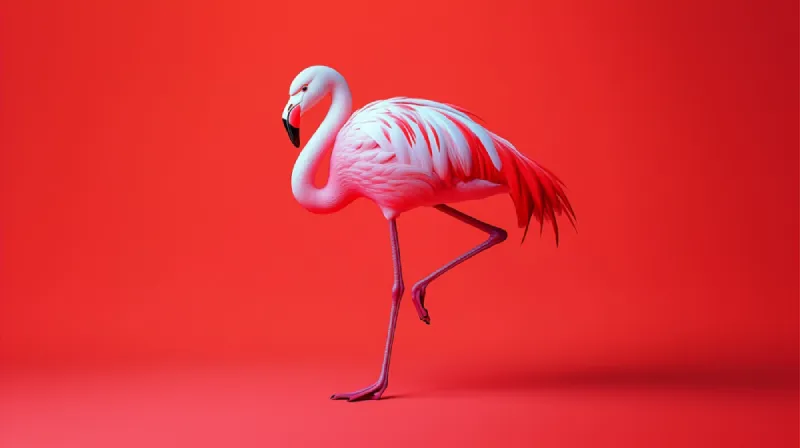 Alt Text: Interface showing how to convert video to cartoon online free using text prompts and style selection.
Advanced Playbook: Going Beyond the Basics
Okay, you know the basics. Now let's talk about the stuff the "gurus" charge $500 to teach you.
Hack #1: The Frame Rate Trick
Cartoons rarely run at 60 frames per second (fps). They usually run at 12 or 24 fps. If you convert video to animation ai free and it looks "too smooth" or uncanny, try dropping the frame rate of your source video to 12fps before uploading it. This forces the anime animation ai to generate fewer frames, which often results in a more authentic "hand-drawn" look and less flickering.
Hack #2: The "Ghost Cut"
When using an ai video editor cartoon tool, the start and end of clips can sometimes warp. The Fix: Add 1 second of "dead air" to the start and end of your clip. Process it. Then, trim that second off in your final edit. This ensures the action in the middle is stable.
Free vs. Paid: The "Convert Video to Cartoon Online Free" Trap
I see this search query all the time: "best ai cartoon video generator free".
Here is the honest truth about convert video to animation ai free tools in 2026:
- Watermarks: Huge, ugly logos covering the face.
- Wait Times: You are placed in a queue behind 5,000 other people.
- Privacy: If the product is free, you (and your video data) might be the product.
If you are just playing around, free tools like the basic tier of Pixelfox AI or trial versions of apps are fine. But if you are a brand, a content creator, or a business, the $10-$20 a month is worth it to turn video into animation without looking like an amateur.
Advanced Use Cases: Not Just for Fun
It’s not just about dancing anime girls. Here is how pros are using ai to help start cartoon video channels:
- Faceless YouTube Channels: Record yourself explaining a topic, use a video to cartoon ai, and boom—you have an avatar without needing a $5,000 Vtuber rig. Check out our AI Avatar from Photo tool if you want to animate static images instead.
- Privacy Preservation: Want to share a funny clip of your kid but don't want their real face online? Cartoonify video filters obscure identity while keeping the emotion.
- Marketing Scroll-Stoppers: A standard "talking head" ad gets skipped. That same ad processed through an anime video ai art generator free trial often gets a 200% higher click-through rate because it looks visually distinct.
Common Mistakes to Avoid
Don't be that person who uploads a video and complains it looks bad.
- The "Busy" Shirt: Avoid wearing shirts with text or complex plaid patterns. The AI will try to read the text and fail, turning your chest into a jumbled mess of alien hieroglyphics.
- Dark Environments: Video to video anime AI hates grain. If your video is grainy, the AI interprets the grain as "movement," causing the background to boil.
- Over-prompting: If your video shows a man in a suit, don't prompt for "man in a space suit." Unless you are using highly advanced tools (like ControlNet), the AI will fight the original footage, resulting in a glitchy mess.
Tip: Use Reference Images Some advanced video to cartoon ai workflows allow you to upload a "style reference" image. If you want your video to look exactly like Arcane or Spider-Verse, upload a screenshot from that movie as a reference.
Comparison: Traditional Software vs. AI
| Feature | Adobe After Effects (Rotoscoping) | Pixelfox AI / Modern AI Tools |
|---|---|---|
| Time Required | 5-10 hours per minute of video | 2-5 minutes per minute of video |
| Skill Level | Professional / Expert | Beginner / No Skill Needed |
| Cost | Expensive Subscription + Plugins | Affordable / Pay-as-you-go |
| Style Flexibility | Limited to your drawing skills | Infinite (Anime, Clay, 3D, etc.) |
As you can see, unless you are working for Disney, manual rotoscoping is dead. Using an ai transform video to cartoon tool is the only scalable way to create content in 2026.
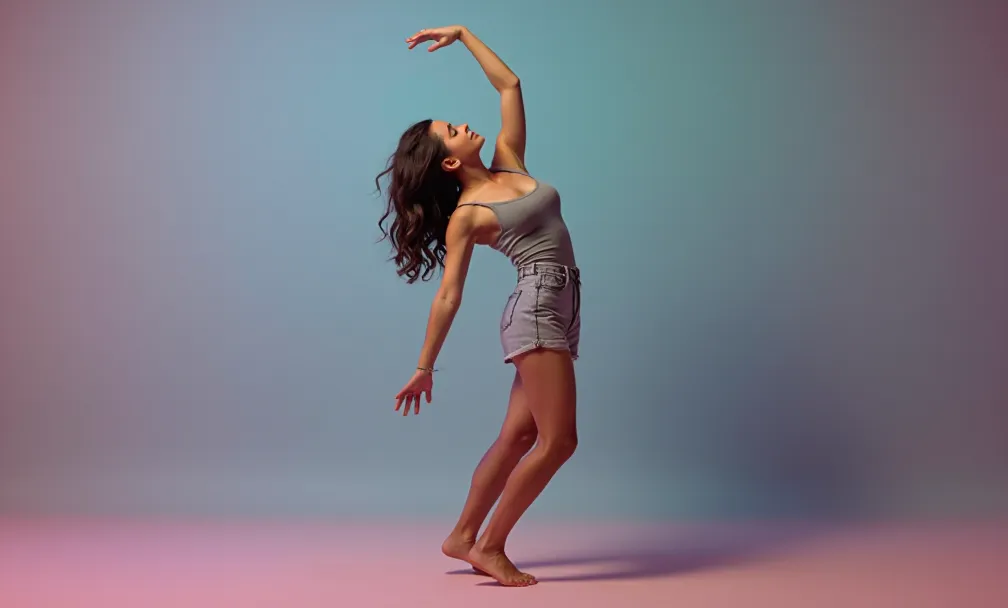 Alt Text: Example of creative freedom showing AI Video Person Replacement where a character is swapped or stylized.
FAQ: Your Questions Answered
Q: Can I convert video to cartoon online free without watermarks? A: Rarely. High-quality GPU processing costs money. Some tools offer credits for new users (like Pixelfox AI), but completely free, unlimited, watermark-free tools usually steal your data or run crypto miners on your browser. Be careful.
Q: How do I stop the AI video from flickering? A: Use a tool with high "temporal stability." Ensure your source video is lit well. Use a lower frame rate (12-15 fps) for the output.
Q: What is the best AI cartoon video generator for long videos? A: Most web tools cap at 10-60 seconds. For longer videos, you should chop your clip into scenes, process them individually, and stitch them back together in an editor. This also prevents the AI from hallucinating halfway through.
Q: Is it legal to use anime video ai art generator free styles? A: Yes, generally. You own the copyright to your original footage. The style transfer is considered a transformative work. However, avoid prompting for trademarked characters (e.g., "Make me look like Mickey Mouse") if you plan to sell the video.
Final Thoughts: Don't Just Edit, Reimagine
The era of boring video is over. Whether you want to change video to anime ai styles for a laugh, or you are building a serious brand using anime animation ai, the tools are finally ready for prime time.
You don't need to be an artist. You don't need a powerful PC. You just need a creative idea and the right engine.
Stop struggling with complex software or settling for glitchy free apps that ruin your footage. If you are ready to create scroll-stopping, viral-worthy cartoon videos today, give Pixelfox AI a spin. It’s the easiest, most stable way to transform your reality into art.