 Credit

Let’s be real for a second. We’ve all seen them—those AI images that look like they were dipped in liquid plastic. The skin is too smooth, the lighting is suspiciously perfect, and don’t even get me started on the hands (why are there always seven fingers?). If you’re tired of the "uncanny valley" and actually want to make ai photos look real, you’re in the right place.
The game has changed massively in the last six months. We aren’t just talking about generating cartoons anymore. We are talking about a realistic ai image generator capability so advanced that it’s fooling photography award judges. Whether you are a marketer needing stock photos that don’t suck, or a designer trying to convert image to realistic ai assets, the tools available right now are mind-blowing.
In this deep dive, we’re going to cut through the hype. I’ve tested dozens of tools to find the ones that actually deliver photorealistic ai results, explained exactly how to prompt for them, and yes, we’re going to fix those plastic faces.
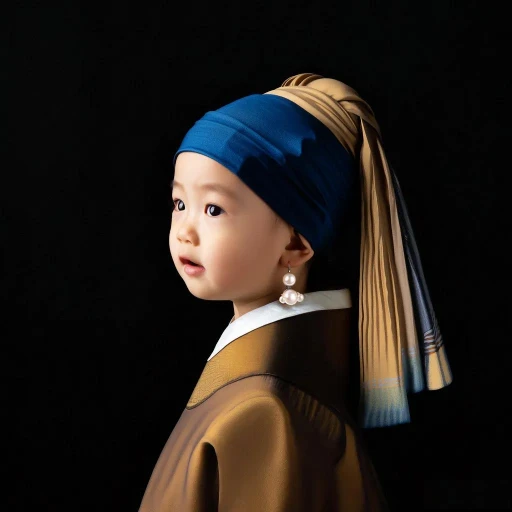
The "Uncanny Valley": Why Most AI Images Fail at Realism
Before we jump into the tools, you need to understand the enemy. Why do ai images that look real seem so hard to produce?
It usually boils down to three things:
- Texture Deficit: Real life is messy. Surfaces have grit, skin has pores, and air has dust. Bad AI smooths everything out.
- Lighting Physics: A realistic image generator needs to understand how light bounces (global illumination). If the shadows don't match the light source, your brain screams "FAKE."
- Perfect Symmetry: Nature isn't perfectly symmetrical. When AI generates a face that is mathematically perfect, it feels robotic.
To make photo realistic, you need a tool (and a prompt) that embraces imperfection.
Top Contenders: Who is the Best Realistic AI Image Generator in 2025?
I’ve put the heavy hitters to the test. Here is the breakdown of the best tools to make photos more realistic.
1. Pixelfox AI (The All-Rounder)
Look, I’ve used a lot of tools, but when it comes to balancing ease of use with straight-up hyper realistic ai art, Pixelfox AI is sitting pretty at the top. It’s not just about generating from scratch; it’s about the ecosystem.
- Why it wins: It’s built for the realistic ai workflow. You aren’t fighting with complex code. You type what you want, and the engine understands context better than most.
- Killer Feature: The image to real life ai capabilities. You can take a sketch or a rough concept and make image look realistic ai style in seconds. Plus, it handles text rendering (like on signs or shirts) way better than the competition.
- Best For: Marketing assets, social media content, and photorealistic ai generator tasks where speed and quality matter equally.
2. Flux (The Tech Heavyweight)
If you are a developer or have a powerful PC, Flux (specifically the Pro and Dev models) is making waves. It’s open-weight, meaning the community is constantly tweaking it. It produces stunning textures, but the learning curve? Steep.
3. Midjourney v6
The elephant in the room. Midjourney is artistic and beautiful. It does realistic ai photos very well, but it often leans towards a "cinematic" or "painted" look rather than a raw, DSLR photo style unless you prompt it very carefully. Also, doing everything inside Discord can be a pain.
4. Google Imagen 3
Google’s entry is scary good at textures. If you want to make picture realistic ai style with a focus on landscapes or objects, it’s a solid choice. However, it has strict safety filters that sometimes block harmless prompts.
Comparison Table: Finding Your Perfect Tool
| Feature | Pixelfox AI | Midjourney | Flux Pro | Stable Diffusion |
|---|---|---|---|---|
| Realism Score | ⭐⭐⭐⭐⭐ | ⭐⭐⭐⭐ | ⭐⭐⭐⭐⭐ | ⭐⭐⭐ |
| Ease of Use | High (Web) | Med (Discord) | Low (Code/Node) | Low (Local install) |
| Speed | Lightning | Slow | Varies | Fast (Local) |
| Best For | Marketing/Portraits | Art/Fantasy | Tech Enthusiasts | Custom Models |
| Free Trial | Yes | No | No | Yes (Open Source) |
Expert Tip: Don't just stick to one model. I often start a base generation in one tool and then use Pixelfox AI's Image Generator to refine and upscale the details.
Step-by-Step: How to Create AI Realistic Images
So you have the tool. How do you actually drive it? Writing a prompt for a realistic ai picture generator is like giving directions to a taxi driver; be specific, or you’ll end up somewhere weird.
Step 1: define the "Camera"
Don't just say "a man sitting on a chair." The AI defaults to digital art. You need to force it into photography mode.
- Keywords to use: Shot on Sony A7R IV, 35mm lens, f/1.8 aperture, ISO 100.
- Why: This tells the realistic image engine to simulate depth of field (blurred background) and sharp focus.
Step 2: Light it Up
Lighting is what separates a hyper realistic ai image generator output from a cartoon.
- Bad: "Good lighting."
- Good: "Soft window light, volumetric lighting, golden hour, ray tracing, subsurface scattering."
- Pro Move: "Subsurface scattering" is the tech term for how light goes through skin (like glowing ears in the sun). It’s the secret sauce for human realism.
Step 3: Add Imperfections
This sounds counter-intuitive, but to make photo real, you must add dirt.
- Prompt additions: Film grain, slight noise, skin texture, pores, freckles, candid shot, motion blur.
- Negative Prompt (What to avoid): 3d render, cartoon, anime, smooth skin, plastic, illustration, photoshop.
Step 4: Generate and Iterate with Pixelfox
Head over to Pixelfox AI.
- Input: "Portrait of an elderly fisherman, highly detailed weathered face, rain dripping from hat, shot on 50mm lens, photorealistic, 8k, cinematic lighting."
- Generate: Hit the button.
- Refine: If the eyes look weird, use the specialized editing tools to fix just that area.
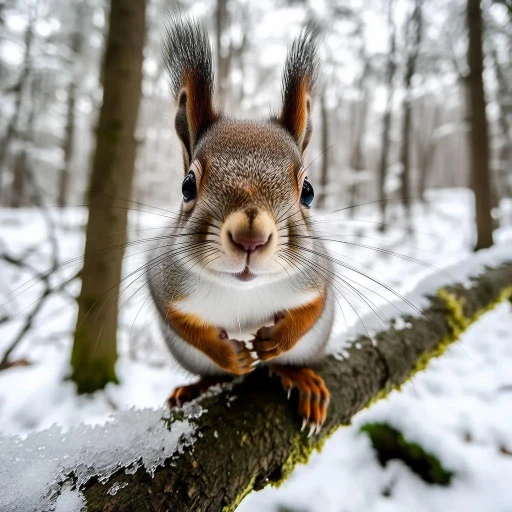
Advanced Techniques: From "Fake" to "Photorealistic"
You want to go deeper? Let’s talk about hyper realistic ai.
The "Raw Photo" Hack
Most AI models are trained on processed, beautiful images. To get that "snapshot" look that feels authentic (like something from your phone), use keywords like:
- Amateur photography
- Smartphone photo
- CCTV footage (for a gritty look)
- Flash photography
- Overexposed
These prompt modifiers force the photorealistic ai generator to drop the artistic pretense and give you raw reality.
Texture Upscaling
Sometimes the resolution is the problem. An image might look real at 512x512, but blow it up, and it’s a blur. Using an AI Upscaler (like the one integrated into Pixelfox) adds calculated pixels to the image, sharpening edges and inventing texture details that weren't there before. This is crucial if you want to print your work.
Tip: Consistency is key. If you are generating a series of images for a brand, save your "Seed" number. This ensures the lighting and style remain the same across different generations.
Use Case: E-Commerce & Marketing Revolution
According to a recent report by Gartner, by 2026, 80% of creative professionals will use GenAI daily. Why? Because traditional photography is expensive.
Scenario: You sell coffee beans.
- Old Way: Hire photographer ($500), rent studio ($200), buy props ($100), edit photos (5 hours). Total: $800+ and days of work.
- New Way: Use a realistic ai generator.
- Prompt: "Bag of luxury coffee beans on a rustic wooden table, morning sunlight, steam rising from a cup in background, depth of field, photorealistic ai style, 4k."
- Result: Studio quality image in 30 seconds. Cost: Pennies.
This isn't just about saving money; it's about speed. You can test 50 different backgrounds for your product in the time it takes a photographer to set up one light stand.
How to do it with Pixelfox
- Take a crude photo of your product.
- Upload it to Pixelfox AI Background Generator.
- Describe the scene you want.
- The AI keeps your product real but builds a hyper realistic ai world around it.
Comparison: AI vs. Photoshop (The Traditional Route)
Is the realistic ai image generator killing Photoshop? Not exactly, but it’s changing the relationship.
- Photoshop: Requires skill. You need to understand layers, masking, lighting, and perspective. To make photo more realistic ai manually takes hours of dodging and burning.
- AI Generators: require "Prompt Engineering" skills. You act as the Art Director rather than the painter.
Verdict: The best workflow is Hybrid. Generate the base with realistic ai, then pop it into an editor for final color grading. It’s not one or the other; it’s both.
3 Pro Tips You Won't Find in the Manual
I’ve spent thousands of hours prompting. Here are the nuggets of gold:
- The "Ugly" Prompt: If your people look too much like supermodels, add keywords like asymmetrical face, interesting features, crooked nose. It sounds mean, but it triggers the realistic image algorithms to break the "beauty filter" bias.
- Reference Images: Don't rely just on text. Pixelfox allows you to upload a reference image. Find a photo with the lighting you want, upload it, and tell the AI to apply that style to your subject. This is the fastest way to image to realistic image success.
- The Aspect Ratio Matters: Don't just generate squares (1:1). Portrait (9:16) often yields better "headshots" because the AI training data associates that shape with phone photos. Cinematic (16:9) triggers more dramatic, movie-like lighting.
Common Mistakes Beginners Make
We all start somewhere. Avoid these traps when trying to convert image to realistic ai.
- Over-prompting: "A man in a suit, blue tie, red shoes, holding a watch, looking left, raining, city background, car driving by..." The AI gets confused. Keep the subject simple and focus on the style keywords.
- Ignoring Hands: We know, AI hates hands. If you don't need them, frame the shot closer. If you do, use "detailed hands" in the prompt or use Pixelfox's "Inpainting" to fix them later.
- Expecting One-Shot Magic: The first result is rarely the perfect one. Treat the AI like a slot machine. Pull the lever (generate) 4-5 times. One will be the jackpot.
FAQ: Your Questions Answered
Q: Can I use these images for commercial work? A: Generally, yes. Platforms like Pixelfox AI grant you commercial rights to the images you generate. However, always check the specific terms of service if you are using a niche free tool.
Q: What is the best realistic ai image generator free? A: Pixelfox AI offers a fantastic free tier that doesn't compromise on quality. You get access to high-end models without needing a credit card instantly.
Q: How do I fix the "plastic skin" look? A: Add texture keywords! "Pores," "skin texture," "freckles," and "film grain" are your best friends to make ai image look more realistic.
Q: Can AI convert a sketch to a realistic photo? A: Yes! This is called "Image-to-Image." You upload your drawing, and the AI uses the lines as a guide to paint a hyper realistic ai image generator output over it.
Ready to Create the Impossible?
The line between reality and AI has blurred to the point of disappearing. In 2025, you don't need a $5,000 camera or a studio to create breathtaking visuals. You just need the right engine and a bit of creativity.
Don't settle for "good enough." If you want to make photo real, stop struggling with outdated tools.
Go try Pixelfox AI right now. It’s free to start, incredibly powerful, and might just be the secret weapon your creative workflow has been missing. Turn your imagination into reality—literally.