 Credit

You open an AI “photo”, zoom in, and… the hands look like spaghetti, the skin looks like plastic, and the background feels like it came from an alternate universe.
Yet the whole reason you searched for “ai image to real image” is because you want the opposite: stuff that looks like it came from a real camera, not a sci‑fi filter pack.
You’re not alone. I work with creators and marketers every week who say the same thing:
“I can get cool AI art. I just can’t get it to look real.”
So this guide will walk you through, step by step:
- what “ai image to real image” really means in 2025
- why AI images still scream “fake”
- a full workflow with image to image AI, post‑processing, and prompts
- how to make AI photos more realistic using Pixelfox AI
- advanced tricks, real cases, mistakes to avoid, and a short FAQ
We’ll keep it human, a bit nerdy, and very practical. 🤝
What “ai image to real image” Really Means Now
People use “ai image to real image” in a few different ways, and this is why tutorials online often feel confusing.
When I look at search data and Reddit threads, I see three main goals:
-
Make AI art look like a real photo
You start with some stylized AI art or a 3D render. You want an image to realistic image result that feels like it was shot on a DSLR or an iPhone. -
Polish a real photo with AI without killing the realism
You have a real shot. You want to remove noise, fix color, fix lighting, maybe fix faces. You still want a realistic image, not a beauty filter nightmare. -
Create new realistic photos from scratch with AI
You want a realistic AI image generator that can output stock‑like photos, product photos, or portraits. You might mix image to image workflows with text prompts.
So the phrase “ai image to real image” often covers:
- image to image AI: you feed an image in, AI transforms it
- ai image converter: you convert style, color, lighting, or realism level
- upload image AI generator tools: you drop in a file and get realistic variants
And this is where Pixelfox AI fits very well, because it gives you a whole toolbox, not just one toy:
- AI Style Transfer → change the style toward photo realism
- Color & Lighting AI Transfer → match the look of a real photo
- AI Image Colour Changer → fix weird palettes and tones
- Photo Colorizer → make old B&W photos look like modern shots
- AI Reimagine (on Pixelfox) → create copyright‑safe variations that stay believable
You can mix these like Lego blocks and build your own “realism pipeline”.
Why Most AI Images Still Look Fake 🤦♂️
Let’s be honest. AI is insanely good compared to 2019. But people still spot the fake in a second. There are some clear reasons.
1. Surfaces are too smooth
Real skin has pores, tiny bumps, random texture. AI often outputs “beauty ad from 2014” by default.
According to research summarized by Nielsen Norman Group, users notice over‑smooth faces and flat textures as one of the top clues that an image is AI‑generated. When everything looks like glass, the brain screams “nope”.
2. Lighting doesn’t follow real‑world physics
Natural light has direction, intensity, color cast, and falloff.
AI will often light every part of the face perfectly, even in scenes where that’s impossible. Shadows look soft in the wrong spots, and highlights are too clean.
A 2023 Gartner digital experience report basically said: as soon as light and shadow feel off, perceived trust drops fast. So bad lighting is not just ugly; it also kills conversion.
3. Anatomy and small details are off
Hands. Ears. Teeth. Jewelry. Reflections in glasses.
These details often go weird. The pose may be “almost right”, but fingers look fused or earrings don’t match.
People spot this faster than you think. Our brains are trained to notice faces and bodies. Anything slightly wrong feels creepy.
4. Color and contrast are “too perfect”
Real photos have slight noise, color shifts, and lens quirks.
AI outputs often look like they were washed through five beauty apps and a “vibrance max” preset.
So if you want to make image realistic, you often have to add back imperfections. Ironically, you need to “damage” the AI image on purpose so it looks more real.
The Tool Stack: From Image to Image AI to Final Polish
You can push toward realism with any half‑decent image to image generator. But if you want consistent results without losing your weekend, you need a simple stack.
Think in three layers:
- Base generation – text‑to‑image or photo input
- Style, color, lighting – this is where Pixelfox shines
- Final realism tweaks – grain, sharpness, minor touch‑ups
H2 That Hits the Keyword: AI Image to Real Image Workflow
Here is how I usually build an ai image to real image flow for clients.
Step 1 – Start with a solid base (text or photo)
You can:
- use any realistic AI generator (Midjourney, Flux, etc.)
- or start with a real photo, a 3D render, or even an illustration
If you use text prompts and want to know how to create AI realistic images, structure prompts like a photographer, not like a poet:
“35mm photo of a woman at a cafe, soft natural light from window on the left, shallow depth of field, f/1.8, ISO 400, subtle film grain, candid expression”
You tell the model:
- camera type
- light direction
- depth of field
- grain / realism
That alone helps make AI photos more realistic before you even touch post‑processing.
Step 2 – Use image to image AI to push style toward reality
Now drop your base image into image to image AI.
On Pixelfox, you have two powerful tools here:
-
AI Style Transfer
Change your AI art style into something closer to a photo. You can steer it away from “digital painting” and more into “studio portrait” or “street photo”. -
Color & Lighting AI Transfer
This one is sneaky strong. You give it:- your base image
- a real reference photo
Then it transfers the color, lighting, and mood from the real photo to your AI image.
This is textbook image to image. You don’t rebuild from scratch. You push the style layer.
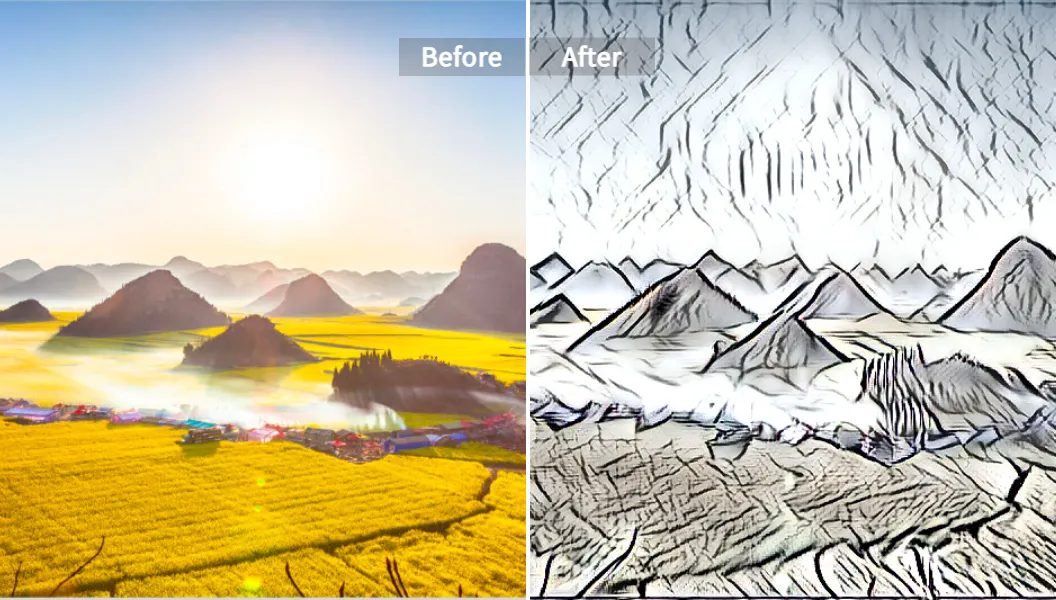
Alt: AI image to real image before and after using Pixelfox AI Style Transfer for realistic image look
Tip:
When you use image to image generator tools, keep the “strength” slider moderate.
If you push it to 100%, you often lose the base structure. If you keep it around 30–60%, you convert image to realistic AI while keeping your original composition.
Step 3 – Fix palette and tones so faces don’t look like wax
Skin. Metal. Wood. Clothing. They all have different color behavior in real life.
The AI Image Colour Changer on Pixelfox is built exactly for that. It is more than a cute filter:
- you can recolor based on custom palettes
- you keep visual harmony instead of random neon chaos
- you fix warm / cool balance to match real‑world lighting
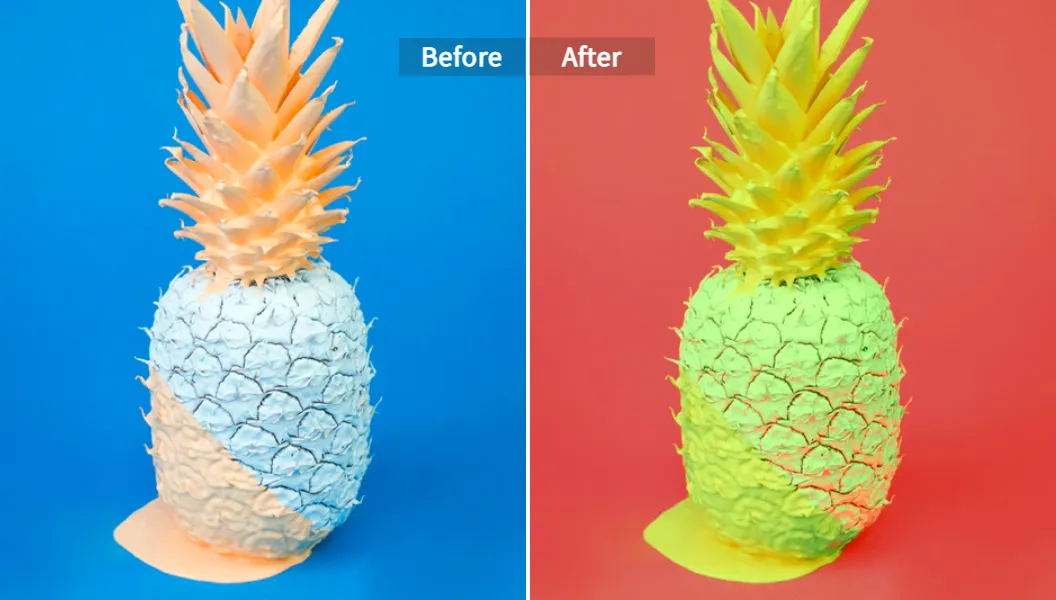
Alt: AI image to realistic image color correction using Pixelfox AI Image Colour Changer
This step helps you make image look realistic AI instead of “AI did color-by-numbers”.
Step 4 – Add grain, texture, and small flaws
Real cameras add:
- noise
- lens softness at the edges
- tiny chromatic aberration
- uneven exposure
You can do this in:
- Photoshop
- Lightroom
- or a lighter editor like Photopea, Fotor, etc.
Add:
- a tiny amount of film grain
- slight vignette
- very light blur on the background
Do not overdo it. You want people to feel it, not see it.
This is the stage where you make photo real, even if it started as full AI. And yes, this works on portraits, product shots, and environments.
Pixelfox vs Photoshop: What Actually Saves Time?
Let’s talk about the thing many people wonder but rarely say out loud:
“Why do I need a tool like Pixelfox if I already have Photoshop?”
Short answer: You don’t need it. You just don’t want to spend three hours per image if you can spend thirty seconds.
Where Photoshop wins
- pixel‑level manual control
- complex composites
- detailed retouch on skin, hair, objects
- pro workflows for print, CMYK, etc.
If you are a high‑end retoucher, Photoshop is your home turf.
Where Pixelfox wins
- speed
- batch work
- no expert skills needed
- AI‑first tools that understand style and lighting
So:
- if you want to turn image into AI art, do a quick style experiment, or run image to illustration AI on 30 photos, Photoshop is a pain
- Pixelfox is built for this kind of flow
Want to turn my pictures into AI anime? Use the Pixelfox AI Anime Generator.
Want to turn photo into AI art and then push it back to realism? Use AI Style Transfer plus a real photo reference.
Tip:
A very effective setup is:
- Use your favorite generator to turn picture into AI art with strong composition.
- Use Pixelfox AI Style Transfer and Color & Lighting AI Transfer to pull it back toward a realistic photo look, guided by a real reference shot.
This combination keeps the creative idea but fixes the “AI smell”.
Pixelfox vs Other Online Realistic AI Generators
You will see tons of “free realistic AI image generator” sites. Some are fine. Many are just wrappers around the same open models.
Here is where Pixelfox usually does better for ai image to real image use cases:
- Focused tools instead of one bloated editor
You get small, sharp tools:
- Style Transfer for style
- Color & Lighting Transfer for mood
- Image Colour Changer for palette
- Photo Colorizer for old B&W shots
You don’t have to dig through 50 sliders. You do one job at a time and don’t fry your brain.
- Good defaults for realism
Pixelfox presets lean toward natural, not crazy.
You can still go wild, but the default “taste level” helps you make image realistic without over-saturating everything.
- Privacy
Pixelfox is clear about data:
We strictly adhere to data privacy policies. Uploaded images are only used for real‑time processing and are neither stored nor shared.
This matters, especially for client work or sensitive photos.
- Easy “upload image AI generator” flow
You drag, drop, done. There is no long sign‑up maze just to test it. That’s a plus if you just want to convert image to realistic AI for a quick campaign.
Advanced Tricks: How to Make AI Photos More Realistic (Pro Level) 😼
If you already play with AI tools and you are bored of beginners’ tips, this part is for you.
Trick 1 – Use real‑world lenses and ISO in your prompts
When you prompt or choose styles, reference real gear:
- “shot on 50mm lens, f/1.4, ISO 800, indoor tungsten light”
- “24mm wide angle, f/5.6, outdoor, overcast sky”
Then use image to image AI to refine it. The model now tries to respect real depth and noise. It’s a simple way to make AI photos more realistic without extra edits.
Trick 2 – Use Color & Lighting Transfer to keep a whole set consistent
If you run an e‑commerce store or social brand, you don’t just need one realistic image. You need a consistent set.
You can:
- Shoot or pick one good real photo of your product or scene.
- Use Color & Lighting AI Transfer on Pixelfox on all new AI shots.
This way:
- your image to image generator keeps composition creative
- your transfer tool keeps color and light consistent across the whole set
This is a big cheat code for “brand consistency with AI”.
Trick 3 – Turn AI photos into illustrations, then back to realistic
Sounds weird, but it works.
You can:
- Use a realistic base photo or AI result.
- Run it through image to illustration AI using Pixelfox AI Style Transfer with, say, manga or 3D animation.
- Then use AI Reimagine + real‑photo references to pull it back closer to realism.
Result: you get images with more interesting shapes and designs, but the final still feels grounded. So you get “stylish real” instead of “generic stock”.
Trick 4 – Use AI for background “realism” in product and YouTube cover shots
Let’s say you want:
- clean white backgrounds for product photos
- more gripping YouTube covers
- transparent logo shots that still look sharp
You can:
- Use the Pixelfox AI Background Generator for studio‑like product scenes. It makes product shots look like you paid for a professional setup.
- Use Style Transfer for turn photo into AI art on your face, then keep the backdrop realistic and sharp. Great for thumbnails.
- Use AI to generate a clean, realistic background and then place your transparent logo on top. That makes the logo feel like it sits in real space, not floating in a void.
This is how advanced users squeeze more out of the same tools. It is not about one magic button. It is about stacking simple steps.
Real‑World Case Studies: How People Actually Use This
Here are two real‑world style examples based on typical client workflows.
Case 1 – E‑commerce brand turning 3D renders into “real” product photos
A small DTC brand did not want to pay for a full studio shoot for each color of their product. They had basic 3D renders that looked okay but very fake.
Their goal: image to realistic image for web and ads.
Workflow:
- Export clean 3D renders with neutral light.
- Use Pixelfox AI Style Transfer to bring them closer to “studio photo” style.
- Use Color & Lighting AI Transfer with real reference photos from a small test shoot.
- Run AI Image Colour Changer to match each product color exactly.
- Add a bit of film grain and vignette in Photoshop.
Result:
- images looked like full studio shots
- the set was consistent
- they cut real‑world shooting costs by 60%+
- click‑through rate on ads went up because the products simply looked more “touchable”
Case 2 – Creator making talking avatars that don’t look like plastic
A content creator wanted to turn my pictures into AI talking avatars for shorts and explainers. They hated how many tools gave “fake face” vibes.
Goal: realistic talking avatar from a static photo, not uncanny.
Workflow:
- Start from high‑res portrait photo.
- Use Photo Colorizer when the base was B&W or low color.
- Use Color & Lighting AI Transfer with a well‑lit studio selfie as reference.
- Send the result into AI Photo Talking Generator on Pixelfox to get a lip‑synced talking video.
- Add slight grain and compression in the video editor so it felt like a normal camera shot.
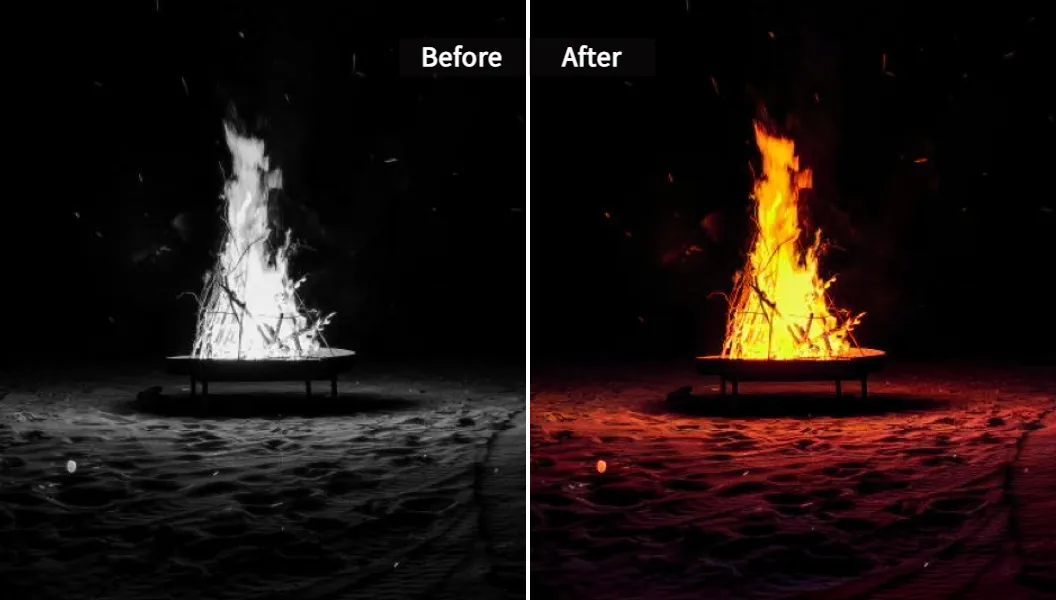
Alt: Make old photo real and colorful with AI image colorizer for realistic image output
Outcome:
- viewers thought it was shot on a phone, not generated
- engagement improved because the avatar felt more human
- the creator could produce explainer clips in hours, not days
Common Mistakes When Trying “AI Image to Real Image” (and Fixes)
New users make the same few mistakes over and over. Here are the big ones.
Mistake 1 – Vague prompts
People type:
“Beautiful girl, nice lighting, ultra realistic”
Then they wonder why the image looks like an ad from a cheap app.
Fix:
Describe camera, light, and mood.
If you want to make image realistic, say things like:
- “natural window light from right”
- “shot on 50mm lens, f/2.0, shallow depth of field”
- “subtle film grain, not HDR”
Mistake 2 – Ignoring lighting across a set
One image looks golden hour.
The next is cold blue.
Your store or feed looks like a random Pinterest board.
Fix:
Use Color & Lighting AI Transfer with the same reference photo on all your shots. This is the best practice if you want to convert image to realistic AI for a brand and keep it all consistent.
Mistake 3 – Over‑smoothing skin and faces
It is so easy to click “enhance” buttons until skin looks like plastic.
Fix:
Let some texture live.
Use subtle sharpening, not face‑morphing filters. If your tool has an “enhance face” toggle, keep it low.
Mistake 4 – Using one heavy filter instead of a simple stack
A lot of tools market “one click to perfection”. That usually gives you “one click to weird”.
Fix:
Think like this:
- generate
- adjust style
- match light
- fix color
- add small flaws
Each step is simple. Together, they make AI photos more realistic without you fighting the tool.
Mistake 5 – Forgetting ethics
If you turn photo into AI art or push it back to realism, and the original is a real person, you still need consent.
Also, if you use AI for public ads, label it when needed. It keeps trust high.
Best Practices from Pros Who Use AI Daily
Let me put three expert rules in plain language.
-
Always keep a real reference nearby
Even when you turn image into AI art, keep some real photos open. Ask: “Would light really fall like that?” If not, fix it. -
Work non‑destructively
Save versions. Run ai image converter steps in copies. That way, you can go back if a step ruined realism. -
Use the right tool for the right job
- AI tools like Pixelfox for image to image style, lighting, and tone
- Photoshop or similar for pixel‑level corrections
You don’t get extra credit for suffering in one tool.
FAQ: Short Answers to Big “Realism” Questions
How can I use AI to make a realistic image from a cartoony one?
You can use an image to image generator like Pixelfox. Start with your cartoon. Run AI Style Transfer toward a realistic style, then apply Color & Lighting AI Transfer with a real photo as reference. Finish with small grain and contrast tweaks. That flow often gives a strong image to realistic image result.
Why do my AI photos still look fake even after editing?
Usually it is lighting and micro‑details. Even a realistic AI image generator will miss small cues like how shadows wrap around the face or how reflections behave. Use a real reference photo, match lighting with AI tools, and then add tiny imperfections. That last step is where many people stop too early.
Can I turn a real portrait into AI art and then back again?
Yes. You can turn photo into AI art (anime, painting, etc.) using style transfer or an image to illustration AI setup. Later you can use image to image AI plus real references to nudge it back toward realism. You won’t get the exact original back, but you can get a believable “real‑style” version.
How is Pixelfox different from other upload image AI generators?
Most “upload image AI generator” sites throw many filters into one interface. Pixelfox splits jobs into focused tools like Style Transfer, Color & Lighting Transfer, Image Colour Changer, and Photo Colorizer. That makes it easier to control each step of your ai image to real image pipeline. The platform also highlights privacy and deletes processed images.
What’s the difference between text‑to‑image and image‑to‑image AI for realism?
Text‑to‑image starts from noise and follows your prompt. Great for concept ideas. Image to image AI starts from an existing picture (photo, render, or AI art) and transforms it. For realism, image‑to‑image often wins, because you control composition and can push style toward a realistic image without changing everything.
One Last Push: Turn “AI‑ish” Into Actually Real
If your AI images look “almost there” but not quite human, it is not because you are bad at this. The tools are still young, and most tutorials online stop at “type better prompts”.
You now have a real playbook:
- use prompts like a photographer
- rely on image to image AI to steer style, not restart from zero
- use Pixelfox tools (Style Transfer, Color & Lighting, Colour Changer, Colorizer) to fix what humans actually notice
- add micro‑flaws so the final image to realistic image result feels like a real camera shot
If you want to try this without burning hours on setup, just:
- grab any AI art or rough photo
- upload it to Pixelfox as your upload image AI generator
- run it through AI Style Transfer and Color & Lighting AI Transfer
- do a quick color tweak and export
You will see how fast you can go from ai image to real image once the pipeline is right.
Ready to make your AI visuals stop looking like AI?
Head over to Pixelfox, drop in a test image, and start breaking the uncanny valley on purpose. 🚀