 Credit

You open your camera roll.
You tap on what should be the perfect shot.
And you get… a soft, smudged mess that looks like it was taken on a potato 🥔.
So you hop to Google and type “how to make blurry pictures clear app free” and wonder if this is even possible or if the internet has been lying to you all along. You also quietly ask yourself, “can you fix blurry photos or is this photo just dead?”
Good news: a lot of “ruined” photos are totally fixable. Some are not. But with the right unblur photo app, you can push most of them from “ugh” to “okay” or even “wow”.
This guide breaks down:
- Why your photos are blurry in the first place
- How can you fix a blurry picture with free apps (step-by-step)
- The best app to unblur photos in 2025 (and how they really compare)
- Exact workflows for how to fix blurry pictures on iPhone for free and on Android
- Pro tricks, common mistakes, and real-world examples
- And yes, where Pixelfox AI fits in as your go‑to “app to make pictures clear” 🔍
Why your photos get blurry (and what that blur really is)
Before we talk about how do you fix a blurry picture, you need to know why it’s blurry. Because different blur types need different fixes.
Here are the main culprits:
-
Motion blur
Your hand shakes. Your subject moves. The shutter is open too long. Everything streaks. -
Focus blur
The camera focused on the background tree, not your friend’s face. Or it focused on the wrong plane. -
Low light + noise
The phone boosts ISO to see in the dark. The photo gets grainy and soft. -
Digital zoom + compression
You zoom in 8x, then send the pic on WhatsApp. The app compresses it. Now it’s pixel mush. -
Screenshots of screenshots
You screenshot an image. Your friend screenshots that. After 3–4 rounds, it looks like a relic from 2003.
Each type of blur reacts differently when you use an app to make blurry image clear.
And the pain is real:
- That once-in-a-lifetime concert shot where the singer is just a glowing blob
- Your product photo on Etsy looks soft, so buyers scroll past
- Old family photos that are fuzzy, and the faces are losing detail with time
According to Statista and similar market reports, people now take hundreds of billions of photos each year, most on phones with tiny sensors. Tiny sensors plus bad light equals blur. A lot of blur.
So the question “how can you fix a blurry picture” is not some niche nerd thing. It’s a daily life problem for almost everyone with a smartphone.
Can you actually fix blurry photos with an app?
Short answer:
Yes, you can improve most blurry photos a lot.
No, you cannot turn a ghost into a 4K portrait every time.
When you use a fix blurry pictures app, the tool is not “finding” lost detail. It is:
- Sharpening edges
- Boosting contrast around tiny lines
- Reducing noise
- Sometimes hallucinating extra detail using AI
Modern AI tools like Pixelfox AI look at patterns learned from millions of photos. Then they predict what a clear version of your subject should look like. This is why a good clear picture app feels like magic when it works.
But there are limits:
- If the subject is completely out of focus, you can only get “less bad”, not perfect
- If the file is super tiny or heavily compressed, the AI has very little to work with
- Extreme motion blur (fast moving car at night) is very hard to fully fix
So can you fix blurry pics?
You can fix them enough for social media, online stores, or memory keeping in many cases. Just manage expectations, and pick smart tools.
How to Make Blurry Pictures Clear App Free: the fast route with Pixelfox AI
Let’s go straight to a simple, no‑nonsense workflow.
If you want a free app to fix blurry photos that runs in your browser (phone or laptop), Pixelfox AI Image Enhancer is a very strong starting point. It is an online app to make pictures clearer with:
- One‑click AI enhancement
- Higher resolution output
- Noise reduction
- No watermark on downloads
- Real‑time processing and auto deletion after a short time window for privacy
You don’t install anything. You just use it like a website.
Step‑by‑step: use Pixelfox AI as your “photo clearing app”
-
Open Pixelfox AI Image Enhancer
On your phone or computer browser, go to/image/enhancer/edit.
This is the main apps to make photos clear page. -
Upload your blurry photo
Drag and drop, or tap to upload.
You can use selfies, product photos, old scans, whatever. -
Let the AI analyze the image
Pixelfox scans every pixel.
It detects blur, noise, and low‑contrast edges. Then it runs a mix of:- AI sharpening
- Upscaling
- Noise reduction
- Color and contrast fixes
-
Preview the result
You see a before/after view.
Zoom in on eyes, text, or product details. Decide if the app to clear up blurry photos did enough. -
Download the clear image
Click download.
You get a high‑quality, watermark‑free image, ready for Instagram, printing, or your store.
Tip
If the picture is very noisy and blurry, run it through Pixelfox once.
Then, if you still see grain, you can lightly sharpen again or use an AI denoiser. Back off the strength if the photo starts to look too “plastic”.
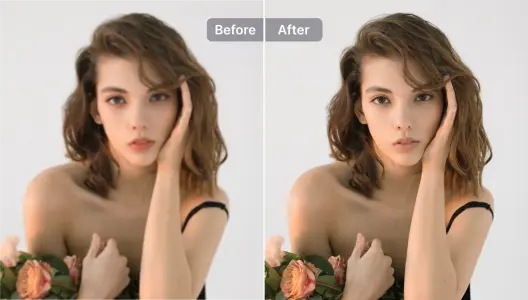
Pixelfox is built as a general app to make blurry photos clear, not only for portraits. So you can use it for:
- Portraits and selfies
- Real estate photos
- Product images
- Old scanned photos
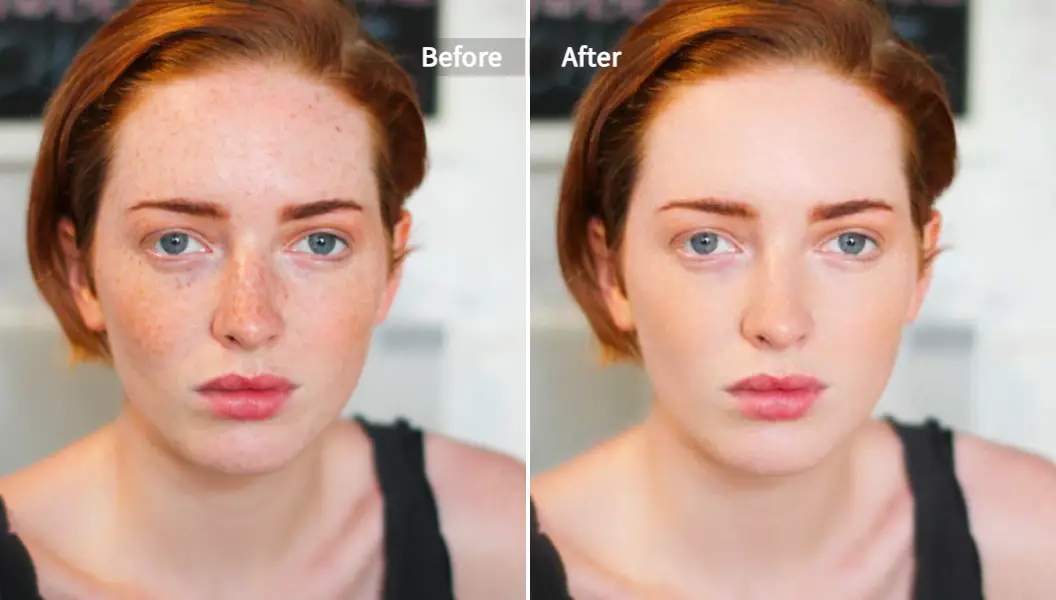
And if you also want smooth skin and portrait fixes, you can pair it with the Pixelfox AI Photo Retoucher, which cleans up acne, blemishes, and rough skin while keeping the face sharp.
Best apps to make blurry photos clear in 2025 (free and freemium)
People search for apps to make blurry photos clear all day. The app stores are full of choices. Some are great. Some are just ad machines.
Here’s an honest look at the main players in the fix blurry photos app space.
1. Pixelfox AI (Web – mobile & desktop)
Best for: Fast, high‑quality AI enhancement in a browser
- Works on any device with a browser
- One‑click enhancement, upscaling, noise reduction
- No watermark on downloads
- Great for a quick app to make pictures clear for social, business, or prints
- Strong privacy policies; images are deleted after processing
Use the main enhancer at /image/enhancer/edit as your central unblur photo app workflow.
2. Snapseed (iOS, Android – free)
Best for: Hands‑on editing with no cost
- Owned by Google
- Has “Details” > “Structure” and “Sharpening” tools
- You can combine local contrast and light sharpening to fix a fuzzy photo
- Fully free, no watermark
You need a bit of time to learn it. But once you do, it’s powerful.
3. Remini (iOS, Android – freemium)
Best for: AI portrait enhancement
- Uses deep learning to “rebuild” faces
- Can turn low‑res selfies into very smooth, clear versions
- Great as a best app to fix blurry pictures for portraits only
The downside:
Heavy ads on the free plan, and some results look a bit “too AI” or plastic.
4. Fotor (Web, iOS, Android – freemium)
Best for: One‑click online editing
- Has an “AI enlarger” and sharpening tools
- Good for quick apps to make photos clear type work
- Simple UI, good for beginners
But the free plan can add limits or watermarks on some exports.
5. Canva (Web, iOS, Android – freemium)
Best for: Social graphics and simple clean‑up
Canva is not a pure fix blurry pictures app, but:
- It has a “Photo Enhancer” that adjusts clarity and sharpness
- You can place your improved photo into designs, posts, thumbnails
It’s handy if you want to unblur a photo and drop it into a ready-made design.
6. Picsart (iOS, Android, Web – freemium)
Best for: Creative edits + clarity
- Has “Enhance” and “Sharpen” tools
- Lots of filters and effects
- Can serve as a fun app to make blurry image clear if you like to edit creatively
You need to be careful not to overdo filters or you lose realism.
7. Adobe Lightroom Mobile (iOS, Android – freemium)
Best for: Manual control, serious mobile photographers
- Has “Detail” panel with Sharpening and Noise Reduction
- Has “Clarity” and “Texture” sliders that add perceived sharpness
- Great for those who want precise control instead of full auto
It’s not the simplest photo clearing app, but the results can be excellent when you learn it.
8. VSCO (iOS, Android – freemium)
Best for: Aesthetic edits with light sharpening
- Not a dedicated app to make pictures clearer, but
- Has basic sharpening and clarity
- Best when you care more about mood and colors than max detail
9. YouCam Enhance / YouCam Perfect (iOS, Android – freemium)
Best for: Selfies and beauty shots
- AI tools to unblur, brighten, and retouch faces
- Works as a best app to fix blurry photos if your main problem is soft selfies
Some tools are behind a subscription, and results can feel “beauty filter” heavy.
10. Pixelfox extras: Retouch & Colorize (Web)
On top of the main enhancer, Pixelfox also has:
-
AI Photo Retoucher
Cleans skin while keeping detail. Great after you unblur. -
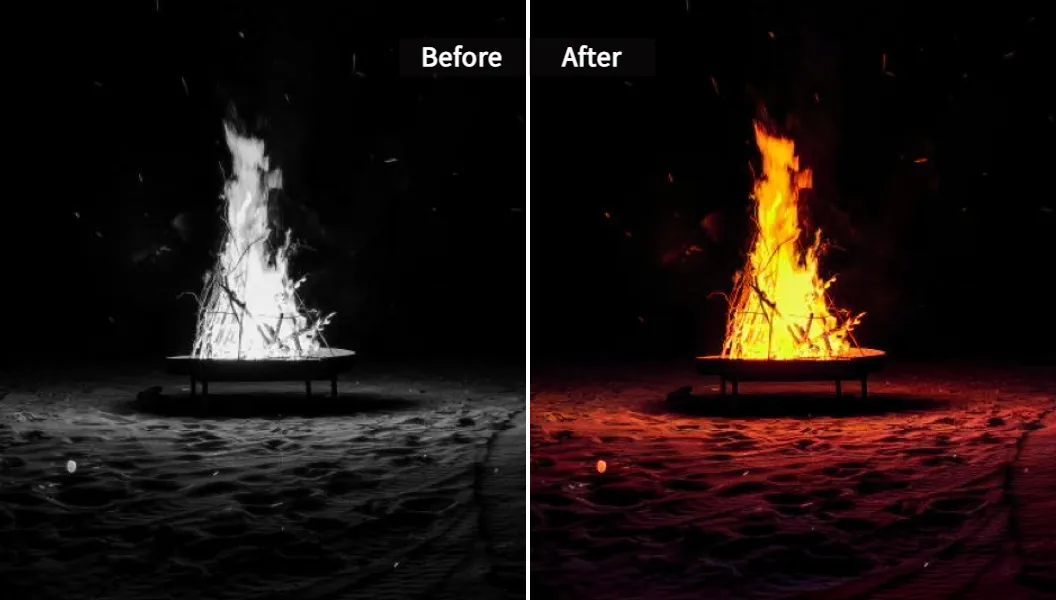
Photo Colorizer
Adds color to black & white or faded old photos.
Perfect when you want to fix blur and bring an old image back to life.
So if you ask “what is the best app to fix blurry photos?”, the real answer is:
Use Pixelfox AI for the heavy lifting, then add a mobile app like Snapseed or Lightroom if you want extra manual control.
How to fix blurry pictures on iPhone for free (3 simple methods)
iPhone cameras are great, but they still miss focus or struggle in low light. You don’t need to buy a pro app right away. You have some solid free tools already.
Method 1: Use the built‑in Photos app
This is the fastest way to try how to fix blurry pictures on iPhone for free.
- Open the Photos app.
- Choose your blurry image.
- Tap Edit (top right).
- Scroll the tools and find Sharpness.
- Increase it slowly. Don’t go crazy, or you get ugly halos.
- If needed, add a bit of Definition or Clarity.
- Tap Done.
This will not turn a disaster into a studio shot. But it’s a quick “why not” attempt that often gives you a small, clean boost.
Method 2: Snapseed for more control
For many people, Snapseed is the “secret” app to make pictures clear on iPhone.
- Install Snapseed from the App Store.
- Open it and tap + to load your blurry photo.
- Go to Tools → Details.
- Increase Structure to bring back local detail.
- Add a little Sharpening.
- Use Tools → Tune Image to adjust brightness and contrast.
- Export and save.
This combo works on everything from landscapes to portraits, as long as the blur is not extreme.
Method 3: Use Pixelfox in Safari
Your iPhone also has a browser. That means you can treat Pixelfox as your “web‑based free app to fix blurry photos”.
- Open Safari.
- Go to
/image/enhancer/edit. - Upload your fuzzy photo.
- Let the AI enhance it.
- Download the improved image back to your camera roll.
This is often stronger than basic mobile sliders, because Pixelfox runs heavier AI models in the cloud.
Tip
If your iPhone photo is both blurry and very dark, brighten it a little in Photos first.
Then send it to Pixelfox. The AI sees more shadow detail and can build a better app to make pictures clearer result.
How to fix a fuzzy photo on Android
Now for Android users. Same pain, slightly different buttons.
Method 1: Google Photos
- Open Google Photos.
- Choose the fuzzy image.
- Tap Edit.
- Use Sharpen and Clarity sliders.
- Save a copy.
Simple, and it works decently when blur is mild.
Method 2: Snapseed or Lightroom Mobile
You already saw Snapseed. It’s identical on Android.
Lightroom Mobile is another strong choice if you like fine control.
In Lightroom:
- Import the photo.
- Go to Detail.
- Increase Sharpening.
- Use Noise Reduction to smooth grain.
- Go to Effects and add a bit of Clarity and Texture.
This gives you a manual version of what an AI fix blurry photos app does for you automatically.
Method 3: Pixelfox in Chrome
Again, the easiest “power move” is just to use Pixelfox as an online app to make blurry pictures clear.
- Open Chrome (or any browser).
- Go to
/image/enhancer/edit. - Upload your blurry shot.
- Wait a few seconds.
- Download the AI‑enhanced result.
Because the heavy processing is on the server, your phone doesn’t need powerful hardware to get strong results.
App comparison: which clear picture app fits you?
You don’t want to try twenty tools. So here is a simple table to compare some key options when you look for a clear picture app or app to make blurry image clear.
| App Name | Platform | Free Features | Best For | Watermark / Ads | Notes |
|---|---|---|---|---|---|
| Pixelfox AI Image Enhancer | Web (any device) | AI unblur, upscale, noise reduction, color fix | All‑purpose photo clearing app | No watermark on downloads | Great privacy, easy one‑click workflow |
| Snapseed | iOS / Android | Full editing suite | Users who like manual control | No watermark, no ads | Slight learning curve |
| Remini | iOS / Android | AI portrait enhancement (limited free uses) | Selfies and faces | Ads on free plan | Can look “too AI” if pushed |
| Fotor | Web / Mobile | Basic enhance, limited AI tools | Quick social edits | Some features gated | Good for beginners |
| Canva | Web / Mobile | Photo enhancer, templates | Social content + slight unblur | Watermark on some exports | Not a dedicated unblur tool |
| Picsart | Web / Mobile | Enhance, sharpen, filters | Creative edits | Ads / locked tools | Fun but easy to overdo effects |
| Lightroom Mobile | iOS / Android | Sharpen, noise reduction, advanced sliders | Serious photographers | Free basic version | Very strong manual control |
| YouCam Enhance | iOS / Android | Basic enhance and retouch | Beauty and selfie shots | Watermarks / limits | Focused on faces |
If you want the best app to fix blurry pictures for general use, start with Pixelfox AI in the browser.
Then keep Snapseed or Lightroom on your phone for fine‑tuning.
Pro‑level tricks: go beyond “just sharper”
Unblurring is step one.
If you want your images to actually look good, not just “less bad”, you add a couple of extra moves.
1. E‑commerce: make product photos clean and clickable
If you sell on Etsy, eBay, Amazon, or Shopify, a soft product shot kills sales. People skip it. Clear photos build trust. That is not just fluff. Reports from ecommerce platforms and firms like Nielsen Norman Group keep repeating the same lesson: clean, detailed product images increase click‑through and conversions.
Here’s a simple workflow that uses Pixelfox as your app to clear up blurry photos:
- Shoot the product in good light, but don’t stress if it’s slightly soft.
- Upload it to
/image/enhancer/editand run the AI enhancer. - If it’s a model shot and the skin looks rough, open it in the AI Photo Retoucher.
- Smooth the skin and keep the fabric or product details sharp.
- Export the final image and upload to your store.
Now your product looks sharp, clean, and pro, without you learning Photoshop masks.
2. Old photos: restore blur and add color
Old scanned photos often have two issues: blur and faded color (or they’re black & white). This is where a combo of “fix blur” + “colorize” hits hard emotionally.
You can:
- Scan or photograph the old print.
- Send it through Pixelfox AI Image Enhancer to recover sharpness and reduce noise.
- Then use the Pixelfox Photo Colorizer to add natural color back.
Now you did not just use an app to make pictures clearer.
You literally brought a memory back to life.
3. When you actually want blur: “how to unfocus a picture”
Funny twist. Some people search how to unfocus a picture because they want more blur (for a dreamy look or to hide messy backgrounds).
Almost every app above lets you do that:
- In Snapseed, use Lens Blur.
- In Lightroom, use Selective edits and blur the background.
- In Pixelfox, you can enhance the subject first, then add creative blur with another app.
The nice move is: sharpen the subject with an app to make blurry image clear, then blur the background. That gives you that “portrait mode but better” look.
Pixelfox vs Photoshop and other online tools
You might think, “Why not just use Photoshop? Pros use it, right?”
Pixelfox AI vs Photoshop (and similar desktop tools)
- Photoshop is powerful, but the learning curve is steep
- You pay a subscription
- You need a computer with decent power
- You do most things manually: masks, smart sharpen, AI filters, layers
Pixelfox as an unblur photo app works differently:
- Opens in your browser on phone or laptop
- No install, no big learning curve
- One‑click AI enhancement for blur, noise, and color
- Great as a free app to fix blurry photos for most everyday needs
If you do high‑end commercial work, Photoshop still has a place.
If you just want your vacation photos, selfies, or product shots to stop looking like they were shot through a window, Pixelfox is way faster.
Pixelfox AI vs other online enhancers
There are tons of “online apps to make blurry photos clear”. Many:
- Add heavy watermarks on the free plan
- Have aggressive ads or weird pop‑ups
- Don’t explain what they do with your photos
- Offer tiny export sizes
Pixelfox is built with a cleaner approach:
- Real AI models for enhancement, not just a sharpen filter
- No watermark on high‑quality downloads
- Clear privacy promise: images processed fast and removed later
- Tools for more than just unblur (retouch, colorize, even video enhancement with AI Video Enhancer or AI Video Denoiser)
So you get more value from one place, and you don’t feel like you’re fighting the website.
Common mistakes when using a fix blurry photos app
People often hurt their images when they try to save them. Let’s talk about what goes wrong with a fix blurry pictures app or fix blurry photos app.
1. Over‑sharpening everything
You slide sharpening to 100.
Edges glow. Skin looks crunchy. Hair becomes a halo.
Use sharpening and AI enhancement in moderation. Let the apps to make blurry photos clear do the heavy lifting, then tweak lightly.
2. Ignoring noise
If your photo was shot at night, it probably has noise. When you sharpen noise, it looks worse.
A smarter flow:
- Reduce noise a bit.
- Then enhance sharpness.
- Check at 100% zoom.
Pixelfox helps here because it handles noise and detail at the same time instead of treating them in isolation.
3. Working on tiny or over‑compressed files
If you edit a 200×200 pixel version of your photo, even the best app to unblur photos can’t invent magic.
Always work from the highest‑resolution version:
- Ask friends to send the original, not a screenshot
- Use the original camera file, not a social media download
An app to make blurry pictures clear can do a lot. But starting from a decent base changes everything.
4. Saving and re‑saving as JPEG
Each save adds a bit of compression. After many edits, your image looks blocky.
Try this:
- Do your work in one main app (like Pixelfox)
- Export once
- Avoid endless save‑edit‑save loops
5. Using sketchy sites
Some random “free apps to make blurry photos clear” online have unclear privacy or terms. They might store or reuse your photos.
Check that the tool:
- Clearly states its privacy policy
- Deletes images after a set time
- Has a real brand behind it
This is one reason I like Pixelfox as a photo clearing app. It is clear about processing and deletion.
Real‑world case studies: when unblur actually matters
Case 1: The small shop owner
Sara runs a tiny handmade jewelry store on Etsy. Her product photos looked soft and dark, especially when shot indoors. She needed an app to make pictures clearer without hiring a photographer.
Her flow now:
- Take product shots near a window.
- Upload to Pixelfox at
/image/enhancer/edit. - Enhance and download.
- Lightly crop and add a clean background in Canva.
The result:
Her listings look sharper, the metal details pop, and she noticed more saves and clicks. She didn’t change her camera, just her workflow.
Case 2: The family archivist
Mike found a box of old black & white photos from his grandparents. Many were soft and a bit faded. He used Pixelfox as his app to clear up blurry photos.
His steps:
- Scan the prints at a decent resolution.
- Enhance each scan with Pixelfox AI Image Enhancer.
- Use the Photo Colorizer on the most important ones.
Now he has clearer, colorized versions that the whole family loves. He shared them in a group chat and printed a small album. No pro retoucher needed.
FAQ: how to unfocus a picture, can you fix blurry pics, and more
How can you fix a blurry picture with a free app?
You can fix a blurry picture by:
- Using a unblur photo app like Pixelfox AI in your browser
- Or using mobile apps like Snapseed or Lightroom Mobile
Upload the photo, apply AI enhance or sharpening + noise reduction, then export.
You often get a big jump in clarity, especially if the blur is mild to moderate.
How do you fix a blurry picture on iPhone without paying?
For how to fix blurry pictures on iPhone for free:
- Try the Photos app: Edit → Sharpness + Definition
- Install Snapseed and use Details + Sharpen + Tune Image
- Or open Safari and use Pixelfox at
/image/enhancer/editas a free browser‑based app to make pictures clear
All of those are free and give you different levels of control.
Can you fix blurry photos completely?
Sometimes. Not always.
If the photo is slightly out of focus or a bit soft, tools like Pixelfox can make it look very clear. If it is extremely blurred, AI can still improve it, but it may not reach “tack‑sharp print” quality.
So can you fix blurry photos?
Yes, you can make most of them much better. Just don’t expect miracles from a tiny, badly shot file.
What is the best app to fix blurry photos right now?
For most people:
- Pixelfox AI Image Enhancer is the best app to fix blurry pictures when you want a fast, smart browser tool that works on any device
- Snapseed is great when you want full control on mobile
- Remini or YouCam help most with faces and selfies
If you want one tool to start with, Pixelfox is a strong best app to fix blurry photos choice.
Is there an app to clear up blurry photos and also retouch skin?
Yes. You can:
- Enhance overall clarity with Pixelfox at
/image/enhancer/edit - Then retouch skin and remove blemishes with the AI Photo Retoucher
This combo works very well for portraits and social media creators who want both sharp detail and smooth, natural‑looking skin.
Are these apps safe for private photos?
Most major apps are safe, but always read the policy.
Pixelfox, for example, processes images on its servers and then deletes them after a short window, and it states that clearly. That helps a lot when you upload personal or client photos to an app to make blurry pictures clear.
Bring your blurry photos back to life
Blurry photos happen. Your hand shakes. Your friend moves. The light sucks. That is normal. What matters is what you do next.
Now you know how to make blurry pictures clear app free, which apps to make blurry photos clear are worth your time, and how to squeeze extra quality out of iPhone and Android shots. You also saw how pros and regular people use a smart app to clear up blurry photos to save product shots and family memories.
If you want an easy place to start, try Pixelfox AI Image Enhancer at /image/enhancer/edit. Let the AI do the heavy lifting, and then share or print your photos without the “why is this so fuzzy?” drama.
Fix one blurry photo today. You will be surprised how much memory and meaning is still hiding in there ✨