 Credit

Most people Googling best free photo editing program for pc are not “cheap”. They’re just tired of paying rent to Adobe for the privilege of moving a slider 3mm to the left. And in 2026, “free” is a minefield: watermarks, export limits, ads that scream at you, and “AI” buttons that do… basically nothing (cool story, bro).
This guide fixes that. I’ll show you what’s actually worth using on a Windows PC today, what’s secretly a trap, and how to pick the right tool based on what you’re editing (RAW photos, product images, thumbnails, memes, you name it). I’ll also put Pixelfox AI up front because, in real life, most people don’t want “a program.” They want results. Fast. 😌
Last updated: January 2026
URL idea: /best-free-photo-editing-program-for-pc
What “free” really means in 2026 (and how you get tricked)
When people search free image editing software windows or picture editor for windows free, they usually mean at least one of these:
- Free to download (but exports are watermarked)
- Free to use (but the best tools are locked)
- Free for “personal use” (then it nags you forever)
- Free and offline (so your files don’t go to someone’s cloud)
- Free and simple (because you don’t want a 3-week learning arc)
Here’s the simple truth: you can’t judge “free” by the download button. Judge it by the output. If it can’t export clean images at a decent size without a watermark or a paywall pop-up, it’s not free. It’s a demo wearing a fake mustache. 🥸
Authority check: Nielsen Norman Group’s usability research keeps repeating the same theme: people hate cognitive overload. Too many options kills confidence and raises error rates. That’s why “pro” tools feel scary, and why “one-click” tools win for everyday editing.
How I tested these tools (so this isn’t another fluffy list)
I tested each option the way normal people actually edit photos on a PC:
- Windows 11 desktop + a mid-range laptop (so not a NASA machine)
- JPEG edits (social + web) and RAW workflows (photography)
- Real tasks: crop, color fix, background removal, object cleanup, text overlays, batch edits
- I also judged: learning curve, export quality, speed, and “free-ness” (aka: how much it nags)
And yes, I included both desktop apps and browser tools, because “best free photo editing app for pc” often means “runs on my PC,” not “installed on my PC.”
Quick comparison (pick fast, no drama)
| Tool | Best for | RAW | Layers | AI tools | Works on Windows | “Free” gotchas |
|---|---|---|---|---|---|---|
| Pixelfox AI | Fast AI edits, background/style fixes, creative remixes | No | Some workflows | Yes | Yes (browser) | Needs internet |
| GIMP (3.x) | Photoshop-style editing, layers, masks | Via plugin/workflow | Yes | Limited | Yes | Learning curve |
| darktable | RAW editing + Lightroom-like workflow | Yes | Non-destructive modules | Some | Yes | Not beginner-friendly |
| RawTherapee | RAW detail + color control | Yes | Limited | No | Yes | UI feels “engineer-y” |
| Paint.NET | Simple edits + layers (easy) | No | Yes | No | Yes | Windows only |
| Microsoft Photos | Quick fixes, crop, color, basic cleanup | No | No | Light | Yes | Limited tools |
| Photopea | Web Photoshop clone | Some | Yes | Some | Yes (browser) | Ads, speed varies |
| Pixlr | Quick web edits + templates | No | Yes | Some | Yes (browser) | Credits/limits |
| Krita | Drawing + photo composites | No | Yes | No | Yes | Not photo-first |
| PhotoScape X | Collage, batch, fun edits | Yes | Limited | Light | Yes | Some features push “Pro” |
Best free photo editing program for PC: the 2026 winners (by real use case)
Let’s talk like humans: there is no single tool that wins every category. So I’m ranking by what people actually need.
1) Pixelfox AI — best “get it done” editor on a PC (fast AI results)
If your goal is: “make this photo look good, now” — Pixelfox AI is the fastest path. It’s browser-based, so it works on basically any Windows PC without installing a giant app that updates at the worst possible time.
It shines in the stuff people hate doing manually:
- Fixing color + lighting to match a “reference” photo
- Cleaning backgrounds for product shots
- Quick creative edits for social posts
- Remixing images without learning 40 tools
Try it here: Pixelfox AI
What Pixelfox AI does better than most “free programs”
- Speed: you don’t spend 30 minutes finding the tool
- Consistency: style matching is repeatable (huge for brands)
- Beginner-friendly: you can act like you know what you’re doing (even if you don’t) 😅
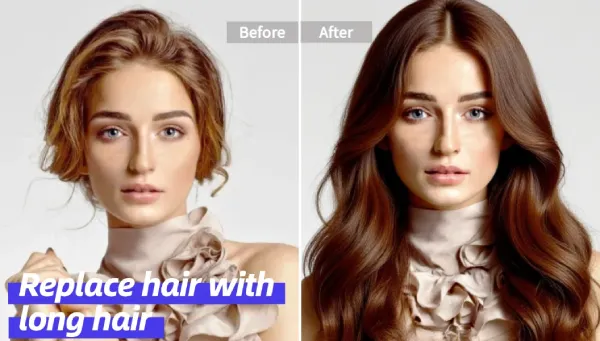
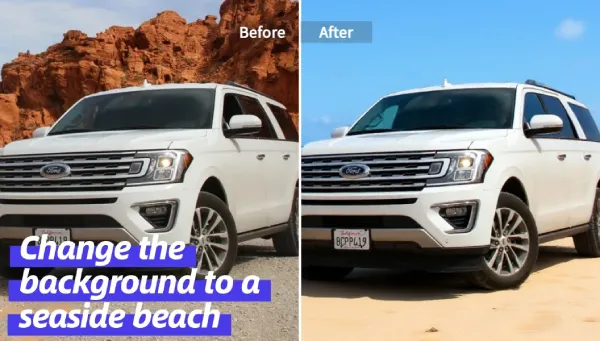
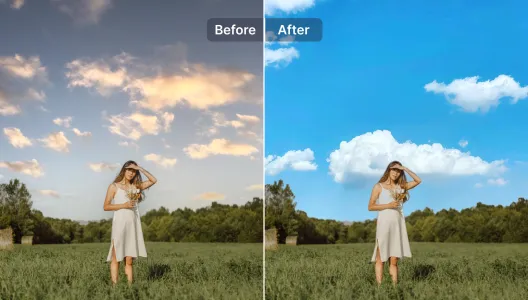
Practical walkthrough: edit with text prompts (the “I’m lazy” workflow)
If you want simple prompt-based editing, use AI Image Editing with Text Prompts.
Example prompts that actually work in real life:
- “Remove the background and make it transparent”
- “Make it brighter, warm tones, natural skin”
- “Make this look like a clean studio product photo”
- “Boost contrast but keep highlights soft”
You upload, type, and export. No layers panic. No “why is my brush painting purple?” moments.
Tip: Treat prompts like directions to a human editor. Short, clear, one change at a time. “Make it better” is vague. “Warm tone + brighter face + remove background” is gold.
2) GIMP — best free Photoshop-style editor (and yes, it’s still alive)
GIMP is the closest “Photoshop replacement” that’s truly free and open-source. And it has been getting real updates (GIMP 3.x is out, which matters for performance and modern workflows).
Use it if you need:
- Layers + masks + selections
- Retouching (spot heal, clone, dodge/burn)
- Composites and graphics
- Offline work
What it’s not:
- A beginner’s dream on day one
- A one-click AI machine
- A Lightroom-style RAW manager (that’s not its job)
My take: GIMP is amazing if you like control. It’s also the kind of tool that makes beginners whisper “maybe I’ll just pay Adobe…” after 7 minutes. Stay strong. (ง •̀_•́)ง
3) darktable — best free RAW editor for photographers (Lightroom alternative)
If you shoot RAW, you want a non-destructive workflow. darktable is that. It’s powerful, deep, and a little intense.
Use it for:
- RAW development (exposure, color, lens correction)
- Local adjustments with masks
- Batch edits for photo sets
Why people quit:
- It does not “hold your hand”
- Default look can feel flat until you learn the pipeline
Pro move: Use darktable for RAW base edits, then finish picky pixel work in GIMP or fast AI tasks in Pixelfox AI.
4) RawTherapee — best free RAW editor for detail nerds
RawTherapee is great when you want deep control over sharpening, noise, and color. It feels more “lab tool” than “pretty app,” but results can be excellent.
Good for:
- Maximum detail recovery
- Careful sharpening and noise control
- People who enjoy knobs (no judgment)
Not great for:
- “I just want it to look good” beginners
- Fast local edits
5) Paint.NET — easiest free photo editor for Windows (simple but solid)
When someone asks for the easiest free photo editing software, Paint.NET is usually the safest answer.
It’s not flashy. It is stable, fast, and easy:
- Layers (yes)
- Basic adjustments
- Plugins for extra features
It won’t replace Photoshop. It also won’t ruin your weekend. That’s a win.
6) Microsoft Photos — best built-in “good enough” option
If you just need quick crops, exposure tweaks, rotate, and small touch-ups, the built-in Photos app is fine.
Use it for:
- Fast edits
- Zero installs
- Quick sharing
Don’t use it for:
- Layers, composites, heavy retouching
7) Photopea — best browser Photoshop clone (when you can’t install apps)
Photopea is the “I’m on a school PC” hero. PSD support, layers, and familiar menus.
Downside:
- Ads
- Heavy projects can lag
- You are still working in a browser
If you want a smoother “web editor” experience that leans hard into AI speed, Pixelfox AI is usually the more modern route.
8) Pixlr — quick web edits with a template vibe
Pixlr is great for fast edits and design-ish work. It can be limited in the free tier, but it’s easy.
If you do lots of quick content, it’s solid. If you want cleaner AI-based workflows and style matching, Pixelfox AI has the edge.
9) Krita — best free tool for art + photo mashups
Krita is a painting powerhouse. People also use it for photo edits, but it’s not built like a photo-first editor.
Use it if you:
- Draw, paint, design covers
- Want brushes and creative control
Skip it if you want:
- Fast photo correction tools
- Simple photo workflows
10) PhotoScape X — best “all-in-one fun” editor for Windows
PhotoScape X is good for:
- Collages
- Batch edits
- GIFs
- Quick filters
It’s not a pro photo editor. It’s the tool you use when you want to have fun and still export something decent.
Pixelfox AI vs Photoshop (and why most people should stop “dreaming of Photoshop”)
Photoshop is a beast. It’s also overkill for 80% of edits people do daily.
Photoshop wins when you need:
- Advanced print workflows, pro retouch pipelines
- Complex compositing with perfect control
- Industry-standard file handoffs in pro teams
Pixelfox AI wins when you need:
- Fast, clean edits with minimal setup
- Style matching across a set of images
- Quick content for eCommerce and social
- “I don’t want to learn Photoshop, I want results” energy 😌
Authority angle: Gartner’s ongoing research trendlines around generative AI are clear: AI is shifting from “cool feature” to “default expectation.” That’s why AI-first tools keep replacing long manual steps for everyday work.
Pixelfox AI vs other online tools (Photopea, Pixlr, Canva)
Online tools fall into two buckets:
- Design-first: Canva (great layouts, not deep photo edits)
- Editor-first: Photopea/Pixlr (more editing, more mess)
- AI-first workflow: Pixelfox AI (more “tell it what you want”)
If you want heavy PSD work, Photopea is handy.
If you want fast edits that look pro without wrestling UI panels, Pixelfox AI is the calmer ride.
Try the creative side too:
- AI Image Generator for backgrounds and new visuals
- AI Image Blender for clean composites and mashups
- AI Style Transfer for matching color + lighting across photos
“Photography editing software free download”: when you should go offline
A lot of people search photography editing software free download because they want:
- Offline editing
- Better privacy
- RAW support without uploads
- Editing on slow internet
That’s valid.
If you shoot RAW and want a free offline workflow:
- darktable or RawTherapee for RAW
- GIMP for pixel-level edits
- Paint.NET for easy layer edits on Windows
Pixelfox AI is better when speed and AI workflows matter more than offline-only rules.
Pro-level moves (2 advanced workflows that feel like cheating)
Advanced workflow #1: eCommerce product photos with clean white backgrounds
Goal: Amazon/Etsy/shop images that look “studio clean.”
Fast way:
- Use Pixelfox AI to remove the background (transparent output)
- Generate a soft white studio background with Pixelfox AI Image Generator
- Combine product + background with Pixelfox AI Image Blender
- Export at high quality, keep the product edges clean
Why this matters: white backgrounds show every ugly edge. AI helps, but you still need to zoom in and check. Don’t trust any tool blindly, including mine.
Tip: Always check edges at 200% zoom, especially around hair, glass, and thin product parts (like jewelry). AI can leave tiny halos that look fine on Instagram and awful on a product page.
Advanced workflow #2: YouTube thumbnails that don’t look like 2014
Goal: cutout subject + clean background + strong color grade.
Workflow:
- Pick your best face shot (sharp eyes, good light)
- Remove background in Pixelfox AI
- Use AI Style Transfer to match your “channel look” (same tones every time)
- Add bold text in Canva or any editor (keep it simple)
- Export in 1280×720, then test it at phone size
Hot take: if your thumbnail only works when it’s big, it doesn’t work. 😬
Real-world case studies (2 examples with numbers, not vibes)
Case study 1: Etsy seller cleaning 40 product photos in one afternoon
Problem: A small seller had messy backgrounds and mixed lighting across products. Their photos looked “homemade,” so clicks were low.
What we did:
- Removed backgrounds and re-built a consistent look in Pixelfox AI
- Used style matching so the whole shop grid looked uniform
Result (practical):
- Editing time dropped from “a few minutes per photo + frustration” to “about a minute per photo for the basic pass” on an average laptop.
- The biggest win was consistency. The shop looked like a brand, not a garage sale.
No magic. Just less manual pain.
Case study 2: Hobby photographer (RAW workflow) who hates Photoshop
Problem: RAW files looked flat, and Photoshop felt like a cockpit.
What we did:
- Processed RAW in darktable (exposure, color, lens corrections)
- Used Pixelfox AI for quick creative versions: style match + background swaps for social posts
Result (practical):
- The photographer kept the RAW quality for “serious” photos
- They also got fast social-ready edits without learning 50 steps
This is a good hybrid workflow: offline RAW power + online AI speed.
Common mistakes (and how to fix them without crying)
Mistake #1: picking the “best” tool instead of the right tool
People install GIMP, open it once, then quit forever. That’s not a GIMP problem. That’s a mismatch.
Fix:
- If you want speed → Pixelfox AI
- If you want RAW → darktable/RawTherapee
- If you want easy → Paint.NET / Photos
Mistake #2: using JPEG like it’s RAW
JPEG breaks fast when you push shadows and color too hard.
Fix:
- Shoot RAW when possible
- If you only have JPEG, make smaller changes, and avoid heavy re-editing loops
Mistake #3: “easiest” edits that look fake
This is the dark side of searching easiest free photo editing software: people slam filters and wonder why skin looks orange.
Fix:
- Use small edits
- Keep whites neutral
- Compare before/after every time
Mistake #4: trusting AI edges without checking
AI can miss wispy hair, transparent objects, and thin lines.
Fix:
- Zoom in
- Export, then view in a normal image viewer
- If the edge is bad, redo with a cleaner source image (better light helps a lot)
Mistake #5: exporting in the wrong format
- PNG for transparency and logos
- JPG for photos and smaller size
- WEBP for websites (if supported)
If your “free” tool forces one format only… that’s not your fault, it’s the tool’s limitation.
Best practices from a “been burned before” editor
- Keep a simple workflow you can repeat
- Use one “base editor” and one “finisher”
- Save originals, always
- For brand work: match style across images (tone is part of branding)
And yes, this is where Pixelfox AI’s style matching is a cheat code: AI Style Transfer keeps your colors and lighting consistent without you chasing sliders for hours.
FAQ
1) How do I choose the best free photo editing software for PC if I’m a beginner?
Pick based on what you fear most:
- If you fear complexity, use Paint.NET or Microsoft Photos.
- If you fear wasting time, use Pixelfox AI in a browser.
- If you fear losing RAW quality, start with darktable.
2) Why do some “free photo editing apps for PC” add watermarks?
Because the tool is not free. It’s a lead magnet. Watermarks push you into a paid plan. If you need clean exports, test export before you invest time editing.
3) Can Pixelfox AI replace Photoshop?
For everyday edits, content work, fast background changes, and style matching, yes for a lot of people.
For deep pro workflows (print pipelines, complex composites, heavy retouching), Photoshop still wins.
4) What’s the difference between RAW editors and pixel editors?
RAW editors (darktable/RawTherapee) develop the photo and keep edits non-destructive.
Pixel editors (GIMP/Paint.NET) change pixels directly and are better for retouching and composites.
5) How can I avoid bad results when using a free photo editor for Windows?
Don’t over-edit. Check before/after. Zoom in to check edges. Export once, then review it outside the editor.
The straight talk wrap-up (and what to do next)
If you want the best free photo editing program for pc and you care about speed, modern AI edits, and not wasting your life learning menus, Pixelfox AI is the one I’d start with. It’s simple, it’s fast, and it hits the problems people actually have in 2026: background cleanup, style matching, and quick content.
Go try it now: Pixelfox AI
If you want the “creative power” angle too, test these in the same session:
You’ll know in 5 minutes if it fits your brain. That’s the whole point. 😄
Author note / disclosure: I write content strategies for high-competition software topics and I test tools like a picky end user, not like a brochure. This guide reflects hands-on workflow testing on Windows PCs and common editing tasks. Prices and feature limits for third-party tools can change, so always verify “free tier” rules inside the product before committing.