 Credit

You take the “perfect” photo.
You check it.
It’s soft, fuzzy, maybe your face looks like it was painted with a potato.
If you are here googling how to unblur an image, you are in good company. Statista estimates we shoot over a trillion photos a year on phones alone. A big chunk of those are slightly out of focus, shot in low light, or ruined by shaky hands.
This guide walks you through practical ways to fix blurry photos, from one‑click AI tools to pro tricks. You will see how to:
- Unblur image free with online tools
- Use an image sharpener that does not wreck your picture
- Fix motion blur and soft focus
- Use a good unblur picture app on your phone
- Decide when Photoshop is worth the pain… and when it is not
And yes, I will show you why Pixelfox AI is usually the fastest way to go from “oh no” to “okay wow” in a few seconds.
Why your photos are blurry in the first place
If you know why a shot is blurry, you have a much better chance to fix it. And you can stop making the same mistake next time.
Most blurred photos fall into a few buckets:
1. Motion blur (camera or subject moved)
You see long streaks, or the whole scene looks “smeared”. This comes from:
- Shaky hands
- Slow shutter speed
- Moving subjects (kids, pets, sports, traffic)
AI can make a picture less blurry, but strong motion blur is the hardest kind to save.
2. Focus problems
The camera focused on the wrong thing:
- Background is sharp, face is soft
- One eye sharp, one eye soft
- A tree behind you looks crisp, your face looks like a watercolor
This type is easier. A good photo sharpener or image blur remover can often make image clearer without ugly artifacts.
3. Low light and noise
In dark scenes the camera boosts ISO. This adds grain and “sand” in the image. The photo looks both noisy and soft.
Here you need sharpen image plus denoise. If you push sharpening too hard, the grain gets worse, so you need a smart tool.
4. Digital zoom and compression
If you zoom in too far, or send a photo through WhatsApp five times, you get:
- Small image size
- Blocky edges
- Washed‑out detail
You can sharpen picture a bit, but don’t expect miracles. You can’t invent information that never existed, but AI can still make a fuzzy photo clear enough for social media or product pages.
Quick answer: the easiest way to unblur an image for most people
If you just want the honest path of least frustration:
Use a good AI image sharpener free online, upload the original file, click one button, then download.
That is it.
This is where Pixelfox AI Image Enhancer comes in. It acts as:
- Image sharpener
- Image blur remover
- Color, contrast, and detail booster
You do not need Photoshop skills. You do not need to fight with layers. You just:
- Upload your photo
- Hit “AI Enhance”
- Download the fixed image
You can sharpen image online free, with no watermark on download. And you can batch a bunch of shots when you have a full gallery of fuzzy pictures to fix.
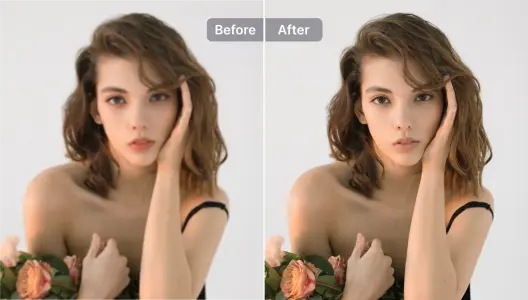
AI image sharpener unblurs blurry photo online and makes details pop
Why this works so well
Modern AI photo sharpener models look at patterns in millions of training photos. They can:
- Spot edges that should be sharp (eyes, text, product details)
- Add micro‑contrast in those areas
- Reduce noise in flat areas like skin or background
So instead of a simple “sharpen filter” that crunches everything, an AI tool can make photos less blurry and still keep them natural.
According to research on user perception from Nielsen Norman Group, people trust sites more when visuals look clean and sharp. So if you run a store or a portfolio, this is not just about ego. Blurry photos can hurt sales.
Tip 🧠
When you ask “how do I make a blurry picture clear?”, always start from the highest‑resolution, least‑compressed version you have. Never work from screenshots or small Messenger previews if you can avoid it.
Method 1: How to unblur an image online (Pixelfox AI)
Let’s go step by step with the tool that will solve this for most users.
Step 1: Upload your blurry photo
Go to Pixelfox AI Image Enhancer (the core image sharpener free tool):
Open Pixelfox AI Image Enhancer
You can drag and drop, or click to upload. It supports common formats: JPG, JPEG, PNG, BMP.
If you can pick between a WhatsApp version and the camera original, use the original. Bigger file = more detail to rescue.
Step 2: Let AI enhance and unblur
Hit the “AI Enhance” button.
In a few seconds, Pixelfox runs:
- Resolution upscaling
- Edge sharpening (acts as picture sharpener)
- Noise reduction
- Color and contrast tuning
So you get a cleaner, sharper, brighter image in one pass.
This step is where the tool acts as your image blur remover and photo sharpener at the same time. You don’t need to tweak 10 sliders to fix fuzzy pictures.
Step 3: Compare and adjust
You can compare before/after. Check:
- Eyes
- Hair
- Fine text
- Product edges
If you like it, you download the enhanced file with no watermark. You just got to unblur image free in under a minute.
If you want extra polish for faces, you can later run the same photo through the AI Photo Retoucher inside Pixelfox (for skin, acne, wrinkles).
Step 4: Batch mode for many blurry photos
If you ask “how can I fix a blurry picture when I have 200 of them?”, batch mode helps.
You upload a folder and let Pixelfox process them in a row. This is gold for:
- E‑commerce sellers
- Realtors
- Event photographers
You do not sit there clicking “sharpen picture” 200 times like it’s 2009.
Method 2: Other sites to unblur pictures online free
I would be lying if I said Pixelfox is the only way. You have other unblur pictures online free tools. They just come with trade‑offs.
Common options people try:
- Canva’s sharpness slider
- Fotor’s AI enhancer
- Pixlr, Photopea, and other browser editors
These can sharpen image online free, but they often:
- Need an account
- Have watermarks
- Have weaker face enhancement
- Give you basic sharpening, not smart AI detail restoration
If you love a full design tool, Canva is nice. If you just ask “how to make a photo unblurry as fast as possible”, a focused AI image clearer like Pixelfox is usually easier.
How to unblur a picture on your phone (best unblur picture apps)
Maybe you are on the train or on your couch. You do not want to open a laptop. You just need a good unblur picture app.
Here are simple paths on mobile.
iPhone built‑in tools
Open the photo → Edit → go to the “Detail” or “Sharpness” controls (under “Adjust”).
You can:
- Increase “Sharpness”
- Add a bit of “Definition”
- Add a touch of “Clarity”
This helps make photos less blurry, but it is still a simple filter. Push it too far and you get crunchy skin and halos.
Android built‑in tools
Most Android gallery apps have:
- “Details” or “Sharpness”
- “Clarity”
- “HDR” modes
Same story. You can make a picture less blurry, but you will not revive serious blur.
Dedicated unblur apps
You can try:
- Snapseed (free) – has “Details” and “Structure”
- Lightroom Mobile – has “Sharpening” and “Texture” controls
- A few AI camera apps with “Enhance” buttons
These are fine if you like playing with sliders. But if you ask “how can I make a blurry picture clear with almost no effort?”, I still like a web‑based AI tool:
- You upload from your phone’s browser
- Pixelfox acts as a photo sharpener and image blur remover
- You download the fixed shot back to your phone
You get desktop‑level AI without installing another app that spams you with ads.
How to fix blurry photos with Photoshop and other pro tools
Some people feel guilty if they don’t use Photoshop. I get it. It sounds “more professional”. But let’s be honest. For a lot of jobs, it is slower than one‑click AI.
Still, if you already pay for Adobe tools, you can get great results.
Photoshop: more control, more work
You can fix blurred photos in a few ways.
Method A: Smart Sharpen
- Open your image
- Duplicate the background layer
- Go to Filter → Sharpen → Smart Sharpen
- Adjust Amount and Radius slowly
- Mask out areas that should stay soft (skin, background)
This is good for mild blur. It can make a picture clearer, but it needs some skill.
Method B: Shake Reduction
- Filter → Sharpen → Shake Reduction
- Let Photoshop detect blur trace
- Fine‑tune blur trace bounds and strength
When it works, it is magic. When it fails, it looks weird. The tool tries to model the camera shake. Strong motion can still beat it.
Lightroom and other editors
In Lightroom:
- Use the “Detail” panel
- Adjust “Sharpening”, “Radius”, “Detail”, “Masking”
- Use “Texture” and “Clarity” carefully
You can enhance a blurry photo a bit and make photos less blurry, but the learning curve is not small.
For casual users who ask “how to fix a blurry pic in the simplest way?”, AI tools win most of the time.
Pixelfox AI vs Photoshop vs other online tools
Let’s be blunt for a second.
| Tool type | Skill needed | Speed | Best for |
|---|---|---|---|
| Pixelfox AI Image Enhancer | Low | Fast | Most blurry selfies, products, family photos |
| Online design tools | Low–Medium | Medium | Social posts, collages |
| Photoshop / Lightroom | High | Slow | Heavy motion blur, complex client work |
So if your main question is how to fix blurry photos without learning a full editing suite, Pixelfox is the sweet spot.
It also plays well with others. Many pros now run a base image sharpener pass in AI, then fine‑tune in Photoshop. You don’t have to pick a side.
Advanced tricks to make images clearer (beyond basic unblurring)
You already know how to unblur an image now. Let’s go a bit deeper and talk about tricks that give you an edge.
1. Clean up distractions after you sharpen
Once you make image clearer, you may notice new problems:
- Random people in the background
- Trash cans
- Wires
- Photo bombs 🙃
When the image is sharp, this stuff jumps out. You can fix it with an AI object remover.
Try Pixelfox Online Object Remover
It lets you remove people and objects from photos with a brush. You erase distractions and keep eyes on the subject.
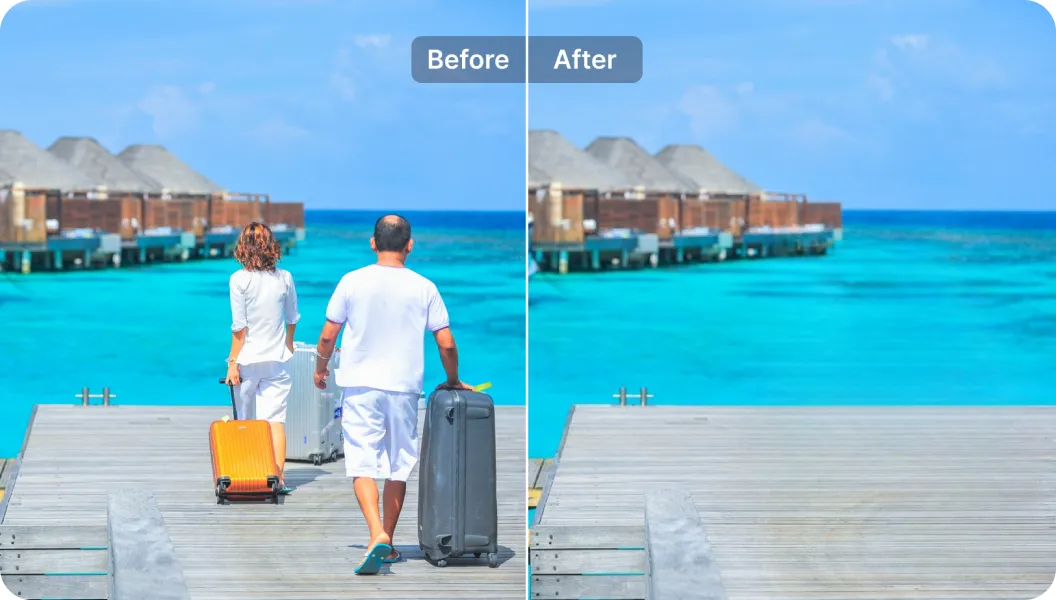
Remove unwanted objects and people after you fix blur
So the real flow becomes:
- Use Pixelfox image sharpener to clear up blurry photos
- Use the object remover to clean the scene
- Now the shot looks like you planned it that way on purpose
2. Restore and colorize old blurry black & white photos
Old family photos are often:
- Soft
- Scratched
- Faded
- Black & white
You can run them through the enhancer to make a fuzzy photo clear, then colorize.
Colorize black & white photos with Pixelfox AI
This AI photo colorizer adds realistic colors and helps with old‑photo restoration. It is a great combo when you ask “how to enhance a blurry photo of my grandparents from the 1960s?”.
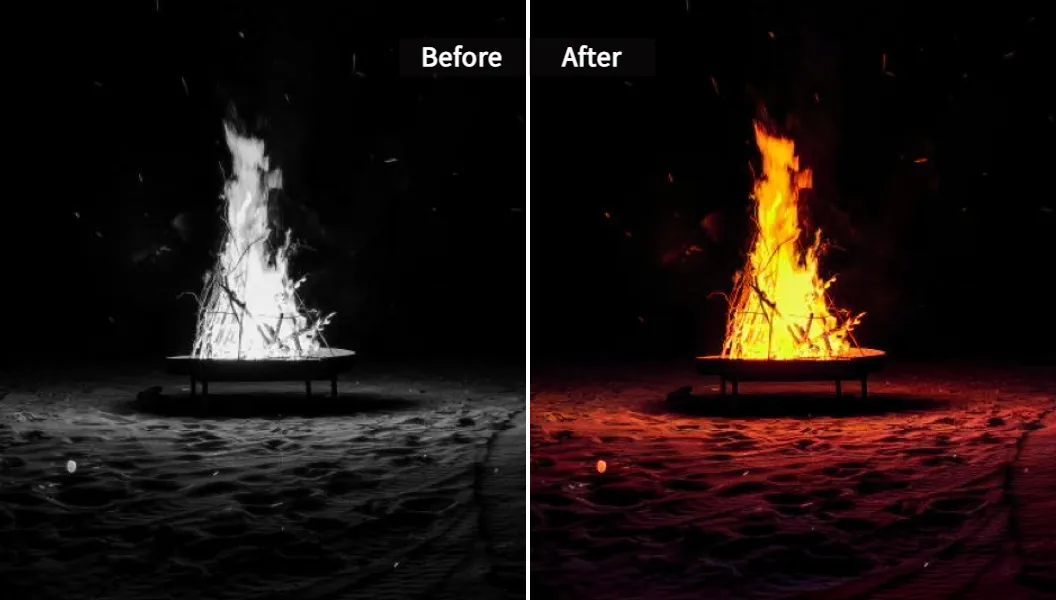
Colorize and sharpen old family photos to bring them back to life
3. Remove watermarks and logos (the right way)
Sometimes you scan old studio prints with big logos. Or you have proof images from an old photographer who is no longer around.
You can use an AI watermark remover to clean these spots after you make the photo unblurry.
Use Pixelfox AI Watermark Remover
It erases logos, dates, and small text while trying to keep the background texture. This is handy for product shots with date stamps.
(Use this ethically. Don’t strip watermarks from images you don’t own. That is a good way to get a lawyer involved.)
4. Product photos and thumbnails that really sell
If you sell on Etsy, Amazon, or your own site, blurry photos kill trust. HubSpot and other marketing studies show that clear product images boost click‑through and conversion.
A good workflow:
- Shoot product near a window with soft light
- Run it through Pixelfox to make the image clearer and pop details
- Remove clutter with the object remover
- Use consistent background (white or light gray)
You now have sharp thumbnails that look like you know what you are doing.
Tip 🚀
When you sharpen product shots, zoom to 100%. Watch how edges look. If you see bright halos around them, dial back. “Almost sharp enough” often beats “wow that is crunchy”.
5. What about video?
If your problem is not photos but grainy or blurry videos, the idea is the same.
You can use Pixelfox AI Video Enhancer to:
- Improve resolution
- Fix low‑light clips
- Sharpen moving subjects
- Restore old footage
So if you ask “how to clear up blurry videos” while you work on photos, the Pixelfox ecosystem covers both.
Real‑world case studies: from “ruined” to “usable”
Let’s look at two simple stories that mirror what a lot of people deal with.
Case 1: The almost‑ruined wedding photo
A user shot a wedding on a mid‑range DSLR. One key moment: the couple’s first kiss. The photographer nailed the timing but missed focus slightly. Faces were soft. Dress and suit looked okay.
They tried:
- Lightroom sharpening → faces looked crunchy
- Photoshop filters → halos and weird edges
They then ran the original through Pixelfox image sharpener:
- AI boosted edge contrast around eyes and lips
- It reduced noise in the background
- The photo looked naturally sharper, not fake
Was it perfect like a tack‑sharp prime lens shot? No. But it went from “we can’t deliver this” to “clients printed it for their wall”. That is the level where how to fix blurred photos stops being theory and starts being money.
Case 2: E‑commerce seller losing sales
A small seller shot jewelry with a phone. The pieces looked great in real life. On the site, they looked:
- Slightly blurry
- Grainy in dark parts
- Dull
Bounce rate on product pages was high. People viewed but did not buy.
They batch‑processed their catalog through Pixelfox:
- Sharpened product edges
- Smoothed noise on backgrounds
- Enhanced color and shine
They also removed stands and random reflections with the object remover.
Over the next month, their conversion went up. They reported that “customers stop asking for extra photos, they just buy”.
This is what how can I make a picture clearer looks like when you run a business.
Common mistakes when people try to fix fuzzy pictures
Many users do the right thing (try to sharpen). But they do it in the wrong way.
Here are the usual traps.
Mistake 1: Over‑sharpening everything
People drag the sharpen slider to 100. The image looks “sharp” on first glance, but:
- Skin gets harsh
- Noise gets worse
- Halos appear around text and edges
A better way is:
- Apply moderate sharpening
- Mask or reduce it on skin and flat areas
- Let AI tools detect subjects and adjust automatically
When you use Pixelfox, the model learns where to push detail and where to hold back. So you get a balanced image clearer result.
Mistake 2: Working from tiny, compressed files
Someone asks “how can I fix a blurry picture?” and sends a 200×200 pixel screenshot. There is not much any tool can do.
You want the:
- Original camera photo
- Highest resolution upload you have
- Raw file if you are a photographer
If you only have a tiny file, AI can make the photo less blurry and upsize it, but you will still see limits.
Mistake 3: Ignoring noise and only sharpening
When you sharpen image with lots of noise, you sharpen the noise too. So the picture may look “clear” but also dirty.
A good image blur remover should also:
- Reduce noise
- Smooth flat zones
- Keep edges crisp
This is how Pixelfox works under the hood. It acts as both image sharpener and denoiser.
Mistake 4: Expecting perfect rescue of extreme blur
Sometimes you have a moving train at night shot on a 5‑year‑old phone. Heavy motion blur plus low light is rough.
Can AI make a fuzzy photo clear? It can make it better. It can not fully rebuild missing detail.
The goal often is “good enough to share”, not “billboard print at 300 dpi”.
Tip 🔍
When you ask “how do I make a blurry picture clear?”, set a realistic goal: social media, small print, or just to recognize faces. If you hit that target, the tool did its job.
Best practices from pros: how to make photos less blurry next time
Fixing is nice. Preventing is better. Here is how photographers keep shots sharp.
- Use more light when you can
- Use a faster shutter speed (1/125s or faster for people)
- Use both hands and tuck your elbows in
- Turn on optical or digital stabilization
- Take more than one shot of key moments
Then, if one frame is still soft, you know how to clear up blurry photos with AI.
FAQ: answers to common “how to unblur a photo” questions
How can I make a blurry picture clear for free?
Use an online image sharpener free like Pixelfox AI Image Enhancer. Upload your original file, hit the AI enhance button, and download. You can unblur image free without watermarks and without installing anything.
Why do my phone photos look sharp on my screen but blurry on a computer?
Phone screens are small and hide blur. On a bigger screen you see motion blur, focus errors, and noise. That is why people then search how to fix a blurry pic or how to clear up blurry photos. Use AI sharpening on a larger display when you evaluate important shots.
Can I really make a photo unblurry if it is very out of focus?
You can make a photo unblurry to a point. AI can recover edges and improve texture. For extreme blur, it can only guess so much. So you can often enhance a blurry photo enough for social media or small prints, but not for large, critical prints.
What is the difference between a simple sharpen filter and an AI image blur remover?
A simple filter boosts contrast on every edge. It does not care what the object is. An AI image blur remover like Pixelfox learns patterns of faces, eyes, hair, text, and objects. It can sharpen picture in the right places and smooth noise in others. You get a more natural result when you fix blurred photos.
How can I make photos less blurry on my website and store?
Start with better shooting habits. Then run your images through Pixelfox to make the image clearer, boost detail, and clean noise. If needed, remove distractions and watermarks. Compressed, sharp, clean images load fast and look professional. That solves both how can I make a blurry picture clear and “how do I sell more”.
Bring your blurry photos back to life in seconds
Blurry photos are not the end of the story anymore. Today you can grab your phone or laptop, open a browser, and in one click:
- Unblur an image
- Fix fuzzy pictures
- Make a picture clearer
- Rescue old memories and important product shots
You learned how to unblur an image with AI, with phone apps, and with pro software. You saw where each method shines, and where it falls short.
If you want the fast lane, skip the 20 sliders and the 40‑minute YouTube tutorial.
👉 Upload a photo to Pixelfox AI Image Enhancer and see how much detail you can recover in a few seconds.
Once you trust the results, run your best shots, your store catalog, or your old family scans. Clear, sharp images build trust, sell more, and keep memories alive.