 Credit

Let’s be real for a second. We’ve all been there. You take a selfie where you look absolute fire—skin glowing, smile perfect—but the background? It’s a messy bedroom, a crowded street, or worse, a photobomber making a weird face. 🤦♂️
In the past, fixing this meant wrestling with complex software, spending hours manually tracing edges, and ending up with a result that looked like a bad cutout from a middle school collage project. But it's 2026, and things have changed. Drastically.
If you are looking for a seamless [photo background change], you don't need expensive subscriptions or a degree in graphic design anymore. You just need the right AI tools. Whether you are an e-commerce seller needing a white picture background, a professional updating a LinkedIn headshot, or just creating memes, this guide covers everything.
We’re going to dive deep into how to modify photo background elements instantly, why Pixelfox AI is crushing the competition, and the pro secrets that most tutorials skip.
The Evolution: Why AI is the New Standard
Remember the "Magic Wand" tool? Yeah, it wasn't that magic. It usually deleted half your hair or left jagged white edges that screamed "amateur."
Today, photo background editor technology relies on advanced computer vision and machine learning. According to recent tech reports on generative AI, modern algorithms can now distinguish between a strand of hair and a complex background with 99% accuracy.
This isn't just about removing; it's about replacing. When you change background using AI, the tool understands depth, lighting, and context.
Why You Need to Master This Skill
- E-commerce Dominance: Data shows that product listings with a clean white background photo editor result increase conversion rates by over 20%.
- Personal Branding: A headshot background editor free of distractions makes you look 10x more professional to recruiters.
- Creative Freedom: Want to be in Paris without buying a plane ticket? Photo editing and background change tools make it happen.
Top Tools for Photo Background Change in 2026
There are a million apps out there, but let’s cut through the noise. Here are the heavy hitters, ranked by ease of use, cost, and quality.
1. Pixelfox AI (The Game Changer) 🏆
If you want to change photo background free online without the headache of sign-ups or hidden paywalls, Pixelfox AI is currently leading the pack.
Why it wins: Most tools claim to be free but hit you with a "download low quality" limit. Pixelfox is built differently. It handles high-resolution images and uses state-of-the-art AI to handle the tricky stuff—like curly hair, transparent glass, or fur—effortlessly. It’s the ultimate app to change image background directly in your browser.
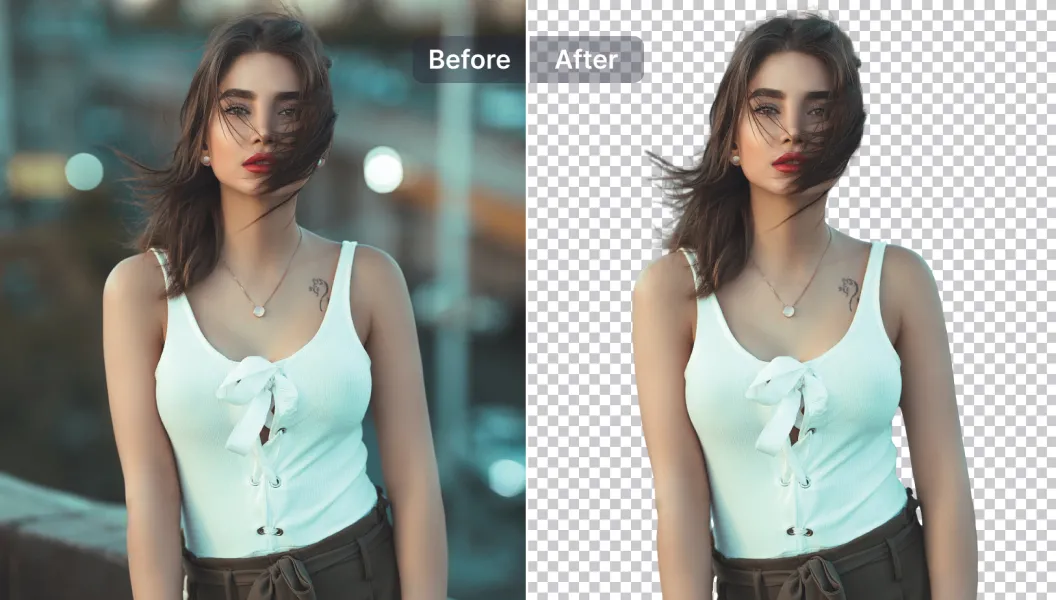
Tip: Use the Pixelfox AI Image Background Remover for instant transparent PNGs. It’s faster than firing up Photoshop and arguably more accurate for quick tasks.
2. Remove.bg
The classic choice. It’s fast and reliable for simple images. However, their high-res downloads can get pricey quickly if you aren't on a paid plan. It's great for a quick low-res fix, but maybe not for your main website banner.
3. Canva
Canva is a beast for design. Their background editor is solid, but it’s locked behind the "Pro" paywall. If you are already paying for Canva, use it. If you want a free background app, look elsewhere.
4. Adobe Express
Adobe brought some of Photoshop’s power to the web. It’s a strong change background editor, but the interface can feel a bit "heavy" if you just want a quick swap.
Comparison: Pixelfox vs. The Giants
| Feature | Pixelfox AI | Photoshop | Traditional Online Tools |
|---|---|---|---|
| Cost | Free / Affordable | Expensive Subscription | Freemium (Pay for HD) |
| Speed | Seconds | Minutes/Hours | Seconds |
| Skill Needed | None | High | Low |
| Edge Precision | High (AI Driven) | Manual Control | Variable |
| No Signup? | Yes | No | Rarely |
Step-by-Step: How to Change the Background of a Picture
So, how can i change the background of a picture without losing my mind? Let’s break it down using Pixelfox as our primary example (because it’s the easiest workflow).
Step 1: Upload Your Image
Go to a tool like the Pixelfox AI Cutout Image Tool. You can drag and drop your file. Whether it’s a JPG, PNG, or WebP, the system accepts it.
- Pro Tip: Ensure your subject is in focus. AI is smart, but it can’t fix a blurry photo.
Step 2: Let the AI Do the Heavy Lifting
Once uploaded, the photo background removal happens automatically. You don’t need to click "erase" or draw lines. Watch as the background vanishes, leaving a checkerboard pattern (transparency).
Step 3: Insert Your New Background
This is where the fun begins. Where can i insert a background what app? Right there in the editor.
- Solid Colors: Select "Color" to change photo background to white, black, or a brand color.
- Custom Image: Upload a scenic view, an office setting, or a texture.
- AI Generation: Some advanced editors let you generate a background via text prompts.
Step 4: Fine-Tune and Download
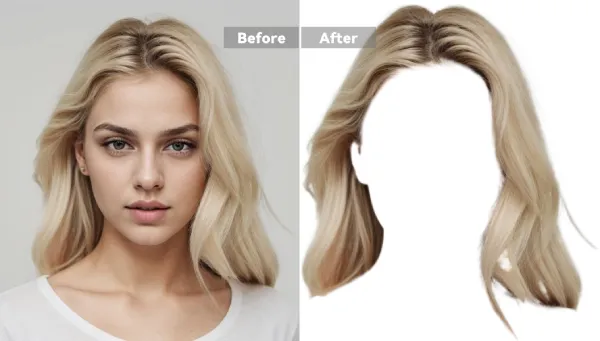
Check the edges. Did the AI catch that stray hair? If you need to blend it better, you might use an AI Image Blender feature to merge layers more naturally. Hit download, and you’re done.
Scenarios: When to Modify Photo Background
Different goals require different backgrounds. Here is how to nail the vibe for specific use cases.
1. E-Commerce: The "Amazon White"
If you sell online, you know the drill. Marketplaces demand a pure white background (Hex #FFFFFF). A white background photo editor is essential here.
- The Goal: Eliminate distractions. The customer buys the product, not your kitchen table.
- How to do it: Use Pixelfox to strip the background and select the white swatch.
- Result: A professional, trustworthy product listing that looks like it was shot in a studio.
2. Professional Headshots
You have a great photo from a wedding, but you’re holding a drink and there are people dancing behind you. Not LinkedIn appropriate.
- The Fix: Use a headshot background editor free tool. Replace background of photo with a soft gradient (grey or blue) or a blurred office environment.
- Why: It signals competence and focus.
3. Creative & Social Media
Want to turn a daytime photo into a moody night shot? Or maybe create a pop-art style?
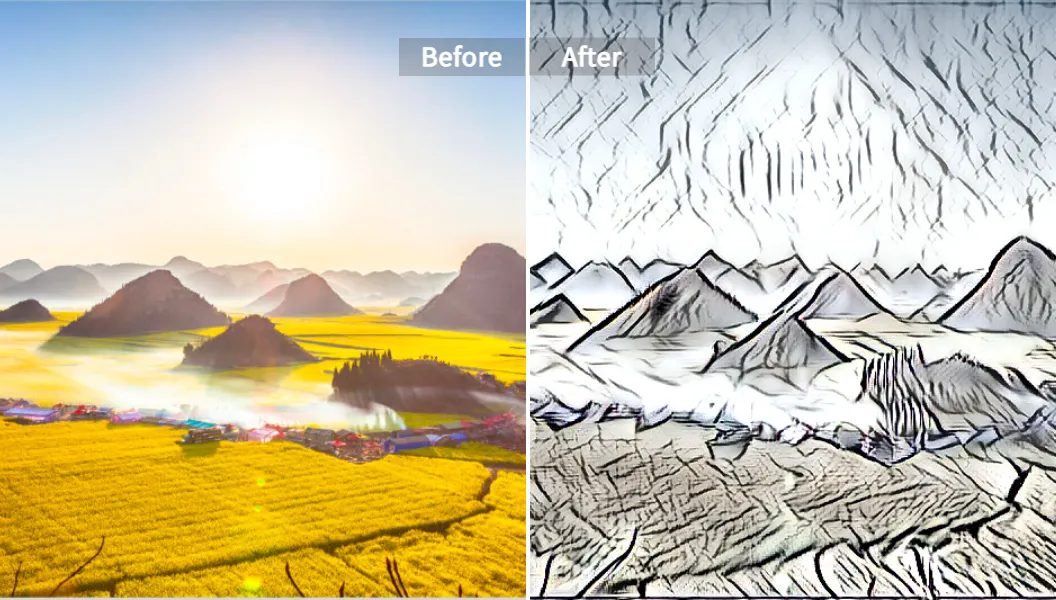
- The Trick: Don't just swap the background; change the vibe. You can use tools like AI Style Transfer to make your image look like a painting or a sketch before placing it on a new background.
Advanced Techniques: Beyond the Basics
Okay, you know how to edit the background of a picture. Now let’s talk about how to make it look real. The biggest giveaway of a fake background is bad lighting match.
The "Floating" Problem
If you paste a person onto a new background and they look like a sticker, it’s because of shadows.
- Solution: Simple editors just cut and paste. A pro workflow involves adding a "Drop Shadow" or a "Contact Shadow" near the feet or base of the object.
Color Matching (The Secret Sauce)
Your subject was shot in yellow indoor light. Your new background is a cool blue outdoor scene. It looks fake.
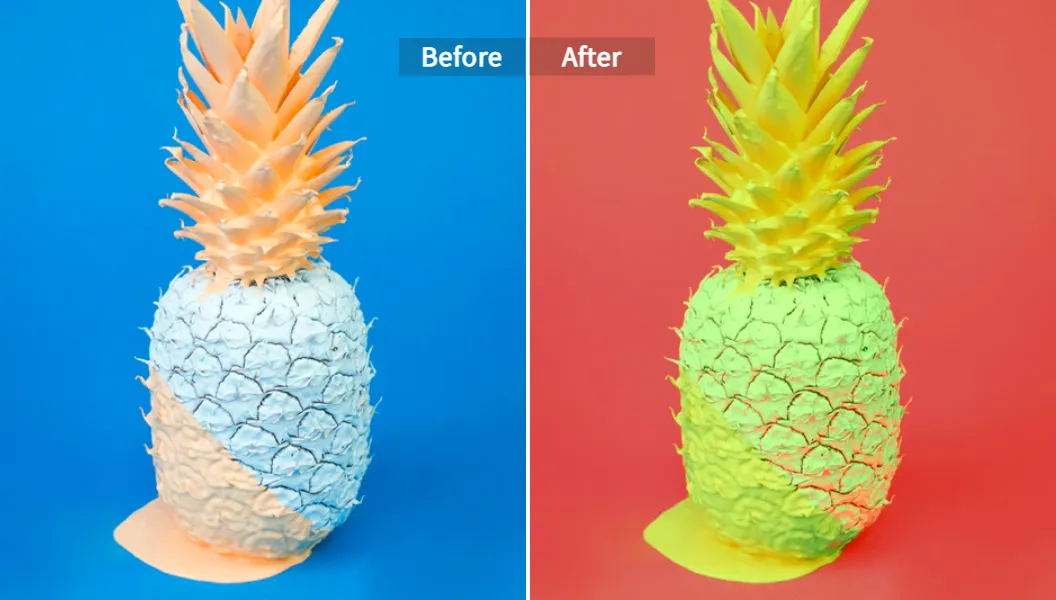
- Fix: You need to recolor the subject slightly to match the temperature of the new background. The AI Image Color Changer is perfect for tweaking the hues so the foreground and background blend harmoniously.
3. Handling "Busy" Edges
Trees, hair, and fur are nightmares for old tools. If the app to change picture background you are using leaves a "halo" (a thin line of the old background), try contracting the selection by 1-2 pixels. Pixelfox usually handles this automatically, but it is good to know.
3 Common Mistakes to Avoid 🚫
When you edit photo background, avoid these rookie errors:
- Perspective mismatch: Don't put a photo of someone taken from a high angle onto a background taken from a low angle. It messes with the brain and looks wrong.
- Resolution mismatch: Putting a blurry, low-res person onto a 4K crisp background (or vice versa) looks terrible. Ensure both images have similar sharpness.
- Ignoring Light Direction: If the sun is on the left in the background, but the shadow is on the right of the person, you’re busted. Flip the background image horizontally to match the light!
Real-World Case Studies
Case Study A: The eBay Flipper
Sarah, a vintage clothing seller. Problem: Sarah used to photograph clothes on her floor. Sales were slow because the photos looked cluttered. Solution: She started using photo background images change online free tools to swap her floor for a clean, light grey studio backdrop. Result: Her click-through rate increased by 40%, and she could batch process 50 items in the time it used to take to edit 5 manually.
Case Study B: The Remote Worker
Mark, a software developer. Problem: needed a speaker profile photo for a conference but only had casual vacation photos. Solution: Mark used a change background editor to cut himself out of a beach photo and placed himself against a blurred tech-office background. Result: The conference organizers accepted the photo immediately, assuming he paid for a professional shoot.
FAQ: Your Questions Answered
Q: Is there a truly free background app? A: Yes! While many apps push subscriptions, Pixelfox AI allows you to change photo background free online with high-quality results. It's accessible via any browser, effectively acting as a free background app without the install.
Q: How can you change the background of a photo on iPhone? A: You don't necessarily need an app store download. Open Safari or Chrome, go to Pixelfox, and upload your photo. It works perfectly on mobile touchscreens. It’s the easiest change the background of a photo app that isn't actually an app taking up space on your phone.
Q: Can I modify picture background to be transparent? A: Absolutely. This is usually the default step. Once the background is removed, just save it as a PNG file (not JPG, as JPGs don't support transparency).
Q: Where can I insert a background what app is best for blending? A: For simple swaps, the Pixelfox editor works great. For complex blending where you want to mix two photos artistically, check out the AI Image Blender tool.
Q: How do I change photo background to white for documents? A: Upload your photo -> Remove Background -> Click "Edit" -> Select the white color circle -> Download as JPG. It takes about 10 seconds.
Ready to Transform Your Photos?
We’ve covered the "how," the "why," and the "what not to do." The ability to [photo background change] is a superpower in the digital age. It saves time, saves money, and elevates your visual content instantly.
Don't waste another minute manually erasing pixels or paying for overpriced software.
Start editing smarter, not harder.
👉 Try Pixelfox AI Background Remover for Free Now and experience the magic yourself. Give your photos the professional upgrade they deserve today! ✨