 Credit

Suggested URL: /free-software-like-photoshop
Paying a monthly fee just to crop a JPEG and remove a background feels like renting a Ferrari to go buy milk. If you’re searching for free software like Photoshop, you’re usually not asking for “every single Photoshop feature ever made.” You want the stuff that actually gets work done: layers, cutouts, quick fixes, clean exports, and (in 2026) some AI help that doesn’t make your image look like it was generated in a fever dream.
This guide breaks down the best real options, explains what each tool is good at, where it bites you, and how to build a workflow that replaces Photoshop for most everyday work—without the subscription drama.
What counts as a “free photoshop type program” in 2026?
When people type free photoshop type program, they usually mean one of these:
- “I need to edit photos (crop, color, remove stuff, fix lighting).”
- “I need layers + masking so I can make a thumbnail, poster, or banner.”
- “I need to open a PSD someone sent me without begging for an Adobe login.”
- “I need AI to do the boring work: remove background, erase objects, enhance quality, maybe generate a missing part.”
And there’s a hidden requirement nobody says out loud:
You want it to be fast, not a tool that turns simple edits into a weekend hobby.
According to Nielsen Norman Group usability research on cognitive load, users complete tasks faster and with fewer errors when interfaces reduce mental effort and steps. Translation: if a tool makes you hunt through 12 menus to do a basic cutout, you’ll quit. You’re not “lazy.” You’re sane.
The “Photoshop-like” checklist (what actually matters)
Here’s the feature checklist I use when I judge free software like Photoshop:
- Non-destructive editing (layers, masks, editable text)
- Selections that don’t make you cry (quick select, refine edge)
- PSD support (open at minimum, export is a bonus)
- Export control (PNG transparency, JPG quality, resizing)
- Speed + stability (no random crashes when you’re on deadline)
- Modern AI (background removal, object removal, enhancement)
Zapier’s 2025 roundup of Photoshop alternatives mentions they tested dozens of apps and still focused heavily on layers, AI, and ease of use. That matches what people actually need in the wild: speed, consistency, and clean outputs—not a 900-feature cockpit.
Quick comparison: the 10 best picks (free-first)
| Tool | Type | Best for | Photoshop-like strengths | “Free” catch |
|---|---|---|---|---|
| Pixelfox AI | Web (AI editor) | Fast pro results (cutouts, enhance, generate) | AI workflows that replace 80% of daily Photoshop tasks | Some advanced features may be tiered depending on usage |
| Photopea | Web | PSD + Photoshop-ish UI | PSD open/save, layers, masks, lots of formats | Ads unless premium |
| GIMP | Desktop | Deep editing + plugins | Powerful tools, open source | UI learning curve |
| Krita | Desktop | Digital painting | Brushes + tablet workflows | Less “photo editor” vibe |
| Pixlr | Web/Desktop | Quick edits + AI features | Beginner-friendly AI tools | Split apps + credits/paywalls for some AI |
| Paint.NET | Desktop (Windows) | Simple fast edits | Lightweight, easy | Windows only, fewer pro features |
| Canva | Web/App | Social graphics | Templates + fast layout | Photo editing is basic |
| Darktable | Desktop | RAW processing | Lightroom-like photo workflow | Not a Photoshop replacement |
| PhotoScape X | Desktop | Batch edits + RAW | Great batch tools | Some features locked to Pro |
| MyEdit | Web | AI effects on a budget | Daily free AI credits | Credits + limits |
Now the part you actually came for: what to use, and why.
Best free software like Photoshop in 2026 (ranked by real use)
1) Pixelfox AI (best “I just need it done” choice) 😎
If your daily Photoshop use is: remove backgrounds, clean product photos, erase distractions, boost clarity, blend images, generate missing parts—Pixelfox AI is the straight-line solution.
It’s built for modern workflows where AI does the grunt work and you keep control of the final look. No “learn Photoshop for 3 months” side quest.
Use cases Pixelfox AI is especially good at:
- eCommerce product images (clean cutouts, consistent look)
- social posts and ads (fast variations)
- creator thumbnails (sharp subject, clean background)
- “fix this photo” tasks (enhance, remove junk, repair)
Here are the core tools (and yes, these are the ones people search for daily):
- Pixelfox AI (main editor)
- AI Image Enhancer (clarity + quality boost)
- AI Image Blender (composites, swaps)
- AI Image Generator (text to image)
- AI Video Generator (text/image to video)
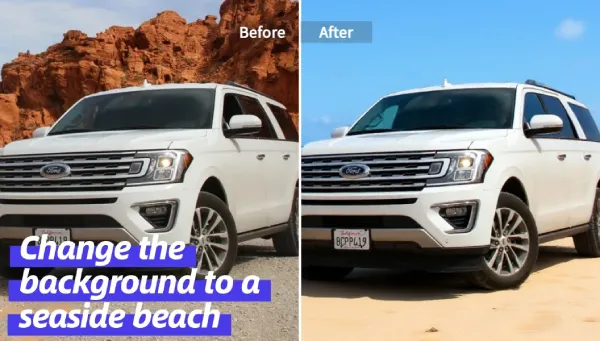
Tip: If you plan to remove a background from a slightly blurry photo, run it through an enhancer first. Cleaner edges in, cleaner cutout out. Your future self will thank you (and stop zooming in at 500% like a gremlin).
Why this beats “classic Photoshop” for many people:
- It’s faster for common tasks.
- It reduces steps (upload → AI does the heavy lifting → download).
- It fits how creators work now: lots of assets, lots of versions, minimal time.
Where Photoshop still wins:
- heavy compositing with complex layer stacks
- advanced retouching with full manual control
- certain print workflows and color management edge cases
So yeah, Pixelfox isn’t trying to be “Photoshop with 1,000 menus.” It’s trying to get you results. That’s a good trade for most users.
2) Photopea (best free “Photoshop in a browser” vibe)
Photopea is famous for one reason: it feels like Photoshop, runs in your browser, and handles PSDs better than most free tools. It also supports a wild list of formats, and it can work with layers, masks, blending, and smart-object-like workflows.
Notable strengths:
- Familiar UI if you’re switching from Photoshop
- Strong PSD compatibility (open + save)
- Great for quick edits on shared or public computers
Real talk weaknesses:
- Ads in free mode
- Performance depends on your device and browser
- AI features can be limited depending on plan
If your #1 need is “open this PSD and edit it without Adobe,” Photopea is the calm answer.
3) GIMP (best free desktop powerhouse, if you can handle it)
GIMP is the classic open-source Photoshop alternative. It’s powerful. It’s free. It’s also the app that makes some beginners go (╯°□°)╯︵ ┻━┻.
What it nails:
- Advanced photo manipulation tools
- Plugins, scripts, community support
- Runs on Windows/macOS/Linux
What trips people up:
- UI and workflow differences vs Photoshop
- PSD compatibility is “good enough” but not perfect
- You may spend time configuring it to feel modern
If you want deep control and offline work, GIMP is a legit pick.
4) Krita (best for digital painting and tablet workflows)
Krita is loved by illustrators for a reason. Brush engines, stabilizers, and painting tools feel built for artists, not for marketers who just need a banner by 5pm.
Best for:
- drawing, painting, concept art
- layer-based illustration work
- animation-ish workflows (depending on your setup)
Not best for:
- fast “remove background” tasks
- simple photo correction compared to dedicated photo editors
If Photoshop was your painting studio, Krita is your free studio.
5) Pixlr (best quick online editor with AI options)
Pixlr has been around forever in internet years, and it leans hard into AI features now (background removal, generative tools, quick edits). It’s also easy for beginners.
Wins:
- Fast, modern web UI
- Good for simple design + effects
Tradeoffs:
- Features can be split across tools/apps
- Some AI features use credits or paid tiers
If you want “quick edits in a browser,” Pixlr is solid.
6) Paint.NET (best simple Windows editor that stays out of your way)
Paint.NET is what you use when you want speed and simplicity. It’s lightweight and it launches fast.
Great for:
- resizing, cropping, basic adjustments
- simple layers and effects
- quick edits for Windows users
Not great for:
- advanced masking workflows
- pro-grade retouching
It’s not glamorous. It’s useful. That’s a win.
7) Canva (best for social layouts, not deep photo editing)
Canva is more “design system” than “photo editor.” Still, lots of people use Photoshop mainly to make social graphics. Canva crushes that use case with templates and brand kits.
Use Canva when:
- you need fast social posts and ads
- you want templates and drag-drop layouts
Don’t use Canva when:
- you need precise selections and masking
- you need complex photo manipulation
8) Darktable (best free RAW workflow)
Darktable is closer to Lightroom than Photoshop. It’s great for RAW photo processing, color grading, and batch work.
Use it if:
- you shoot RAW and want a pro workflow
- you want serious photo correction tools
Don’t use it if:
- you need layers and composites
9) PhotoScape X (best batch editing for casual-to-serious users)
PhotoScape X is surprisingly good for batch workflows and quick edits. It can be a workhorse for processing a lot of photos the same way.
Catch:
- Some features may be locked behind Pro
Still useful if you’re doing bulk work and don’t want pain.
10) MyEdit (best “daily AI credits” option)
MyEdit is a web tool that gives daily AI credits, which makes it handy for occasional users.
Good for:
- light AI edits when you’re not doing 50 images a day
- fun effects and quick generation
Bad for:
- heavy production needs due to limits
Pixelfox AI vs Photoshop vs other online tools (no fluff)
Compared to Photoshop (traditional pro workflow)
Photoshop is still the “industry standard” for a reason. It’s deep, it’s precise, and it’s everywhere. It’s also expensive over time, and it’s overkill for many tasks.
Pixelfox AI advantages
- Faster for common tasks (cutouts, enhancement, content variations)
- Lower skill barrier (you don’t need to be a designer)
- Modern AI-first workflows for creators
Photoshop advantages
- Complex multi-layer compositing
- High-end retouching control
- Advanced color workflows for print
If you need to edit like a surgeon, Photoshop wins. If you need to ship content fast, Pixelfox AI is the practical move.
Compared to other online tools
A lot of “free online editors” are either:
- too basic (no control), or
- “free” but blocked by paywalls right when you need the feature
Pixelfox AI’s positioning is simple: it focuses on the workflows people repeat all week—product photos, content assets, enhancements, background work, and AI creation—so you stop doing boring manual steps.
Practical workflows that replace Photoshop (step-by-step)
Workflow A: Create clean eCommerce white background product photos
This is the single most common “Photoshop task” for sellers.
Goal: white background, sharp product edges, consistent look.
Steps
- Start with your original product photo (phone photo is fine).
- Enhance it for clarity if it’s soft or noisy using an AI enhancer.
- Remove the background and export a transparent PNG.
- Place the cutout on a pure white background.
- Export a square image (common marketplace format).
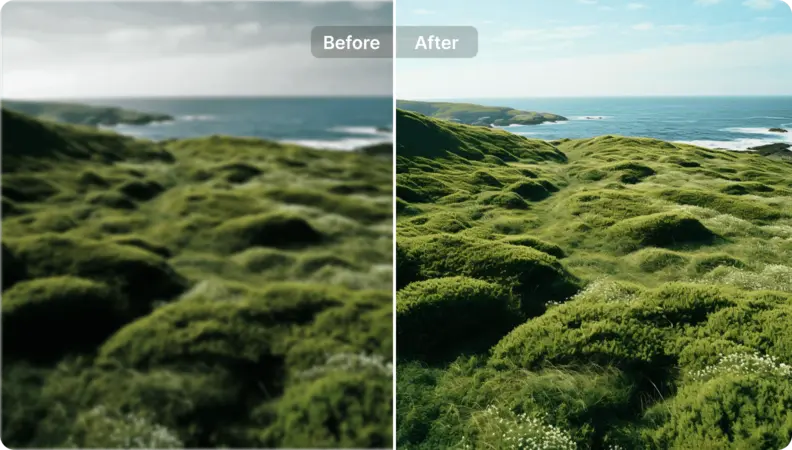
Tip: Don’t crank sharpening to 100%. It makes products look crunchy and fake. Aim for clean edges, not “sandpaper texture.”
Advanced upgrade (pro move):
Keep one “master cutout” PNG. Then reuse it across Amazon, Etsy, Shopify, and ads. You’re building an asset library, not doing one-off edits like it’s 2009.
Workflow B: Make YouTube thumbnails with a “pop” subject cutout
Goal: subject stands out, background is clean, text is readable.
Steps
- Cut out your face/subject from the original photo (clean edges matter).
- Put the subject on a simple background (solid color or soft blur).
- Add contrast and a little clarity to the subject only.
- Add big text with strong stroke or shadow.
- Export at 1280×720 (standard thumbnail size).
Advanced upgrade:
Use an image blender to create fast “scene swaps” (subject stays the same, background changes per video theme). That’s how channels produce at scale without spending all day in layers.
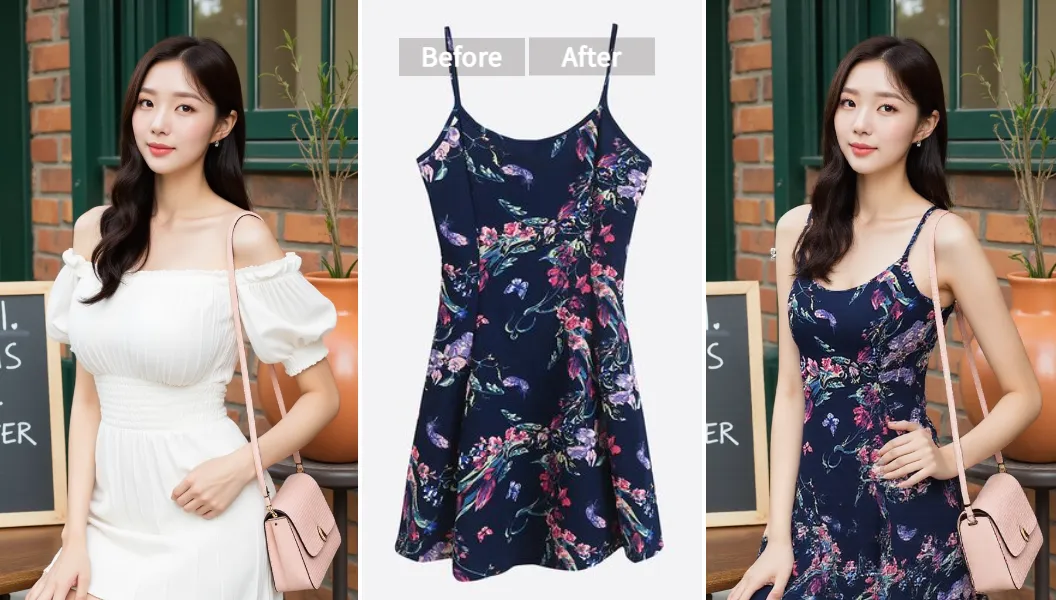
You can do that kind of composite work with Pixelfox AI Image Blender when you want quick variations without rebuilding everything.
Workflow C: Make a transparent logo PNG for overlays and streams
Goal: transparent background, crisp edges, correct size.
Steps
- Upload the logo image (even if it’s on a messy background).
- Remove background.
- Export as PNG (transparent).
- Resize to common needs: 512px, 1024px, 2048px depending on use.
Pro note:
If your logo is low-res, enhance/upscale before you remove the background. Bad edges in = bad edges out. Life is unfair like that.
Real-world case studies (what this looks like in real life)
Case Study 1: Solo Etsy seller cleaning 60 product photos
Scenario: Handmade jewelry seller with phone photos on a cluttered desk.
Problem:
Manual selections in classic editors took too long, and edges looked jagged around chains.
Workflow used:
Enhance → remove background → export transparent PNG → place on white background → batch consistent sizing.
Result (the practical win):
- The seller gets consistent listings faster.
- The product grid looks more “brand” and less “garage sale.”
- Returns drop in the long run when product photos look honest and clear (and yes, photo clarity affects buyer trust).
This is the kind of work where AI tools shine because it’s repetitive and edge-detail heavy.
Case Study 2: Small agency producing 20 ad creatives per campaign
Scenario: A two-person marketing team running paid social.
Problem:
They needed lots of variations: different backgrounds, different formats, same product shot.
Workflow used:
One master cutout + background variations + quick enhancements + resizing per platform.
Result (the practical win):
- Faster iteration for A/B testing
- More variants without extra designer hours
- Less time stuck in “pixel pushing” mode
This is also where Gartner’s repeated messaging about generative AI entering mainstream business workflows shows up in real life: teams use AI to reduce cycle time and ship more variations.
Common mistakes people make with free Photoshop alternatives (fix these and you’ll look pro)
-
They edit destructively (no layers)
- Fix: pick tools that support layers, or keep a “master” copy and export versions.
-
They expect PSD files to open perfectly everywhere
- Fix: use Photopea for PSD-heavy work, and flatten/export when sharing across tools.
-
They overuse AI
- Fix: AI is a fast helper, not your art director. If it looks weird, dial it back.
-
They export the wrong format
- Fix: PNG for transparency, JPG for photos, and keep quality high if you will re-edit.
-
They ignore sizing until the end
- Fix: decide target sizes early (YouTube, Instagram, Amazon, etc.). Saves rework.
-
They download sketchy “free Photoshop” installers
- Fix: if the download page looks like a casino, leave. Your laptop deserves better.
How to switch from Photoshop without losing your mind
-
Start with your task, not the tool.
If you mainly do cutouts and quick enhancements, go AI-first. If you do heavy layer compositing, go Photopea/GIMP-first. -
Keep your PSD workflow realistic.
PSD is Adobe’s home turf. Even good alternatives can miss some effects, smart objects, or fonts. -
Rebuild your shortcuts slowly.
Don’t try to rewire your whole brain on day one. Pick 5 shortcuts you use most and map those first. -
Build a simple pipeline:
AI tool for cleanup → editor for layout → export presets.
Simple beats “fancy” when deadlines exist.
FAQ (people ask these every day)
Can free software like Photoshop open PSD files?
Yes, some can. Photopea is one of the strongest for PSD open/save. GIMP can open PSDs too, but complex PSDs may not translate perfectly.
How can I remove a background without Photoshop?
Use an AI background remover. That’s the fastest path for most people. In many workflows, that one feature replaces half your Photoshop time.
Why do my exports look blurry after editing?
You usually resized wrong, exported too low quality, or upscaled after you lost detail. Enhance/upscale earlier, then edit, then export.
What’s the difference between a photo editor and a design tool?
Photo editors focus on pixels (retouching, color, selections). Design tools focus on layout (text, templates, branding). Lots of tools mix both, but one side is usually stronger.
Can I get Photoshop-level AI features for free?
You can get strong AI features for free in several tools, but “unlimited everything” is rare. Many apps use credits, limits, or ads to pay for compute.
The bottom line (and what to try today)
If you want free software like Photoshop, you’ve got real options in 2026. The smart move is to pick based on what you actually do each week, not what looks most “pro” on a screenshot.
- Need fast, modern results for everyday content? Try Pixelfox AI.
- Need PSD + layers in a browser? Try Photopea.
- Need deep offline editing? Try GIMP.
If you’re tired of fighting tools and you just want clean cutouts, sharper images, and content variations that don’t eat your whole day, open Pixelfox AI and run one real job through it. That’s the fastest way to see if it replaces Photoshop for your workflow—and yep, that’s exactly what people mean when they search free software like Photoshop.
Author note / transparency: This guide is written from a practical “content production” lens (eCommerce + creator + marketing workflows). Always check each tool’s license, privacy policy, and usage limits before using it for sensitive or commercial assets.