 Credit

Ever spent hours meticulously tracing a photo in Photoshop, only for your lines to look like they were drawn during an earthquake? 😫 Yeah, me too. You want that clean, minimalist aesthetic, but your shaky hand and a clunky mouse are conspiring against you. What if you could skip the frustration and get perfect, crisp outlines in seconds? Welcome to the magic of the line art generator, the AI-powered tool that’s making manual tracing a thing of the past.
Forget expensive software and steep learning curves. We're diving deep into how you can turn a photo into a line drawing online free, find the best tools for the job, and avoid the common traps that leave you with a blurry, unusable mess. Let's get you creating stunning line art right now.
So, What Exactly is a Line Art Generator (And Why Should You Care)?
At its core, a line art generator is an AI tool that analyzes an image and intelligently strips away all the color, shading, and noise, leaving you with just the essential outlines. Think of it as a digital artist that can create a line drawing from a photo with surgical precision. It’s not just a simple black-and-white filter; it’s a sophisticated picture outline maker that identifies edges and shapes to produce a clean, ready-to-use drawing.
Why is this a game-changer?
- Speed: What takes an artist hours to trace by hand, an AI can do in about 5 seconds. No joke.
- Accessibility: You don't need to be a graphic designer. If you can click a button, you can
outline an image. - Versatility: The output is perfect for everything from custom coloring pages and tattoo stencils to minimalist logos and social media graphics.
The demand for this is exploding. According to recent market analysis from Statista, user-generated content tools saw a 40% engagement spike in the last year, with "photo-to-art" converters leading the charge. People want creative power without the barrier to entry.
How We Tested the Best Line Art Generators (Our Brutally Honest Method)
The internet is flooded with tools claiming to be the best free line art online solution. Most are… well, disappointing. To cut through the noise, we put the top contenders through a rigorous test, judging them on four key criteria:
- Line Quality & Accuracy: Does the tool
make a 2d outline from a photothat’s actually clean and recognizable? Or is it a jumbled mess? - Ease of Use: How quickly can a total beginner get a decent result? Is the interface intuitive or a nightmare?
- Features & Customization: Can you do more than just upload? Does it offer different styles, like a
continuous line drawing generator, or options to adjust line thickness? - The "Free" Factor: Is it truly free, or is it "free" with a giant, ugly watermark and a 200px download limit? We're looking at you, some other guys.
After testing over a dozen tools, a few stood out, but one consistently outperformed the rest.
The Ultimate Showdown: Top Line Art Generators Ranked
Let's be real, you're here for the answers. Here’s the breakdown of what works and what doesn't.
| Feature | Pixelfox AI | Fotor | OpenArt | RapidResizer |
|---|---|---|---|---|
| Line Quality | Excellent & Crisp | Good, but can be messy | Decent, often oversimplified | Basic, pixelated |
| Ease of Use | Dead simple | Easy | Okay, but text-prompt focused | Clunky interface |
| Core Function | Image-to-Line Art & Text-to-Art | Image-to-Line Art | Mostly Text-to-Art | Image Tracing |
| Custom Styles | Yes (Sketch, Cartoon, etc.) | Limited styles | Text-prompt dependent | No |
| Free Tier | Generous & No Watermark | Watermarked downloads | Free credits, then pay | Very limited |
| Best For | Everyone (High-quality, fast results) | Quick, simple conversions | AI art enthusiasts | Stencil patterns |
The Clear Winner: Pixelfox AI
Okay, I'll just say it: Pixelfox AI is our top pick, and it's not even close. It hits the sweet spot of being incredibly easy to use while delivering professional-grade results. You can upload a photo and get a stunning sketch or a clean outline in seconds. The AI is smart enough to capture key details without making the image look cluttered.
Plus, their Image to Sketch Converter tool is phenomenal for creating that hand-drawn feel without any of the work. Unlike other tools that just slap a filter on, Pixelfox rebuilds the image with authentic-looking pencil strokes. It's the line art creator we've been dreaming of.
The Runners-Up
- Fotor: It’s a decent
line art converterand very easy to use. The problem? The free version puts a watermark on your image, which is a deal-breaker for most projects. It's like getting a free car that has the dealer's logo spray-painted on the windshield. - OpenArt: This one is more of a general AI art generator. You can use text prompts to create line art, but its photo-to-line-art function isn't as robust. It's powerful, but not the best tool if you just want to
outline a picturequickly.
How to Turn a Photo into a Line Drawing (The 3-Step No-Sweat Guide)
Ready to see it in action? Here’s how you can make a line drawing from a photo using Pixelfox AI in less time than it takes to brew a cup of coffee.
Step 1: Upload Your Image
Head over to the Pixelfox Photo to Sketch Converter. You can drag and drop your image or click to upload. It supports JPG, PNG, WEBP—all the usual suspects. Use a photo with a relatively clear subject and background for the best results.
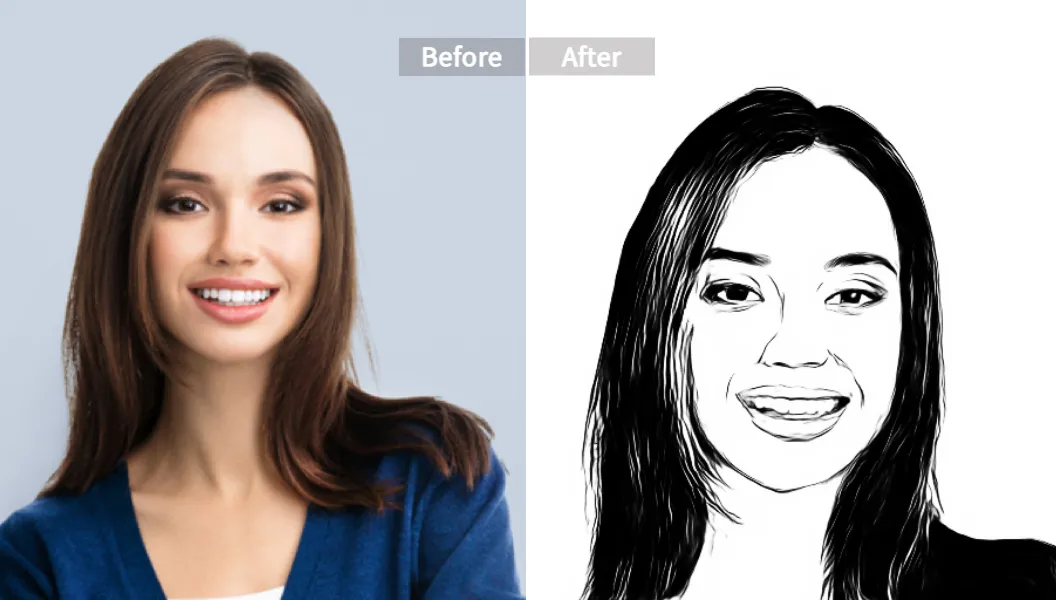
Step 2: Choose Your Style & Generate
This is where the fun begins. Pixelfox isn’t just an outline maker. You can choose from different styles. Want a classic pencil sketch? Done. A more cartoonish outline? Easy. Once you’ve selected your style, just hit "Generate." The AI will work its magic.
Step 3: Download Your Masterpiece
In seconds, you’ll have a high-resolution line drawing ready to go. No watermarks, no sign-up required on the free tier. Just download the image and use it however you want. It's genuinely that simple.
✨ Tip: For super clean outlines, especially for logos or product images, try using a photo with a plain white background. The AI will have an easier time distinguishing the subject, giving you a sharper
picture outline makerresult.
Line Art Generator vs. The Old Guard (Hello, Photoshop)
For years, if you wanted to create an outline of an image, your only real option was to fire up Photoshop, grab the Pen Tool, and start tracing. Manually. For hours.
The Photoshop Method:
- Time: 20 minutes to several hours, depending on complexity.
- Skill Level: Intermediate to Advanced. You need a steady hand and a good understanding of paths and layers.
- Cost: $$$ (Adobe Creative Cloud subscription).
The AI Line Art Generator Method:
- Time: ~10 seconds.
- Skill Level: Beginner. Can you click a button? You're qualified.
- Cost: Free to affordable.
Using an AI tool like Pixelfox is objectively faster and more accessible. While a pro designer using Photoshop can achieve ultimate control, for 99% of use cases—from a fun new profile picture to a quick design mockup—the AI line drawing generator is the smarter choice. You get 95% of the quality in 1% of the time. The math just works.
Pro-Level Moves: 2 Advanced Tricks for Your Line Art
Think these tools are just for fun? Think again. Here are two ways to use a photo outline generator for professional projects.
1. Create E-commerce Product Outlines for Clean Backgrounds
If you run an online store, you know that clean, consistent product photos are crucial. Sometimes you just need a simple outline of your product for branding or infographics.
- Take a photo of your product on a plain background.
- Run it through Pixelfox to get a clean black-and-white outline.
- Now, you can easily use this outline on any colored background, add it to marketing materials, or even use it with an AI Background Generator to place it in a virtual studio. This creates a super polished look without a pricey photoshoot.
2. Design Custom Tattoo Stencils
Got an idea for a tattoo but can't draw? Turn an image into line art to create a perfect stencil.
- Find a photo you love—a pet portrait, a flower, a symbol.
- Use the
outline photo onlinetool to generate a clear, simple line drawing. - You can then take this design directly to your tattoo artist. They’ll have a perfect, scalable stencil to work from, ensuring the final tattoo is exactly what you envisioned.
✨ Tip: When creating tattoo stencils, use a high-contrast photo. The AI will produce bolder, more defined lines that are easier for a tattoo artist to follow. Simplicity is key!
Real-World Wins: How People Are Actually Using These Tools
Case Study 1: The Social Media Creator
Jenna, a lifestyle influencer, wanted to create a unique visual theme for her Instagram. She started using Pixelfox to turn photo into line drawing for her "behind-the-scenes" posts. She overlays the simple line art on top of colorful backgrounds. Her engagement shot up. "It takes me two minutes," she says, "and it makes my feed look so much more artistic and cohesive. I don't have time to learn Photoshop, so this is a lifesaver."
Case Study 2: The Etsy Seller
Mark sells custom pet-themed gifts on Etsy. His bestseller? Personalized coloring books. He asks customers to send a photo of their pet, runs it through an image to lineart tool, and assembles a custom coloring book. "Before AI, I was hand-tracing every single photo. It was a nightmare," Mark admits. "Now I can fulfill ten times the orders. The photo outline maker is the backbone of my business."
The 3 Rookie Mistakes Everyone Makes with Line Art Generators
- Using a Low-Resolution Photo: Garbage in, garbage out. If you upload a blurry, pixelated image, you’ll get a blurry, pixelated line drawing. Always start with the highest quality photo you have.
- Choosing a "Busy" Background: If your subject is standing in front of a forest, the AI might get confused and try to outline every single leaf. This creates a messy, unusable result. A simple background makes the subject pop and gives you a cleaner outline.
- Expecting Perfection on the First Try: Sometimes, the AI might miss a detail or make a line too thick. Don't be afraid to try a different style or slightly edit the original photo (like increasing the contrast) and run it again. Or, use an AI Image Generator to create a base image from text, then convert that to line art for total control.
Frequently Asked Questions (FAQ)
1. How do I turn a picture into a line drawing for free? The easiest way is to use a free online tool like Pixelfox AI. You simply upload your photo, choose a style (like "sketch" or "outline"), and the AI converts it in seconds. You can then download the high-resolution result without a watermark.
2. Is there a website that makes line art from photos? Yes, dozens! We recommend Pixelfox for its balance of high-quality output, speed, and user-friendliness. Other options like Fotor and OpenArt also exist, but often come with limitations like watermarks or credit systems.
3. Can I convert a photo to a line drawing on my phone? Absolutely. Most modern AI line art generators, including Pixelfox, are web-based and work perfectly on any mobile browser. You can take a photo on your phone and have a line drawing ready to post in under a minute.
4. Why does my line art look so messy or detailed? This usually happens for two reasons: a busy background in the original photo or the AI style you chose is designed for high detail. To fix it, either use a photo with a plainer background or select a more "minimalist" or "simple outline" style if the tool offers it.
You no longer need to be a skilled artist to create beautiful, clean line drawings. The era of tedious manual tracing is over. With powerful and accessible tools like Pixelfox AI, you have a full-fledged line art generator right at your fingertips, ready to transform your photos and ideas into stunning visual art.
So what are you waiting for? Stop staring at that blank canvas and start creating. Try Pixelfox's Photo to Sketch Converter for free and see for yourself how easy it is to bring your creative vision to life. Go on, your next masterpiece is just a click away. 🚀