 Credit

You drop a faded black‑and‑white photo into an AI colorization tool and, five seconds later, boom—your grandparents look like they walked out of a 4K Netflix show.
It feels like magic. It is not. It is math, data, and a lot of GPUs pretending to be artists. 🎨
This guide is for you if you:
- want to ai colorize photo collections for your family
- need an ai image colorizer for content, clients, or school projects
- are hunting for a free online colorizer no signup (or at least low friction)
- keep typing “best colorize photo online free” into Google and get the same shallow lists
Here we will break down how AI colorization really works, why some tools give amazing colourised photographs and others make people look like aliens, and how to get pro‑level results without touching Photoshop if you do not want to.
I will use Pixelfox AI as the main example, because it actually solves most of the pain points people complain about on X and Reddit.
What is AI colorization and why it blew up in 2025
AI colorization means you feed a black‑and‑white or faded image to an algorithm.
The model guesses what the colors “should” be and returns a full‑color image.
That is the short version.
The longer version is where the fun starts. 🧠
Modern ai black and white to color systems use deep neural networks.
They are trained on huge sets of color photos and their grayscale versions.
The model learns patterns:
- sky is often blue or orange
- grass is often green
- skin has a certain range of tones
- old cars in some eras tend to have specific colors, and so on
So when you use an ai image colorizer, the model looks at shapes, edges, context, and brightness.
It does not “remember” your photo.
It just uses what it learned from millions of other examples.
Two main tech stacks sit behind most tools:
- GANs (Generative Adversarial Networks)
One model creates a color image.
Another model judges if it looks real.
They battle each other until outputs are good enough. - Diffusion models
These add noise to images and then learn to reverse that noise, step by step, back to a detailed, colored picture.
According to recent reports from firms like Gartner and Forrester, image and video AI is one of the fastest growing areas in creative software.
And Statista has tracked billions of photos shared daily across platforms.
So it is no surprise that ai colorization tools became a must‑have for everything from genealogy projects to TikTok edits.
The catch: AI is still guessing.
It can be smart, but it is not a time traveler.
So accuracy depends on:
- how sharp the original scan is
- how common that type of scene is in the training data
- how well the tool handles faces, shadows, and textures
This is exactly where tool choice matters.
And where Pixelfox makes a big difference.
Common problems with AI colorize photo tools (and why they happen)
If you have played with a random free colorizing app, you already know something can go wrong.
The model can be fast and still make a mess.
Here are the usual suspects.
1. Weird skin tones and “plastic” faces
People often complain that AI gives grayish, orange, or over‑smooth skin.
Or everyone ends up with the same skin tone.
This happens because:
- the model has bias from its training data
- old photos have bad lighting and low detail
- many tools use heavy smoothing to hide noise
Pixelfox AI Image Colorizer takes a different route.
It keeps skin texture and uses separate steps for color and detail.
You can then pair it with the AI Photo Retoucher when you want gentle skin cleanup without that “wax doll” look.
2. Clothes and objects get the wrong color
Your grandpa’s navy suit turns bright purple.
The car becomes neon green like some cyberpunk meme.
It looks funny, but it is not what you want for a family slideshow.
This is because most models estimate color by probability.
If the shape is unclear or the photo is very noisy, the model just picks a “likely” color.
When you run the same image through Pixelfox AI Image Colorizer, you can later fix those odd colors with the AI Image Color Changer.
So you get a two‑step workflow:
- colorize the black‑and‑white photo
- recolor specific parts if you know the exact shades (for example, brand colors or uniforms)
3. Halos, color bleeding, and ghost details
Cheap tools often leave color halos around hair, hats, and buildings.
Edges look messy.
Sometimes AI even invents details that were not there.
According to user tests run by UX groups like Nielsen Norman Group, people spot artifacts in photos faster than in text.
Bad color makes them trust the whole image less.
Better tools try to:
- detect edges more carefully
- keep color inside shapes
- respect original brightness and contrast
Pixelfox does this with a set of specialized models.
One model looks at global color mood.
Another model focuses on edges and small details.
4. Privacy and data worries
A lot of people search for free online colorizer no signup because they do not want to hand over an email or ID for one family photo.
Fair enough.
But there is a flip side.
If a service has no account and no clear policy, where do the images go?
Some free tools quietly keep them to train future models or for marketing.
Pixelfox is web‑based, so you do not install anything.
And it is built with a clear privacy policy, so your uploads and outputs stay private.
You can use it for sensitive family archives without that “who else is looking at Grandma?” feeling.
Tip:
If a tool never mentions privacy or data storage anywhere on the site, treat it like a sketchy USB stick. Great for experiments, not great for your only copy of a 1920 wedding portrait.
Best AI colorization tools in 2025 (tested on real photos)
Let’s talk tools.
People keep asking for the best colorize photo online free service, but the real answer is, “best for what?”
I will keep this simple and honest.
I think Pixelfox should be your main workhorse.
You can still try other tools when you want a different style or quick social posts.
Here is a high‑level view.
| Tool / Service | Type | Free Tier | Best Use Case | Main Downside |
|---|---|---|---|---|
| Pixelfox AI Image Colorizer | Web app, multi‑tool suite | Free usage with limits on images or resolution | Family archives, creative work, client projects | Needs web access |
| Palette.fm | Web app | Limited free images per day | Artsy, stylized colors | Watermarks and account needed |
| Hotpot.ai | Web app | Small number of free credits | Fast social media edits | Artifacts on complex scenes |
| DeOldify‑based freeware | Desktop / open source | Fully free, local | Tech users who want control and offline workflow | Setup is not beginner‑friendly |
| Mobile free colorizing app (generic) | iOS / Android app | Free with ads and in‑app buys | On‑the‑go colorization | Lower quality, compression, tracking, ads |
| Colorize bot (Telegram/Discord) | Chat bot interface | Often free or donation‑based | Quick memes and low‑stakes tasks | Little control, unknown data storage |
You can use any of these, but we will zoom in on Pixelfox because it covers more than just AI colorization.
Pixelfox AI Image Colorizer: your main engine
Pixelfox is not just a single button ai colorize photo toy.
It is a full stack of AI photo tools designed to work together.
Core parts:
- Pixelfox AI Image Colorizer for turning black‑and‑white into color and for old photo restoration
- AI Image Color Changer for recoloring specific areas or using custom palettes
- AI style transfer tool for matching color and lighting between images
- AI Video Enhancer for sharpening and improving old or low‑quality videos
- AI Photo Retoucher for natural skin and portrait cleanup
So you start with black‑and‑white.
You colorize it.
You tweak colors.
You clean the skin.
You match style to a whole project.
You do not jump between five random apps and lose quality every time you download and re‑upload.
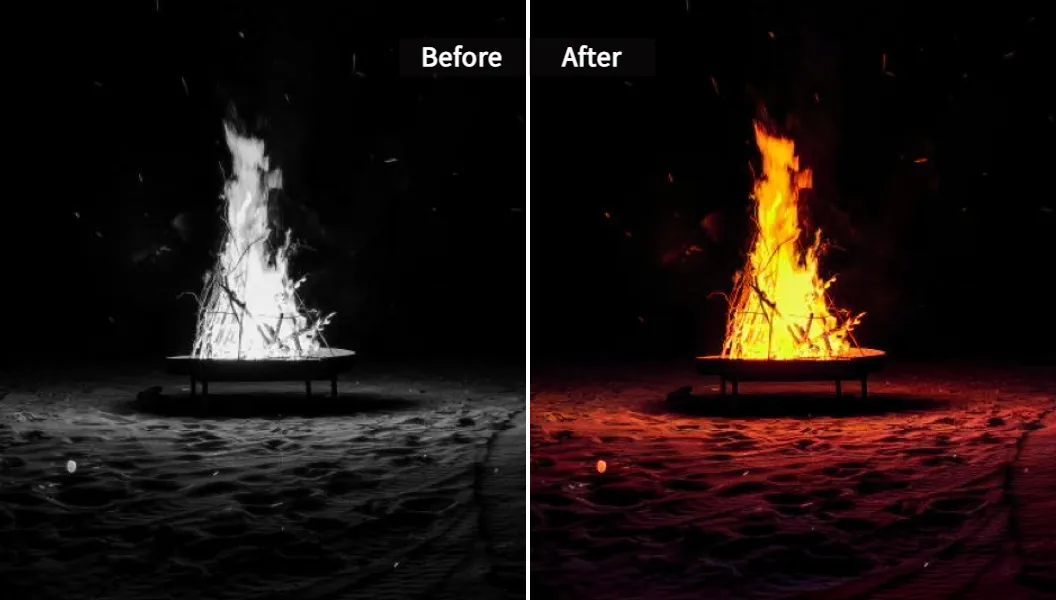
Where Pixelfox stands out vs other AI image colorizer tools
Based on user comments and my own tests, here is where Pixelfox tends to win:
- Better faces. Skin tone is more natural. Details stay sharp.
- High‑resolution outputs. Less pixel mush, more “wow, I can print this.”
- Workflow. Color, recolor, retouch, and even take the look into video, all in one place.
- UI. Clean, easy, no 1998‑style control panels.
According to UX studies from groups like Nielsen Norman Group, simpler interfaces improve completion rates for non‑technical users by a big margin.
So this matters, especially for family historians and teachers who do not want to learn full photo editing software.
Step‑by‑step: use AI to colorize black and white photos like a pro
You do not need a design degree or a $600 license.
You just need a clear flow.
Here is a simple workflow using Pixelfox.
Step 1: Prepare your scan
Grab your original photo.
Scan it at a decent resolution.
Higher than 600 dpi is great for very old prints, but even a clear phone scan can work if you have good light and no strong shadows.
Try to:
- keep the photo flat
- avoid direct reflections
- keep the camera straight
Small effort here gives huge gains later.
Step 2: Upload to Pixelfox AI Image Colorizer
Go to the Pixelfox AI Image Colorizer page.
Hit upload or drag and drop your photo.
The tool supports common formats like JPG, PNG, JPEG, BMP.
So you do not need to convert anything weird.
Tip:
If you only have a very tiny file, upscale it first with a good enhancer or scanner app. AI works better when it can see edges and features clearly.
Step 3: Run AI colorization
Click the button to start colorizing.
Pixelfox will:
- analyze the grayscale image
- detect people, backgrounds, and objects
- apply realistic colors and adjust contrast
The whole ai colorization usually takes a few seconds, depending on size.
Then you see the before/after view.
Step 4: Inspect and tweak colors
Look at:
- faces and skin
- clothes that you know the real color of
- important objects (uniforms, flags, cars, buildings)
If you need to fix specific colors, send the image into the AI Image Color Changer.
You can recolor jackets, cars, or backgrounds with custom tones or smart filters.
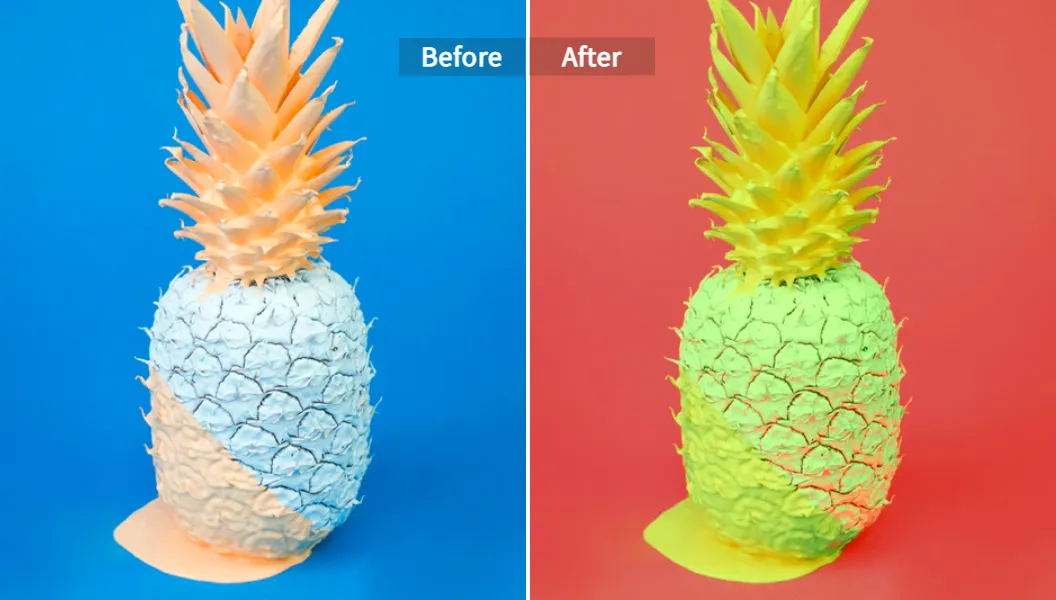
This is way faster and cleaner than painting by hand in Photoshop.
You get the accuracy of AI plus your own control.
Step 5: Retouch and finish
For portraits, open the image in the AI Photo Retoucher.
This will:
- remove small blemishes
- smooth skin very gently
- keep pores and texture so it still looks like a human
Now you can export the colorized photo in JPEG or PNG and share, print, or drop it into a video slideshow.
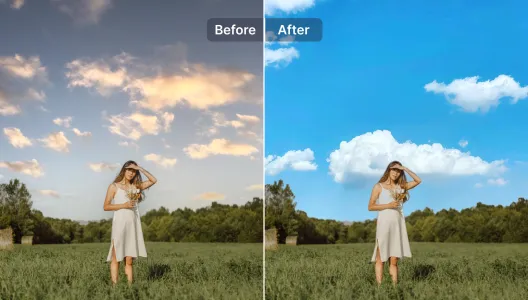
If you want to go wild, use the AI style transfer tool to match the look of another image.
For example, you can take the color mood from a modern studio shot and apply it to an old family portrait.
Advanced tricks: from colourised photographs to full creative workflows
You can stop at “wow, it is in color now.”
But you can also push this much further.
Here are a few advanced things you can do with Pixelfox and similar tools.
1. Create a full brand look from old photos
Say you run a small brand, and your story starts with an old black‑and‑white workshop photo from the 1950s.
You can:
- use ai colorization to get a clean base
- use the AI Image Color Changer to recolor backgrounds and objects to your brand palette
- use the AI style transfer tool to match lighting to your modern marketing photos
Now your old family photo fits into your website, social media, and packaging.
It looks like one consistent visual story, not a random archive drop.
2. Turn archives into video content
You can take a folder of colourised photographs, then:
- sequence them into a slideshow
- run the resulting video through AI Video Enhancer
- sharpen details, boost color, and fix low light
This is great for YouTube, TikTok, or educational content.
You can create “then vs now” edits that grab attention fast.
3. Blend manual editing with AI
Professional retouchers still use Photoshop or similar tools.
But many now start with AI colorization as a base.
Simple workflow:
- run ai black and white to color conversion in Pixelfox
- open the result in Photoshop or GIMP
- do fine edits on small areas, dodge and burn, or add grain for a film look
This hybrid method gives you speed from AI and full artistic control from traditional editing.
Tip:
If you plan to print big, export the highest resolution from Pixelfox, then sharpen and soft proof the file in your favorite editor. AI gets you 90% of the way. The last 10% is where pros still shine.
Real‑world case studies: how people use AI black and white to color
Let’s make this less abstract.
Here are two realistic scenarios that match what I see in user behavior and social media posts.
Case 1: The family historian
Linda is 54.
She is the “photo person” in her family.
She inherited two boxes of black‑and‑white prints from her grandparents.
Her goals:
- share memories with cousins before Thanksgiving
- create a printed book for her parents’ 50th anniversary
- not spend six months learning advanced software
What she does:
- Scans the best photos with a flatbed scanner.
- Uses Pixelfox AI Image Colorizer on each one.
- Uses the AI Photo Retoucher only on close‑up portraits.
- Makes light color tweaks with the AI Image Color Changer when she knows a dress or car color from family stories.
- Exports full‑resolution files and drags them into a photo book service.
Result:
- Her parents see themselves in color for the first time from those years.
- Her cousins argue about who got which nose, like always.
- Linda did not need any colorize black and white photos freeware hack or weird CLI tool. She stayed in a simple web UI and focused on story, not software.
Case 2: The content creator and YouTuber
Jay is 27.
He runs a channel about tech history and retro gear.
He wants:
- fast production
- eye‑catching thumbnails
- minimal manual editing
What he does:
- Finds public domain black‑and‑white photos of old computers and labs.
- Runs them through ai colorization in Pixelfox to make them stand out.
- Uses the AI Image Color Changer to push colors toward his channel palette, so every thumbnail feels consistent.
- Uses AI Video Enhancer on old interview footage to make it sharper and more modern.
- Drops everything into his editor, adds captions, and ships.
Now his videos look like premium documentaries, not random old clips.
He can still experiment with a colorize bot on Discord for quick meme ideas, but for real work, he sticks with Pixelfox because it is repeatable and more stable.
Newbie mistakes with AI colorization and how to fix them
Even with a strong ai image colorizer, people run into the same traps.
Let’s call them out so you can skip the pain.
Mistake 1: Feeding tiny, blurry scans
If you give AI a 300‑pixel image, it has nothing to work with.
It will smear color across blocks and invent details.
Fix:
Scan at higher resolution or use a good photo of the print.
Then let AI enhance or upscale before or after colorization.
Mistake 2: Trusting every color as “historical truth”
AI does not know what color your grandmother’s dress really was.
It only knows “a dress in 1940s photos often looks like X”.
Fix:
- Ask family members about real colors.
- Check era‑correct references for uniforms, cars, and flags.
- Treat AI output as “nice guess”, not final truth.
This matters a lot for museum work and education.
According to ethics discussions in digital heritage circles, historians now often label AI‑enhanced images clearly, so viewers know they are seeing an interpretation.
Mistake 3: Over‑processing the same file
People sometimes:
- colorize the photo in one app
- download it
- upload to another app to “enhance”
- repeat this cycle five times
Each time, compression and artifacts stack up.
Faces start to look plastic and textures vanish.
Fix:
Stay in one ecosystem as much as possible.
Pixelfox helps here because you can colorize, recolor, retouch, and enhance without bouncing between unrelated sites.
Mistake 4: Using the wrong tool for the job
A free colorizing app on your phone might be fine for a meme.
It is not ideal for the only existing photo of your great‑grandparents.
Fix:
Use mobile apps and random web toys for low‑stakes stuff.
Use proven tools with clear privacy and high‑res outputs for anything important.
Mistake 5: Ignoring light and contrast before upload
If your scan is super dark or blown out, AI has less data.
Color will look off, and faces can vanish.
Fix:
Do a quick brightness/contrast adjustment before you upload, or rescan with better lighting.
Small pre‑work makes AI look a lot smarter.
AI colorization vs Photoshop and other old‑school methods
A lot of people ask: “Why not just do this in Photoshop?”
You can.
People did that for years.
Manual colorization means:
- you paint on separate layers
- you mask hair, clothes, backgrounds by hand
- you adjust blending modes and opacity
- you tweak curves and levels, then repeat forever
You get full control, but it is very slow.
According to designers I have worked with, a single complex portrait can take 3–10 hours by hand if you want a high‑end result.
With ai colorization in a tool like Pixelfox, you:
- upload
- wait a few seconds
- get a full‑color base
- fix only the parts you care about
Time drops from hours to minutes.
You still can send the file into Photoshop for the final 5% if you want, but you do not start from zero.
For casual users, AI makes colorization possible at all.
They would never open Photoshop or touch layer masks.
Now they can revive photos in a browser during lunch break.
AI colorization vs other online tools and colorize bots
You have many options today:
- online colorizers
- Telegram or Discord colorize bot services
- desktop colorize black and white photos freeware built around open‑source models
So why pick a dedicated platform like Pixelfox?
1. Quality and consistency
Some bots and small web tools use old versions of models.
Results can jump a lot between images.
Faces look good in one shot and weird in the next.
Pixelfox runs optimized, modern models that are tuned for faces, scenery, and mixed scenes.
So you get more consistent results, which matters when you want a full album or campaign to look coherent.
2. Workflow, not just a single trick
Most “free online colorizer no signup” tools do one thing: color in, file out.
That is it.
No recolor, no retouch, no style matching, no video.
Pixelfox builds a workflow:
- ai colorization
- targeted recoloring
- skin retouch
- style transfer
- video enhancement
You can keep everything under one roof and save a lot of time.
3. Privacy and control
Bots in chat apps are fun.
They are also a black box.
You do not know where your images go, and you cannot really track their policy.
Pixelfox takes privacy seriously and states it clearly.
You work in a proper app, not in someone’s side project bot.
FAQ: how, why, can, difference… the usual suspects
How does AI colorization actually decide the colors?
The model looks at shapes, brightness, textures, and context.
It compares them to patterns it learned from millions of color photos.
It predicts likely colors for each pixel and then smooths them so the image looks natural.
It does not read your mind or access secret history records.
How accurate is AI black and white to color for very old photos?
It can be surprisingly good on faces and simple scenes.
It is less accurate for rare uniforms, unusual fabrics, or objects that appear in few training photos.
For strict historical work, treat AI output as a soft suggestion and verify colors with references when you can.
Why do some AI image colorizer tools add weird artifacts?
Many free tools compress uploads heavily and use smaller models to save server cost.
Low‑res input and small models lead to color bleeding, halos, and random artifacts.
Better tools like Pixelfox use higher‑quality processing and better edge handling, so you see fewer mistakes.
Can I use AI colorization images for commercial projects?
In most cases, yes, as long as you own or have rights to the original image and the tool’s terms allow commercial use.
Pixelfox is designed for both personal and commercial work, so you can use it for ads, social media, books, or video projects.
Always check current terms for any platform you use, because policies can change.
What is the difference between AI colorization and simple filters?
A simple filter just shifts colors or adds tint to the whole image.
AI colorization actually adds new colors to grayscale regions based on learned patterns.
So it can turn gray grass into green, gray sky into blue, and gray skin into natural tones, instead of just putting a sepia or blue wash on top.
Ready to bring your old photos back to life?
Old photos are not boring.
They are just stuck in grayscale waiting for a second chance.
Good ai colorization gives you that chance without years of training or endless hours in complicated software.
You can turn ai black and white to color in seconds, then refine colors, clean skin, match style, and even boost videos—inside one focused tool stack.
If you want to:
- revive family albums
- build content that stands out
- turn dusty archives into living stories
then it is the right time to try Pixelfox.
Head over to the Pixelfox AI Image Colorizer now, upload one black‑and‑white photo, and watch it transform.
Then push it further with the AI Image Color Changer, the AI style transfer tool, and the AI Video Enhancer when you are ready to go deeper.
Your memories do not have to stay in black and white.
Let AI help you color them, and you can focus on the story, not the software. ❤️
Author note: This article is written from the perspective of a content strategist who has worked with AI creative tools and user workflows for years. It is not legal advice. For licensing or commercial use questions, always check the latest terms on Pixelfox and any other tools you use.