 Credit

Let’s be honest for a second. We’ve all been there—staring at a screen at 2 AM, zooming in 400% on a strand of hair in Photoshop, trying to manually erase a background without making the subject look like a jagged cardboard cutout. It’s a nightmare. It’s tedious, soul-crushing work that kills your creative vibe faster than a buffering loading screen.
But here’s the good news: we are living in the golden age of automation. You don't need to be a graphic design wizard to get professional results anymore. The [ai background remover] technology has evolved from a "nice-to-have" gimmick into an absolute powerhouse essential for everyone from e-commerce tycoons to meme-makers.
If you’re wondering how to slash your editing time by 90% while boosting image quality, you’re in the right place. We’re going to dive deep into the tech, expose the common traps, and show you exactly how to use tools like Pixelfox AI to dominate your visual game.
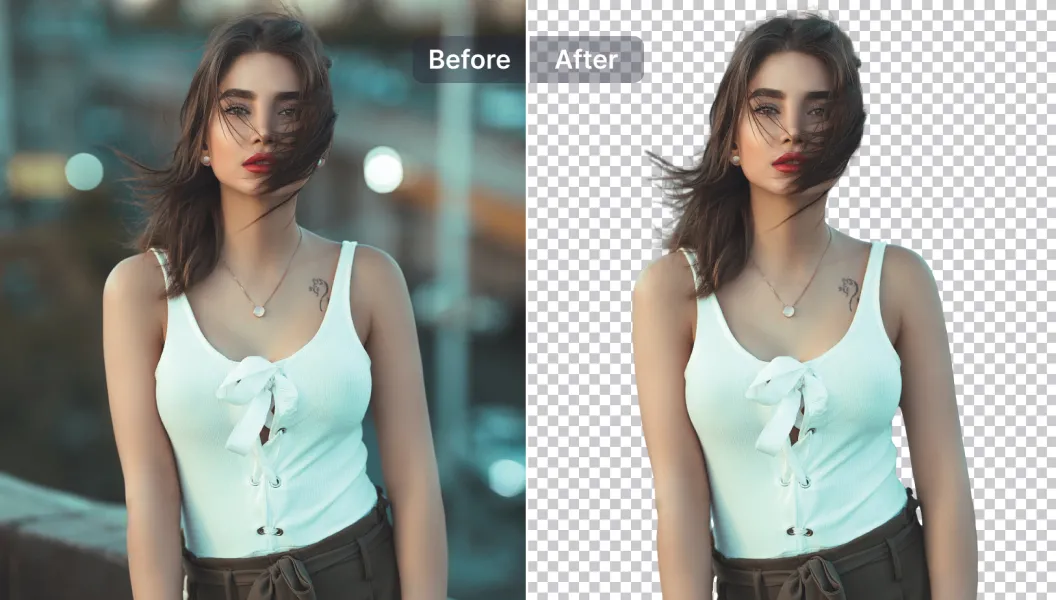
What Actually is an AI Background Remover? (The Geeky Stuff)
You might think it’s just magic, but there’s some serious engineering under the hood. Unlike the old "Magic Wand" tool that selected pixels based on color similarity (and failed miserably if your shirt was the same color as the wall), modern ai background remover tools use Semantic Segmentation.
Think of it like this: The AI has "seen" millions of images. It knows what a human looks like, what a car looks like, and importantly, what hair looks like against a complex backdrop. It separates the foreground (the subject) from the background at a pixel level.
According to recent tech insights, the accuracy of these neural networks has jumped significantly in just the last 18 months. We aren't just getting a rough outline anymore; we are talking about matting—where the AI calculates the transparency of semi-transparent objects like bridal veils, smoke, or frizzy hair. That’s the difference between a photo that looks professional and one that looks like a bad collage.
Why You Need to Ditch Manual Editing
Time is money. A study by HubSpot suggests that visuals are the number one factor in content marketing success, but spending 20 minutes cutting out one image is a terrible ROI.
Here is why manual editing is dead:
- Speed: AI does in 3 seconds what takes a human 10 minutes.
- Consistency: If you have 500 product photos, a human will get tired and sloppy. The AI won't.
- Cost: Hiring an editor for bulk work gets expensive fast.
How to Get Rid of Background Instantly
Okay, let's get your hands dirty. You have a photo, and the background is trash. Maybe it’s a messy room, or maybe photobombers are ruining a perfect shot. Here is the foolproof workflow using Pixelfox AI.
- Upload Your Image: Drag and drop your file. High resolution is best (JPG or PNG), but a good AI can handle web-quality images too.
- Let the AI Cook: The system analyzes the subject. This is where the image background remover algorithm kicks in. It detects edges and depth.
- Refine (If Needed): most of the time, it's automatic. But sometimes you might want to bring back a prop the AI thought was background.
- Download: Grab it as a transparent PNG.
Tip: Always download in PNG format if you want transparency. JPGs don't support transparency and will just fill the background with white again, defeating the whole purpose! 🧠
The "Black Background Remover" Challenge
Here is a curveball. What happens when you have a dark subject on a dark background? This is the "black on black" problem. Standard algorithms struggle here because the contrast edges are almost invisible.
Many users search for a specific black background remover, thinking they need a specialized tool. In reality, you need an AI with superior edge detection capabilities. Pixelfox AI excels here because it doesn't just look at color contrast; it recognizes shapes and textures. It knows where the black leather jacket ends and the black wall begins because the texture is different.
If you are struggling with dark images:
- Bump up the brightness slightly before uploading.
- Use an AI tool that allows for manual "keep/erase" brush adjustments for those tricky areas.
Can You Change the Background of a Video Using AI?
This is the million-dollar question: can you change the background of a video using ai without a green screen?
Short answer: Yes. Long answer: It’s complicated, but getting easier.
Video background removal (often called rotoscoping) requires the AI to track the subject across 24 to 60 frames per second. If the AI jitters, your background flickers, which looks terrible. While Pixelfox AI is a beast at image processing, for video, the tech focuses on temporal consistency—ensuring the mask stays stable as you move.
Currently, creators use this for:
- Reels/TikToks: Swapping a boring bedroom for a cool studio.
- Professional Zoom/Teams calls: Hiding the messy kitchen.
- Marketing Ads: Placing a product video onto a dynamic background.
If you have logos or watermarks in your videos that need to go before you swap the background, you might want to check out an AI video logo remover to clean up the source footage first.
Handling the "Backroom Remover" Situation
We see a lot of people searching for backroom remover. Now, you might be talking about the creepy "The Backrooms" internet lore, but more likely, you made a typo or you just want to remove the clutter from the back of the room in your photo.
Real estate agents and remote workers love this. You take a selfie, but there is a pile of laundry behind you. An ai background remover wipes that embarrassment away instantly. You can replace it with a crisp office setting or a solid color. It’s digital hygiene. Clean visuals = professional perception.

Old School vs. New School: Photoshop vs. AI
Let's break down why the industry is shifting.
| Feature | Traditional Photoshop (Pen Tool) | Pixelfox AI / Modern Tools |
|---|---|---|
| Learning Curve | High (Months to master) | None (Click and wait) |
| Time per Image | 5-15 Minutes | 3-5 Seconds |
| Hair/Fur Detail | Requires advanced channel masking | Automatic |
| Cost | Expensive Subscription | Free or Low Cost |
| Batch Processing | Requires Actions/Scripts | Built-in features |
Photoshop is still king for high-end magazine retouching where every pixel is scrutinized. But for 99% of the web—e-commerce, social media, blogs—AI is the superior choice.
Professional Playbook: 3 Advanced Techniques
You know the basics. Now let's level up. Here is how the pros use removing background tech to make money.
1. The "Ghost Mannequin" Effect for E-commerce
You want to sell a hoodie, but models are expensive.
- Take a photo of the hoodie on a mannequin.
- Take another photo of the inside neck label area.
- Use the Cut Out Image tool to strip the mannequin out.
- Composite the neck label image behind the empty neck hole.
- Boom. Invisible man wearing your merch. It looks premium and costs almost nothing.
2. Creating Scalable Marketing Assets
Don't just delete the background; replace it. Use an AI Background Generator after stripping the original.
- Take one product shot of a sneaker.
- Remove the background.
- Generate 10 different variations: "Sneaker on a basketball court," "Sneaker on a futuristic neon street," "Sneaker on a podium."
- Now you have A/B testing material for Facebook ads from a single photo.
3. Logo and Signature Extraction
Have a client who sent you their logo inside a Word doc or a scan of a signature?
- Run it through the remover.
- The AI isolates the black ink or colorful logo.
- Save as PNG. Now you have a clean asset to overlay on contracts or websites.
Tip: When processing logos, ensure the edges are sharp. Pixelfox is tuned to keep hard edges crisp for graphic design elements, unlike some tools that blur everything to hide mistakes. 📐
Real-World Case Studies
Case Study A: The Etsy Hustler
Sarah runs a vintage jewelry shop. The Problem: She was taking photos on her kitchen table. The lighting was bad, and the background was distracting wood grain. Sales were flat. The Fix: She used Pixelfox AI to batch process 50 items at a time. She replaced the wood with a pure white background (Amazon standard) and added a subtle drop shadow. The Result: Her shop looked cohesive instantly. Conversion rates increased by 40% in two weeks because the products popped.
Case Study B: The Car Dealership
Mike manages online inventory for a used car lot. The Problem: Taking photos of cars in a crowded lot looks messy. Other cars and random people are in the frame. The Fix: Mike uses AI to strip the busy lot background and replaces it with a clean, branded gray wall with the dealership's logo. The Result: The inventory looks premium, building higher trust with buyers browsing online.
Common Mistakes Newbies Make (And How to Fix Them)
Even with AI, you can mess it up. Here is how to get rid of background issues before they happen.
- Ignoring Lighting Match: If you paste a subject lit from the left onto a background lit from the right, it looks fake.
- Fix: Pick a background that matches your subject’s lighting direction, or flip the subject horizontally.
- Low-Resolution Source Files: Garbage in, garbage out. If you upload a pixelated WhatsApp image, the AI will struggle to find the edges.
- Fix: Always use the original camera file.
- Forgetting the Shadows: A floating object looks weird.
- Fix: Most pro tools allow you to add a "cast shadow" or "reflection" after removal. Don't skip this step if you want realism.
FAQ: Your Burning Questions Answered
Q: Is there a truly free AI background remover? A: Many tools claim to be free but hit you with a paywall when you try to download HD. Pixelfox AI offers generous free usage with high-quality results, prioritizing user experience over aggressive monetization.
Q: How do I handle hair and fur? It always looks cut off. A: This is the benchmark of quality. Look for tools that advertise "alpha matting" or "hair refinement." Avoid manual eraser tools for hair; you'll never get it right. Let the AI do the heavy lifting.
Q: Can I process images in bulk? A: Yes! If you are an e-commerce seller, look for the "Batch Processing" feature. You can upload 50 images, walk away to get coffee, and come back to 50 transparent PNGs.
Q: Does removing the background lower image quality? A: It shouldn't. A good tool processes the image at full resolution. However, ensure you aren't using a "preview" mode to download.
Q: Can AI remove unwanted objects inside the photo, not just the background? A: That is a different tech called "inpainting" or "magic eraser." While related, background removers focus on the whole environment. For specific items, look for object removal tools.
Final Thoughts: The Future is Transparent
The days of struggling with the Pen Tool are over. Whether you are cleaning up a messy backroom remover scenario, prepping product shots, or creating viral content, ai background remover technology is your new best friend. It is not just about saving time; it is about democratizing professional design.
Don't let a busy background distract from your message. Your subject deserves the spotlight.
Ready to transform your images in seconds? Stop reading and start creating. Try Pixelfox AI right now and experience the difference between "good enough" and "perfection."