 Credit

You record a “once in a lifetime” moment.
You hit play later.
And the video looks like it was shot on a potato from 2009. 😐
That is why people search for an AI video enhancer. You want something that turns blurry, noisy, low‑res footage into something you are not embarrassed to post. You want it fast. You want it cheap, or free. And you do not want to learn color grading like a Hollywood editor.
In this guide, we will break down what AI video enhancers actually do, how to pick the right one, and how to upscale video to 4K online free using Pixelfox AI as our main example. We will also talk about mistakes that ruin footage, advanced tricks pros use, and how this fits into your full content workflow.
The goal: by the end, you know how to go from “why is this so pixelated?” to “wow, this looks like Netflix” – without losing your weekend to tutorials.
Pain points: why you need a free app to increase video quality
People do not wake up and randomly search “app to increase video quality”. Something hurt first.
Here are the real pain points that come up again and again in reviews, forums, and creator chats:
-
Old family videos look bad on modern screens
VHS transfers, 480p wedding clips, baby videos from old phones. They look tiny and mushy on a 4K TV. You want a simple free program to enhance video quality and give those clips a second life. -
Social videos lose you views
On YouTube and TikTok, sharp video wins. Marketing reports from companies like Wistia and HubSpot keep saying the same thing: video is king, and people leave fast when quality drops. Blurry footage = fewer views, less watch time, less trust. -
Low‑light footage is noisy
Night vlogs, concerts, indoor events. Phone cameras struggle. You get grain, color shifts, crushed shadows. Classic “this looked better in person” problem. -
You don’t have time for pro software
Desktop tools like Premiere Pro or DaVinci Resolve are great, but they are heavy. They take time, they need a good GPU, and they have a learning curve. You just want something that works in the browser. -
Mobile apps are either weak or full of ads
Many “app to enhance video quality” options on mobile do simple filters. They do not really recover detail or upscale. Or they put giant watermarks over your clip. -
AI tools sometimes look… weird
Over‑smooth skin. Plastic faces. Over‑sharpened edges. People want an ai video quality enhancer that looks natural, not like a bad beauty filter.
An AI enhancer should fix these without turning your clip into uncanny valley content. That is the bar.
What an AI video enhancer actually does (in plain English)
So what does an AI video enhancer do behind the scenes?
Short version: it looks at every frame and guesses what “should” be there, based on patterns it learned from a huge amount of clean, high‑quality video.
It can then:
-
Upscale resolution
Turn 240p, 360p, or 480p into 720p, 1080p, 4K, even 8K in some cases. Tools like the PixelFox AI Video Upscaler use AI to rebuild edges and textures, not just stretch pixels. -
Sharpen and restore detail
AI models detect faces, eyes, hair, text, and other key parts. Then they add missing fine detail while keeping things natural. -
Denoise and clean grain
A good ai video quality enhancer knows the difference between “real detail” and “noise.” For example, the PixelFox AI Video Denoiser removes grain in dark footage while keeping actual edges and shapes. -
Fix colors and lighting
AI can balance exposure, lift shadows, lower highlights, and fix white balance. The PixelFox AI Video Enhancer has built‑in AI color correction and a “low‑light improver” that does this automatically. -
Enhance faces and portraits
For content with people, face quality is everything. The PixelFox AI Portrait Enhancer for Videos & Selfies cleans skin, brightens eyes, and fixes lighting but keeps the face human. No plastic wax dolls.
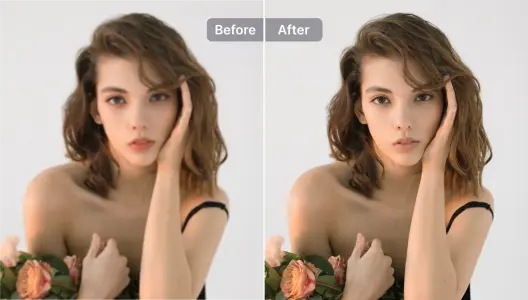
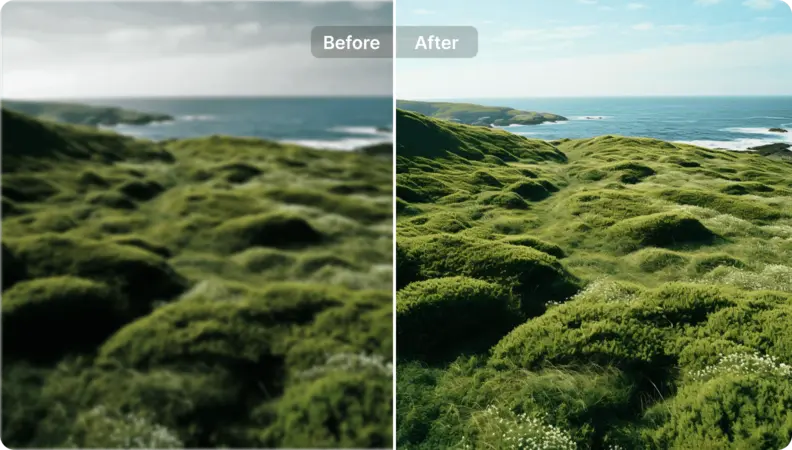
AI video enhancer turning blurry footage into sharper, more colorful video
Industry research from groups like Nielsen Norman Group keeps pointing to the same idea: people judge content quality in seconds. They use production quality as a proxy for trust. So better video usually means better engagement and more sales.
So AI is not just a “cool effect.” It is a business and brand lever.
How to choose the best AI video enhancer for you
You do not want to test 20 tools. So let us narrow it down with a simple framework.
1. Decide where you want to run it
Ask yourself one simple thing: Where do I actually edit most stuff?
-
Browser / online
Good if you want an instant upscale video to 4K online free style workflow.
No installs. Works on any device. This is where PixelFox AI Video Enhancer shines. -
Desktop apps
Better for batch work and heavy 8K projects. Tools like Topaz Video AI or AVCLabs need a decent GPU and some setup. -
Mobile apps
Handy for quick social edits on the go. Search for an app to enhance video quality that supports at least 1080p export and does not slap a giant logo on your video.
2. Look at output quality, not just resolution
4K is nice. Bad 4K is not. Watch for:
- Natural skin tones
- Clean edges without halos
- No weird patterns in flat areas like skies or walls
- Stable quality across the full clip, not just a few frames
If the preview looks over‑sharpened, or skin looks like melted plastic, skip it.
3. Check speed and workflow
You want an enhancer that:
- Works with common formats (MP4, MOV, WebM)
- Has simple controls (one‑click presets are ideal)
- Gives fast previews before you commit to a full export
PixelFox, for example, lets you upload, auto‑enhance, and download in a few clicks. It runs in the browser, so no install pain.
4. Pricing and “free” reality check
“Free” often means:
- Time limits
- Length limits
- Watermarks
- Fewer models or lower max resolution
So think about your real needs. For many creators, a free program to enhance video quality is good for short clips and tests. You can then move to a low‑cost plan when you see the results.
PixelFox AI gives you a free AI video enhancer experience so you can test 4K upscaling, denoise, and color correction on your own clips before you pay.
Step‑by‑step: how to upscale video to 4K online free with Pixelfox AI
Let us walk through a real workflow using PixelFox. This is how you upscale video to 4K online free without touching complex editing software.
Step 1: Pick the right clip
Good use cases:
- Old 480p or 720p YouTube videos
- Screen recordings you want to clean up
- Family footage, wedding clips, travel vlogs
- Product videos shot on older phones
Bad use cases:
- Super compressed memes with zero detail
- Videos that are tiny and blocky from start to finish
AI is strong, but it is not a wizard. It can not build detail that is just not there.
Step 2: Upload to PixelFox AI Video Enhancer
Go to the PixelFox AI Video Enhancer page.
- Drag and drop your MP4, MOV, or WebM file
- Or use the file picker
- Wait a moment while PixelFox scans your video
The engine looks at sharpness, noise, brightness, and color. It flags issues like low light or heavy compression.
Tip: If your clip is very dark and noisy, run it through the PixelFox AI Video Denoiser first, then enhance. You can find it here: PixelFox AI Video Denoiser. This two‑step flow can save very rough footage.
Step 3: Choose your enhancement mode
Pixelfox gives you AI presets that match real problems:
-
One‑Click HD Upgrade
Turn SD or 360p into HD or 4K. Good for general clips. -
Low‑Light Improver
Fix dark indoor or night scenes. It lifts shadows and tones down noise without blowing out bright areas. -
Bright, Realistic Color Correction
Dull footage? This preset balances contrast and white balance while keeping skin tones believable. -
Portrait / Face Enhance
If your clip is selfie‑style or a talking head, switch to the portrait mode. Under the hood it works like the AI Portrait Enhancer for Videos & Selfies, which smooths skin, brightens eyes, and sharpens face details.
You pick the mode, then pick your target resolution: 1080p or 4K.
AI portrait enhancer cleaning skin and faces in a vlog
Step 4: Preview before you commit
PixelFox shows you a side‑by‑side preview.
Check:
- Eyes and hair detail
- Skin texture (not too plastic)
- Noise levels in shadows
- Text and small objects
If it looks a bit too sharp or too smooth, try a different preset. You want the video to look “naturally good,” not “obviously AI‑processed.”
Step 5: Export and download
When you are happy:
- Set export resolution (1080p or 4K)
- Click enhance / export
- Wait for processing
- Download the MP4 file
Now you have a cleaner, sharper video ready for YouTube, TikTok, Instagram, or client delivery.
Advanced tricks: squeeze pro results out of any AI video quality enhancer
Once you get basic upscaling down, you can push things a bit more and get results that feel “agency level.”
1. Upscale video to 1080p first, then to 4K (when it makes sense)
If your source is very low (like 240p or 360p), going straight to 4K can sometimes amplify artifacts.
One nice trick:
- Use an ai video enhancer to upscale video to 1080p first
- Check the results and fix any issues
- Then, if you must, upscale that 1080p version to 4K
PixelFox’s AI Video Upscaler is built for this. It specializes in going from SD to HD or 4K with smart detail recovery. So you can use it as a second stage for upscaling.
2. Combine video and image enhancement for thumbnails
Your video can look amazing, but if your thumbnail sucks, clicks drop.
A sneaky workflow:
- Export a still frame from your enhanced video
- Run that frame through the PixelFox AI Image Enhancer
- Boost sharpness and color for the thumbnail
This way you use an image enhancer to create YouTube covers, ad thumbnails, or product shots that match the improved video.
Tip: For e‑commerce: take a short clip of your product, enhance it with PixelFox Video Enhancer, then grab a clean frame and run it through the AI Image Enhancer. You get both a high‑quality product video and a sharp product image from one shoot. Cheap and clean.
3. Use portrait enhancing only where you need it
The AI Portrait Enhancer in PixelFox is great. But you do not need it on every frame.
For example:
- For vlog intros and talking head parts, use portrait mode
- For B‑roll, city shots, product shots, stick with the standard enhancer or upscaler
This keeps people looking good without making landscapes and objects look fake.
AI vs traditional tools like Photoshop and desktop editors
So why not just use Photoshop, Premiere Pro, or DaVinci for all of this?
Short answer: you can, but it is slower and harder, and it often does less.
Where AI video enhancers win
-
Speed
One click vs many manual steps. You do not have to tweak curves, sharpen masks, denoise layers, and export. -
No need for deep skill
You do not need to learn color science or noise reduction theory. AI does the heavy lifting. -
Consistency across clips
AI models apply the same rules frame by frame. So you get a consistent look, which is hard to match manually. -
Hardware friendly (for web tools)
Browser tools like PixelFox use cloud GPUs. Your laptop stays calm.
Where traditional tools still matter
-
Very specific creative looks
You want a particular film style, LUT, or artistic grade? Classic editors are better for that. -
Complex edits and VFX
Compositing, motion graphics, advanced cuts. AI enhancers are about quality, not storytelling structure.
The sweet spot for most people is simple: use an ai video enhancer like PixelFox to fix quality, then drop the improved file into your editor for final cuts and titles if you want.
PixelFox AI vs other online AI video enhancers
You have lots of “online AI video enhancer” tools out there. Many look the same on the surface. So what actually makes something like Pixelfox AI stand out?
Let us break it down in plain terms.
Ease of use
Many web tools hide features behind confusing menus. Or they try to upsell every click.
PixelFox keeps it simple:
- Clear modes (enhance, upscale, denoise, portrait)
- No plugin installs
- Drag, drop, click, preview, export
If you can upload a file to Google Drive, you can run PixelFox.
Quality of face and portrait handling
Some AI tools ruin faces. They over‑smooth or lose identity.
PixelFox uses dedicated Facial Feature Enhancement AI in its Portrait Enhancer, and it brings that logic into the main video enhancer too. It:
- Smooths skin without flattening it
- Sharpens eyes and brows
- Keeps facial structure consistent frame to frame
Creators who do vlogs, webinars, and talking head content get sharper faces with fewer “AI fail” moments.
Full tool ecosystem
Most enhancers do one thing. PixelFox gives you a small toolkit that covers the full pipeline:
- AI Video Enhancer for clarity, color, and light
- AI Video Upscaler for SD → HD / 4K / 8K
- AI Video Denoiser for grain removal
- AI Portrait Enhancer for faces
- AI Image Enhancer for thumbnails and stills
So you do not need five different random websites with different logins and rules.
Real‑world style case studies: how people use AI video enhancers
Let us walk through some realistic scenarios. These are based on common workflows and problems that come up in creator communities.
Case 1: YouTuber revives old 720p videos
Alex has a channel that started in 2016. Many early uploads are 720p, soft, and noisy. The content is still good, but new viewers bounce when they see the old quality.
So Alex:
- Downloads old videos from YouTube
- Runs them through PixelFox AI Video Enhancer with 4K output
- Uses color correction and sharpening presets
- Re‑uploads enhanced versions as “Remastered” playlists
Result: the channel looks more consistent and binge‑able. Watch time goes up because new viewers are not scared away by low‑quality early videos.
Case 2: Shopify seller fixes bad product clips
Mia runs a small Shopify store. She shot product demos on her phone in a dark room. The items look dull. The background is messy. Conversion is low.
She does not have budget for a pro video team yet. So she:
- Shoots new clips near a window
- Runs them through PixelFox AI Video Enhancer (low‑light and color presets)
- Exports clean 1080p videos for her product pages
- Uses the AI Image Enhancer on frames from those videos for product photos
The site now has brighter, sharper media that matches modern buyers’ expectations. Better perceived quality usually drives more trust, which tends to help conversion.
Case 3: Family restores old home movies
Sam’s parents digitized a box of old VHS tapes. The MP4 files are washed out, soft, and full of noise.
Sam:
- Splits the long files into shorter clips
- Runs each clip through AI Video Denoiser to clean grain
- Upscales from 480p to 1080p using the AI Video Upscaler
- Combines the enhanced clips into a clean “family history” montage
Now the family can watch those memories on a 4K TV without feeling like they are watching security camera footage from 1995.
Common mistakes when using an AI video enhancer (and how to fix them)
People mess this up in some common ways. Let us call them out so you can avoid them.
1. Thinking AI can fix anything
If your video is a blocky mess with zero detail, even the best ai video enhancer will struggle. AI needs some real info to work with.
Fix: use AI on videos that at least have basic shapes and edges. Do not expect miracles on 64 kbps meme clips from 2008.
2. Going too hard on upscaling
Taking tiny, highly compressed video and jumping straight to 4K often:
- Makes compression blocks more obvious
- Adds fake detail that looks wrong
- Wastes storage and bandwidth
Fix: use upscale video to 1080p as your default target unless you plan to show it on big screens or high‑end TVs. For many social platforms, 1080p is more than enough.
3. Over‑beautifying faces
It is tempting to smooth everything. It looks “clean” at first. Then you look again and realize everyone looks like a plastic doll.
Fix: on face‑heavy content, use tools like the PixelFox Portrait Enhancer but check skin texture at 100% zoom. If it looks too clean, back off or switch to a softer preset.
4. Ignoring audio…
People focus on visuals and then leave noisy audio untouched. Viewers hate that.
Fix: pair your AI video quality upgrade with at least basic noise reduction on audio in your editor or use a simple online audio cleaner. Great picture + bad sound still feels low quality.
5. Chasing “free” at all costs
People jump from one free program to enhance video quality to another and never build a stable workflow. They waste hours.
Fix: pick one main tool that you trust. Use the free tier to test, then decide if the paid version is worth it. Time is worth more than a few dollars in many cases.
Best practices: how pros use AI video quality enhancers without wrecking footage
Professional editors and serious creators use AI, but they use it with intent. Here is how they avoid the common traps.
Work with the best source you can
Even phones can shoot decent footage now. Simple habits help a lot:
- Clean your lens
- Use stable shots when possible
- Shoot with enough light
- Avoid heavy digital zoom
A good ai video quality enhancer like PixelFox can polish this into something that feels pro.
Keep an eye on brand consistency
If you run a brand or channel, you do not want every video to look different.
So:
- Use the same enhancement presets on similar series
- Match color and contrast across videos
- Save reference frames you like and aim for that style
This is where PixelFox’s consistent AI models help. They give the same “character” to your footage across projects.
Do not over‑compress on export
Many people enhance a video, then kill it with bad export settings.
Basic safe rules:
- Use H.264 or H.265 with reasonable bitrate
- Keep resolution consistent with what you enhanced to
- Let platforms like YouTube do their own transcode from a clean master
You do not want to spend time upscaling to 4K and then export at 2 Mbps. That defeats the whole point.
What’s next for AI video quality enhancers
The AI video space is moving fast. Analysts at places like Gartner and Forrester talk a lot about “real‑time AI” as a big next step.
In the near future, you can expect:
- Real‑time AI enhancement on phones while you record
- Smarter face and object tracking for selective enhancement
- Deeper links between AI video enhancers and editing suites
- Better preservation of artistic style (so AI respects your creative choices)
Tools like Pixelfox are already close to this, with one‑click flows that do the heavy lifting in the cloud. The line between “raw” and “final” video will keep getting thinner.
FAQ: quick answers about AI video enhancers
How does an AI video enhancer work in simple terms?
It looks at your frames, spots problems like blur, noise, and bad color, and uses models trained on high‑quality footage to rebuild a cleaner version. It then outputs a sharper, clearer, upscaled video.
Why is my enhanced 4K video still not super sharp?
Because the source might not have enough real detail. If your base video is very soft or heavily compressed, AI can clean and sharpen it, but it can not recover detail that never existed. In that case, upscale video to 1080p instead and accept that quality has limits.
Can AI video enhancers fix low‑light footage?
Yes, to a point. Tools like PixelFox AI Video Enhancer have low‑light modes that lift shadows, cut noise, and correct color. If the video is almost black with random noise, results will still be limited.
Can I use AI video enhancers for client work?
Yes. Many editors already do. Just test your pipeline first. Check a few sample clips, confirm the look with your client, and then batch process. Tools like PixelFox let you upscale to 4K and enhance portraits, which is great for corporate and social videos.
What is the difference between an app to enhance video quality and a full AI video quality enhancer platform?
A simple app may just do brightness and contrast tweaks. A full ai video quality enhancer like Pixelfox uses deep learning to upscale, denoise, fix color, and enhance faces across whole projects. It is more like an assistant editor than a filter.
Ready to make your videos not suck?
Bad video quality kills good content. That was true in 2010. It is brutal in 2025.
An AI video enhancer gives you a fast, realistic way to fix that. You can clean old clips, rescue low‑light footage, sharpen faces, and upscale video to 1080p or 4K without learning heavy software.
If you want a tool that is simple, browser‑based, and tuned for real‑world use, try Pixelfox AI:
- Use the PixelFox AI Video Enhancer to boost clarity, color, and light
- Add the AI Video Upscaler when you need true HD or 4K from SD
- Clean noisy clips with the AI Video Denoiser
- Polish faces with the Portrait Enhancer
- Upgrade thumbnails with the AI Image Enhancer
Upload a test clip, run a free enhancement, and judge with your own eyes. Your future self will thank you when your library does not look like it was shot on a brick. 🚀