 Credit

You tap a photo, try to remove the messy background, and your “perfect” cutout ends up with jagged hair, missing fingers, and random ghosts around the edges.
Yeah. We’ve all been there.
If you are searching for a reliable cut out image app or a simple photo cutting application that does not destroy your image quality or your patience, you are in the right place.
In this guide, we will break down:
- what a good cut out image app should actually do in 2025
- why most apps fail on hair, fur, and fine edges
- how Pixelfox AI handles background removal and cutouts with way less drama
- pro workflows for e‑commerce, YouTube thumbnails, logos, and more
- how it compares to Photoshop and other online tools
- common mistakes and how to fix them
So by the end, you will know how to choose, how to use, and how to get clean, pro-level cutouts without needing a design degree.
What people really mean when they search “cut out image app”
When someone types “cut out image app” into Google, they rarely want “a philosophical essay on pixels.”
They want one of three things:
- Remove a background fast (for product photos, profile pics, memes, etc.)
- Make a transparent PNG (for logos, stickers, overlays)
- Fix a specific problem (bad edges, wrong export size, low quality)
The intent is a mix of:
- “Show me the best app so I can download it now.”
- “I already use one app, but it sucks. Please help.”
You also see people search things like:
- “photo cutting application free”
- “AI background remover app Android”
- “how to cut out image without Photoshop”
So a good guide cannot just list five apps and call it a day.
You need:
- clear criteria to pick the right tool
- simple steps that anyone can follow
- pro tips that advanced users do not find boring
That is the gap we are filling here.
Why cut out image apps matter so much in 2025
Product photos are not “just images” anymore. They are money.
- According to research from Nielsen Norman Group, clear and realistic product photos are one of the strongest drivers of trust on a page.
- Reports from Statista show that global e‑commerce sales keep growing fast every year, and better visuals are a big part of that growth.
If product photos look messy, dark, and inconsistent, people bounce.
If your social media images look cheap, people scroll past.
A strong cut out image app does a few key things:
- saves hours of manual editing
- keeps quality high for every platform
- makes your brand look consistent, even if you shoot on your phone
- lets non-designers create “designer-level” content
The problem: many “free” apps slap on watermarks, limit resolution, or make you do painful manual selections.
And the “pro” tools like Photoshop are powerful, but heavy, complex, and not fun on a tight schedule.
This is where smart AI tools like Pixelfox come in.
The usual pain points with basic photo cutting applications
Let’s call out the annoying stuff that most users face with a typical photo cutting application:
-
Bad edges on hair and fur
- The subject looks like it got cut out with kindergarten scissors.
- Fine details disappear. Stray pixels stay.
-
Loss of quality after export
- You upload a crisp image.
- The app gives you a low-res cutout that looks okay on your phone but terrible on a website.
-
Clunky manual tools
- You draw lines, erase, zoom in, zoom out, and still miss small areas.
- One wrong move and you erase half an arm.
-
Hidden paywalls
- The app says “free” but…
- Transparent background? Pay.
- High resolution? Pay.
- No watermark? Pay again.
-
No batch or workflow support
- E‑commerce sellers need to edit dozens or hundreds of product images.
- Many apps are made for one selfie, not 200 product shots.
-
Privacy worries
- People upload client photos and do not know where those images go.
- A lot of tools never explain how they handle your data.
A serious cut out tool in 2025 has to address all of that, not just “remove background.”
Meet Pixelfox AI: a smart, web-based cut out image app
Pixelfox AI works as a cut out image app right in your browser.
You do not need to install anything. You just open the site, upload an image, and the background is gone in seconds.
It uses deep learning and computer vision to find the main subject:
- people
- products
- pets
- objects
Even when:
- the background is busy or noisy
- the colors of subject and background are similar
- there are tricky edges like hair, fur, or transparent objects
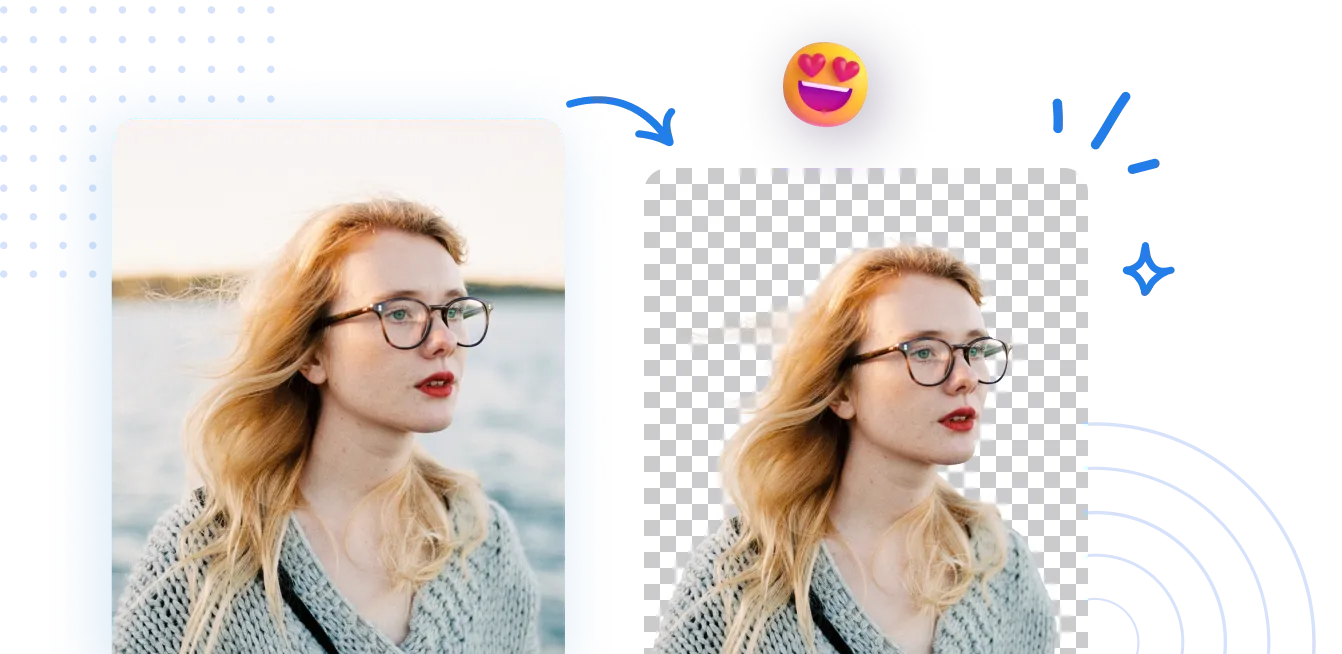
Alt text: Cut out image app background remover with AI for photos
Key things Pixelfox does well:
- One‑click background removal with high precision
- Handles fine details like hair and soft edges
- Produces high-resolution transparent PNGs
- Works 100% online in the browser
- Clears images from servers after a short time for privacy
- Gives design‑ready files for e‑commerce, social media, and branding
According to best practices in UX research from groups like Nielsen Norman Group, tools that reduce friction and remove complex steps help users complete tasks more often and with less frustration.
Pixelfox leans into that: it makes the hard stuff automatic and keeps the interface simple.
How to cut out an image with Pixelfox AI (step-by-step)
Here is a simple, real-world flow. No jargon.
Step 1: Upload your image
- Go to the Pixelfox AI background remover page.
- Click “Upload Image,” or drag your file into the page.
- Use JPG or PNG up to 10 MB for best speed and quality.
Behind the scenes, the AI starts scanning your photo and tries to find the main subject.
Step 2: Let the AI remove the background
In a few seconds, Pixelfox:
- detects the subject
- isolates it from the background
- cuts out the background automatically
You get a clean cutout preview.
Hair, fur, soft fabric, transparent items like glasses — the AI handles these edges with care, not with a blunt axe.
If you want, you can refine:
- erase leftover bits
- restore parts the AI removed by mistake
- adjust edges slightly for a softer look
Step 3: Download or customize
Now you have options:
- Download a transparent PNG for use in any design app
- Place your subject on a white or colored background
- Add text, stickers, or effects using the built‑in tools
You can also easily move that cutout into other Pixelfox tools:
- retouch skin
- remove objects
- erase logos or watermarks
- recolor old photos
So this is not just “one cut out image app” — it becomes a mini workflow.
How to choose the right photo cutting application for you
Not everyone has the same needs.
A TikTok creator with 5 selfies a week is not the same as a Shopify seller with 500 SKUs.
Here are simple questions to find your match.
1. How often do you edit?
-
Rarely (just for profile pics or occasional posts)
- A simple online tool like Pixelfox is enough. No need to install heavy apps.
-
Weekly or daily (social, YouTube, small store)
- You want a stable, fast tool with easy exports and good quality.
-
Heavy use (big e‑commerce, agencies)
- Look for speed, batch options, and consistent results. Web-based tools help teams use the same system.
2. How much control do you want?
-
Beginner
- Prefer automatic one‑click tools; do not want complex brushes.
-
Intermediate
- Okay with fine-tuning edges and using masks when needed.
-
Advanced
- Still want AI help, but need manual tools for special cases.
Pixelfox is built so beginners can do everything with auto mode, but more advanced users can still refine.
3. Where will you use the images?
- E‑commerce product pages
- Social media stories and posts
- YouTube, Twitch, or podcast covers
- Brand assets like logos and banners
If you sell products, white or clean backgrounds are often required by platforms like Amazon.
Your photo cutting application must respect that:
- keep edges clean
- keep size consistent
- keep quality high
4. What is your device setup?
-
Mostly phone?
- Then a mobile app or mobile-friendly web app is key.
-
Mostly desktop or laptop?
- Web apps like Pixelfox are perfect. You get full power without installing software.
Pro workflows with Pixelfox: go beyond simple cutouts
You do not need “AI magic” just to cut a random background.
The real value comes when you turn cutouts into full workflows.
Let’s talk about a few that actually move the needle.
1. Create clean white backgrounds for e‑commerce
White backgrounds are the standard for platforms like Amazon, Shopify themes, and many marketplaces.
They make your store look tidy and your products stand out.
Basic workflow:
- Use Pixelfox’s cut out tool to remove the background.
- Place the subject on a plain white (#FFFFFF) background.
- Keep the product centered and leave some space around the edges.
- Export as high-resolution JPG or PNG, depending on the platform’s rules.
You can then go one step further:
- Use the AI Photo Retoucher to smooth small skin flaws if you model your own products.
- Use the AI Watermark Remover if you need to clean simple watermarks on sample shots you own the rights to.
Tip 🧠
If you sell many similar items (like t‑shirts or earrings), keep your angle and background style consistent.
This helps your store look like one brand, not a random collage from the internet.
2. Swap backgrounds for YouTube thumbnails and social headers
YouTube, TikTok, and Instagram love bold covers and thumbnails.
Clean subject + strong background + readable text = more clicks.
Simple idea:
- Cut out your face or main subject with Pixelfox.
- Add a bright gradient or a soft blur as background.
- Add short, bold text with high contrast (like white text on dark background).
- Export in the right size for YouTube or the social platform of your choice.
You can push it further:
- Use RGB colors that pop on mobile.
- Try backgrounds with subtle textures but no heavy distractions.
Tip 🎯
Keep the subject big. Very big. On mobile screens, a tiny face with detailed background makes people scroll.
Big face, big product, or big icon = instant attention.
3. Make a transparent logo or sticker
Maybe you have a logo on a colored background.
Or you made a quick design in an app that exports only as JPG.
You can turn that into a clean PNG with transparent background:
- Upload the logo image to Pixelfox.
- Use the AI to cut out the logo and delete the solid background.
- Manually clean any leftover edges if needed.
- Save as PNG with transparency.
Then you can drop that logo on:
- website headers
- YouTube intros
- presentation slides
- merch mockups
If your logo image also has a watermark or other brand marks you need to remove from your own assets, tools like the Logo Removal Tool can help clean it up.
Real-world style case studies (simplified but very real)
These are composite examples based on common user scenarios.
They show how a strong cut out image app + smart workflow can solve real problems.
Case 1: Small Shopify store with messy product photos
Emma runs a small online store selling handmade accessories.
She started by taking photos on her phone, on random surfaces.
Wood table today, blue bedsheet tomorrow, tiled floor next week. You get the idea.
Problems:
- The store looked inconsistent.
- Some items had dark shadows, others did not.
- Instagram posts did not match the website style.
What she did:
- She used Pixelfox AI to cut out 80+ product photos and place them on the same clean white background.
- For a few shots where her hands showed wear or small marks, she used the AI Photo Retoucher to lightly smooth the skin, nothing crazy.
- She exported everything at similar dimensions for her product gallery.
Result:
- The store looked like a real brand, not a yard sale.
- Visitors saw the product first, not the random background.
- Time per photo dropped from 10–15 minutes (manual) to around 30–60 seconds.
Case 2: Content creator making YouTube thumbnails
Leo runs a tech review channel with weekly videos.
His issue: thumbnails looked flat, and he hated fighting with complex desktop tools.
Problems:
- Cutting himself out of the frame took too long.
- Edges looked bad around hair and headphones.
- He often gave up and just used basic screenshots.
What he did:
- He exported his main frame from the video.
- He uploaded the still to Pixelfox AI, cut himself out with one click.
- He dropped the cutout into a simple design app, added bold text, and a bright background.
- For older thumbnails with black & white shots, he even tried the Photo Colorizer to add color for special videos.
Result:
- He built a thumbnail template that he can reuse.
- Cutout steps went from “ugh, 20 minutes” to under a minute.
- Thumbnails looked consistent, and click‑through rate improved over time.
Pixelfox vs Photoshop and other traditional tools
Let’s be honest. Photoshop is a beast.
It can do almost anything, including perfect cutouts, but it does not always match real-life speed or skill levels.
Speed and learning curve
-
Photoshop
- Steep learning curve.
- Great once you know how to use layer masks, pen tools, refine edge, and so on.
- Not fun if you just want “remove background now.”
-
Pixelfox AI
- Almost no learning curve.
- One‑click cutout.
- Simple tweak tools instead of a full toolbox.
If you are a pro designer doing complex composites, you might still live inside Photoshop.
If you just want fast, clean, consistent results, a web‑based cut out image app like Pixelfox is easier.
Quality and control
-
Photoshop
- Maximum control with manual tools.
- Best for edge cases and complex art.
- Requires time and experience.
-
Pixelfox AI
- Very good control for typical photos: products, portraits, pets, simple objects.
- AI handles tricky edges automatically.
- You trade some micro‑control for huge speed wins.
Cost and workflow setup
-
Photoshop
- Subscription cost, plus hardware capable of running it smoothly.
- Great for people who already live in the Adobe ecosystem.
-
Pixelfox AI
- Runs in your browser, no heavy install.
- Works on many devices.
- Easy for teams that share links and images online.
So the smart move for a lot of users is not “Photoshop vs Pixelfox” but “Photoshop + Pixelfox when you need speed.”
Pixelfox vs other online cut out image apps
There are many tools out there.
Some are great, some are…very not great.
Here is how Pixelfox stands out without throwing shade at anyone.
AI precision and edge handling
Many quick tools work fine when the background is plain and the subject is simple.
But they crash when you give them:
- curly hair
- fur
- transparent bottles
- busy street backgrounds
Pixelfox is trained to handle:
- small details
- soft edges
- transparent materials
So the cutouts look more natural and less “copy‑paste.”
Design-ready output, not just raw cutouts
Some tools stop at “here is your mask, good luck.”
Then you still have to jump into another app to add backgrounds, text, or small edits.
Pixelfox lets you:
- cut out
- adjust
- add basic design elements
- export in the right format
So you can produce finished images faster.
Extra tools in the same ecosystem
This is a big one.
If you use Pixelfox for background removal, you can also stay in the same ecosystem to:
- remove random people or items with the objects remover
- clean watermarks with the AI Watermark Remover
You do not have to juggle five different random apps with five different logins.
Common mistakes with cut out image apps (and how to fix them)
New users (and even experienced ones) often repeat the same simple mistakes.
Good news: they are easy to fix once you see them.
Mistake 1: Using low-quality, tiny images
If you feed the app a blurry, tiny image, no AI can magically turn it into a crisp billboard.
Fix:
- Use the highest resolution source you have.
- Avoid heavy compression before you upload.
- For products, shoot with enough light and a stable camera.
Mistake 2: Choosing noisy backgrounds on purpose
People shoot products on busy patterns or random clutter, then get angry when the edges look messy.
The AI can handle noise better than older tools, but there are limits.
Fix:
- If possible, shoot on a simple, solid background.
- Even a plain wall or sheet helps a lot.
- The better the input, the easier the cutout.
Mistake 3: Ignoring shadows and reflections
Sometimes users delete all shadows. The subject then looks like a sticker floating in space.
It feels fake.
Fix:
- Keep soft shadows when they look natural.
- Or add a light shadow back in after the cutout.
- Check how it looks on your actual website or social feed, not just in the editor.
Mistake 4: Over-smoothing faces and skin
Yes, we all love smooth skin.
But when you push retouching too far, faces start to look plastic.
Fix:
- Use subtle settings in retouch tools like the Pixelfox AI Photo Retoucher.
- Keep some texture. Pores are not your enemy.
- Zoom out and see how the image looks at real viewing size.
Mistake 5: Exporting in the wrong format
People often export everything as low-quality JPG and wonder why edges look bad on high‑dpi screens.
Fix:
- Use PNG with transparency when you need a clean cutout on top of another background.
- Use high‑quality JPG for web product images if platform suggests it.
- Check file size vs quality balance.
FAQ: your top questions about cut out image apps
How do I choose the best cut out image app for my needs?
Think about three things:
- how often you edit
- how much control you want
- where you will publish the images
If you need fast, clean results without a steep learning curve, a web-based tool like Pixelfox AI works well.
If you do heavy creative compositing, you may also want a desktop app like Photoshop next to it.
Why do my cut out images look pixelated or jagged?
This usually comes from:
- low-resolution source images
- heavy compression
- rough edge detection from the app
Try using a higher quality image and a better AI-based tool.
Then export as PNG with enough resolution so it does not get stretched later.
Can a photo cutting application replace Photoshop?
For many everyday tasks, yes.
For fast background removal, social media posts, and product photos, a strong photo cutting application with AI is often enough.
For complex compositing, advanced color grading, or print-level design, Photoshop still has the edge.
Most professionals end up using both: fast AI tools for common tasks, and Photoshop for deep work.
How can I avoid my subject looking “fake” after background removal?
Keep it natural:
- do not over-smooth skin or surfaces
- keep soft shadows where they make sense
- match background color and light with the subject
Sometimes a clean white background works best.
In other cases, a light gradient or textured background feels more real.
What is the difference between a basic background remover and an AI cut out image app?
Basic background removers often rely on simple color or contrast differences.
They can fail when the background is complex.
AI-based tools like Pixelfox analyze the content of the image.
They “understand” where the subject is, even with busy backgrounds and fine details, so the cutout looks more natural and consistent.
Your next move with cut out image apps
If you made it this far, you already know more than most people who just download the first random app in an app store.
You saw:
- what makes a strong cut out image app in 2025
- why many photo cutting applications break when things get tricky
- how Pixelfox AI speeds up background removal with one-click AI
- real workflows for e‑commerce, YouTube, logos, and more
- the common mistakes that ruin cutouts and how to fix them
Now it is your turn to test it on your own photos.
Try uploading a few images to Pixelfox AI, cut out the background, and compare the results with your current tool.
Check the edges. Check the export quality. Check how fast it feels.
If you want cleaner images, faster edits, and a smoother workflow, this is the easiest way to see real differences.
👉 Fire up your browser, open Pixelfox’s background remover, and let the AI do the boring part for you. Your future self (and your feed, and your store) will thank you.
About this guide: This article was created with input from content strategists and photo-editing practitioners who work with modern AI tools daily. It is for general information and best-practice guidance, not legal or commercial advice for any specific project.