 Credit

Your laptop fan sounds like a jet every time you open Premiere.
The export fails at 92%.
You scream into the void.
So you go to Google and type “editor maker” or “best editing sites”, hoping for a simple place where you can drag, drop, click a few buttons, and boom—finished video or clean image, no drama.
This guide is for that moment.
We’ll break down:
- What people really mean when they say editor maker
- How to pick from all the best editing websites out there without wasting days testing
- How to create video from website content in minutes
- Where Pixelfox AI fits in (spoiler: it’s the tool I’d open first in 2025)
I’ve spent 10+ years in content and video workflows. I’ve broken timelines, crashed machines, and tried pretty much every browser editor you’ve heard of. I’ll keep it simple, but I won’t keep it shallow.
Let’s get into it.
What people really mean when they search “editor maker”
No one wakes up thinking, “I desire an editor maker today.”
They think:
- “I need a quick way to cut this video for TikTok.”
- “I want to turn my website into a short promo clip.”
- “I just want a tool that doesn’t crash, is free, and doesn’t slap a huge watermark in my face.”
When people search editor maker, best editing sites, or best editing websites, they usually want:
- Online tools that work in a browser. No heavy installs.
- Video + image editing in one place. So they can cut a clip, add text, tweak a thumbnail, all in one workflow.
- Simple UI. Drag, drop, done. Not a 50-button panel they need to “learn.”
- AI help. Auto cut, auto captions, AI image cleanup, auto background change, face tweaks.
And that special phrase “create video from website” usually means one of two things:
- “I want to record or repurpose my website into a demo video.”
- “I want to create a video directly on a website, in the browser.”
So in this article, when I say editor maker, I’m talking about modern, AI‑driven, browser‑based editors like Pixelfox AI that handle both photos and videos and make the process much less painful.
Why editor maker sites are winning in 2025
People are not editing less. They are editing way more.
- According to Wyzowl’s State of Video Marketing 2024, about 91% of businesses use video as a marketing tool.
- HubSpot’s 2023 report says short‑form video is the top content format for ROI.
- Statista shows video traffic taking the majority of consumer internet traffic year after year.
So everyone needs content. But not everyone has a high‑end PC, a full Adobe subscription, and the time to watch 10 hours of tutorials.
This is why online editor makers exploded:
- They run in the browser. Low‑spec laptop? Still fine.
- They save to the cloud. You can start at work, finish on your couch.
- Many now use AI to do the boring parts: cutting, cleaning, masking, sky replacement, face fixes, etc.
The gap between “professional desktop editor” and “smart browser editor” is not as big as it used to be. For a lot of creators, marketers, and small teams, a strong editor maker website already covers 90% of their daily tasks.
The ugly side of many online editors
Let’s be honest for a second.
Not every “free online editor” is your friend.
Common pain points:
- Giant watermarks on your exports unless you pay
- 5–10 minute limits on video length in free plans
- Random crashes when you upload 4K or longer files
- Slow exports that feel like dial‑up internet from 2002
- Sketchy privacy: you upload your product shots or face photos and have no idea where they end up
If you’ve ever searched “online video editor problems,” you already know.
So the real question is not “Is there an editor maker?”
It’s “Which tool actually works, respects my time, and doesn’t wreck my images or my data?”
Tip
Before you commit to any editor maker, upload a 30–60 second clip and try three things: trim, add text, export at 1080p.
If that already lags, crashes, or watermarks like crazy, close the tab and walk away. 🏃♂️
What to look for in an editor maker (without overthinking it)
You don’t need a huge checklist. You need a smart one.
Here’s what actually matters in 2025:
-
Browser performance
- Does it run smooth on normal Wi‑Fi and a normal laptop?
- Can it handle at least 1080p video and decent‑size images?
-
AI features that save time
- Text‑prompt editing for images
- Auto background removal
- Face tools (reshape, makeup, expression tweaks)
- Smart blending for thumbnails and creative work
-
Fair free tier
- Can you export without an ugly watermark?
- Are you blocked after 1–2 videos?
-
Multi‑format support
- JPG, PNG, WEBP, MP4 at least
- Option for transparent PNG for logos and overlays
-
Privacy and trust
- Clear statement about how your images/videos are used
- No creepy “we own your content now” clauses
-
Templates and workflow
- Easy for social formats (9:16, 1:1, 16:9)
- Good for “create video from website” style demos or quick promo clips
I’ll use Pixelfox AI to show you what this looks like when it’s done right.
Meet Pixelfox AI: an AI‑first editor maker that actually feels modern
Pixelfox AI is a free AI photo and video editor online. It runs in your browser, no heavy install. It’s built for the kind of tasks most people Google “editor maker” for:
- Fixing or transforming photos
- Making short clips for social and marketing
- Quickly creating content out of your website or product images
You get AI image editing, AI face tools, and creative blending, plus video enhancement and editing, all in one place.
Pixelfox AI is designed to be “talk to edit.” You describe what you want. The AI does the heavy lifting.
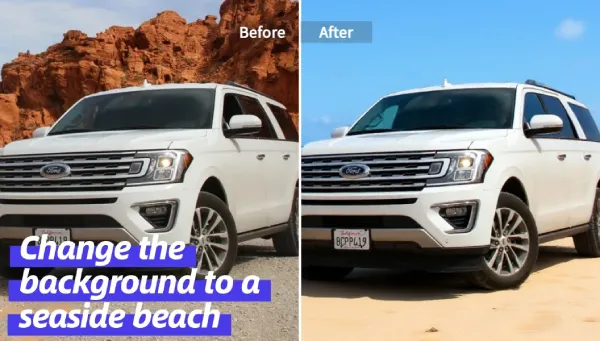
AI image editing with natural text prompts
One of the standout parts is the AI Image Editing with Text Prompts.
You don’t have to learn layers, masks, or a bunch of weird icons.
You just type things like:
- “Remove the background and make it pure white.”
- “Turn the sky into a sunset with warm colors.”
- “Make this product look glossy with a soft shadow.”
- “Cartoonify my selfie.”
The AI understands the scene: lighting, shadows, facial structure, background objects. Then it applies edits that match, not random filters that look pasted on.
You can try this on the dedicated
AI Image Editing with Text Prompts page.
This makes it perfect for:
- Product photos for your online store
- Thumbnails for YouTube or TikTok
- Social media posts where you need fast, clean edits
AI face reshape and beauty tweaks
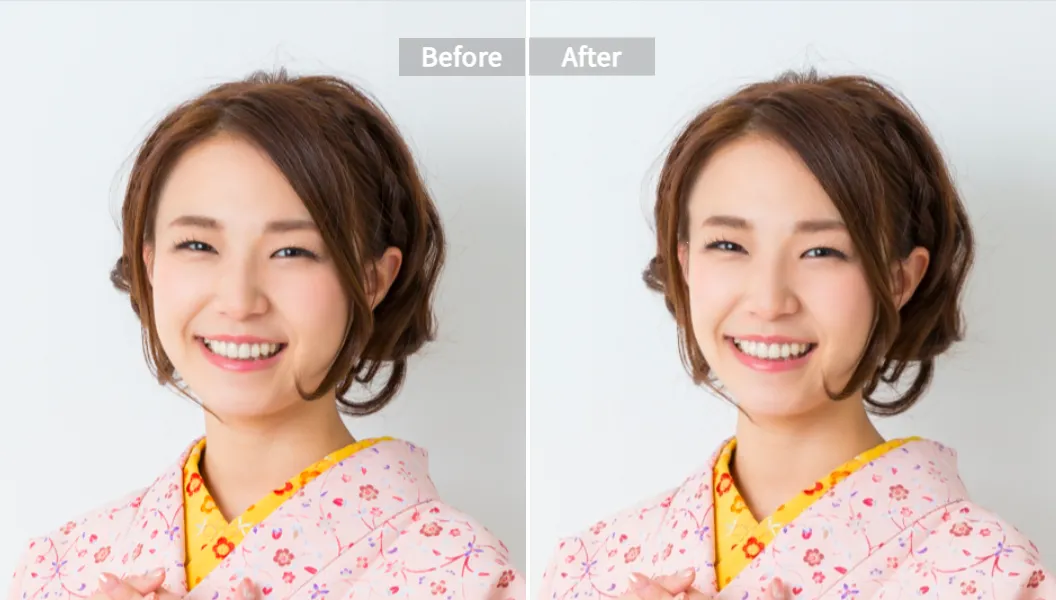
For portraits and selfies, Pixelfox goes beyond simple filters.
The AI Face Reshape tool lets you:
- Slim the face a bit
- Enlarge or soften eyes
- Adjust nose contour
- Change mouth shape or subtle smile
All of this keeps the face realistic and the lighting consistent. No plastic alien look. 👽
You can check it out here:
AI Face Reshape
This is great for:
- Creators who want polished profile photos
- Brands that need consistent looks across team headshots
- Influencers who want tweaks without learning pro retouching
AI makeup filter and virtual try‑on
Need a virtual makeover or want to test looks for a shoot?
The AI Makeup Filter lets you:
- Try natural looks
- Go full glam
- Match styles for brand campaigns
- Create before/after shots for beauty content
It is all virtual, so you can test wild styles without touching a real brush.
You can play with it here:
AI Makeup Filter – Virtual Makeup Try On
AI image blender for creative thumbnails and covers
Sometimes you want to mix photos to get something fresh:
Product + background, face + scenery, logo + texture.
The AI Image Blender lets you:
- Combine two or more images into one
- Swap backgrounds
- Create composite visuals for ads or thumbnails
AI Image Blender is built to make this easy and consistent.

Think:
- YouTube cover with you + your app + a bold gradient
- E‑commerce banner with product + lifestyle background
- Instagram post where you blend your logo into a scene
Privacy that doesn’t feel shady
One big trust signal: Pixelfox is very clear on data use.
“We strictly adhere to data privacy policies. Uploaded images are only used for real-time processing and are neither stored nor shared.”
This matters if you handle:
- Client portraits
- Sensitive business images
- New product shots that are not public yet
So you get a modern editor maker with AI, without gambling with your data.
How to create video from website in under 10 minutes with an editor maker
Let’s walk through a simple “create video from website” flow.
We’ll use Pixelfox as the example, but the logic works on any good editor maker.
Step 1: Decide the story (1–2 minutes)
Don’t open the editor yet.
Ask: “What do I want this video to do?”
Examples:
- Show how my SaaS dashboard works
- Walk through my product page
- Show a quick tour of my portfolio site
Write a tiny script like:
“In this 30‑second video, I’ll show you how [tool] helps you [result].”
That’s enough.
Step 2: Capture your website (2–3 minutes)
Use any screen record tool you like:
- Built‑in recorder on your OS
- A browser extension
- Or just record your phone screen if you’re demoing mobile
Do a smooth scroll or click through key pages. Aim for 30–60 seconds.
Save as MP4 if you can. Most editor makers, including Pixelfox, love MP4.
Step 3: Upload to your editor maker (1 minute)
Open Pixelfox in your browser.
Upload your screen recording or drag and drop it in.
If you also have product images, logos, or face shots, upload those too.
You can use the AI image tools for thumbnails or overlays.
Step 4: Cut, trim, and add text (3–5 minutes)
Now:
- Trim dead space from start and end
- Cut out any messy clicks or long pauses
- Add text overlays like:
- “Step 1: Sign up”
- “Step 2: Choose your plan”
- “Step 3: Go live”
Use simple fonts and readable size.
If your brand has a color, use that for text or shapes.
You can grab clean product or face images and tweak them with
AI Image Editing with Text Prompts
to match the style of your video thumbnails and social posts.
Tip
Keep text on screen for at least 2–3 seconds so people can read it.
If you’re posting to TikTok or Reels, assume viewers watch with sound off.
So make sure your text alone tells the story. 🔊❌
Step 5: Add voiceover or music (optional, 3 minutes)
You can:
- Record a quick voiceover explaining what’s happening on screen
- Or use simple background music from your own library
Keep audio levels clear. Video from website demos work best with calm, non‑distracting music.
Step 6: Export for the right platform (1–2 minutes)
Export in:
- 16:9 for YouTube and website embeds
- 9:16 for TikTok, Reels, Shorts
- 1:1 for some feed posts or ads
Most editor makers let you pick aspect ratios.
Choose 1080p as a safe default.
Now you’ve created a video from your website in one browser workflow. No heavy software.
Real‑world case studies: editor maker tools in action
Case 1: New YouTuber turns blog + website into weekly videos
Sara runs a small productivity blog and a simple website.
She wants a YouTube presence but hates editing.
She starts using Pixelfox as her editor maker:
- She records her screen while scrolling through her article on her website.
- She uploads the recording into Pixelfox.
- She trims, adds text bullets that match her blog headings.
- She uses AI image editing to create thumbnails with her face + bold text + a color background.
Result:
- Weekly videos in under 60 minutes each
- Thumbnails that look like they came out of a design studio
- No need to learn Premiere or Photoshop
Her first month, her watch time doubles compared to when she just posted raw webcam rants.
Case 2: E‑commerce owner fixes product photos and site demo
Liam sells home gadgets online.
His problem: messy product photos and no clear video showing how his product works on the site.
With Pixelfox:
- He uploads his product photos and uses AI Image Editing to remove backgrounds and set a clean white one for his store.
- He uses AI Image Blender to create a banner that combines his product with a styled kitchen background.
- He records a quick scroll of his product page, uploads it, trims it, and adds text like “Free shipping” and “2‑year warranty.”
He drops this create video from website clip on his homepage and Instagram.
In six weeks, his product page time‑on‑page goes up, and his “add to cart” rate moves up too.
Nothing crazy. Just clean media, fast.
Editor maker vs Photoshop and classic software
You might ask, “Why not just use Photoshop or Premiere?”
Fair question.
When an online editor maker is better
An editor maker like Pixelfox wins when:
- You need speed more than perfect frame‑by‑frame control
- You don’t want to install huge apps or upgrade hardware
- You want AI help that works out of the box
- You do most things for social media, ads, and web
You type “make background white,” and the AI does it.
You don’t draw paths or masks by hand.
When Photoshop / Premiere still make sense
Traditional tools still shine when:
- You edit long films, high‑end ads, or complex color grading
- You want ultra‑precise control over each frame and layer
- You work with special formats or big multi‑cam projects
But for:
- Thumbnails
- Social clips
- Website demos
- Product reels
…a good editor maker website now covers almost everything you need, with less pain.
Pixelfox vs other best editing websites
Let’s be fair. Pixelfox is not the only player in town.
But it does have a clear angle.
Some of the usual names people try:
- Canva – Great for templates and simple timeline video. Strong for social posts.
- CapCut Web – Strong for social clips, good AI effects, especially for TikTok style content.
- Clipchamp – Solid for Windows users, good for simple video editing.
- VEED – Browser‑based, strong for subtitles and online collaboration.
- Adobe Express – Tied into Adobe ecosystem, nice for branded social content.
Where Pixelfox AI stands out:
- Very strong AI image tools (text prompt editing, face reshape, virtual makeup, blending)
- Tight focus on fast, smart edits over complex timelines
- Simple workflow from photo → video → thumbnail
If your daily work is:
- “Make this selfie look better.”
- “Create a clean product image with a white background.”
- “Blend my logo and product into a nice ad.”
- “Create video from website content for a landing page.”
…Pixelfox is closer to a one‑stop tool than many other best editing sites that do either images or video, but not both well with AI.
Advanced tricks with editor makers that most people miss
You can do more than just trim and add text.
Here are some pro‑level moves that still feel simple.
1. Build a thumbnail system, not just one thumbnail
Instead of making each thumbnail from scratch:
- Use AI Image Blender to create a base layout: your face + brand color background + logo.
- Save that layout.
- For each new video, swap:
- The background color
- The main text
- Maybe change the expression on your face with AI Face Reshape
Now your channel or brand feed will look consistent and professional, with almost no extra work.
2. Create clean white background product shots the easy way
For e‑commerce, white background images are gold.
In Pixelfox:
- Upload your raw product photos.
- Use AI Image Editing with Text Prompts to “remove background, set pure white, add soft drop shadow.”
- Export as high‑res PNG.
Now you have:
- Clean images for your store
- Assets for banners and ads
- Consistent style across your whole catalog
You can then drop these shots into a create video from website demo to show the product page with polished visuals.
Common mistakes when using an editor maker (and how to dodge them)
Everyone makes these at the start. You don’t need to. 😅
1. Throwing in a 20‑minute raw clip with no plan
You drop a huge raw video in and hope “I’ll just fix it in the editor.”
Bad idea.
You end up lost in cuts.
Fix: write a tiny outline first. Aim for 30–90 seconds for most web videos.
2. Overusing AI filters and face tools
You crank every slider.
You reshape the face, add heavy makeup, wild color, plus a fake background.
Now the person looks like a game character.
Fix: use AI Face Reshape and makeup tools with a light touch.
Small changes look pro. Big changes look fake.
3. Wrong export settings
You export a vertical video in 16:9.
You post to TikTok. It looks awful.
Fix: match aspect ratio to platform:
- 9:16 – TikTok, Reels, Shorts
- 16:9 – YouTube main videos, site embeds
- 1:1 – some feed posts
4. Ignoring audio
Your video looks clean, but audio is super low or distorted.
People scroll away.
Fix: always do a quick headphone check.
Make sure your music is not louder than your voice.
5. “Create video from website” turning into a blur
You scroll too fast.
Text on the website is tiny in the video. Viewers see a blur, not a product.
Fix:
- Zoom in when you scroll, or
- Add big on-screen text in the editor that repeats the key points
- Keep each page view on screen long enough to read
Pro advice: best practices for using the best editing sites
If you want pro‑looking content from an editor maker, treat it like a small studio, not a toy.
-
Organize your assets
Put logos, music, photos, and screen recordings in one folder. Saves a lot of time. -
Use templates and repeatable styles
Reuse layouts, fonts, and colors. This builds a brand look, even if you edit in a browser. -
Keep videos focused
Each video should answer one main question or show one main benefit. -
Batch work
Edit several images at once with AI. Then build a few videos from them.
This is faster than doing random one‑off edits. -
Watch analytics
On YouTube, TikTok, or your site, track which videos people actually finish.
Use that to guide your next edits.
The best editing websites are not magic.
But when you use them with a simple system, they feel close.
FAQ: editor makers, best editing websites, and Pixelfox AI
How do I choose the right editor maker for me?
Look at three things: what you need to create (photos, videos, or both), how strong your device is, and how much time you want to spend learning. If you want fast results for social clips, website demos, and image cleanups, a browser‑based tool like Pixelfox AI is usually enough.
Why do some online editors feel so slow or laggy?
They may not be optimized for large files, or their servers are overloaded, or your browser and hardware are under heavy load. Use MP4 for video, close extra tabs, and test with a short clip first. A good editor maker should handle normal 1080p footage without freezing.
Can Pixelfox AI edit both photos and videos?
Yes. Pixelfox AI is a free AI photo and video editor online. You can fix photos with AI text prompts, reshape faces, apply virtual makeup, blend images, and also work with videos for social media, website demos, and more.
What’s the difference between an editor maker and a normal video editor?
“Editor maker” usually refers to online, browser‑based tools that focus on fast, easy editing with AI help. A normal video editor often means desktop software like Premiere or DaVinci Resolve, which gives deep control but has a steeper learning curve and heavier system needs.
How can I create video from website without installing software?
Record your screen while you navigate your site, save the file as MP4, and upload it to a browser‑based editor maker like Pixelfox AI. Trim the clip, add text overlays, maybe add music, and export in the right aspect ratio for your platform. You never need to install a heavy app.
Ready to pick an editor maker that actually helps you ship?
You don’t need to suffer through bloated software just to cut a 30‑second clip or fix a product photo.
A good editor maker in 2025 should:
- Run in your browser
- Use AI to do the boring parts
- Help you create video from website content fast
- Handle your photos, faces, and composites in one place
- Respect your privacy and not hoard your files
That’s exactly the gap Pixelfox AI is built to fill.
If you want a tool that lets you:
- Clean up photos with simple text
- Reshape faces and test virtual makeup
- Blend images for thumbnails and ads
- Build short videos and website demos online
…then it’s worth opening Pixelfox in a new tab and giving it a real test drive.
The next time you type editor maker or “best editing sites” into Google, you shouldn’t be hunting. You should already know where you’re going.
Go make something good. 🎬✨