 Credit

Ever stared at a photo and thought:
“Great face. Wrong background. Wrong outfit. Wrong everything.”
That’s exactly where ai replace free tools come in. You upload a picture, click a few buttons, and AI replaces backgrounds, faces, objects, even styles. No Photoshop degree, no hundred‑dollar subscriptions, no crying over layers at 2 a.m.
In this guide, we’ll break down how ai replace really works, which free workflows actually look good (not cursed 😅), and how to use Pixelfox AI as your main “replace anything” toolbox. You’ll learn:
- How to replace backgrounds, faces, and styles with AI for free
- How to avoid blurry, fake‑looking edits
- How Pixelfox stacks up against Photoshop and other online tools
- Real use cases from creators and small brands
- Advanced tricks for e‑commerce, thumbnails, and logos
Yes, we’re going deep. And yes, you can follow everything with zero design background.
What “AI replace” actually means (without the buzzword fluff)
People use “ai replace” for a few different things, but they all share one idea:
You give AI an image + an instruction. AI replaces part of that image with something better.
This can be:
- Background replace – turn your messy bedroom into a clean studio
- Face replace – swap your face into a meme, a movie frame, or a friend’s selfie
- Object replace – remove an object and put something else there
- Style replace – change mood, colors, or art style, while keeping the layout
So it’s not just “delete object”. It’s more like “delete and regenerate something smarter in its place”.
UX research groups like Nielsen Norman Group have written for years about this same pattern: if a tool shrinks time and effort for a task, people stick to it. AI replace is exactly that. It takes a task that used to need skill and turns it into “click, wait a few seconds, download”.
And when you add the magic word “free”, the search volume spikes. That’s why things like “ai replace free” show up over and over.
Why everyone is searching “ai replace free” right now
Let’s be honest. Most people are not hunting for “theory of generative fill”. They just want:
- Better photos for posts, shops, and profiles
- Fast edits
- No watermark trash
- No credit card
According to multiple industry reports (from places like Statista and Forrester), photo and video apps sit in the top download categories worldwide. People edit images all the time. But pro tools like Photoshop are expensive and hard to learn.
So people hit Google with stuff like:
- “ai replace background free”
- “ai replace objects in photos without watermark”
- “ai replace free no sign up”
The pain points are simple:
- Manual editing is slow and painful
- Paid software is pricey
- Many “free” tools slap huge watermarks or force account creation
You want something that:
- Works in the browser
- Doesn’t need sign‑up for basic stuff
- Gives clean, realistic results
- Doesn’t keep your private photos forever
That’s where Pixelfox AI fits in nicely.
The Pixelfox AI toolbox: all your “ai replace free” workflows in one place
Pixelfox is not just one toy filter. It’s a set of focused tools that cover the most common “replace” jobs:
- Replace backgrounds
- Replace faces
- Replace style / create variations
- Turn images + text into videos
- Generate new images when “fixing” is harder than recreating
Here’s how that looks in real life.
1. Replace backgrounds with a free AI background generator
You know that classic problem: nice product shot, ugly kitchen table. Or selfie is fine, background screams “rental apartment chaos”.
Pixelfox has an AI background generator that does the dirty work for you:
- Removes the original background
- Generates a new one (studio, outdoor, abstract, etc.)
- Matches lighting and perspective so it doesn’t look pasted
You can upload product photos, portraits, or flat lays and switch them into:
- Clean white or light grey backgrounds for e‑commerce
- “Studio” style shots for Instagram or Etsy
- Scene mockups, like “on a beach”, “in a modern office”, “on marble”
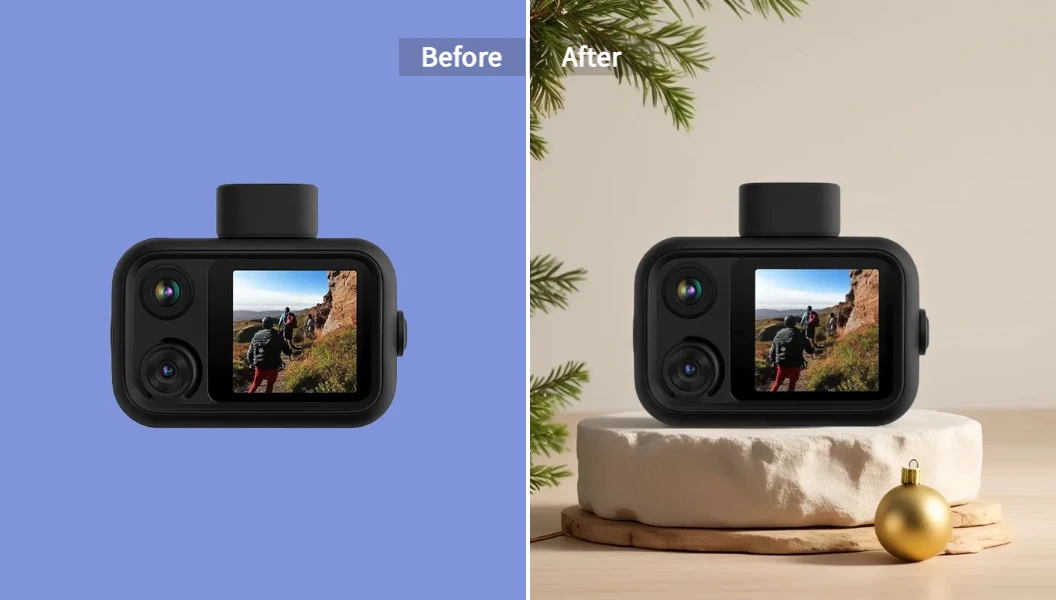
The nice part: Pixelfox runs in the browser, supports common formats (JPG, PNG, etc.), and outputs watermark‑free results, even as a free AI background generator.
2. Replace faces with AI Face Swap (photos, groups, GIFs, video)
Face swaps are the most fun part of ai replace. And also the easiest way to create nightmare fuel if the tool is bad.
Pixelfox’s AI Face Swap focuses on realistic, precise swaps:
- Swap a single face or multiple faces in one shot
- Works on photos, GIFs, and even videos
- Keeps head movement and facial expressions
- Exports as HD MP4 or GIF
- No watermark, no forced sign‑up for basic use
So you can:
- Put your whole friend group into a movie poster
- Turn reaction GIFs into “your” reactions
- Make meme content for Instagram or TikTok
- Do before/after style edits (younger/older, different character)

And yes, you can swap multiple faces at once in a group photo. The AI keeps skin tone, proportions, and lighting natural so it doesn’t look like a collage done in MS Paint.
3. Replace style and create safe variations with AI Reimagine
Sometimes you don’t want to replace a specific object. You want the same layout, but in a different vibe. Or you want to avoid copyright issues when you use reference images.
That’s where AI Reimagine helps:
- You upload an image
- AI generates multiple new variations
- It keeps the structure and key elements
- It changes textures, colors, style, and details
This is great if you:
- Need copyright‑safer versions of a layout
- Want several design options for ads or banners
- Need to “refresh” old visuals while keeping the same framing
- Want to test different moods (warm, cool, cinematic, playful)
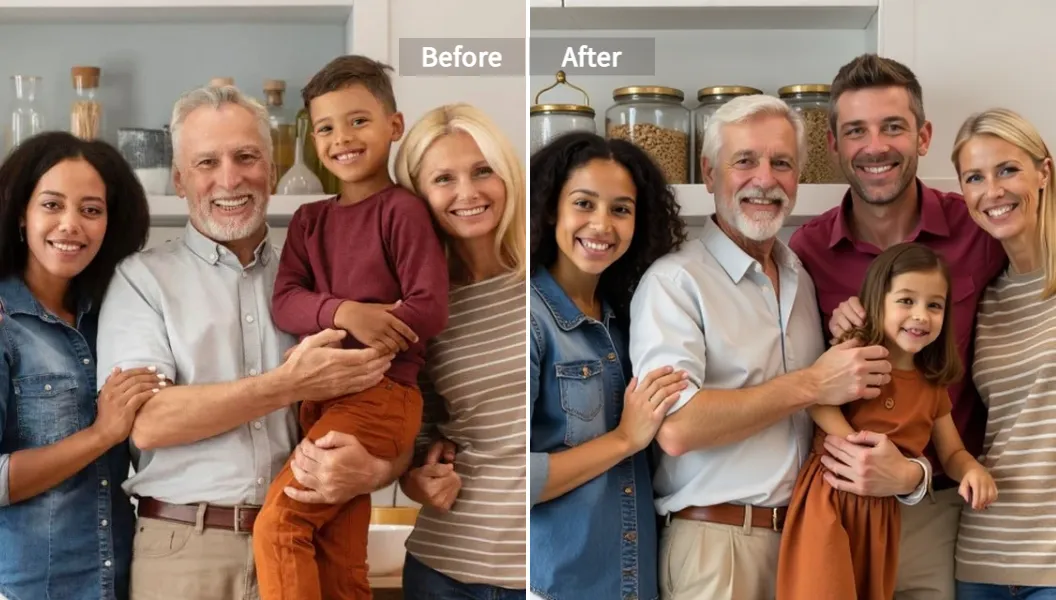
The tool is built to preserve meaning (subject, composition) while giving you variations that count as new work. That’s exactly what many marketers want when they see “create copyright‑free image variations”.
4. Replace static with motion: AI video from text + images
Sometimes a still image is not enough. You want a short video, but you don’t want to learn editing software.
Pixelfox has an AI video generator that lets you:
- Start from text (“a slow pan over a neon city at night”)
- Or start from an image and turn it into motion
- Choose styles
- Export watermark‑free clips
This is more like “replace static with animation”. You bring an image, AI re‑imagines it as a moving scene. For social posts, ads, and quick promos, this is easier than cutting video manually.
5. When replace is too messy, just generate new images
Sometimes the original image is trash. Bad lighting, weird angle, low resolution. In that case, it’s often faster to recreate the concept.
Pixelfox’s free AI image generator lets you:
- Type a prompt
- Pick a style
- Get high‑quality images from scratch
Use it when:
- You want a clean product render instead of fixing a bad photo
- You want a fresh background image for your site or YouTube banner
- You want concept art or mood boards without stock sites
In a real workflow, you often mix both:
- Use image generator for base visuals
- Use background generator or Reimagine to fine‑tune or localize for different platforms
Step‑by‑step: how to do “ai replace free” with Pixelfox in a few clicks
You can run different tools, but the pattern is basically the same. Let’s walk through a typical AI replace workflow using Pixelfox.
Step 1 – Pick the right tool for your job
Think in plain terms:
- Need to change where something is? → Background generator
- Need to change who is in the image? → Face Swap
- Need many variations of the same layout? → AI Reimagine
- Need motion? → AI video generator
- Need a fresh image instead of repairs? → AI image generator
Picking the wrong tool is the fastest way to get weird results.
Tip:
If you need to keep the same framing but change the vibe, start with AI Reimagine.
If you need to keep the same person but change location, start with AI background generator.
Step 2 – Upload clear, high‑quality source images
AI is good, but it’s not magic. If your image is:
- Tiny
- Super dark
- Half‑covered face (hair, hands, sunglasses)
…then any ai replace will struggle.
For best results:
- Use sharp, well‑lit images
- Show full faces for face swap
- Avoid heavy blur or motion for important parts
- Keep file formats simple (JPG / PNG)
Pixelfox supports common formats and doesn’t force heavy compression. That helps the AI keep detail when it replaces stuff.
Step 3 – Set your prompt or target image
You have two basic modes:
-
Image → Image
- Upload source (e.g., your portrait)
- Upload target or choose a preset (e.g., a studio scene, another face)
- Let AI match them
-
Text → Image / Video
- Type what you want
- Example: “white seamless studio background, soft shadows, 3‑point lighting”
- Or “dynamic gaming thumbnail background with neon purple and blue”
The clearer you are, the cleaner the result.
Tip:
Add simple quality words in your prompt like “high detail”, “photo‑realistic”, “soft light”, “studio lighting”.
These small words often fix that cheap, plastic AI look.
Step 4 – Generate, refine, and download
You hit generate. AI gives you one or several options. You:
- Pick the best one
- Maybe re‑run with a slightly different prompt
- Download it in HD, with no watermark
The core win here is time. What used to take 30 minutes in Photoshop now takes under 30 seconds, which lines up with what UX research groups see: when tools cut task time by that much, users actually use them long‑term.
AI replace vs Photoshop and other “traditional” tools
You might ask: “Can’t I just use Photoshop and do this myself?” Sure. If you know what you’re doing and you have time.
Let’s compare.
AI replace vs Photoshop and pro editors
Photoshop / traditional tools:
- You pay monthly
- You need to learn layers, masks, selections, brushes
- You can get perfect control, but it takes skill and time
- Great for high‑end retouch or complex commercial work
AI replace free tools like Pixelfox:
- Run in your browser
- No need to learn advanced tools
- Fast “good enough” results for social posts, product pages, thumbnails
- Great for non‑designers and busy creators
So think of it this way:
- If you are a pro retoucher working on a beauty campaign → Photoshop still wins
- If you are a solo creator, small shop owner, or student who just needs solid visuals → ai replace free tools save your day
Many pros even mix both: use AI replace to get a strong base, then tweak in Photoshop.
Pixelfox vs other online AI replace tools
There are tons of online tools now. Many feel the same at first. The differences show up fast:
Common issues with random free tools:
- Huge watermarks
- Tiny export sizes
- Forced sign‑up for anything useful
- Aggressive data collection
- Results that look… haunted
Pixelfox’s approach:
- No watermark on core tools
- No sign‑up required for simple jobs
- Works on both mobile and desktop browsers
- Auto‑deletes uploads after processing for privacy
- Focused tools that do a few things very well (face swap, background, reimagine, video, image gen)
So instead of jumping across 5 different sites for each task, you can stay in one place and keep a smoother workflow.
Advanced ways to use “ai replace free” like a pro
Now the fun part. Let’s go beyond “change the background for fun” and into real use cases that make money or grow reach.
1. Create instant white‑background product photos
If you sell on Amazon, Etsy, or your own store, you know the rule: white or clean backgrounds win. But most small sellers don’t have a studio.
You can do this:
- Take a decent photo of your product near a window (soft light).
- Upload it to the AI background generator in Pixelfox.
- Ask for “pure white studio background with soft shadow under the product”.
- Download in high resolution.
Now you have clean, consistent product shots without building a mini studio. You can do this in bulk and keep your store looking like a real brand, not a yard sale.
2. Change YouTube or podcast cover backgrounds fast
Thumbnails matter. But many creators waste hours messing with Canva layers.
Try this instead:
- Shoot a close‑up photo of your face with a neutral background.
- Use the background generator to swap in:
- Bold color gradients
- Gaming or tech scenes
- Abstract shapes that match your channel niche
- Add simple text on top in your editing app of choice.
You get eye‑catching thumbnails that still show you, but with a more “YouTube‑native” background.
3. Make transparent logos and overlays
You don’t always need full “replace” here, but AI tools help.
You can:
- Take a photo or flat design of your logo.
- Remove or replace the background with a clean transparent or solid color using the background generator.
- Re‑import that image into AI Reimagine and generate style variations: metallic, neon, flat, textured.
So one basic logo turns into multiple brand assets with almost no manual work.
Real‑world case studies: how people actually use ai replace free
Let’s look at a few “I could be this person” stories.
Case 1 – Instagram creator cleaning up messy travel photos
Emily runs a small travel IG account. Her problem:
Amazing trips, terrible hotel room lighting and ugly clutter in the background.
What she did:
- Used Pixelfox background generator to replace busy hostel backgrounds with clean, “minimal hotel” style walls and windows
- Kept her outfit and pose the same
- Created a consistent warm, airy look across her grid
The result:
- Her feed looked way more curated
- Brands took her more seriously because the visuals screamed “intentional”, not “random phone dump”
- She did all this in a browser with no expensive software
Could she have done it in Photoshop? Sure. But it would have taken hours, not minutes.
Case 2 – Small online shop upgrading product shots
A two‑person candle brand had this problem:
Their products were nice, their product photos were… not.
They:
- Shot candles on a plain table with a phone
- Used Pixelfox background generator to switch to white and “lifestyle” backgrounds like cozy living rooms and marble countertops
- Used AI Reimagine to create multiple looks from one base photo
What changed:
- Their product page looked like a bigger brand
- They tested different styles for different audiences without hiring a photographer
- They had more visuals for ads and socials from fewer shoots
Again, zero heavy editing skills needed.
Case 3 – Meme page owner scaling content
A meme page admin wanted to push more video and GIF memes with faces swapped.
They:
- Used Pixelfox Face Swap to drop their face into iconic scenes and reaction GIFs
- Exported in HD GIF or MP4
- Posted daily without editing in complex video tools
AI handled face tracking and expressions, so the memes looked smooth. That kind of content is hard to do by hand unless you live inside After Effects.
Common mistakes with ai replace free (and how to dodge them)
New users make the same mistakes over and over. Let’s fix that.
Mistake 1 – Using low‑res, blurry images
If your image looks bad to your eye, the AI will not magically upgrade it. It will replace things, but the overall result still looks low‑quality.
Fix:
- Use images from modern phones or cameras
- Make sure the subject isn’t tiny in the frame
- Avoid screenshots of screenshots
Mistake 2 – Overcomplicated or vague prompts
People type prompts like:
“make it look cool and modern and clean but vintage and cinematic and also cartoonish”
The AI goes, “uh… okay?” and gives you something weird.
Fix:
- Keep prompts short and clear
- Change one or two things at a time
- Use simple words: “bright”, “dark”, “studio”, “warm light”, “neon”, “photo‑realistic”
Mistake 3 – Ignoring light and perspective
You paste a sunny face onto a dark room background. Or you swap a face into a body at a weird angle. AI helps, but it still respects physics. When light and angles fight, your brain sees the fake right away.
Fix:
- Use source and target images with similar lighting (both bright, both indoors, etc.)
- Match camera angle when you can (both straight‑on, both side profile)
- For background replace, keep the subject size realistic against the new environment
Mistake 4 – Thinking “ai replace free” means “zero limits”
Free tools are great, but they are not legal shields or magic clones.
Fix:
- Be careful with sensitive or private photos
- Respect copyright and platform rules
- Use tools like Pixelfox AI Reimagine when you want safer variations
Mistake 5 – Not checking results before posting
It’s easy to spam generate and upload. Then someone zooms in and sees six fingers or half a missing ear.
Fix:
- Always zoom in on faces, hands, and key details
- Re‑generate if you see odd artifacts
- Keep a “good enough” bar. Near‑perfect beats “fast but cursed”.
Best practices from a “heavy user” point of view
Here’s how people who use AI replace daily keep quality high and time low.
-
Build a small library of clean source images
A few strong portraits, product shots, and logos save you tons of time. Use them as base material for many AI replace runs. -
Create repeatable prompts
When you find a prompt that works (“white studio product photo with soft shadows, high detail”), save it. Reuse it for a consistent “brand look”. -
Mix tools instead of overload prompts
Want a new background and a new style?
Do background replace first, then run AI Reimagine. Step by step beats monster prompts. -
Keep realism where it matters
For profile photos, product shots, and about‑page images, lean on realistic styles. Save the crazy stuff for memes and personal experiments.
FAQ: your most common ai replace questions answered
How do I use ai replace free without watermarks?
You need tools that actually offer watermark‑free exports. Pixelfox’s main tools (background generator, Face Swap, AI Reimagine, video generator, image generator) all give you clean results without giant logos over the image. You open the page, upload, generate, and download. No watermark on the output.
Why does my AI replace result look fake or plastic?
Most of the time it’s one of these:
- Low‑quality source image
- Overly stylized prompt
- Bad lighting match between subject and background
Use sharper, better photos. Use prompts that say “photo‑realistic” or “natural lighting”. Try to match light direction between source and target. Tools like Pixelfox already try to balance this, but good input helps a lot.
Can I use ai replace images for commercial work?
In many cases, yes, but it depends on the tool’s terms and your source material. Pixelfox lets you use outputs for personal and professional projects. Still, be careful with:
- Celebrity faces and trademarked characters
- Logos or designs that are clearly someone else’s IP
For safer content, use AI image generator and AI Reimagine to create original variations rather than copying known images.
What’s the difference between AI replace and simple background removal?
Background removal just cuts out the subject. AI replace adds and generates new content to fill the empty space or swap parts.
So:
- Remove = delete background, maybe make it transparent
- Replace = delete and then build a new background or object based on your prompt
Pixelfox combines both: it removes cleanly and then generates new scenes in one flow.
How can I avoid ai replace messing up faces and hands?
Use:
- Clear, front‑facing photos
- Higher resolution images
- Prompts that mention “realistic human face” or “accurate hands”
If something looks off, regenerate once or twice. In practice, a couple of runs usually fixes weird details.
One last push: use AI replace to work smarter, not harder
You don’t need to be a designer, and you don’t need a big budget. With the right ai replace free setup, you can:
- Clean up product photos
- Upgrade your social feed
- Make funny face swaps and GIFs
- Generate safe, on‑brand variations for campaigns
Instead of juggling five random sites, you can keep everything inside Pixelfox AI:
- Use the free AI image generator to create new visuals
- Use the AI background generator to fix environments
- Use AI Face Swap for realistic swaps in photos, GIFs, and videos
- Use AI Reimagine to get copyright‑friendly variations
- Use the AI video generator to turn static ideas into motion
Try one image today. Replace the background, swap a face, or reimagine a photo you already love. Once you see how fast the ai replace free workflow feels with Pixelfox, going back to manual editing will feel… kind of medieval. 💻✨