 Credit

You open Photoshop “just to make a simple banner”, and somehow it eats your whole night. Or you try one random “ai design generator free” you saw on TikTok, and boom: three low-res images, one huge watermark, and a “please upgrade” pop‑up. 😑
If that sounds a bit too familiar, you’re the exact person this guide is for.
In this article we’ll break down how to actually use an AI design generator free in a smart way. Not just “here’s a list of 20 tools, good luck”. You’ll see:
- Which AI design tools are worth using in 2025
- How automatic graphic design really works (in plain English)
- How to use Pixelfox AI to create: product photos, logos, YouTube covers, and avatars
- Real cases, common mistakes, and pro tricks that save time and money
Core promise: after this, you should be able to get clean, usable graphics in minutes, with ai graphic design free tools, without feeling like you’re fighting the software.
What is an AI Design Generator (and Why Free Matters)
Let’s keep it simple.
An ai design generator is a tool that uses machine learning to turn words, logos, or photos into finished designs. You type a prompt, drop in an image, pick a style, and the tool handles layout, color, lighting, and effects. That’s automatic graphic design in action.
In older workflows, you opened a heavy design tool like Photoshop or Illustrator, stared at a blank canvas, and manually built everything. With graphic design AI, you give intent and context, and the system creates a draft for you.
A modern artificial intelligence design generator can:
- Make social media posts from a sentence
- Build ad banners from a product photo
- Turn a selfie into anime art
- Extend a narrow image into a wide hero banner
- Create logo concepts from a brand name
Industry reports from Statista and Gartner both point in the same direction: use of AI in design is growing fast in marketing teams, small businesses, and even agencies. People do it mostly to save time and reduce costs, not to “replace” designers.
The “free” part matters because reality hits hard:
- Many tools tease “free” and then give you 5 credits and a giant watermark
- Students, solo founders, and small shops do not want another monthly bill
- You often want to test multiple ai design tools before you commit to one
This is where Pixelfox AI comes in strong. It gives you a real ai design free workflow: word image generator, AI background generator, AI Image Extender, anime avatars, and even video. And you can start without sign‑up.

Alt: AI design generator free creating social media graphic from text prompt
How AI Design Generators Actually Work (Without the Jargon)
You don’t need a PhD here, but a bit of “how it works” helps you get better results.
Most ai graphic design generator tools follow this pattern:
-
You give input
- Text prompt (“minimal logo for coffee brand, brown and cream, flat style”)
- Image (product shot, selfie, logo)
- Or both
-
The model reads your input
It uses natural language processing to map your words to visual concepts: style, subject, mood, colors, layout. -
The model generates a draft image
Diffusion or similar models start from noise and “carve out” an image that matches the prompt. -
The design layer polishes it
Some tools add fonts, layout templates, mockups, and export options. This is where artificial intelligence graphic design free starts to feel like a real design suite.
According to UX research from Nielsen Norman Group, people decide if a design looks “trustworthy” in under a second. So the value of ai graphic tools is not just speed. It’s also the ability to produce consistent, on‑brand output without deep design training.
The 7 Best Free AI Design Generators in 2025
Let’s hit what you probably came for: which tools are actually good.
I’ve tested a bunch of ai design generator free options with the same kind of prompts:
- Social media ad with product
- Simple logo
- YouTube thumbnail
- Portrait → stylized avatar
Here’s what stands out in 2025.
1. Pixelfox AI – Best All‑In‑One AI Design Tool for Non‑Designers
If you want one ai design tool that covers 90% of your visual work and stays friendly, Pixelfox is the top pick.
Pixelfox gives you:
- A free AI image generator for text‑to‑image and remixing existing pics
- An AI background generator for clean product shots and scene changes
- An AI Image Extender for banners and stories that need extra canvas
- An AI Anime Generator for avatar and profile pictures
- An AI video generator for simple motion content
So you get graphic design AI, word‑to‑image, product visuals, and video in the same ecosystem.
What it’s great for:
- E‑commerce product images (white backgrounds, lifestyle scenes)
- Instagram and TikTok visuals
- YouTube covers
- Avatars and profile pictures
- Fast mockups for ads and landing pages
Where it stands out:
- It works in a browser. No download, no heavy app.
- It does ai tools to create photos using logo: you can upload a logo, set a theme, and create on‑brand scenes.
- It keeps the interface clean. You do not drown in knobs and sliders.
- You can start without signing up, which is rare.
For most people who search “ai design generator free”, Pixelfox covers the job better than stacking 5 random tools.
2. Canva – Quick Templates With Some AI Magic
Canva is still a strong player. You get tons of templates and some AI features:
- Magic Design to build layouts from content
- Text‑to‑image built in
- Easy text and layout edits
It’s good when:
- You love drag‑and‑drop
- You work in teams
- You want combined docs, slides, and social posts
But the AI parts sometimes feel like a bonus, not the core. Output is decent, but not as flexible as a focused ai graphic design generator like Pixelfox.
3. Adobe Express – Brand‑Friendly, Adobe‑Style
Adobe Express adds AI on top of Adobe’s long history in design:
- Text‑to‑image and text effects
- Templates for social, posters, and flyers
- Good brand kit support
If you already live in Adobe land, it fits. But the “free” plan has limits pretty fast, so it is not ideal for heavy ai design free workflows.
4. Microsoft Designer – Social Posts From Simple Prompts
Designer leans on text prompts to make social graphics fast. You type your goal, and it gives layouts with fonts and images.
Good for:
- Simple social posts
- LinkedIn content
- Quick slides
But it still feels new in some areas. And it is not as focused on advanced image work like background replacement and image extension.
5. Freepik / Other Stock Sites – Fast for Simple Assets
Some stock sites now offer ai graphic features:
- Fast icons
- Simple illustrations
- Pattern generators
They’re fine when you just need a quick icon or vector. But they don’t replace a full artificial intelligence design generator for serious creative work.
6. Logo‑Focused AI Tools
There are many “logo only” generators. They help with first ideas, but they often:
- Reuse common styles
- Lock high‑res files behind payment
- Do not help you create matching scenes or product photos
So they’re okay for inspiration. But they are not enough for full brand systems.
7. Niche AI Avatar and Anime Tools
You see a lot of “turn selfie to anime” apps. They’re fun, but many are mobile‑only, flooded with ads, and poor on privacy.
Pixelfox’s AI Anime Generator takes this idea but keeps it web‑based, higher quality, and more private.
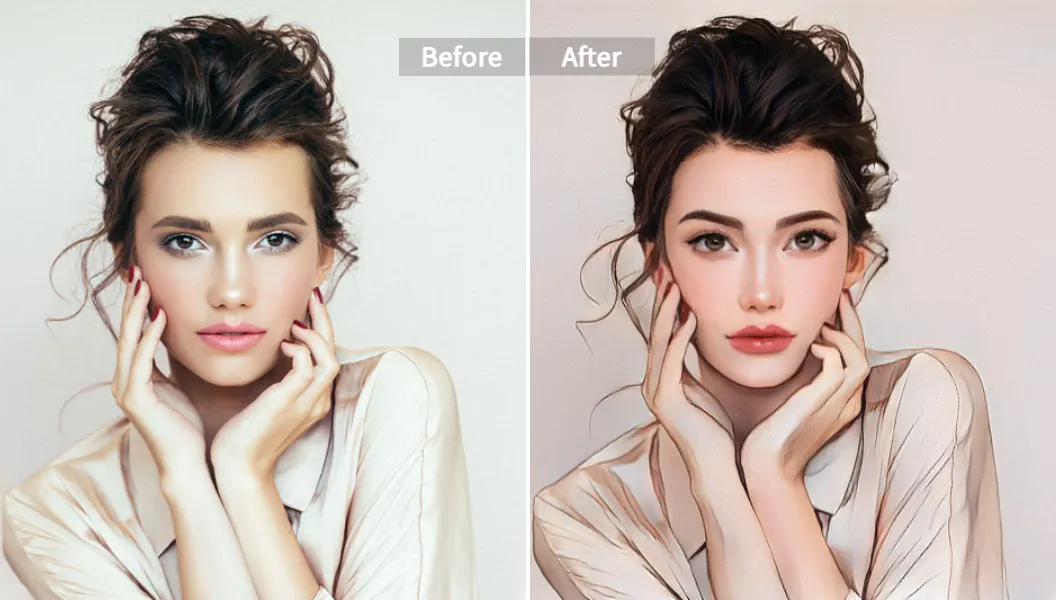
Alt: AI Anime Generator for ai graphic design free cartoon avatar
Comparison Table: Free AI Graphic Design Generators at a Glance
Here’s a quick view if you like seeing things side by side.
| Tool | Best For | Free Tier Strength | Watermarks / Limits | Standout Feature |
|---|---|---|---|---|
| Pixelfox | Product photos, banners, avatars | Strong, no sign‑up start | Very light, clear limits | Image extender + background + anime + video |
| Canva | Social + templates + simple AI | Good, some limits | Some premium elements | Huge template library |
| Adobe Exp. | Brand kits, social for pros | OK, but tight | Many features paywalled | Adobe ecosystem |
| MS Designer | Social posts from prompts | Good for light use | Still evolving | Prompt‑first layout |
| Stock AI | Icons, patterns, textures | Often generous | Quality varies | Tied to stock libraries |
| Avatar apps | Profile photos, fun images | Often free with ads | Heavy watermarks, ads | One‑click avatars |
How to Choose the Right AI Design Tool for Your Needs
There is no one “best” ai design generator free for everyone. But there is a best one for your current problem.
Ask yourself a few simple questions.
1. What will you make 80% of the time?
- Product photos and Amazon images → you need good AI background work, clean lighting, and export control
- Social media graphics → you need fast layout, text support, and resize options
- Logos and branding → you want steady style and flexible text options
- Avatars and fun content → you want stylization and privacy
If your work is mixed, an all‑rounder like Pixelfox is safer.
2. How comfortable are you with design?
If you are not a designer, a clean interface matters more than “pro knobs”. A good ai graphic design generator should:
- Ask for your goal in plain language
- Offer presets (Instagram Post, YouTube Thumbnail, etc.)
- Let you tweak without learning layer systems
3. Do you need everything in one place?
You can stitch together:
- One tool for logos
- One for images
- One for avatars
- One for video
Or you use a system like Pixelfox that tries to cover all of that. Fewer tabs. Less headache. Less chance of brand inconsistency.
4. Do you care about long‑term branding?
If yes, look for:
- Consistent styles you can reuse
- Safe storage of past designs
- Easy ways to use a logo, brand colors, and fonts again and again
Pixelfox makes this easy when you use its ai tools to create photos using logo and repeat prompts.
Step‑by‑Step: Using Pixelfox as Your AI Design Generator Free Workflow
Let’s walk through real tasks. This is where the theory stops and the fun begins.
Workflow 1: Use a Word Image Generator for a Social Post
Goal: Instagram post for a coffee brand promo.
- Open the Pixelfox free AI image generator
- Type a clear prompt, like:
“A cozy coffee shop scene, latte on wooden table, soft morning light, space on the right for text, warm color palette, modern flat illustration style”
- Pick a style that fits your brand (flat, 3D, realistic, etc.)
- Set aspect ratio to square (1:1)
- Generate a few options
- Pick your favorite and add text on top in your editor of choice
Tip
Keep prompts simple but specific.
Mention subject, style, mood, and use case.
Something like “banner for website hero, minimal, plenty of empty space, for tech startup” usually beats a vague “cool tech picture”.
Workflow 2: Use AI Tools to Create Photos Using Logo
Goal: Brand scenes for your logo, for web and ads.
- Prepare a clean PNG version of your logo
- Open the Pixelfox AI background generator
- Upload a product photo with your logo on it, or a simple mockup image
- Choose an option like “replace background” and describe the scene:
“Bright, modern office background, soft blur, warm light, neutral colors”
- Let the artificial intelligence graphic engine rebuild the background
- Export for web or print
You now have on‑brand, “studio” level shots without renting a studio.
Workflow 3: Make a YouTube Thumbnail That Actually Gets Clicks
Goal: Bold YouTube cover image for “How I Built My Shopify Store”.
- Use Pixelfox to generate a base image:
- Prompt:
“Modern flat style illustration, person at laptop in home office, bright colors, space on top for big text, YouTube thumbnail style”
- Prompt:
- Set aspect ratio to 16:9
- Generate a few options
- Take the best one into your editor and add:
- Large, short text (“From 0 to 10K”)
- Human face (photo or stylized avatar)
- Test a few styles; bright contrast and simple shapes usually win
Research from YouTube and HubSpot shows that thumbnails with clear faces and short text tend to pull higher click‑through rates, which matches what most creators see day to day.
Workflow 4: Create a Transparent Background Logo and Hero Image
Goal: Clean logo + hero header.
- Generate logo ideas using prompts like:
“Minimal logo for eco‑friendly skincare brand, leaf symbol, soft green and beige, flat vector style”
- Pick the one you like
- Use tools to remove the background or generate on transparent background if available
- Use AI Image Extender to stretch a scene for your landing page header
- Place the logo on top of that wide scene
Now you have a full hero section from scratch: logo + background + story.
Tip
Design for the smallest screen first.
If a design is readable on a phone lock screen, it will usually look great on desktop.
So zoom out a lot, and check text size and contrast at “tiny” scale.
Advanced Plays: Going Beyond Basic AI Design
If you already use ai design tools, here are some more advanced moves. These go a bit past beginner level.
Pro Move 1: Studio‑Level White Background Product Images
This is big for e‑commerce.
- Shoot your product with any decent phone, near a window
- Upload to the Pixelfox AI background generator
- Choose “remove background” and set a pure white or light gray backdrop
- Add soft shadows with prompts if needed (“soft natural shadow under product”)
- Export in high resolution
You now have “Amazon‑ready” images without a photo studio. That is real automatic graphic design helping your revenue.
Pro Move 2: Batch Social Content from One Master Image
- Use the free AI image generator to create one strong “hero” image
- Duplicate it and change crops, aspect ratios, and text
- Use AI Image Extender to create vertical or horizontal versions for:
- Instagram stories
- Pinterest pins
- Horizontal website banners
You get a full set of assets from a single concept. This is how agencies squeeze more value out of one shoot; you can do it with AI.
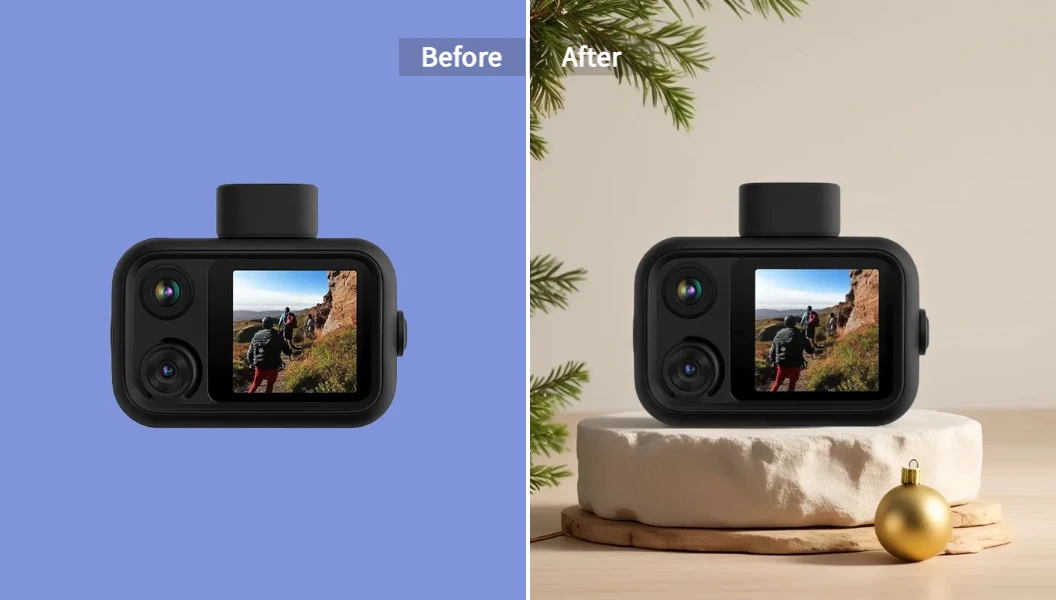
Alt: AI background generator for automatic graphic design product photo
Pro Move 3: Turn Photos Into Branded Avatars
For creators and teams:
- Use the Pixelfox AI Anime Generator to turn your face into a cartoon or anime avatar
- Use a similar style for all team members
- Reuse these avatars on:
- Website “About” page
- Slides
- YouTube intros
- Social profile pics
You get a consistent “face” for your brand, while keeping privacy. This is where artificial intelligence graphic design free can make you look pro without a design degree.
Real‑World Case Studies: AI Design in Action
Let’s talk about how people actually use this stuff.
Case 1: Small E‑Commerce Brand Fixes Their Product Photos
Mia runs a small candle shop on Etsy. Her pain:
- Dark, yellow product photos
- No budget for a photographer
- Hours wasted in free photo editors
She switched to Pixelfox:
- Shot candles near a window with her phone
- Used the AI background generator for white and lifestyle backgrounds
- Used AI Image Extender to make tall images for Pinterest and Instagram Reels covers
Result:
- Cleaner storefront
- Higher click‑through on Etsy search results
- She spends more time on product and customer support, less on resizing images
This is classic ai graphic design free value: clean output and time back.
Case 2: YouTube Creator Levels Up Thumbnails and Branding
Jay runs a small tech review channel. Old thumbnails were:
- Busy, noisy, with too much text
- Random colors on every video
- Made in a rush
He used Pixelfox as his ai graphic design generator:
- Generated a simple flat style “host + gadget” image
- Saved the style and color palette
- Reused that look for every video, only swapping the device and text
He also:
- Used the AI video generator to create short background loops for intros
- Used the AI Anime Generator to make a stylized version of his face for the channel art
Over time, his channel looked cohesive. And it felt more like a brand, not a random set of uploads.
Common Mistakes With AI Design Generators (And How to Fix Them)
You can get great results from ai design free tools. You can also get a lot of trash. Here are the big traps.
Mistake 1: Vague Prompts, Vague Results
People type “cool poster” and then complain.
Fix:
- Describe subject, style, mood, and purpose
- Example:
“Bold movie‑style poster, cyberpunk city at night, neon lights, strong contrast, place at top for title, 2:3 ratio”
This simple change often upgrades results more than swapping models.
Mistake 2: Ignoring Text Readability
Many ai graphic images look nice, but text is unreadable.
Fix:
- Plan space for text in the prompt (“empty space on the right for title”)
- Keep 3–6 words max on a thumbnail or ad
- Use high contrast between text and background
According to conversion research from companies like HubSpot, simple, readable visuals tend to beat “fancy but noisy” designs.
Mistake 3: Over‑Editing in Random Tools
Some users:
- Generate an image
- Export it
- Edit it in three more apps
- Lose quality and consistency
Fix:
- Try to do most work inside one environment like Pixelfox
- Use one extra tool only if you really need a special effect
Mistake 4: Wrong Tool for the Job
Using a logo‑only tool to create full social templates, or using a random art model for clean product photos, rarely works.
Fix:
- Use artificial intelligence design generator tools that match your core task
- For product and brand work, use tools like Pixelfox that handle background, extensions, and style control
Mistake 5: Not Checking Usage Rights
Even with artificial intelligence graphic design free platforms, you still must read the terms.
Fix:
- Check if the free tier allows commercial use
- If you work with clients, keep a simple record of which tool produced which asset
AI Design vs Traditional Tools Like Photoshop
Let’s talk about the elephant in the room.
Where AI Wins
- Speed: AI can give you versions in seconds
- Lower skill bar: You don’t need to know layers, masks, and blend modes
- Idea generation: Great for getting the first concept on the screen
- Cost: Many ai design generator free tools beat paid software for casual users
Where Photoshop and Co. Still Win
- Pixel‑perfect control
- Complex photo retouching
- Big professional print projects
- Deep compositing work
Think of graphic design AI as a power assistant. It helps you get from “blank canvas” to “solid draft”. A pro can still take that draft into Photoshop for final polish if needed.
Pixelfox vs Other Online AI Design Tools
Short version: most tools do one or two things well. Pixelfox covers more of the stack.
- Many tools = text‑to‑image only
- Some tools = avatars only
- Some tools = templates only
Pixelfox bundles:
- Word‑to‑image design tool
- Background removal + replacement
- Image extension
- Anime avatars
- Simple video generation
So you can run an entire ai graphic design free pipeline for:
- E‑commerce
- Content creation
- Solo founder branding
- Student projects
And you don’t have to juggle five dashboards and ten logins.
Tip
Build your own “recipe book” of prompts.
When a prompt works, save it in a doc. Over time you build a private library of styles that always feel “on brand”. This is how you turn “random AI” into a repeatable system.
FAQ: Common Questions About AI Design Generators
How does an ai design generator actually create images?
An ai design generator reads your text or image, maps it to visual concepts, and uses a trained model to draw a new image from noise. It follows your prompt like instructions: subject, style, colors, and layout. Tools like Pixelfox add an extra design layer on top, so you get layouts and not just raw images.
Can I really use an ai design generator free for commercial work?
It depends on the tool. Many ai graphic design free platforms allow commercial use on the free tier, as long as you follow their terms. Some limit resolution, number of images, or remove commercial rights. Always check the usage policy before you slap AI art on a product or client project.
Why do some AI graphic tools add watermarks?
Watermarks are a way to push you to upgrade. They keep the artificial intelligence graphic engine available for testing, but they save the best output for paying users. Pixelfox is much more transparent with limits and gives you clean, usable images in its free workflows.
How can I use AI tools to create photos using logo?
Upload your logo to a tool that supports mixed input, like Pixelfox. Use the AI background generator or image tools to place the logo in different scenes. For example: a coffee mug on a desk, with your logo on it, and a blurred office background. This way you use AI to build real‑looking brand photos from a simple logo file.
What is the difference between an artificial intelligence design generator and a normal template tool?
A normal template tool gives you fixed layouts. You swap text and maybe colors. An artificial intelligence design generator actually creates new images and layouts from your words and photos. It is not just “fill in this box”; it is closer to a dynamic engine that draws something new each time.
Ready to Let AI Handle the Heavy Lifting?
We’re in a weirdly good moment. You can get artificial intelligence graphic design free, at a level that used to need a full‑time designer and expensive software.
If you:
- Run a small shop
- Create content on YouTube, TikTok, or Instagram
- Study and need solid visuals for projects
- Or just hate staring at blank canvases
Then using an ai design generator free like Pixelfox is a very smart move. You get:
- Fast ai design
- Clean product photos
- Strong social graphics
- Avatars, banners, videos
All from one place.
👉 Try Pixelfox now as your main ai design generator free and build your own set of prompts, styles, and assets. Let the AI handle the boring parts, so you can focus on your message, not your layers.
Author note: This guide was written from the view of a content strategist who has worked with AI design tools for years. Always check the latest terms of each platform before using AI‑generated work in commercial projects.