 Credit

You probably typed “best ai image editor” into Google because you’re tired of fighting with layers, masks, and 57 sliders… just to fix one bad selfie or product shot 🙃
Good news. AI editing software in 2025 is insane. Bad news. There are way too many tools, and most reviews are just lazy lists with “Top 10 tools” and zero real help.
This guide does the hard work for you. I’ll walk you through:
- What actually makes the best AI image editor
- Which tools are worth your time (ranked, with real use cases)
- How to use AI to fix a photo step by step
- Advanced tricks for creators, sellers, and designers
- Where Pixelfox AI fits in, and why I’d start there
You’ll also see how this helps with stuff like photoshop ai free, ai photo touch up free, ai tools to create photos, and ai that can fix photos without making everything look like a cursed meme.
What makes the best AI image editor in 2025?
Let’s set the bar. “Best” is not “has the most buttons”. It’s:
-
Fast
AI should cut edit time, not add 10 steps.
According to recent reports from Statista and similar research firms, creative pros save hours per week when they move repetitive edits to AI tools. That tracks with what real users say on Reddit too. -
Accurate and natural
The tool must understand faces, lighting, and context.
If your “ai for portrait photo editing” keeps giving people 8 fingers, that is not “magic”. That is nightmare fuel. -
Good free tier
People search artificial intelligence photoshop free and photoshop ai free for a reason. You want real editing, not a 1-megapixel export with a giant watermark. -
All-in-one for real work
The best ai editing setup lets you:- Remove or change backgrounds
- Do AI photo touchup (skin, blemish, noise)
- Upscale and sharpen
- Use ai tools to create photos from text
- Change style, colors, or expressions
-
Safe and honest with data
This part gets ignored. You upload faces, clients, products. The tool must tell you what happens with your files. Good AI editors today state if they train on your images or not and how long they store them. -
Simple UX, not “Photoshop with extra AI buttons”
You want something closer to a magic image editor, not a flight simulator.
This is why I rate Pixelfox AI so high. It acts like a smart, friendly editor. You talk to it with text prompts. It does background removal, retouch, style transfer, colorization, and even “reimagine” images without asking you to learn 20 panels first.
Quick picks: the 10 best AI picture editors right now
Here’s the short list before we go deep. I’ve ranked these by real-world use, not hype.
- Pixelfox AI – Best overall & best online AI image editor
- Adobe Photoshop (Generative AI / Firefly) – Best for pros locked into Adobe
- Canva – Best for social content and non-designers
- Luminar Neo – Best AI editor for photographers who love desktop apps
- Fotor – Simple AI fix and batch tweaks
- Pixlr – Lightweight browser editor with decent AI
- Photopea – Free “Photoshop-like” editor with some AI help
- Picsart – Mobile-first, good for quick social edits
- Remini – Strong for face enhancement and old photo repair
- GIMP + AI plug-ins – For open-source fans who like pain but love control 😅
Now let’s look at how they compare and why Pixelfox is my #1 for day-to-day work.
Side‑by‑side: AI editing software compared
| Tool | Type | Key AI Features | Free Tier | Best For | My Rating |
|---|---|---|---|---|---|
| Pixelfox AI | Web (online) | Text-prompt editing, background generator, style transfer, colorizer, reimagine | Yes | Creators, sellers, marketers, beginners | ⭐⭐⭐⭐⭐ |
| Photoshop (AI) | Desktop | Generative fill, remove, upscale, neural filters | Trial only | Pros, agencies | ⭐⭐⭐⭐☆ |
| Canva | Web / App | Magic edit, AI background, AI design suggestions | Yes | Social content, small biz | ⭐⭐⭐⭐☆ |
| Luminar Neo | Desktop | AI sky replace, AI portrait, relight, denoise | Limited | Photographers | ⭐⭐⭐⭐☆ |
| Fotor | Web / App | One-tap AI fix, AI portrait touchup | Yes | Quick edits | ⭐⭐⭐☆☆ |
| Pixlr | Web | AI background remover, AI tools to create photos | Yes | Casual users | ⭐⭐⭐☆☆ |
| Photopea | Web | Layered editor + some AI tools | Yes | People who know Photoshop | ⭐⭐⭐☆☆ |
| Picsart | App / Web | AI filters, AI backgrounds, AI photo touchup | Yes | Mobile creators | ⭐⭐⭐☆☆ |
| Remini | App | AI that can fix photos, upscale, restore | Limited | Old photos, low-res selfies | ⭐⭐⭐⭐☆ |
| GIMP + AI | Desktop | Depends on plugin | Free | Power users on a budget | ⭐⭐☆☆☆ |
If you just want a best ai editor that runs in a browser and does not fight back, Pixelfox AI is the easiest starting point.
Why Pixelfox AI stands out as the best online AI image editor
Pixelfox is built as a full AI photo editor online, not an old tool with AI duct-taped to the side.
Key things it does really well:
-
Edit images with natural language
You literally type what you want.
“Remove the background and make it white.”
“Turn this product shot into a moody studio photo.”
“Make the sky a sunset with golden light.”The AI image editor with text prompts takes that and runs with it. No need to learn layers or masks.
-
Context-aware edits
Pixelfox looks at lighting, shadows, faces, and objects.
So if you change the sky to sunset, it warms the subject too. It feels like best ai image editing, not just filters thrown on top. -
AI tools to create photos from text
You can go full “from scratch” with the free AI image generator.
Type: “minimalist desk setup with a laptop and coffee, soft daylight” and you get clean, usable visuals for blogs, ads, or thumbnails. -
Style transfer and color magic
Want an oil painting look, comic style, or something artsy? Pixelfox has an AI image style transfer tool.
Have old black-and-white photos? The AI photo colorizer can bring them back to life. -
Reimagine for copyright-safe variations
You can take an existing image and let Pixelfox “reimagine” it. It keeps layout and main idea but changes details and style. This matters when you need new images that are safe for commercial use. -
Runs on any device
It is web-based, so it works fine as your “photo ai app pc” in the browser, on Mac, or on a work laptop where you can’t install big software.
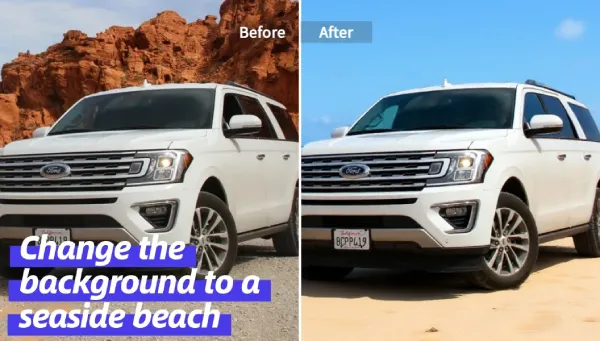
Pixelfox acting like a magic image editor with simple text prompts ✨
Tip
When you try any best ai picture editor, start with very simple prompts.
“Remove background and make it white.”
“Smooth skin a bit and keep texture.”
You can add style words later. This keeps the AI from doing something wild you don’t want.
How to choose the right AI editor for your own work
You don’t need all 10 tools. You need one main tool and maybe one backup.
Think about how you work:
1. You post on social, run a small brand, or sell online
You want fast, clean edits. You care about:
- White or clean backgrounds for products
- Simple portrait fixes
- No huge learning curve
Pick: Pixelfox AI as your main editor.
Use its background generator, touchup tools, and style transfer. You can mix “ai photo touchup” and “ai tools to create photos” inside one place.
2. You are a photographer or designer
You are picky. You want control and quality.
You can:
- Use Photoshop or Luminar Neo for heavy work
- Use Pixelfox in front of them for quick AI fix tasks
So you let Pixelfox do the boring stuff:
- Remove crowds from streets
- Quick AI fix on sky, blemish, noise
- Generate moodboards or concepts with text prompts
Then you polish in your favorite desktop editor.
3. You mostly work on a phone or tablet
You live in apps. You edit on the train.
Use:
- Pixelfox in the browser (it works fine on mobile)
- Picsart or Canva app if you want sticker-heavy stuff
If you want one tool that feels like the best online ai image editor and also works on desktop, Pixelfox is the safer bet. You don’t get locked to one device.
How to use AI to fix a photo (step‑by‑step with Pixelfox)
People search things like how to use ai photo, how to use ai to fix a photo, and how to use ai photo editor because most tools explain nothing. Let’s fix that.
I’ll use Pixelfox here because it covers most cases in one place.
Step 1: Clean background for a product photo
Goal: classic white background product image for e‑commerce.
- Open Pixelfox AI (start from pixelfox.ai).
- Upload your product shot.
- In the editor, use a text prompt like:
Remove the background and make it a pure white studio backdrop. - Let the AI do the ai fix.
- If needed, refine:
Make shadows softerorAdd a light drop shadow under the shoes. - Export in high resolution.
Result: pro-looking product photo for your store, with no soft-edge lasso nightmares.
Step 2: Portrait AI photo touchup without “plastic skin”
Now for ai for portrait photo editing that doesn’t make you look like a wax doll.
- Upload your portrait into Pixelfox.
- Use a prompt like:
Smooth skin slightly, remove small blemishes, keep skin texture natural. - Check eyes and hair. If needed, add:
Sharpen eyes a bit and keep hair strands detailed. - If the light is dull:
Add soft warm light, like golden hour, keep it subtle.
You just did ai photo touchup in under a minute.
Tip
Never say “make my skin perfect” in prompts.
Say “slightly” and “natural” a lot.
This keeps the AI from turning you into a plastic NPC.
Step 3: Change a boring background for a YouTube thumbnail
You want something bold for a thumbnail or banner.
- Upload your photo with you in front of a wall.
- Prompt:
Remove background and replace with a bright, comic-style city at night. Keep me sharp and bright. - Check if colors clash. If yes:
Match my lighting with the background and add a soft glow outline.
You now have a click‑worthy thumbnail, made with AI tools to create photos and AI background magic in one shot.

Text-to-image in Pixelfox’s free AI image generator makes fresh scenes on demand
Real‑world case studies (what this looks like for actual work)
Case 1: Etsy seller – from messy desk shots to clean catalog
Maria sells handmade candles. She used to take photos on her kitchen table. The background was a mess. The colors changed every time. Her words: “My shop looked like a garage sale.”
She started using Pixelfox as her best ai editor:
- Took simple photos by a window
- Used Pixelfox to remove backgrounds and add:
- White studio backdrops
- Soft shadows
- Ran a light ai photo touchup on each image to fix exposure
Result after 2 weeks:
- Shop grid looked consistent
- Saved hours because she did not fight manual selections
- Conversion went up (not magic, just clean visuals and trust)
Case 2: YouTuber – quick thumbnails without full Photoshop
Jay runs a tech review channel. He tried the full Photoshop route. He hated it. He searched photoshop ai free and got lost in trials and weird clones.
Now he uses Pixelfox plus Canva:
- In Pixelfox:
- Cuts himself out
- Changes backgrounds to tech scenes
- Uses style transfer to give a semi‑comic look
- In Canva:
- Adds text and logos only
He uses Pixelfox like a magic image editor that handles the hard pixels. Canva handles layout.
He cut thumbnail creation from 30 minutes to about 8.
Case 3: Family history nerd – colorizing and fixing old photos
Lena has boxes of old family prints. Many are faded or black-and-white. She wanted to bring them back without learning desktop restoration.
She uses:
- The Pixelfox AI photo colorizer
-
Light ai that can fix photos retouch prompts:
Colorize this black and white image naturally. Fix scratches and small dust.
She prints them in albums. No one in her family knows or cares that an AI did the heavy lifting. They just see their grandparents in full color again.
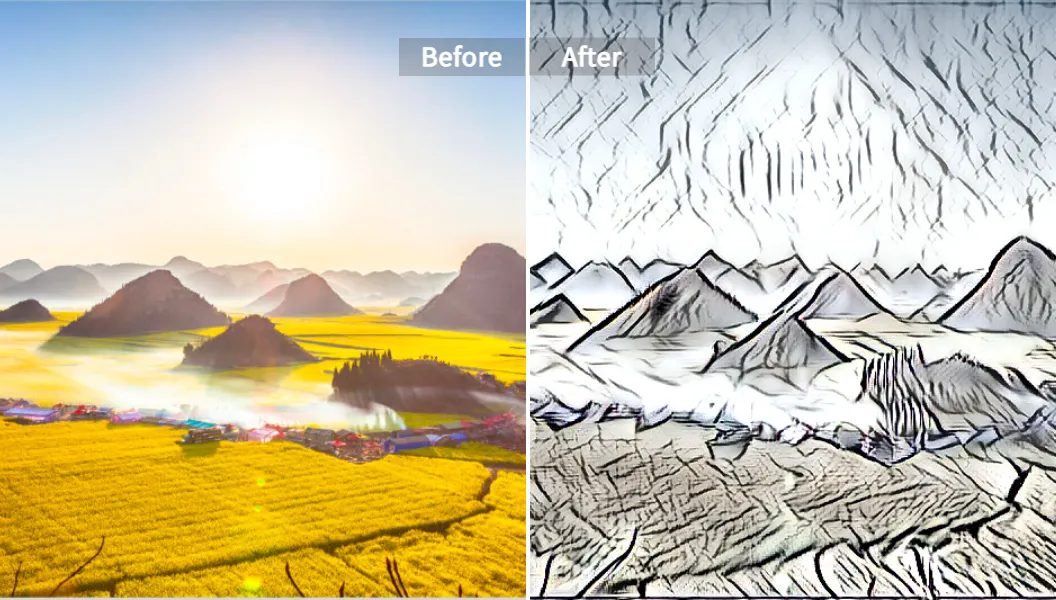
Pixelfox AI style transfer: when you feel artsy without wanting to paint 🎨
Advanced tricks with AI that can fix photos (so you actually learn something)
Here are a few pro moves that most “Top 10 tool” posts never talk about.
Trick 1: Keep a reference style for brand consistency
If you create a lot of images for one brand:
- Pick 3–5 “perfect” images you already love.
- When you use the Pixelfox generator, upload one as a reference (if available) or describe it clearly:
In the same style as my previous product photos: soft warm light, clean white background, subtle shadows.
- Reuse phrases like “soft warm light”, “minimalist”, “vibrant but not neon”.
This turns Pixelfox into a real ai tools to create photos pipeline, not just random cool images.
Trick 2: Make copyright‑safe variations of “inspired” images
You see a competitor’s product shot you love. You can’t copy it. You can use AI to stay on the safe side.
Use Pixelfox’s reimagine features like this:
- Create or upload your own product photo in similar pose.
- Run AI reimagine to change:
- Colors
- Texture of background
- Props layout
- Add prompts like:
Keep composition, change colors and style so it looks like a new unique image.
You get a layout that feels familiar but is not a direct copy.
This is a smart way to use best ai editing to keep your visuals fresh and legally clean.
Common mistakes when using the best AI editor (and how to avoid them)
Everybody messes up at the start. You can skip some pain.
Mistake 1: Over-editing faces
People push sliders too far. Or write prompts like “make me perfect”.
Result: plastic skin, dead eyes, weird hands.
Fix:
Use gentle language: “slight”, “natural”, “a bit”.
Zoom in on eyes, teeth, and hands. If they look off, undo or re‑prompt.
Mistake 2: Vague prompts
“I want this to look cool and better” is not a prompt. It’s a wish.
Fix:
Be simple and direct:
- “Remove background and make it white.”
- “Brighten face and keep skin texture.”
- “Add soft warm light, like sunset.”
This is how you get strong results from any best ai image editing tool.
Mistake 3: Ignoring resolution and export
You fix everything, then export a tiny, blurry file.
Fix:
Always check:
- Final resolution
- File format (JPEG for photos, PNG for logos / transparency)
If you need print or big ads, ask the AI to upscale or export bigger.
Mistake 4: Trusting every “ai photo touch up free” app with sensitive photos
Free does not mean safe. Some random apps keep your images or use them for training.
Fix:
Use tools that speak clearly about data. Read their terms. Check if they say they store or train on your photos.
For client shots, stick with tools you trust and that explain their policy.
Mistake 5: Using the wrong tool for the job
You try to colorize old photos in a basic meme app. Or you use a raw-focused desktop tool when you only need a quick background removal.
Fix:
Match tool to task:
- Quick web edits, portraits, backgrounds → Pixelfox AI
- Heavy multi-layer designs → Photoshop / GIMP / Figma
- Layouts and text-heavy designs → Canva
Pixelfox AI vs Photoshop and other tools
Time for some friendly drama 😏
Pixelfox AI vs Photoshop / “artificial intelligence Photoshop free” options
Photoshop with AI (Firefly, Generative Fill) is powerful. No doubt.
But:
- It costs money, after the photoshop ai free trial.
- It runs best on a strong PC.
- It still expects you to understand layers, masks, blend modes.
Pixelfox gives you:
- A simple browser-based photo ai app pc style tool
- Text prompts instead of complex workflows
- No install
- A real free tier
If you already live in Adobe world and charge clients, use Photoshop plus Pixelfox as a pre‑processor.
If you are not deep into Adobe, Pixelfox as your main best ai image editor will be way less painful.
Pixelfox AI vs other online tools
Let’s compare it with some popular web tools.
-
Canva
Great for layout and templates. Its AI is decent, but it’s not built as a deep ai editing software.
Pixelfox is better for photo-level work, touchup, color, and style. You can edit in Pixelfox, design in Canva. -
Pixlr / Fotor
Both have AI background removal and some fun filters. Good for fast edits.
Pixelfox beats them in:- Natural text-prompt edits
- Style transfer depth
- Colorization and reimagine features
-
Random “ai photo touch up free” apps
Many are ad-heavy, watermark-happy, and unclear with data.
Pixelfox aims at real work: e‑commerce, branding, content.
If I had to pick one best ai picture editor for 2025 that works for both beginners and pros who want speed, I’d still put Pixelfox at the top.
FAQs about AI photo editors
How to use AI photo editor tools without making images look fake?
Start small.
Let the AI handle boring tasks:
- Background removal
- Exposure fixes
- Light skin retouch
Use words like “subtle” and “natural” in prompts. Avoid “perfect” and “flawless”.
Check eyes, hair, and hands. If they look normal, you’re good.
Why is AI editing software better than manual editing for some jobs?
Because AI is very good at repetitive tasks:
- Removing 100 backgrounds
- Fixing similar lighting issues on many photos
- Doing bulk ai photo touchup across a set
You still keep taste and control. AI just saves time and wrist pain.
Can AI tools to create photos replace photographers or designers?
No. They replace some steps, not the whole job.
You still decide:
- Concept
- Style
- Brand story
- Which AI outputs to keep
Think of AI as a fast assistant. It is not your creative director.
Can I use ai photo touch up free tools for commercial work?
Sometimes yes, sometimes no. You must check:
- License terms
- If the tool allows commercial use on the free plan
- If it trains on your images
Many tools allow commercial use. Some limit it.
Pixelfox is built with creators and sellers in mind, so it is a better fit here than many random apps.
What is the difference between best ai image editor and classic photo apps?
A classic app gives you tools.
The best ai image editor gives you outcomes.
Classic: you grab a brush, mask, and curve and do each step.
AI: you say “remove the crowd and brighten the main subject” and the tool decides the steps for you.
You still can fine-tune. You just skip the slow bits.
Ready to try the best AI image editor for your own photos?
If you read this far, you care about results, not just shiny AI buzzwords.
You saw how a best ai image editor should:
- Help you fix real problems fast
- Act as the ai that can fix photos without wrecking them
- Work as both a magic image editor and serious tool for e‑commerce, YouTube, and real brands
- Handle best ai image editing tasks like portrait retouch, backgrounds, style, and color
This is exactly where Pixelfox AI shines.
You can:
- Edit photos with text prompts
- Use it as your best online ai image editor on any device
- Generate new images from text
- Colorize, restyle, and reimagine content
- Keep your workflow simple and fast
So, next step?
Open Pixelfox in your browser, upload one photo you hate right now, and let it run one ai fix on it.
Play with one prompt. Then another. You’ll see pretty fast why I rate it as the best ai editor for most people in 2025.